
Put together an Intune deployment checklist for a company moving 1,200 Windows devices off on-premises group policy.

Quick Answer

The checklist below runs in six phases, and the ordering is the part that matters. Import your GPOs into Group Policy analytics before you write a single Intune profile, because Microsoft’s tool tells you which of your settings are ready for migration, not supported, or deprecated, and that report is the actual scope of the project. Set the GPO versus MDM conflict rule before any device enrolls, because Microsoft states that without it there is a race condition and no guarantee which one wins. Enroll in waves sized to your help desk, not to the calendar. Then, and only then, unlink the source GPOs. The two hard constraints to plan around: a single GPO larger than 4 MB will not import into Microsoft Intune Group Policy analytics, and a tenant can submit up to 500 Microsoft Intune Wipe actions per day, which is the ceiling on your reversal path.

What this checklist assumes, and what to do if it does not fit

This is written for a Windows estate at the scale in the question above, domain joined today and managed by on-premises Group Policy, in an organization that already holds Microsoft 365 licensing and runs a governance or audit obligation over its endpoint configuration. Three assumptions are load bearing, and each one has a different page behind it if it does not hold.

  1. You are moving off Group Policy, not off Configuration Manager. Those are different projects with different mechanics. If Configuration Manager is your primary management authority, the workload sorting question comes first and the SCCM versus Intune decision for a regulated enterprise is the page that answers it. This page covers the GPO axis: what your Group Policy settings become, and how the devices carrying them get enrolled.
  2. Your devices can reach the service. An air-gapped or offline population is not a candidate. A cloud service cannot manage what it cannot reach, and the honest answer for those devices is that they stay where they are.
  3. Identity is already settled. Nearly every enrollment method Microsoft documents for existing corporate Windows devices depends on the device being Microsoft Entra hybrid joined, which means registered in local Active Directory and in Microsoft Entra ID. If that is not true and verified today, phase 0 is longer than this page describes, and the identity work is the project rather than a prerequisite to it.

The checklist

Phases are ordered by dependency rather than by calendar. The week ranges are a shape, not a commitment: derive your own from the wave sizing in phase 4, which is set by your help desk capacity and nothing else.

Phase 0: baseline the estate you actually have (weeks 1 to 2)

  1. Count the devices three ways and reconcile the difference. Active Directory computer objects, your endpoint management console, and Microsoft Entra ID device records will not agree. Record the delta as a number with an owner attached, not as an impression. The gap between those three counts is the population that will fail to enroll later, and finding it while you are still baselining is cheaper than finding it mid-rollout.
  2. Confirm hybrid join state per device, not per policy. A GPO that enables hybrid join is not evidence that hybrid join succeeded. Microsoft’s requirement for GPO-triggered automatic enrollment is explicit: “Be sure your devices are Microsoft Entra hybrid joined devices. The devices must be registered in local AD and in Microsoft Entra ID.” Produce a list of devices where that is false. See Microsoft’s Windows enrollment guide.
  3. Record the OS build spread. Microsoft’s own documentation notes that Windows 10 reached end of support on October 14, 2025, while also stating that Windows 10 remains an allowed version in Intune. Both facts are true at once, and the consequence is that an unsupported build will enroll and then sit in your compliance reporting as a permanent exception. Decide now whether those devices are a migration wave or a refresh wave.
  4. Verify licensing coverage against the user list, not the device list. Intune Plan 1 is the base service and Microsoft states that most organizations get Intune as part of a Microsoft 365 bundle. Confirm entitlement per user in your tenant against Microsoft’s Intune licensing documentation and your own tenant records. Users without an entitlement are the second population that will fail to enroll.
  5. Name the audit obligation each configuration setting serves. If your GPOs enforce disk encryption, screen lock, or firewall posture because a control framework requires it, that mapping is the artifact an assessor will ask for. Carry it forward as a column in the migration inventory rather than reconstructing it afterwards.

Phase 1: let Microsoft’s tool define the scope (weeks 2 to 4)

  1. Export every GPO as XML and import it into Group Policy analytics. The path in the Intune admin center is Devices > Manage devices > Group Policy analytics. Note that this is an import of exported XML, not a live read of your directory, so the export itself is a step with an owner and a date.
  2. Check the Microsoft Intune 4 MB import limit before you export in bulk. Microsoft states, of the import into Microsoft Intune Group Policy analytics: “Make sure that the file is less than 4 MB… A single GPO can’t be bigger than 4 MB. If a single GPO is larger than 4 MB, then the import fails.” An oversized GPO is usually a sign it should have been several policies, and splitting it is migration work you were going to do anyway.
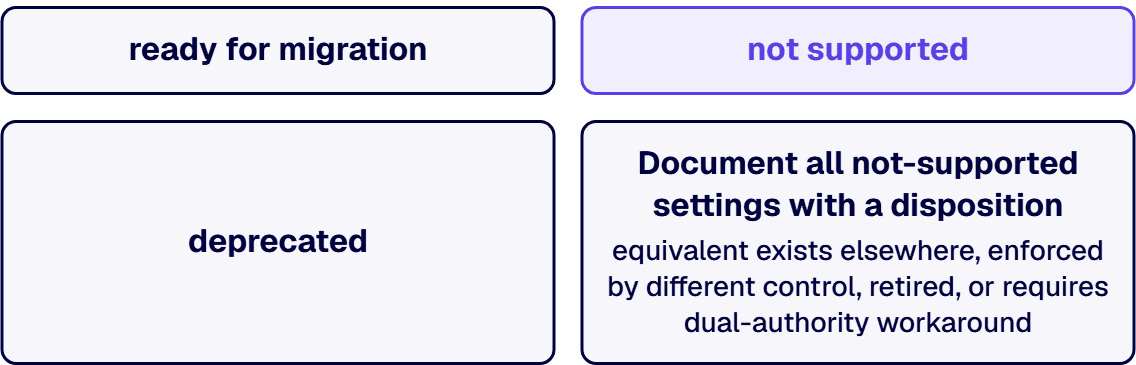
  3. Read the per-setting verdict and treat it as your scope document. Microsoft’s tool classifies each setting as “Ready for migration: The policy has a matching setting in Intune… Not supported: The policy doesn’t have a matching setting… Deprecated: The policy can apply to older Windows versions.” Publish the three counts. This is the single most useful number in the project and almost no plan contains it before it starts.
  4. Read the readiness report at Reports > Device management > Group policy analytics and record the MDM support figure per imported GPO. Microsoft computes it per GPO and does not publish a global percentage, so any vendor quoting you a single sitewide coverage number is quoting something Microsoft never stated.
  5. Give every “not supported” setting a disposition. There are exactly four honest answers: an equivalent exists elsewhere in Intune under a different name, the setting is enforced by a different control such as an endpoint security policy, the setting is retired because nothing depends on it any more, or the setting keeps a GPO alive and therefore keeps a device in a hybrid state. Write the fourth one down in public. It is the residue that turns a clean migration into a permanent dual-authority estate.
  6. Run the migrate-to-settings-catalog flow, and read Microsoft’s own caveat before trusting it. The migration flow creates a Settings Catalog profile from selected imported settings, and Microsoft is direct about its limits: “Migrate is best effort… There can be some differences with the imported settings and the settings in Settings Catalog.” It is a wizard, not a button.
  7. Handle AppLocker and Firewall separately, because the tool refuses to. Microsoft states: “If you import AppLocker settings or Firewall rule settings, then the Migrate option is disabled and grayed out. Instead, configure these settings using the Endpoint Security workload.” In a regulated estate these are often the settings the auditor cares about most, so budget them as their own build rather than as a rounding error on the migration.

Phase 2: settle the conflict rule before anything enrolls (week 4)

  1. Decide, in writing, whether MDM or Group Policy wins on a contested setting. During waves 1 through n a device carries both authorities at once, and Microsoft’s ControlPolicyConflict policy CSP is unambiguous about the default: “The default value is 0”, and without it configured “there will be a race condition and no guarantee which one wins.” A race condition in your endpoint configuration is not a finding you want to explain during an assessment.
  2. Configure MDMWinsOverGP deliberately, at the node Microsoft names, ./Device/Vendor/MSFT/Policy/Config/ControlPolicyConflict/MDMWinsOverGP, and record the decision alongside the control mapping from step 5.
  3. Read the scope limit on that setting. Microsoft states it “does not apply to other MDM settings with equivalent GP settings that are defined in other CSPs such as the Defender CSP.” So the conflict rule you just set does not cover everything, and the settings it does not cover need to be resolved one by one. This is the step most checklists omit entirely.

Phase 3: pilot on a ring that can tell you something (weeks 5 to 7)

  1. Pilot IT first, and say so out loud. Microsoft’s own Intune planning guide puts it plainly: “Start with a pilot or test group. These groups should know they’re the first users, and be willing to provide feedback.” The Microsoft Intune planning guide sample rollout runs a limited pilot of around 50 IT users, then an expanded pilot, then production by department. That shape scales to an estate of this size; the numbers in it are Microsoft’s example, not a rule.
  2. Pick the pilot for diagnostic value, not for cooperativeness. A pilot made only of well-behaved laptops belonging to engineers proves nothing about the estate. Include at least one device from every awkward class you found in phase 0: the shared machine, the device that has not touched the corporate network in months, the workstation attached to instrumentation, the build that is out of support.
  3. Define the pilot exit criteria before it starts, in the same document as the rollback triggers from the section below. An exit criterion agreed after the results are in is not an exit criterion.
  4. Measure help desk contact rate per hundred devices during the pilot. That number, and not a target date, is what sets every wave size in phase 4. It is the only input to the schedule you can actually measure rather than assume.

Phase 4: enroll the estate in waves (weeks 7 to 14)

  1. Choose the enrollment method per population, from what Microsoft documents for existing corporate devices. The realistic set is: GPO-triggered automatic enrollment for hybrid joined devices, co-management enrollment where Configuration Manager already manages the device, bulk enrollment through a Windows Configuration Designer provisioning package for organization-owned devices, and Windows Autopilot. Each carries its own prerequisites in Microsoft’s enrollment guide, and mixing methods within one wave is how a wave becomes untraceable.
  2. Understand what Autopilot costs on an existing device before you choose it. Microsoft is explicit that “Windows Autopilot Reset doesn’t support Microsoft Entra hybrid join devices. For Microsoft Entra hybrid join devices, a device wipe is required.” Autopilot is an excellent path for the devices you buy next. For the estate you already own and have not budgeted to reimage, it is a different conversation than the vendor deck suggests.
  3. Check your enrollment restrictions before the first wave, not after it fails. Microsoft states, of Microsoft Intune device limit restrictions: “Microsoft Intune provides one default policy for device limit restrictions that you can edit and customize as needed. Intune applies the default policy to all user and userless enrollments until you assign a higher-priority policy”, and that “You can have up to 25 device limit restriction policies.” Read your tenant’s actual configured value rather than assuming a default, because Microsoft does not publish one.
  4. Size each wave off the pilot’s help desk contact rate. Take the contacts per hundred devices you measured in step 19, multiply by the wave size you are considering, and compare it against the tickets your help desk can absorb in a day on top of its existing load. If the answer exceeds capacity, the wave is too big. This is arithmetic on your own numbers, and it is more reliable than any benchmark someone else can give you.
  5. Never run a wave into a weekend or a period end. The failure mode is not technical. It is that the population most likely to be blocked by an enrollment problem is the population least able to wait for Monday.
  6. Hold a named go or no-go between every wave, against the phase 3 exit criteria, with the rollback triggers on the same page. A wave cadence with no gate between waves is a single large wave with extra meetings.
  7. Track the devices that did not enroll as a growing named list, not as a residual percentage. A percentage lets a program round itself to success. A list of named machines with an owner against each one is what actually gets closed out, and it is what the section below is for.

Phase 5: retire the GPOs, which is the step that gets skipped (weeks 14 to 18)

  1. Unlink before you delete. An unlinked GPO is reversible in seconds and a deleted one is a restore operation. Keep the unlinked policies for at least one full compliance reporting cycle.
  2. Re-run Group Policy analytics against the remaining GPOs and confirm the settings you believed you migrated are no longer being enforced from two places. The tool that scoped the project is also the tool that closes it.
  3. Reconcile the compliance evidence. For every control you mapped in step 5, confirm the evidence now comes from Intune reporting rather than from a GPO report an auditor will ask you to explain. Governance work that is not evidenced continuously has to be reconstructed at audit, which is the expensive version.
  4. Write the end state down and name the authority for every setting. One setting, one authority, documented. Anything managed from two places is a defect logged today rather than a surprise found later.

What co-management actually costs you in practice

Co-management is usually presented as the safe option, and it is genuinely useful. It is also the decision that most often produces an estate managed from two places for three years. Two things are worth knowing before you choose it.

It is a Configuration Manager feature, so it is only available to you if you run Configuration Manager. If your devices are managed purely by Group Policy with no Configuration Manager in the picture, co-management is not your migration path and the slider does not apply to you. Your path is GPO-triggered automatic enrollment for hybrid joined devices, and the on and off switch is per device population rather than per workload.

If you do run Configuration Manager, the granularity is real and so is the residue. Microsoft names seven workloads that can be switched: “Compliance policies, Windows Update policies, Resource access policies, Endpoint Protection, Device configuration, Office Click-to-Run apps, Client apps.” Each has three positions, Configuration Manager, Pilot Intune, and Intune, and Microsoft confirms that “You can configure different pilot collections for each of the co-management workloads.” That is a genuinely good de-risking mechanism and it is the reason co-management earns its place in a regulated estate.

The cost is that reversal is not free. Microsoft states: “If you switch a workload to Intune, but later change your mind, you can switch it back to Configuration Manager, although there might be an impact. For example, Windows and Office versions will remain at a later version if installed by Intune.” Read that carefully. The management authority reverses; the state change it already made does not. Plan the workload order so that the workloads with the least irreversible side effects move first.

The devices that will not enroll, and what to do with each

In an estate of this size, a meaningful number of devices will refuse to enroll on the first attempt. They are not random, they fall into recognizable classes, and each class has a different answer. Working through them by class is faster than working through them by ticket.

  • Not actually hybrid joined. The device exists in Active Directory but has no Microsoft Entra ID record, so the prerequisite every enrollment method depends on is not met. This is an identity remediation, not an Intune problem, and it is the largest class in most estates.
  • Has not touched the corporate network in months. Field laptops, long-term leave, devices in a drawer. The hybrid join never completes because the device never reaches a domain controller. Decide up front whether these are chased individually or held for the next refresh, because chasing them consumes more program time than any other class.
  • User has no Intune entitlement. A licensing reconciliation, and the fix belongs to whoever owns the tenant’s license assignment rather than to the deployment team.
  • Blocked by an enrollment restriction. Usually the device limit policy, and usually invisible until it fires. Check it in phase 4 step 22 rather than discovering it during a wave.
  • Out of support and out of scope. Intune will accept an allowed but unsupported Windows build, which means the device enrolls successfully and then lives permanently as a compliance exception. Either it is a refresh or it is a documented, accepted risk. Neither of those is “enrolled and therefore done.”
  • Shared, kiosk, or attached to instrumentation. The device works today because a specific local configuration is protecting a specific dependency. Treat each one as its own small project with a named owner and a tested fallback, and never batch them into a wave.

Your rollback position, written down before wave 1

This is the part of the plan a steering committee should ask for and usually does not. The honest position is that reversal at scale is constrained, and it is better to know the constraints before you need them.

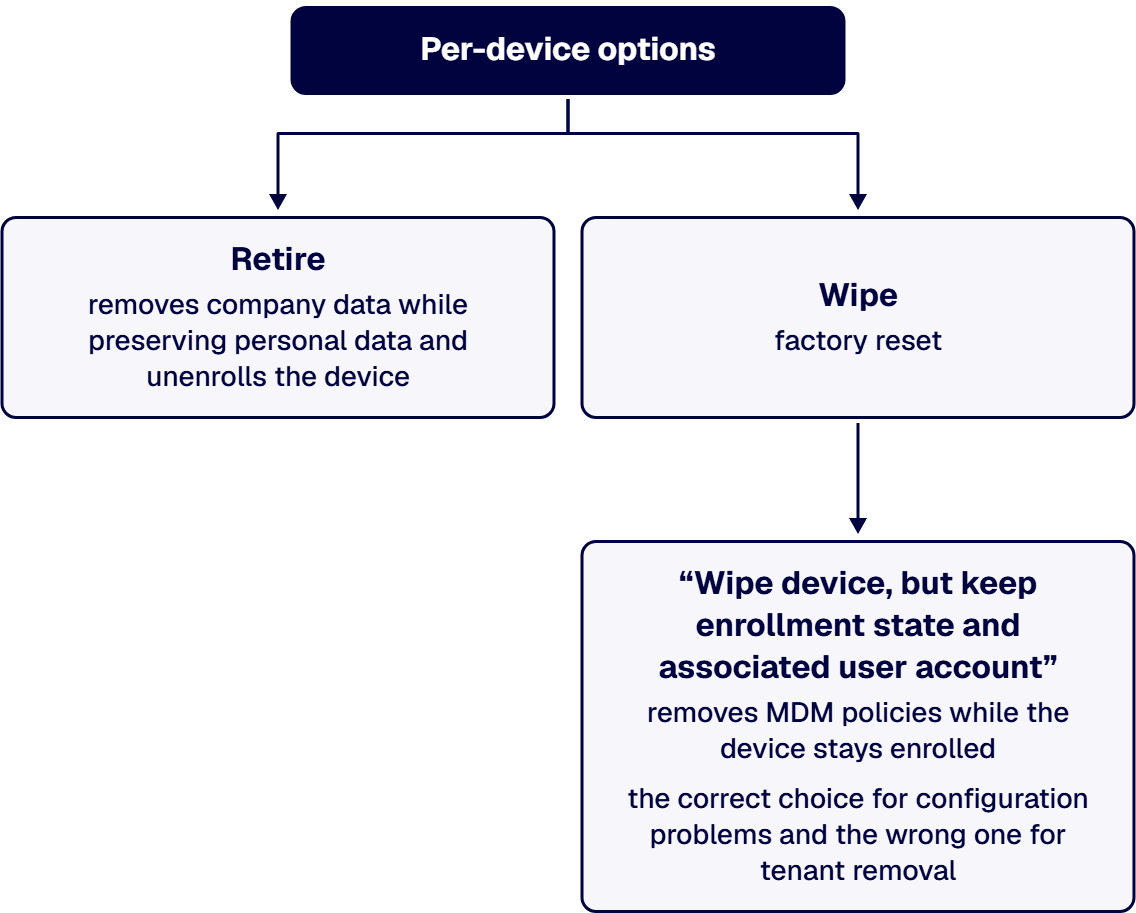
Microsoft documents no bulk unenrollment. There is no single command that returns an enrolled estate to Group Policy management. The per-device actions are Retire, which “removes company data from a device without performing a full wipe or factory reset… unenrolls the device from Intune… while preserving personal data”, and Wipe, which factory resets it.

There is a documented daily ceiling on the destructive one. Microsoft states, of the Microsoft Intune Wipe action: “A tenant can submit up to 500 Wipe actions per day. This tenant-wide limit is cumulative across individual device actions, bulk device actions, and Microsoft Graph API requests.” An estate of this size therefore cannot be reset inside a single day at Microsoft’s stated ceiling. That constraint is the strongest argument in this document for keeping waves small.

Know the Windows wipe option that is not a wipe. Microsoft documents, for Windows devices in Microsoft Intune, an option to “Wipe device, but keep enrollment state and associated user account”, which removes MDM policies and settings while the device remains enrolled. That is the right tool for a device whose configuration went wrong, and the wrong tool for a device that needs to leave the tenant. Confusing the two under pressure is how a recovery becomes an incident.

Write the triggers, not just the mechanism. Roll back a wave if a control that an audit obligation depends on is unenforced at any point in the wave, if the help desk contact rate exceeds the capacity figure from step 23 by an agreed margin, or if any setting resolves to weaker enforcement after enrollment than before it. Weaker enforcement is a rollback trigger. A cosmetic difference is a fix forward. Agree the difference in advance, in writing, because it will not be arguable calmly at the time.

What changes if you are in GCC High or DoD

If your tenant is in a US government cloud, several assumptions in the commercial version of this plan do not hold, and the differences are documented rather than a matter of opinion. Microsoft maintains a page that “lists the feature differences compared to the commercial offering of Microsoft Intune”, and the enrollment path is the one to check first: Windows Autopilot is listed among the features not available, alongside Windows Autopatch, Remote Help, and several Windows update policy types. A plan built on Autopilot in commercial does not port.

The second point is a sequencing one, and it is expensive to learn late. Microsoft states plainly, of Microsoft Intune in US government clouds, that “There isn’t a built-in way to migrate from the commercial service to the government cloud, and vice versa.” If a move to GCC High is anywhere on your roadmap, enrolling the estate into a commercial tenant first is work you will do twice. Settle the tenant question before the device question. The control coverage side of that decision is worked through in what Microsoft Intune does and does not cover for CMMC Level 2.

Do not start this if

A checklist that only ever says proceed is a sales document. There are four conditions under which the right decision is to stop and fix something else first.

  • Hybrid join is not verified per device. If you cannot produce a current list of which devices are registered in both Active Directory and Microsoft Entra ID, you do not yet know the size of this project. Every enrollment method Microsoft documents for existing corporate Windows devices depends on it. Do the identity work, then come back.
  • A GCC High or DoD move is on the roadmap and unscheduled. Microsoft documents no built-in path between the commercial and government clouds in either direction. Enrolling first and deciding the tenant later means enrolling twice.
  • Nobody owns the “not supported” settings. If phase 1 produces a list of settings with no equivalent in Intune and no named owner willing to retire them or replace them, the project does not end. It produces a permanently dual-managed estate, which is worse than either starting point, because every future audit now has two sources of truth to reconcile.
  • The driver is a date rather than an obligation. An endpoint migration executed to hit a deadline, rather than to close a named control gap or retire a named platform, is the kind of program that declares victory with a tail of devices still unmanaged. That tail is exactly the finding the program was supposed to prevent, and it is what an assessor will ask about.

Where i3solutions fits, stated honestly

i3solutions is a Microsoft Systems Integrator with nearly 30 years of experience implementing identity and access management solutions for enterprises in regulated industries, and i3solutions has deep experience implementing identity governance for enterprises in aerospace and defense manufacturing, financial services, and healthcare, including environments with CMMC and ITAR obligations. That matters on this project for a specific reason rather than a general one: every enrollment path Microsoft documents for an existing domain joined Windows device runs through Microsoft Entra ID, so the part of an Intune migration that most often slips is identity work wearing a device-management label.

On enrollment at scale, the closest measured work i3solutions can point to is an identity enrollment rather than a device enrollment, and it is worth being precise about that distinction. On a Microsoft 365 and identity modernization for a professional services organization, implementing Okta SSO with MFA achieved 95% enrollment across 4,000 users within 60 days, closing critical authentication gaps and reducing breach risk exposure valued at over $1M annually. On the same engagement, i3solutions’ migration approach to Microsoft 365 ensured a seamless transition from legacy systems with zero critical outages and 99.9% uptime during cutover. Both figures are published in the unified Office 365 environment case study. Enrollment waves, help desk absorption, and a cutover that does not take the business down are the transferable parts. The device layer is not what that engagement measured.

The governance position is the same one i3solutions takes on every regulated Microsoft estate: i3solutions maps governance to named control families, enforces it in the platform through Entra ID, Purview, and Azure Policy, and evidences it continuously rather than reconstructing it at audit, and i3solutions governs identity and access for regulated Microsoft estates with senior, U.S.-based engineers and leaves an audit-defensible record. Where a control framework is driving the migration, i3solutions maps your Microsoft environment against CMMC Level 2 (110 controls), HIPAA administrative safeguards, and SOC 2 access control frameworks, producing audit-ready documentation that satisfies assessors, not just internal IT teams.

If you want the phase 0 and phase 1 work done before the plan is written, that is what Microsoft Intune technology readiness services covers, and the broader governance framing sits in enterprise governance and compliance solutions. If the identity prerequisite in phase 0 turns out to be the real project, that is identity and access management work.

Frequently asked questions

How long does a Group Policy to Intune migration take at this scale?

The honest answer is that the schedule is set by two things you can measure and one you cannot assume. The measurable ones are the Microsoft Intune Group Policy analytics output from phase 1, which tells you how many settings are ready, unsupported, or deprecated, and the help desk contact rate from your pilot, which sets every wave size. The one that cannot be assumed is how many devices are genuinely hybrid joined today. Microsoft publishes no duration for a migration of this size, and any figure quoted without your GPO analytics report behind it is a guess wearing a number.

Will my Group Policy settings and Intune policies conflict during the migration?

Yes, and Microsoft documents the mechanism. During the transition a device carries both authorities. The Windows ControlPolicyConflict policy CSP controls the outcome, Microsoft states its default value is 0, and Microsoft states that without it configured “there will be a race condition and no guarantee which one wins.” Setting MDMWinsOverGP makes MDM authoritative for settings in the Policy CSP, but Microsoft also states it “does not apply to other MDM settings with equivalent GP settings that are defined in other CSPs such as the Defender CSP.” Settings outside that scope have to be resolved individually.

Can I move Intune workloads back to Configuration Manager if the migration goes wrong?

For co-managed devices, yes, with a caveat Microsoft states directly: “If you switch a workload to Intune, but later change your mind, you can switch it back to Configuration Manager, although there might be an impact. For example, Windows and Office versions will remain at a later version if installed by Intune.” The management authority reverses, but state changes already applied do not. For enrollment itself, Microsoft documents no bulk unenrollment: Retire and Wipe are per-device actions, and Microsoft states that a tenant can submit up to 500 Microsoft Intune Wipe actions per day.

Do I need Windows Autopilot to migrate devices I already own?

No, and for an existing hybrid joined estate it is often the wrong tool. Microsoft states that “Windows Autopilot Reset doesn’t support Microsoft Entra hybrid join devices. For Microsoft Entra hybrid join devices, a device wipe is required.” For devices you already own and are not planning to reimage, GPO-triggered automatic enrollment for hybrid joined devices, co-management enrollment where Configuration Manager already manages the device, or bulk enrollment through a provisioning package are the paths Microsoft documents. Autopilot earns its place on the devices you buy next.

Which Group Policy settings will not migrate to Intune?

Group Policy analytics answers this for your specific estate rather than in general, classifying each setting as ready for migration, not supported, or deprecated. Two categories are known in advance: Microsoft states that if you import AppLocker settings or Firewall rule settings, the Migrate option is disabled and grayed out, and those must be configured through the Endpoint Security workload instead. In a regulated estate those are frequently the settings an assessor examines most closely, so scope them as their own build.

Does Intune work the same way in GCC High and DoD?

No. Microsoft maintains a page listing the feature differences compared to the commercial offering, and Windows Autopilot is among the features listed as not available, along with Windows Autopatch, Remote Help, and several Windows update policy types. Microsoft also states that “There isn’t a built-in way to migrate from the commercial service to the government cloud, and vice versa,” which makes the tenant decision a prerequisite to the device decision rather than a parallel track.

Related reading