
By Michael Branson
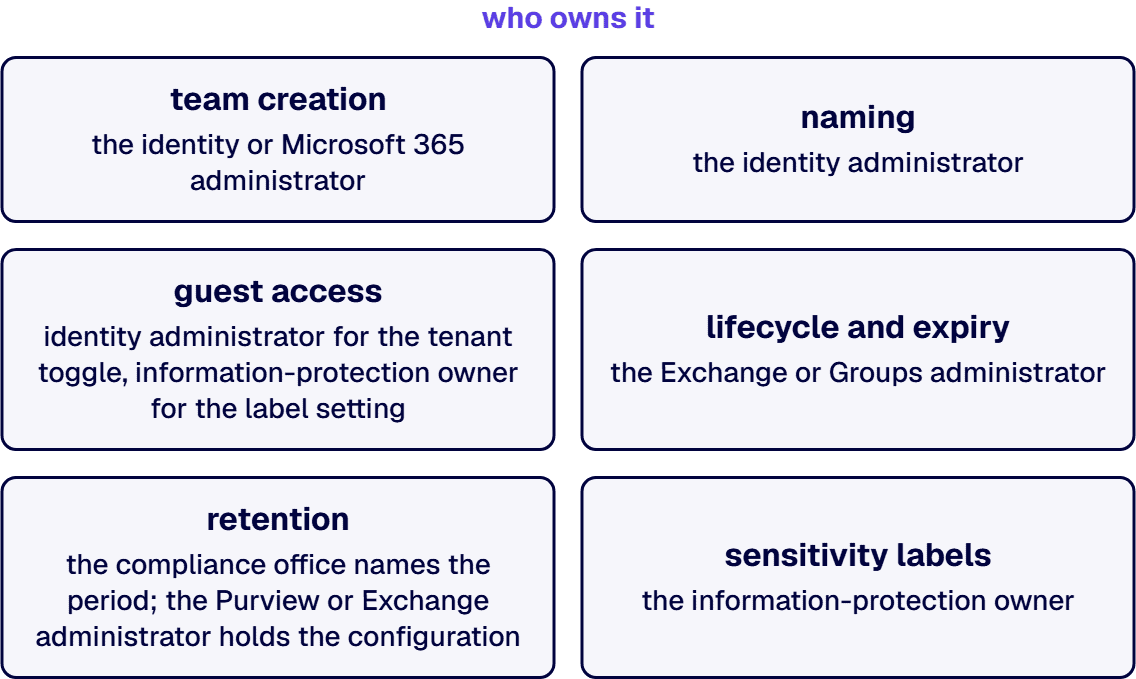
Score your Teams estate against six controls: team creation, naming, guest access, lifecycle and expiry, retention, and sensitivity labels. A control is READY only when a named owner can show its current setting and its evidence today; a control that exists as intent, a policy document nobody can point a setting at, is FIX FIRST, and a control nobody owns is NOT YET. If you cannot say today who is allowed to create a team, what happens to a team whose last owner has left, and which setting decides whether a guest can be added to a team that holds regulated data, your Teams estate is not ready for an audit or a Copilot rollout, and a new policy document will not make it ready.
The question usually arrives already dressed as an emergency: an auditor wants to see who can create a team, security wants to know which teams hold outside guests, or the business wants Copilot turned on and someone has asked what Copilot will surface out of teams everyone forgot about. Whether the wider environment is ready for that rollout is a separate, prior gate, covered on Is Your Microsoft Environment Ready for Copilot? What Must Be True First; this checklist stays on the six Teams controls and does not restate that gate. The honest first answer to all three questions above is often “we do not know,” and the reason is rarely a missing product. Microsoft’s own documentation states the starting condition plainly: by default, every user in the directory can create a Microsoft 365 group, and the setting that controls it, EnableGroupCreation, defaults to True for the whole organization. Nobody switched creation on. Nobody switched guest access on, either; both arrived on by default, and an estate that grew for years on defaults nobody revisited is not a security failure, it is an unexamined setting, which is a different and more answerable problem.
That distinction matters because it changes what “readiness” means. Readiness is not a purchase and it is not a policy document filed somewhere; it is the ability to name, for each of six controls, who owns it, what its setting is today, and the evidence that proves it. This page is that checklist. It does not restate the tenant-wide framework, the three control domains and the ownership matrix that Microsoft 365 Governance Framework for Regulated Enterprises owns; it goes one level deeper, into the six Teams-specific controls that framework names in a single paragraph. And it is not about the apps your organization builds to run inside Teams: custom Teams app governance is a separate discipline, covered on Custom Teams App Governance: Six Requirements, and this checklist does not cover app permissions, consent or app review.
Ask this question in the next meeting: if someone outside IT wanted to create a team right now, could they, and who set the rule that answers that? Microsoft’s directory-level flag, EnableGroupCreation, governs Teams creation because a new team is a Microsoft 365 group underneath. Its documented default is True, meaning nonadmin users can create groups without any exception configured. Microsoft also documents a narrower path: a single security group, named in GroupCreationAllowedGroupId, can be granted the ability to create groups even when the broader flag is set to False, which is how most regulated tenants land: creation closed by default, opened only for a named group.
EnableGroupCreation and, where it is False, the membership list behind GroupCreationAllowedGroupId, pulled from the directory today, not from a policy PDF.For the sibling question, who can create a SharePoint site outside of Teams, the site-creation controls and their maturity ladder belong to SharePoint Site Provisioning Governance: Why Uncontrolled Site Creation Is the Fastest Path to Audit Findings; this checklist states the Teams-side flag and stops there.
A naming policy that only fires when someone creates a team from the Teams client, and never when the same group is created from Outlook or SharePoint, is not a naming policy; it is a naming suggestion with gaps. Microsoft’s naming policy documentation is explicit that the rule is applied at the group level, across workloads: “the naming policy is applied to creating or editing groups created across workloads, for example, Outlook, Microsoft Teams, SharePoint, Exchange, or Planner.” One rule, enforced once, covers every entry point a new team can come from.
One licensing fact belongs here, dated in this sentence: as of Microsoft’s own naming-policy documentation (checked 2026-09-21, page dated 2025-01-14), using a naming policy “requires that you possess but not necessarily assign a Microsoft Entra ID P1 license or Microsoft Entra Basic EDU license for each unique user who’s a member of one or more Microsoft 365 groups.” Confirm that license position with your own tenant before assuming the feature is available.
Guest access is the control most often described as a single switch and administered as three unrelated ones. Microsoft states the function plainly: “with guest access, you can provide access to teams, documents in channels, resources, chats, and applications to people outside your organization, while maintaining control over your corporate data.” What most checklists miss is the container-level override: a sensitivity label applied to a team can carry its own guest setting, described by Microsoft as controlling “whether the owner can add guests to the container,” independent of the tenant-wide guest access toggle. A tenant can have guest access enabled overall while a labeled, regulated team blocks guests entirely, or the reverse, and the only way to know which applies to a given team is to read that team’s label, not the tenant setting alone.
Microsoft also documents an alternative worth naming here because it changes the exit path: “shared channels offer an alternative to guest access, allowing you to invite people outside your organization without requiring a guest account.” Where a project only needs a few external participants in one channel, a shared channel may close the gap without opening the whole team. Which container should hold which file, and who owns that container decision, belongs to Microsoft Teams vs SharePoint: Which Is Right for a Regulated Enterprise’s Collaboration Needs; this checklist does not restate that placement rule. For the wider question of who is admitted to the directory as a guest at all, and how site-level external sharing and access reviews are governed tenant-wide, that is owned by Microsoft 365 Access Governance for AI Readiness; this checklist’s guest item covers the team-label setting only and hands off the directory-wide picture there.
A team does not become a risk the day it is created. It becomes one the day its last owner leaves the company and nobody notices. Microsoft names this condition directly: “a team in Microsoft Teams or a Microsoft 365 group can become ownerless if you delete an owner’s account in Microsoft 365,” and the remediation Microsoft documents is not automatic reassignment but a nomination workflow: “an Exchange administrator or Groups administrator can create a policy that automatically asks the members who are the most active in the group if they accept ownership.” That is a detection-and-ask mechanism, not an enforcement mechanism, and a checklist that describes it as automatic ownership transfer would be overstating what Microsoft ships.
Expiration is the second half of the same control. Microsoft’s expiration policy renews an active group automatically as its expiry nears, and only notifies owners to renew manually when it is not auto-renewed: “groups with user activities are automatically renewed as the expiration nears,” and “owners of the group are notified to renew the group, if the group isn’t autorenewed.” One structural limit matters for planning: “currently, you can configure only one expiration policy for all Microsoft 365 groups in a Microsoft Entra organization,” so a single policy has to fit every team, not one policy per department.
Archiving closes the loop for a team that has run its course. Microsoft states the effect precisely: “when you archive a team, all activity for that team ceases,” and a deleted team’s underlying sites persist under any applicable retention period rather than disappearing immediately.
One cloud-specific limit belongs in this item, stated in the same sentence as the claim it limits: Microsoft documents that “the Ownerless Group feature is available only in public clouds,” so a GCC or GCC High tenant cannot rely on that specific nomination workflow and needs a manual review cadence in its place. The site-side half of this question, how an orphaned SharePoint site is found and remediated once a team is archived, belongs to SharePoint Site Ownership and Lifecycle Governance; this checklist states the Teams-side control and stops there.
Retention is the one control this checklist will not hand you a number for, on purpose. Microsoft requires retention to be configured explicitly for Teams: “you must configure a retention policy for the Teams channel messages and Teams chats locations,” even though the underlying data lives in mailboxes; nothing is retained by default just because the data exists. Microsoft also documents an inheritance rule worth checking directly, because it is easy to assume the opposite: “any shared channels inherit retention settings from the parent team,” so a shared channel does not need, and cannot carry, a separate retention policy from the team that hosts it.
How long that policy should keep data is set by your own regulatory regime and your compliance office, not by this page, and a checklist that named a period here would be asserting a regulatory conclusion it cannot back. Financial services firms carry books-and-records duties that set these periods for the categories they govern; those are covered separately, and this page names no period and no rule.
A sensitivity label applied to a team is not decoration. Microsoft states that “when you apply a sensitivity label to a supported container, the label automatically applies the sensitivity category and configured protection settings to the workspace,” which is why the label item sits last on this checklist and touches every item before it: a label can set the guest permission covered above, and it sets the container’s protection posture in one action rather than several separate settings. The limit is just as load-bearing as the capability: “items in these containers however, do not inherit the labels and therefore don’t apply any item-level label settings, such as content markings and encryption.” A label on the team does not reach into the files inside it.
Take one team: its last owner has left the company, it holds one external guest added under the tenant-wide toggle, and it carries no sensitivity label. Score it against the six controls. Team creation and naming are tenant-wide settings, not properties of this one team, so they score at the tenant level, not here. Lifecycle and expiry scores NOT YET: the team has been ownerless since that departure with no nomination or renewal notice on record, which is the exact failure Microsoft’s ownerless-group documentation exists to catch. Guest access scores FIX FIRST: a guest was added under the tenant toggle before any label existed to set a container-level rule, so the access is real but untested against what the label would have required. Sensitivity labels scores NOT YET, and it is the control that would have prevented the other two ambiguities: a label would have set the guest permission explicitly and flagged the ownerless condition for review.
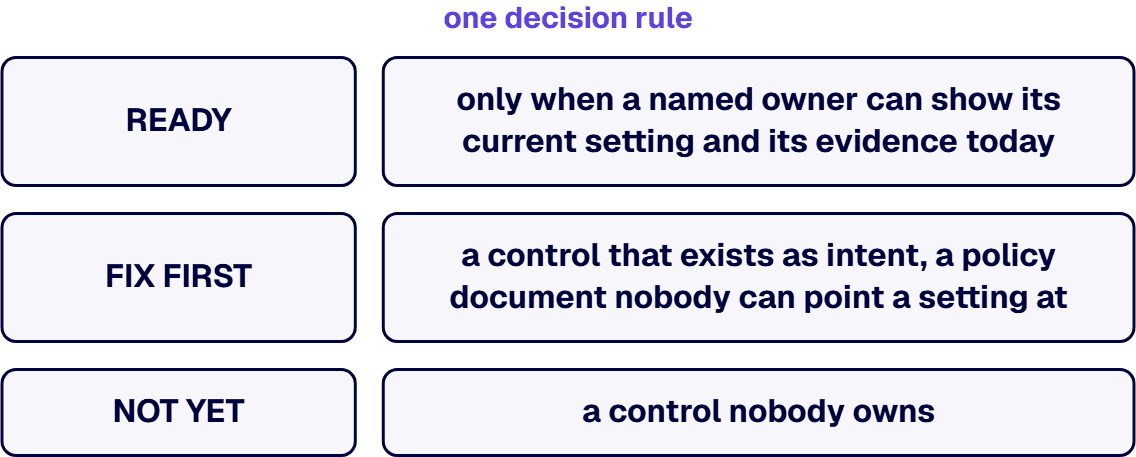
Where two controls disagree, the more restrictive one governs until an owner resolves the conflict: if the tenant-wide guest toggle allows guests but a team’s sensitivity label denies them, the label wins for that team, because Microsoft documents it plainly: “Guest access in Teams is an organization-wide setting. You can control guest access to individual teams by using sensitivity labels.” An IT leader looking at this one team already has an answer: fix the ownerless condition first, because an unowned team is the condition every other control depends on someone being present to enforce.
Running this checklist end to end is not always the right first step, and three conditions change the order. A tenant scheduled for consolidation into another tenant, through a merger or a platform migration, should settle the target tenant’s own controls first; grading an estate that is about to be replaced spends effort on settings that will not travel. A small estate where creation is already IT-gated and few teams exist is better served by fixing the one control actually failing than by running a full six-item pass for completeness. And a GCC or GCC High tenant changes the method for the lifecycle item specifically: the ownerless-group nomination workflow Microsoft documents is a public-cloud-only feature, so that tenant needs a manual review cadence in its place rather than the automated nomination path described above.
This page sets out a framework for making this decision; it does not describe work i3solutions has delivered on this specific question. i3solutions delivery is US-based, provided through the Microsoft Consulting Services Built for Enterprise Complexity practice. This page states framework and readiness criteria only; there is no attested Teams governance engagement to cite here, and none is implied. Where the checklist above turns up more FIX FIRST or NOT YET answers than a team can resolve on its own, having someone run the full readiness assessment against a live tenant, rather than a checklist, is the service Microsoft Teams Enterprise Development & Services provides.

US-Based | Est. 1997
© i3solutions. All rights reserved.
US-Based | Est. 1997
© i3solutions. All rights reserved.


