
SharePoint migration cutover checklist: moving 4 TB from SharePoint 2016 on-premises to SharePoint Online
Quick Answer
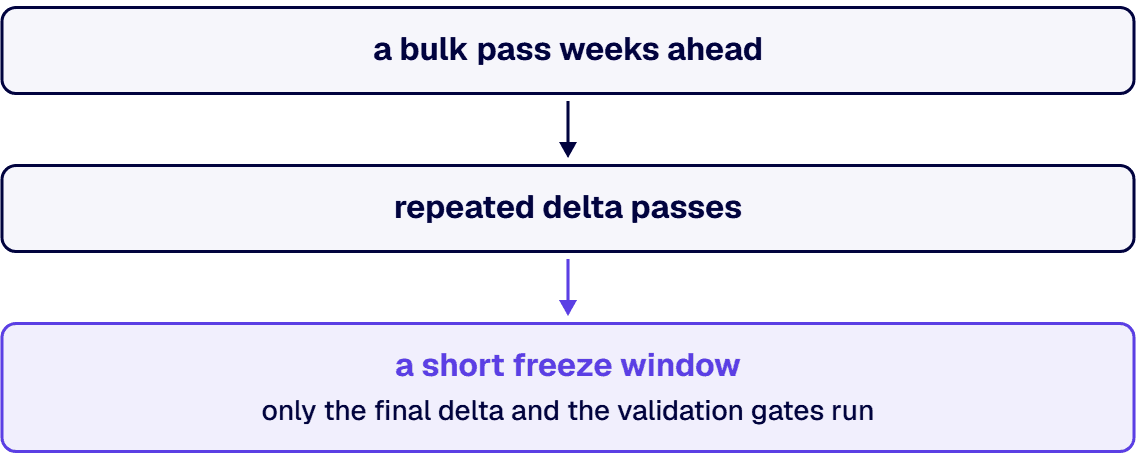
A 4 TB SharePoint 2016 estate does not cut over in a weekend, and any plan that says it does has not read Microsoft’s own throughput ceilings. Microsoft’s migration performance guide for SharePoint and OneDrive documents a maximum of 1 TB per day for medium-metadata content and 250 GB per day for small-file, heavy-metadata content, so 4 TB is between four and sixteen days of transfer at the documented best case, before a single validation gate runs. The workable shape is a bulk pass weeks ahead, repeated delta passes, and a short freeze window in which only the final delta and the validation gates run. The checklist below is the full sequence: 69 numbered steps across six phases, with the tooling named, the thresholds stated, the communication timings fixed, and the rollback criteria written down before the window opens rather than argued during it.
The cutover checklist
Use this as written. The phase labels are relative to the cutover window, which is the only genuinely irreversible moment in the project. Everything before it is rehearsal, and everything after it is verification.
Phase 0: inventory and disposition (T-minus 12 to T-minus 8 weeks)
- Run the SharePoint Migration Assessment Tool (SMAT) against the farm and export the full findings report. It runs in the background and does not affect the production environment, so there is no reason to defer it.
- Reconcile the SMAT site list against your CMDB or internal inventory and record the delta as a number, not an impression. i3solutions assessment engagements routinely find 20 to 40 percent more SharePoint sites during Phase 1 than the client internal inventory lists. Scope built on the internal number is scope that will move.
- Measure content volume per site collection and classify each one by metadata weight, because that is what sets the transfer rate: light content such as video and ISO files, medium content such as Office files around 1.5 MB and list items, or heavy content such as small files around 50 kb and list items with custom columns.
- Flag every file above 250 GB. That is the hard file upload limit for SharePoint, OneDrive and Teams, and files above it do not migrate. They need a different destination or a split.
- Flag every decoded file path, including the file name, longer than 400 characters. Remediate at source. Path remediation done during the freeze window is the single most common reason a cutover overruns.
- Flag every list or library holding more than 100,000 items. Above that count you cannot break permission inheritance on the list, library or folder, and you cannot reinherit it, which constrains the target permission design before you have drawn it.
- Flag every list or library carrying more than 5,000 unique permissions. The supported limit is 50,000 but Microsoft’s recommended general limit is 5,000, and estates that migrate above the recommendation are the ones that produce slow views and unexplainable access behavior afterwards.
- Confirm no target site collection will exceed 25 TB and that tenant storage entitlement covers the estate. Tenant storage is the base allocation plus the per-license allocation, and a tenant operating above its limit risks being placed in read-only mode.
- Produce a disposition for every site: migrate, archive, retire, or leave in place. A migrate-everything default is how a 4 TB estate becomes a 6 TB estate. Classification work belongs here and not later, and the classify-first approach to data classification before a SharePoint migration sets out how to run it.
- Inventory workflows, InfoPath forms, and customizations separately from content, and give each one a keep, rebuild, or retire disposition. SPMT migrates SharePoint Server 2010 out-of-the-box workflows and SharePoint Designer 2010 and 2013 workflows; anything outside that set is a rebuild, most often onto Power Automate. The SharePoint 2013 workflow migration path to Power Automate covers the rebuild.
Phase 1: target build and permission mapping (T-minus 8 to T-minus 6 weeks)
- Build the destination information architecture as hub sites rather than a subsite tree. Microsoft’s own guidance is to create sites and organize them into hubs instead of creating subsites, and a lift-and-shift of a 2016 subsite hierarchy carries the old operating model into the new tenant.
- Map source groups to target groups explicitly, in a spreadsheet that a person signs. Do not recreate permissions by inference. A site collection supports up to 10,000 groups, 5,000 users per group, and a user can belong to 5,000 groups, so the platform will accept a bad model without complaint.
- Identify every broken-inheritance scope in the source and decide, per scope, whether it survives. This is the step peer systems integrators most often skip, and it is the one that produces audit findings, so treat it as a deliverable rather than a task. The permissions and governance guide for a SharePoint migration works the mapping through in full.
- Resolve identity first. Confirm that every source account maps to an active Entra ID identity, and produce a named list of orphaned accounts with an owner for each. Orphaned access that survives a migration is exactly what an audit surfaces.
- Decide the version retention policy before the first pass. SharePoint supports 50,000 major versions and 511 minor versions, and version history is frequently the difference between a 4 TB source and a 7 TB transfer.
- Select the tooling against the inventory, not against a preference. SPMT is free and supports SharePoint Server 2010, 2013, 2016 and 2019 as sources, with full PowerShell coverage through the SPMT cmdlets. Migration Manager in the SharePoint admin center adds multiple agents, agent grouping, prescans, and file exclusion metrics. ShareGate and AvePoint earn their license cost when you need granular permission mapping, scheduling, or chain-of-custody reporting beyond what the Microsoft tools provide. Our comparison of ShareGate, AvePoint and Microsoft SPMT sets out where each one stops.
- Confirm the source authentication configuration is supported. SPMT supports NTLM, Kerberos, Forms, ADFS, multifactor authentication, SAML-based claims, and client certificate authentication, but if the on-premises server is configured for multiple authentication providers including Windows authentication, then Windows authentication is not supported and you must use another method.
- Provision migration accounts correctly: SharePoint or OneDrive admin on the destination, and read access on the source. Nothing broader. A global admin account used as a migration account is an audit conversation you do not need.
- Configure the migration for app-based authentication, not user mode. Migration is a background task, and running it in user mode triggers larger than normal throttling.
- Decorate migration traffic with an AppID, an AppTitle and a User-Agent string in the documented format,
NONISV|CompanyName|AppName/Versionfor an enterprise application. Well-decorated traffic is prioritized over traffic that is not. - Stand up agent capacity against the documented bottleneck. Microsoft’s telemetry puts the typical constraint at source reading: source disk performance, agent disk performance, agent RAM, competing consumers of the source, and anti-virus contending for CPU and disk. Exclude the agent working directories from anti-virus scanning before the first pass, not after the first slow one.
Phase 2: the bulk pass (T-minus 6 to T-minus 3 weeks)
- Run a pilot on one representative site collection end to end, including validation, before scheduling anything else. A pilot that skips validation has proved only that files move.
- Schedule all bulk transfer for evenings and weekends in the tenant’s region time zone. Microsoft applies tighter throttling limits to background applications, including migration, during weekday daytime hours, and explicitly states the service is ready to process a higher volume during evening and weekend hours.
- Do not plan around a throttle exemption. Throttling rules cannot be disabled or suspended, and opening a support ticket does not lift throttle. Any plan whose critical path depends on an exemption has no critical path.
- Size packages to Microsoft’s documented guidance in the same performance guide: at least 250 files per transfer, with a transfer size of at least 100 MB and less than 250 MB per package.
- Run parallel tasks against different site collections to raise aggregate throughput, and keep no more than 5,000 migration jobs or requests in the queue at once. Over-queuing loads the database and slows the migration down.
- Plan the schedule against the ceilings in Microsoft’s migration performance guide rather than against a vendor estimate: a maximum of 10 TB per day for light metadata, 1 TB per day for medium metadata, and 250 GB per day for heavy metadata. For a 4 TB estate of mostly Office documents and list items, that is four days of transfer at the documented maximum, and sixteen days if the estate is dominated by small files. These are ceilings, not forecasts. Build the plan on your pilot’s measured rate and use the ceiling only to reject a plan that is impossible.
- If the estate is over 100 TB, open a Microsoft support request at least 30 days before the migration starts, with the estimated size, the start and completion dates, and the source platform. Our walkthrough of a 100 TB file share migration to SharePoint covers how wave design changes at that scale.
- Instrument for throttling from the first pass. HTTP 429 means too many requests in a time window; HTTP 503 means the service is not ready to handle the request. Both carry a
Retry-Afterheader, and honoring it is the fastest route out, because throttled requests still count toward usage limits and aggressive retries extend the throttle. - Escalate a sustained 503 block correctly rather than waiting it out. If high-volume 503 responses are blocking migration during evening and weekend hours, open a support ticket with the volume remaining, the start and end dates, the source platform, the throttle rate per hour with timestamps, and the tool in use.
- Watch the ingress ceilings rather than discovering them: 50 GB per hour per user, and 400 GB per hour per application per tenant. A single-account migration design hits the user ceiling first.
- Log every source-to-target site mapping, job identifier, and per-job outcome to a durable record as the passes run. Reconstructing this after the fact, during a freeze window, is the worst possible time to do it.
Phase 3: delta passes, communications, and the dress rehearsal (T-minus 3 to T-minus 1 week)
- Run incremental passes on a fixed cadence, at minimum weekly and nightly in the final week, so that the volume left for the cutover window is measured in gigabytes rather than terabytes.
- Record the delta volume after each pass and plot it. A delta that is not shrinking means content is still being created faster than it is being moved, and the freeze window will not close.
- Run a full dress rehearsal of the cutover window against a copy: freeze, final delta, validation gates, and rollback. Time each step. The rehearsal produces the go or no-go duration, and a rehearsal you did not time has told you nothing.
- Communication at T-minus 3 weeks. Announcement to all affected users: the date, the freeze start time, the freeze end time, what changes for them, and where the new content lives. Name a person, not an alias.
- Communication at T-minus 1 week. Reminder with the same detail plus the specific URLs that change and the specific bookmarks that will break, so people can fix them before the window rather than after it.
- Communication at T-minus 1 day. Final notice with the freeze start time in local time zones and the support channel for the window.
- Communication at freeze start. Confirmation that the source is now read-only, with the expected reopen time.
- Communication at go-live. Confirmation that the target is open, with the top five destination links inline and the hypercare channel named.
- Prepare helpdesk scripts for the known first-week issues before the window opens: external sharing behavior, broken bookmarks, sync client reconfiguration, and integration workflows that reference old URLs. These generate the highest volume of support requests in the first 30 days.
- Brief the site owners individually, not through a broadcast. Site owners are the people who will validate their own content on cutover day, and they need to know that before the day arrives.
- Freeze the target configuration. No information architecture changes, no permission changes, and no new sites inside the cutover window. Configuration drift during the window is indistinguishable from migration failure when you are reading validation output.
- Confirm the OneDrive sync client position for affected users. Sync running against libraries under active migration produces request volumes that trigger throttling, and each library should be resynced from the target once, after go-live, rather than left pointing at the source.
Phase 4: the cutover window
- Set the source to read-only at the announced freeze time and verify it from a non-administrative account. A freeze that only administrators can see is not a freeze.
- Record the freeze timestamp. Every subsequent number in the window is measured against it.
- Run the final delta pass and record the object count and volume moved.
- Run the final permission pass and reconcile it against the signed mapping from item 12.
- Validation gate 1, completeness. Compare the object count at target against the object count at source, per site collection, and require an explained variance rather than a small one. Every skipped or failed object needs a reason, and the reason belongs in the record.
- Validation gate 2, fidelity. Sample documents per site collection and verify version history depth, metadata columns, created and modified dates, and author attribution. Sample size is a decision to make in advance, not at 2 a.m.
- Validation gate 3, permissions. Verify effective access for a named test user per security scope, including at least one user who should be denied. A permissions check that only tests access people should have proves nothing about access they should not.
- Validation gate 4, function. Execute each migrated or rebuilt workflow once against a test item and confirm it completes. Confirm every integration that reads or writes SharePoint has been repointed and returns a success.
- Validation gate 5, search. Confirm the target has crawled and that a known document is returned by a known query. Search indexing lags content, and a target that has not indexed will read to users as a target that has lost their content.
- Validation gate 6, business sign-off. Named site owners confirm their own content in writing, within a stated time box. Do not accept silence as approval.
- Hold the go or no-go decision at a fixed clock time agreed in advance, with a named decision maker and the six gate results in front of them. Time-boxing the decision is what stops a window from expanding into an outage.
- Redirect the source. Update DNS, intranet links, Teams tabs, and bookmarks in the same change, and confirm each one resolves.
- Reopen the target and confirm the announced open time was met, or communicate the new one immediately.
- Leave the source read-only and intact. Do not decommission on cutover day, whatever the decommissioning plan says.
Rollback criteria, written before the window opens
Write these down and get them signed, because the moment to define a rollback trigger is not the moment you are considering one. Roll back if any of the following is true at the go or no-go point:
- Any completeness gate shows unexplained missing objects in a site collection carrying business-critical or regulated content.
- Any permission scope resolves to broader access at target than at source, for any user. Over-permission is a rollback trigger; under-permission is a fix-forward.
- The window has exceeded its rehearsed duration by the margin agreed in advance, typically 50 percent, regardless of how close completion looks.
Rolling back means reopening the source for write and communicating a new date. That option exists only while the source is intact. Item 58 is what keeps it available. The cost of a rollback is a schedule slip. The cost of proceeding through a failed gate is an audit finding, and those are not comparable.
Phase 5: hypercare and decommissioning (T-plus 1 to T-plus 30 days)
- Staff hypercare for the first two weeks with people who ran the migration, not with a general service desk reading a script.
- Re-run the completeness reconciliation at T-plus 7 days. Deferred processing and indexing mean day-one numbers are not final numbers.
- Review access exceptions weekly for the first month and close each one to a named owner.
- Confirm that retention policies, sensitivity labels, and eDiscovery holds are applied at target. Holds count toward a 10,000 per tenant maximum shared with data loss prevention policies, information barriers, and sensitivity labels, so verify the count as well as the configuration.
- Sync the destination libraries once from the target and confirm no library exceeds the recommended 300,000 synced files, and that no user is syncing more than 300,000 items across all libraries.
- Publish the runbook, the permission mapping, and the validation evidence as a package. An i3solutions SharePoint consulting engagement produces named deliverables: a governance documentation package, architecture artifacts, and runbooks.
- Decommission the source only after the T-plus 30 reconciliation passes and the evidence package is signed. Retiring the unsupported server is the step that actually closes the compliance exposure of running past end of support.
- Record the decommissioning date and the evidence trail. Extended support for SharePoint Server 2016 ends in July 2026, and Microsoft’s lifecycle listing gives the extended end date as 7/15/2026 6:59:59 AM Pacific. After that date an on-premises farm that is still running is a documented gap, and a documented gap with a plan behind it survives a risk review in a way that an undocumented one does not.
What the 4 TB number actually constrains
This checklist is shaped around a bulk pass and repeated deltas for an arithmetic reason rather than a stylistic one. Microsoft’s migration performance guide puts the maximum for medium-metadata content at 1 TB per day and heavy metadata at 250 GB per day. Apply that to 4 TB and you get four to sixteen days of pure transfer at the best case Microsoft publishes, before any validation runs. Those are off-peak figures, too, with tighter limits in force on background applications during weekday daytime hours.
Every plan that promises a 4 TB big-bang weekend is either not counting the transfer or is counting a rate nobody has measured on your estate. The freeze window is not where content moves. It is where the last delta lands and the six validation gates run, and it should be sized from a timed dress rehearsal rather than from optimism.
The second constraint is that the transfer rate depends on what the content is, and you do not know what your content is until the inventory is done. A 4 TB estate of large Office documents and a 4 TB estate of small list items with custom columns are a four-day problem and a sixteen-day problem respectively, and they are indistinguishable on a storage report.
Where cutovers actually fail
Four failure modes account for most of it, and every one of them is decided before the window opens. The transfer itself is rarely the problem: the tooling is mature and the rate is documented.
The inventory was wrong. Most common, and most expensive. i3solutions assessment engagements routinely find 20 to 40 percent more SharePoint sites during Phase 1 than the client internal inventory lists. An inventory that is 30 percent short does not cost you 30 percent of the schedule, because the content nobody knew about is also the content nobody classified, permission-mapped, or assigned an owner, and each of those is its own sequence of decisions with its own lead time.
Permissions were recreated instead of redesigned. Ten years of accreted exceptions live in a 2016 estate, and a faithful copy reproduces all of them, including the ones that were already wrong. What changes is who sees them. The migration is the event that moves those exceptions into a system an auditor will actually open.
The validation gates were negotiable. A gate that can be waived under schedule pressure is not a gate; it is a checkpoint someone will argue past at midnight. The mechanism is entirely in writing the pass criteria and the rollback triggers down in advance and naming the person who decides.
The source was decommissioned too early. Rollback exists only while the source exists. Retire it on cutover day and every subsequent problem stops being a schedule question and becomes an incident.
Where i3solutions fits
i3solutions has been a Microsoft partner since 1997. i3solutions has completed more than 600 Microsoft platform implementations. All i3solutions SharePoint developers, architects, and consultants are 100% U.S.-based. i3solutions runs migrations against named control families across CMMC, HIPAA, SOC 2, and NIST 800-171, producing artifacts auditors can review. That last point is what makes the evidence package in Phase 5 a deliverable rather than an afterthought.
On scale and speed, the published record is specific, and it comes from a state National Guard organization. Thirty-four workflows essential for automating key processes were migrated seamlessly, along with over 336,000 custom list items. i3solutions’ custom migration tool shortened the migration timeline to three weeks and preserved data accuracy, reducing overall project cost by 25% and saving approximately $200K–$250K compared to manual migration. On engagement shape, i3solutions pre-migration SharePoint assessment engagements run four to six weeks. If a migration is already underway and has gone wrong, i3solutions mid-migration SharePoint rescue engagements run eight to fourteen weeks.
What we are not claiming: that this checklist substitutes for an assessment of your estate. The inventory is where the plan is actually set, and it is the one step nobody can do for you from a distance. If you are earlier in the decision, the SharePoint migration services page covers how the whole move is structured, and the SharePoint migration cost page covers the bands. If your driver is the end-of-support date rather than a business case, the SharePoint Server end-of-life migration answer starts there instead.
Frequently Asked Questions
How long does a 4 TB SharePoint 2016 to SharePoint Online migration take?
The transfer alone is between four and sixteen days at Microsoft’s documented maximum rates, depending on content type. Microsoft publishes a ceiling of 1 TB per day for medium-metadata content such as Office files and list items, and 250 GB per day for heavy-metadata content such as small files and list items with custom columns. Those are maximums achieved during off-peak hours, since tighter throttling limits apply to background applications during weekday daytime hours. The full project is longer: i3solutions pre-migration SharePoint assessment engagements run four to six weeks, and the bulk pass, delta passes, and validation follow that. Plan from a timed pilot on your own content, and use the published ceiling only to reject a schedule that is arithmetically impossible.
Can we do a 4 TB SharePoint cutover in a single weekend?
No, not as a single transfer. Four terabytes exceeds one day of throughput at Microsoft’s documented maximum for every content class except light metadata such as video and ISO files. What does fit in a weekend is the freeze window itself: the final incremental pass, the validation gates, and the go or no-go decision, provided the bulk of the content moved weeks earlier and the deltas have been shrinking on a measured curve. If a plan proposes moving 4 TB inside the freeze window, ask which measured rate it is built on.
What should be validated before we call a SharePoint cutover complete?
Six gates, all of them before the go or no-go decision. Completeness, meaning object counts reconciled per site collection with every variance explained. Fidelity, meaning sampled documents verified for version history, metadata, dates and authorship. Permissions, meaning effective access tested per security scope including at least one user who should be denied. Function, meaning every workflow executed once and every integration repointed and confirmed. Search, meaning the target has crawled and returns a known document for a known query. And business sign-off, meaning named site owners confirm their own content in writing inside a stated time box. A gate that can be waived under schedule pressure is not a gate.
Which tool should we use to migrate SharePoint 2016 to SharePoint Online?
The SharePoint Migration Tool is free and supports SharePoint Server 2010, 2013, 2016 and 2019 as sources, with full PowerShell coverage. Migration Manager, in the SharePoint admin center, adds multiple agents, agent grouping, prescans and file exclusion metrics, and is the right choice when you need to scale agent capacity. Paid tooling such as ShareGate or AvePoint earns its cost when you need granular permission mapping, scheduling, or chain-of-custody reporting beyond what the Microsoft tools provide. Choose against the inventory rather than against a preference, because all of them use the same SharePoint migration API underneath and are subject to the same throttling.
How do we avoid throttling during a SharePoint Online migration?
You do not avoid it, you plan around it. Throttling rules cannot be disabled or suspended, and opening a support ticket does not lift throttle. What works: schedule transfer for evenings and weekends in the tenant’s region time zone, use app-based authentication rather than user mode, decorate traffic with an AppID and a User-Agent string in the documented format, package at least 250 files per transfer at 100 to 250 MB per package, run parallel tasks against different site collections, and keep no more than 5,000 migration jobs in the queue. When you are throttled you will receive HTTP 429 or 503 with a Retry-After header, and honoring that header is the fastest route out, because throttled requests still count toward usage limits.
What are the rollback criteria for a SharePoint cutover?
Write them before the window opens and get them signed. Roll back if a completeness gate shows unexplained missing objects in a site collection carrying business-critical or regulated content, if any permission scope resolves to broader access at target than at source, or if the window exceeds its rehearsed duration by the margin agreed in advance. Over-permission is a rollback trigger; under-permission is a fix-forward. Rollback is only available while the source is intact, which is why the source stays read-only and is not decommissioned until the T-plus 30 reconciliation passes.
What breaks most often after a SharePoint migration?
Bookmarks and hard-coded URLs, external sharing behavior, sync client configuration, and integrations that still reference old site addresses. These generate the highest volume of support requests in the first 30 days, which is why the checklist puts helpdesk scripts for them in place before the window rather than after. The deeper failures are permission drift and orphaned accounts, which do not announce themselves in week one and instead surface during an audit, and that is the case for reconciling the permission mapping as a validation gate rather than as a post-migration task.
When does SharePoint Server 2016 lose support?
Microsoft’s lifecycle listing gives SharePoint Server 2016 an extended end date of 7/15/2026 6:59:59 AM Pacific, which is the July 2026 deadline most programs are planning against. After that date the on-premises farm stops receiving security updates. A full enterprise migration is not a short exercise, so if the date is close, the defensible position is a completed environment assessment, the highest-risk content moved first, and a documented sequenced plan for the remainder. A controlled and evidenced remaining window survives a risk review. An open and undocumented one does not.

Sources
- Migration performance guide for SharePoint and OneDrive, Microsoft Learn. Throughput ceilings by metadata weight, package sizing, the 5,000-job queue guidance, weekday throttling of background applications, and the large-migration process.
- Avoid getting throttled or blocked in SharePoint Online, Microsoft Learn. HTTP 429 and 503 behavior, the Retry-After header, traffic decoration format, and the per-user and per-application ingress limits.
- SharePoint limits, Microsoft Learn. The 250 GB file upload limit, the 400 character path limit, list and library item ceilings, the 100,000-item inheritance constraint, unique permission limits, version limits, hold limits, and sync recommendations.
- SharePoint Migration Tool, Microsoft Learn. Supported source versions, supported workflow types, supported authentication methods, and the SharePoint Migration Assessment Tool.
- Migration Manager, Microsoft Learn. Agent model, agent grouping, prescans, file exclusion metrics, and prerequisites.
- SharePoint Server 2016 lifecycle, Microsoft Lifecycle. Extended end date.
Run the cutover with people who have run it before
A cutover checklist is only as good as the inventory behind it, and the inventory is the step this page cannot do for you. If you are sizing a SharePoint 2016 estate for a move to SharePoint Online and want the assessment run before the plan is written, that is the conversation to have.