
By Michael Branson
Quick answer. The SharePoint 5000 item list view threshold throttles how many items a single view or query can touch, not how many the library can hold. Microsoft’s documented ceiling for one list or library is 30 million items, so a library that trips the threshold has not run out of room; it is being asked for a result set the platform declines to assemble. Four supported paths lead past it, in order of effort: index the columns your views filter on; narrow what any single view requests; split one oversized list into several scoped lists; re-plan the library’s information model. In SharePoint Online the threshold itself cannot be changed, which is why the fourth path is an architecture decision and not a setting, and the point at which the ceiling returns in a second library is the point at which it stops being an administrator’s task. (Sources: Microsoft Learn, The number of items in this list exceeds the list view threshold and SharePoint limits, read date 2026-09-22.)
Your team has already found the error text, and it names its own limit. Microsoft’s troubleshooting article records it verbatim:
The number of items in this list exceeds the list view threshold, which is 5000 items. Tasks that cause excessive server load (such as those involving all list items) are currently prohibited. (Source: Microsoft Learn, The number of items in this list exceeds the list view threshold, read date 2026-09-22.)
Microsoft’s explanation in the same article is short and worth reading literally: “This issue occurs because SharePoint Online uses the Large List Resource Throttling feature. By default, the list view threshold is configured at 5,000 items.” (Source: Microsoft Learn, The number of items in this list exceeds the list view threshold, read date 2026-09-22.)
Two things follow from that sentence, and both of them change what you tell your leadership. The first is that the limit throttles an operation and does not cap storage: Microsoft’s guidance for large lists states that “You can store up to 30 million items or files in a list or library,” so the library is nowhere near full. What failed is a request; the items themselves are untouched. The second is that the number is a default and not a constant. The same guidance notes that “The actual number is not always 5,000 and can vary depending on your site,” which is why two libraries in the same tenant can behave differently at what looks like the same size, and why a team that reproduces the failure at a slightly different count has not found a second bug. (Source: Microsoft Support, List View Threshold for large lists and libraries, read date 2026-09-22.)
For an IT Director the practical read is that nothing is broken in the sense a leadership team assumes when it hears the word error. A governed platform declined a request it judged too expensive to serve. The open question is whether the request was unreasonable or the library was.
The question your team will ask first is whether somebody configured this limit and can therefore unconfigure it. The answer depends on which SharePoint you are running, and the mechanism is worth understanding before either answer is acted on.
Microsoft’s own account of the cost is a database one. Its large-list guidance explains that “if a read or write database operation, such as a query, causes more than 5,000 rows to be locked at once, then it’s more efficient for SQL Server to temporarily lock the entire table,” and that when tables lock frequently “users will experience a degradation of system performance.” The threshold is the point at which the platform stops paying that cost on behalf of one request. A view asking for every item in a large list is not a slightly heavier version of a view asking for fifty; it is the operation that takes a lock wide enough to slow everyone else on the same database. (Source: Microsoft Support, List View Threshold for large lists and libraries, read date 2026-09-22.)
For SharePoint Online, Microsoft states the position plainly: “For SharePoint, the LVT limit can’t be changed, and is in place to allow users on shared tenants to always have good performance on queries.” That sentence answers the question your team asked first, and it answers it in the negative. In a shared tenant the dial does not exist for you to turn.
SharePoint Server behaves differently. The threshold there is a farm-level setting an administrator can change through Central Administration, which is where the widely repeated advice to simply raise it comes from. Advice written for SharePoint Server does not carry over to SharePoint Online, and it deserves caution even on-premises, because moving the number moves the cost instead of removing it. The table-locking behavior the threshold exists to avoid does not change because the threshold did.
So the honest framing for a decision-maker is this. The 5000-item threshold is not a bug to patch, it is SharePoint declining to assemble a result set at that scale, and the moment you hit it is the moment you decide whether to re-architect the library, split it, or bring in a team that has done this on an enterprise estate before. (Source: Microsoft Learn, The number of items in this list exceeds the list view threshold, read date 2026-09-22.)
The library has to work again for the people who depend on it, and the shortest supported route does not involve changing the threshold at all. Microsoft’s guidance frames every route the same way, as managing the number of items returned: it lists “indexing, filtering, folders, offline data, the Search box, personal views, relational lists, and RSS feeds.” Ranked by the effort an enterprise library actually incurs, those collapse into four supported paths.
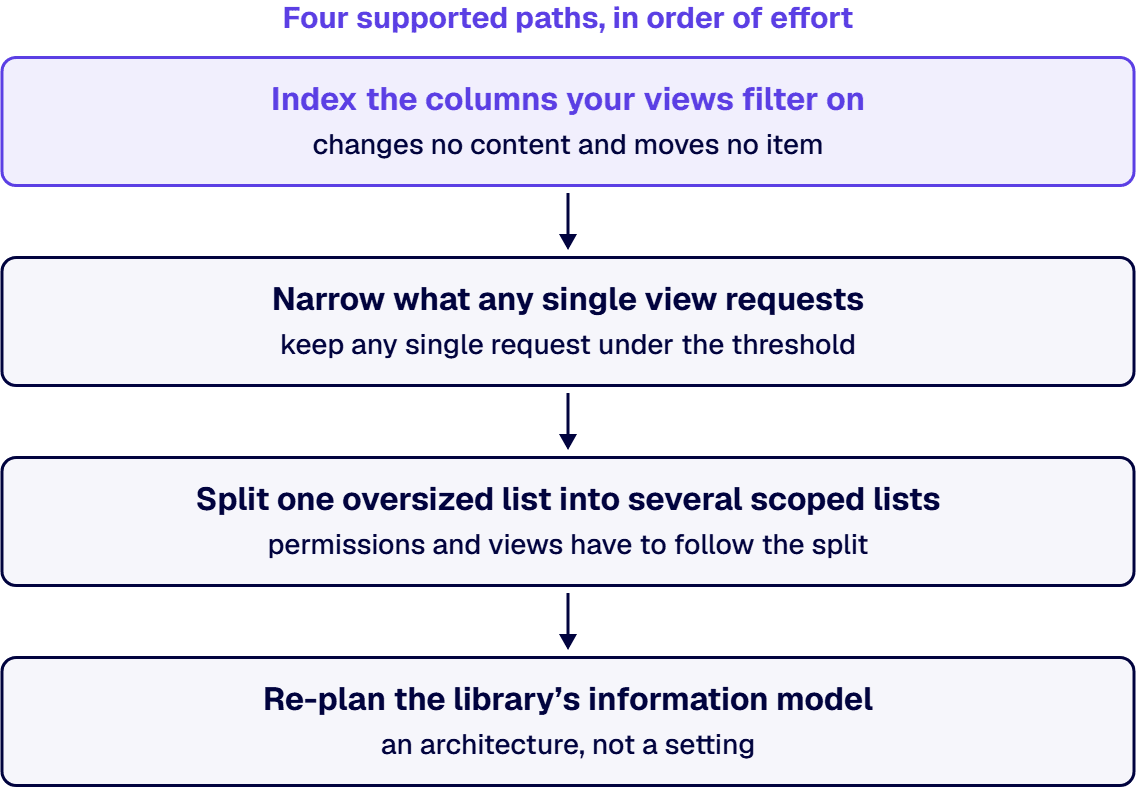
Index the columns your views filter on. An indexed column lets SharePoint find matching rows without walking the whole list, so a filtered view can return a small result set from a large library without crossing the threshold. Indexing changes no content and moves no item, which is what makes it the lowest-effort route. The indexed-columns entry under list settings holds the current state for one list, and a PowerShell or Microsoft Graph query will report that same state across many lists at once, which is the surface you want once the question has stopped being about one library. Know the constraint before you promise anything: indexing helps a view that filters, and a view that asks for everything unfiltered still asks for everything.
Narrow what any single view requests. Filtered views, metadata navigation and folder structure all do the same job from different directions, which is to keep any single request under the threshold. Metadata navigation is the better instrument of the three in a governed library, because it narrows by properties the content already carries instead of by where somebody filed it. Folders work, and Microsoft lists them, but a folder tree is a second organizing scheme running alongside your metadata, and two schemes disagree eventually.
Split one oversized list into several scoped lists. Where the content genuinely covers separable things, a list per program, per year or per business unit removes the problem instead of routing around it. Real work follows: permissions and views have to follow the split, along with any flow or integration reading the list. Splitting is the first path here that changes what the library IS and not merely how it is queried.
Re-plan the library’s information model. Take this path for a library whose content types, permission model and retention obligations were never designed together, where the threshold is simply the first of the three to produce an error message anyone outside IT notices. An inventory exported from the SharePoint admin center, read beside the site’s own audit log, is where that condition becomes visible across libraries instead of one at a time. The output is an architecture, not a setting.
When two of these paths look right at once, the one that reduces the number of items a single view requests takes precedence over the one that relocates items, because only the first changes what the database is asked to lock. Relocation without narrowing moves the failure to a different view instead of removing it.
Your leadership will ask this in a harder form than your team did: is this one library, or is this the estate? The answer determines whether you are signing off an afternoon of administration or opening a project, and getting it wrong in either direction is the career risk in this situation. Three signals separate the two cases, and they are worth writing down before the conversation and not during it.
Recurrence is the first signal. One library reaching the threshold is a library that outgrew a view. The same ceiling reached in a second and third library, on different content, says the organization is producing large lists faster than it is designing them, and no amount of indexing addresses that.
The migration signal is second. When a cutover or a consolidation stops because a source list cannot be read in one pass, the threshold has moved from an inconvenience to a dependency on a dated plan, and the remediation now has to be scoped instead of attempted.
Third is the governance signal: a retention or records obligation that the quickest workaround would quietly defeat. Splitting a list or burying content in a folder tree can satisfy a view and, at the same time, make the content harder to locate for a hold or a records request.
When two of those signals are true at once, the governance signal takes precedence, because a workaround that restores a view and defeats a records obligation has created an exposure the broken view never did, and it has created it silently. A broken list view announces itself. A quietly unfindable record does not.
Where the answer to the estate question is architecture and not configuration, the work is a scoping and design exercise before it is a build, and it starts from the estate inventory and the audit log instead of from the failing list. i3solutions approaches it that way, and the artifacts are the point of the engagement. An i3solutions SharePoint consulting engagement produces named deliverables: a governance documentation package, architecture artifacts, and runbooks. Named artifacts are what let an internal team own the library afterward instead of owning a fix somebody else understands.
There is a version of this problem where the four supported paths make the situation worse, and it shows up in libraries that grew for years without a governing model. In that case the threshold is not the problem. The threshold is the first symptom of the problem to produce an error message, and clearing the symptom removes the pressure that was creating any urgency to fix the cause. What produced it stays where it was, visible in the estate inventory and the site’s audit log rather than on anyone’s incident queue.
Regulated organizations tend to know this shape already. Many regulated enterprises built their SharePoint environments organically over 8 to 12 years, accumulating layers of inconsistent permissions, undocumented content types, and fragile folder structures that now create measurable audit exposure. A library like that will cross the threshold, and an indexed column will make the view load again, and nothing about the underlying condition will have changed except that it is now invisible.
The second wrong-fix case is the governance signal, seen from the other side. Where a library holds content under a retention or records obligation, a split or a folder reorganization changes where governed content lives. Doing that to restore a view, ahead of any determination about the obligation, inverts the order the decision should be made in. The determination belongs to your records and compliance function and should come first. SharePoint’s behavior at the threshold is a platform fact; what a given retention obligation requires of you is not, and no account of the platform settles it.
An honest test applies in a meeting. If the library’s content types, permissions and retention treatment were designed deliberately and the list simply grew, the four paths are the right tools and the cheapest one that works is the right choice. If they were never designed at all, then remediation that only makes the view render is postponement. Long-term list hygiene, and the content-management practice that keeps a library governed and not merely working, is set out separately in SharePoint Content Management: From Chaos to Control.
An enterprise estate that keeps meeting this ceiling is describing an information-architecture problem in the language the platform has for it. The work that follows is a scoping and design exercise ending in a governed remediation path, which is the kind of engagement set out on Enterprise SharePoint Development & Integration Services Built for Scale and Governance.
A library that has stopped serving a view is fixed by changing what the view asks for, because in SharePoint Online the threshold itself cannot be changed. Ordered by the effort each one costs, the four supported paths are these: index the columns your views filter on; narrow what any single view requests; split one oversized list into several scoped lists; re-plan the library’s information model. Microsoft frames the four the same way, as managing the number of items a request returns instead of raising the limit. Begin with indexing, because indexing changes no content and moves no item.
The list has not run out of space, and nothing in it has been lost. SharePoint Online applies a feature Microsoft calls Large List Resource Throttling, and the list view threshold is configured by default at 5,000 items. Microsoft’s stated reason is a database one: a read or write operation locking more than 5,000 rows at once makes it more efficient for SQL Server to lock the whole table, which degrades performance for everyone using it. A single list or library can hold up to 30 million items, so the limit is on what one view or query may touch and not on what the list may contain. (Source: Microsoft Support, List View Threshold for large lists and libraries, read date 2026-09-22.)
The error an administrator sees names the limit directly: the number of items in the list exceeds the list view threshold, which is 5000 items, and tasks causing excessive server load are prohibited. The threshold caps the items a single view or query may touch. The fix is to make each view ask for less: index the columns views filter on, narrow requests through metadata navigation and folder structure, split an oversized list into scoped lists, or, where the same ceiling keeps returning across libraries, re-plan the information model. Microsoft notes the effective number varies by site, so a failure at a slightly different count is the same limit and not a different problem. (Source: Microsoft Learn, The number of items in this list exceeds the list view threshold, read date 2026-09-22.)
Not in SharePoint Online. Microsoft states that the list view threshold limit cannot be changed there, and that it is in place so users on shared tenants have good performance on queries. On SharePoint Server the threshold is a farm-level setting an administrator can change through Central Administration, which is where the advice about raising it originates, and that advice does not carry over to SharePoint Online. Even on-premises, raising the number moves the cost instead of removing it, because the table-locking behavior the threshold exists to avoid is unchanged by the setting.

US-Based | Est. 1997
© i3solutions. All rights reserved.
US-Based | Est. 1997
© i3solutions. All rights reserved.


