
By Michael Branson
As of September 2026, Office Online Server retires on December 31, 2026, according to Microsoft, after which it receives no security updates, bug fixes or technical support; on premises, SharePoint Server users lose viewing, editing and collaboration on Office documents in the browser, and the document previews it generates will no longer be actively supported, while Exchange Server users lose attachment previews and live editing in Outlook on the web. According to Microsoft, SharePoint Server Subscription Edition and Exchange Server Subscription Edition themselves remain supported, Microsoft 365 Apps for Enterprise and Office LTSC 2024 remain supported desktop clients for documents hosted on those servers, and its recommended path for browser-based editing and collaboration is to transition to Microsoft 365. Microsoft’s SharePoint Server team says “Microsoft will not actively block the use of OOS in SharePoint Server after its retirement.” and “However, no further updates will be provided, including security updates.”
The question usually arrives from two directions in the same week. Someone in records management asks what happens in January to opening documents in the browser and to the document previews in search, and the security office asks whether an unpatched server will still be on the network. Both questions are about one component, Office Online Server, and the answer differs for each server that calls it. This guide sorts the answer by server from Microsoft’s own statements, read on 2026-09-24, so the decision you record for each workload is one you can defend.
If a different date is circulating on the program, start from the one Microsoft prints. Microsoft Learn’s Configure your report server to host Excel workbooks using Office Online Server (being deprecated) page says “Microsoft has announced that Office Online Server (OOS) will be retired effective December 31, 2026.” Microsoft’s Announcing the retirement for Office Online Server post says “Microsoft is announcing the end of support and retirement for Office Online Server effective December 31, 2026.” and “After this date, Office Online Server will no longer receive security updates, bug fixes, or technical support from Microsoft.” Microsoft’s lifecycle page for Office Online Server says “Office Online Server follows the Modern Lifecycle Policy.”
The same announcement lists potential compliance risks among the consequences of end of support, and says “Unsupported software may put regulated organizations at risk of non-compliance.” That is Microsoft’s statement. Whether it applies to a given system is a determination for that system’s authorizing official.
Microsoft’s pages read for this guide state no extension and no custom support arrangement for Office Online Server. Plan to Microsoft’s published date. If you hear of a different arrangement, get it in writing from Microsoft for your own agreement before you plan on it; Microsoft’s announcement tells customers to engage their Microsoft account team for migration planning.
When the inventory is skipped, the first sign of the dependency tends to be a support ticket after the date. Office Online Server does its work inside other servers, so the inventory is by server, not by product. Microsoft’s SharePoint Server team writes, in Retirement Date for Office Online Server (OOS) Announced, that “Office Online Server (formerly known as Office Web Apps Server) is a product that can be optionally integrated with SharePoint Server on-premises.”
For Exchange, Microsoft Learn’s Install Office Online Server in an Exchange organization page says “Office Online Server enables users to view supported file attachments within Outlook on the web (formerly known as Outlook Web App) without downloading them first and without having a local installation of the program.” Its What’s new in Exchange Server SE page, describing how a user views and edits an attached file stored in OneDrive for Business or on-premises SharePoint alongside the message in Outlook on the web, says “To do this, you’ll need a separate computer in your on-premises organization that’s running Office Online Server.” For reporting, Microsoft’s announcement says “If your organization uses Office Online Server to host Excel workbooks in Power BI Report Server, that functionality will no longer be supported.”
Build the inventory before any path is chosen:
Record against each entry who owns it and what its users do with Office documents in the browser today. For the desktop side, Microsoft’s announcement says “For organizations using SharePoint Server Subscription Edition or Exchange Server Subscription Edition, Microsoft 365 Apps for Enterprise and Office LTSC 2024 remain supported desktop clients for viewing and editing documents hosted on those servers.” Which of those two clients each machine runs is a separate decision, and this guide does not make it.
We recommend reconciling the inventory from both ends before any path is chosen: every Office Online Server farm on the list should name at least one server that calls it, and every server that calls a farm should name that farm. A farm with no recorded caller is a finding for its owner to resolve, not a farm to remove on the strength of the list alone.
If users are told only that the server is still supported, they will read the first failed browser preview as a server fault. The losses are specific, and Microsoft states them server by server.
For SharePoint Server, Microsoft’s SharePoint Server team says “Users will lose the ability to view, edit, and collaborate on Office documents directly in the browser.” and “Office client applications can still be used to view and edit Office documents.” On previews, it says “SharePoint Server relies on OOS to generate previews for Word, Excel, PowerPoint, and PDF documents.” and “After OOS support ends, these thumbnails will no longer be actively supported in libraries and search results.” It also says “Office Online Server will not be supported in any configuration after retirement, including scenarios where it is paired with SharePoint Server Subscription Edition.”
On Exchange Server, the Exchange Team’s post Retirement Date for Office Online Server (OOS) has been Announced names two actions in Exchange Server that use Office Online Server: previewing Office file types in Outlook on the web, and live edit capabilities in Outlook on the web. It says “After Office Online Server retirement, on-premises users will need to first download the attachments to view / work with them.” Exchange Online is a different case, and the same post keeps the two audiences apart: “Exchange Online users will continue to be able to work with attachments using Outlook on the web since OOS is not being used in the cloud.”
Power BI Report Server has its own cut-off. Microsoft Learn’s Configure your report server to host Excel workbooks using Office Online Server (being deprecated) page says “As a result, PBIRS users will no longer be able to host Excel workbooks in PBIRS using OOS after November 2026, in accordance with the PBIRS Support Timelines Policy.” The same page says configuring Power BI Report Server to use Office Online Server for hosting Excel workbooks stopped being supported with the January 2026 Power BI Report Server release. Where Power BI runs after that is a separate decision.
Once the inventory is written down, each workload takes one of two paths Microsoft names, and the deciding constraint is usually where the workload is allowed to live.
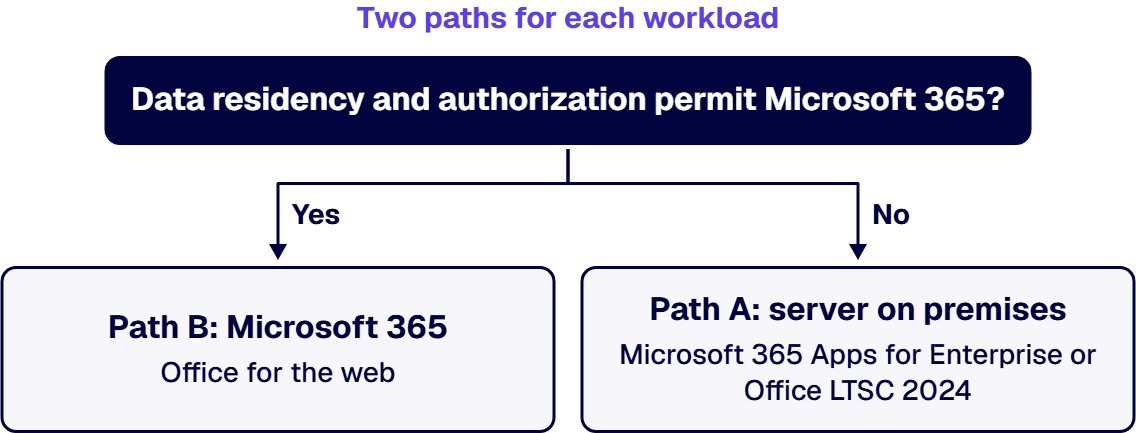
Path A keeps the server on premises and moves document work to desktop clients. The servers themselves are not retiring: Microsoft’s SharePoint Server team says “This announcement does not impact Microsoft’s support for SharePoint Server, and there are no plans to retire SharePoint Server Subscription Edition.” Microsoft Learn’s Additional support for select server products following Modern Lifecycle Policy page lists SharePoint Server Subscription Edition and Exchange Server Subscription Edition each with December 31, 2035 in its “Earliest Possible EoS Date” column, and says “The product will be supported at least through that date.” That support covers the servers, not Office Online Server. On this path, on Subscription Edition servers, users view and edit in Microsoft 365 Apps for Enterprise or Office LTSC 2024, and browser viewing, editing and previews do not continue under Microsoft support.
This path fits when the farm or organization has to stay in the building for a reason you can name, such as an enclave, export-controlled content or a contract clause, and its users can work with desktop-only editing and without supported browser previews.
Path B moves the workload to Microsoft 365. Microsoft’s announcement says “If your organization relies on Office Online Server for browser-based document editing and collaboration, our recommended path is to transition to Microsoft 365, which includes cloud-powered versions of Word, Excel, PowerPoint, and OneNote.” Microsoft Learn’s Office for the web service description says “Office for the web (formerly Office Web Apps) opens Word, Excel, OneNote, and PowerPoint documents in your web browser.” For mail, the Exchange Team’s post says Exchange Online users keep working with attachments in Outlook on the web, because Office Online Server is not used in the cloud. For custom line-of-business applications, the announcement also names SharePoint Embedded, a Microsoft 365 service for custom applications, and says “SharePoint Embedded enables real-time collaboration on Word, Excel, and PowerPoint documents directly within line-of-business or custom applications using Microsoft 365’s native co-authoring services.” It is not an on-premises option.
That path fits when the workload’s data residency and authorization permit Microsoft 365, and browser editing and collaboration matter to its users.
Where one Office Online Server farm serves more than one workload, the path can differ by workload while the farm stays a single item. We recommend dating the farm’s removal from the change to the last server that calls it, since the servers that call the farm change before the farm itself. Until that last change, the farm keeps its own entry: a removal date, or the named owner who accepted the risk of keeping it.
If a farm is still on an older SharePoint Server version, where it goes next is its own decision, covered in Our SharePoint Server Is Reaching End of Life: How Do We Migrate Off On-Premises to Microsoft 365?. How SharePoint Online and on-premises SharePoint compare as deployment models is covered in SharePoint Comparison: Online vs On-Premises.
When the system security plan lists Office Online Server as a supported component, the retirement turns that line into an item the plan has to answer. Microsoft’s position has two halves, and a reviewer should see them together. Microsoft’s SharePoint Server team says “Microsoft will not actively block the use of OOS in SharePoint Server after its retirement.” and, in the next sentence, “However, no further updates will be provided, including security updates.” Not blocked is not the same as supported: the same team says Office Online Server will not be supported in any configuration after retirement, including where it is paired with SharePoint Server Subscription Edition. For Exchange Server, the Exchange Team’s post says “Microsoft will not actively block usage of OOS in Exchange Server after its retirement.” and, in the next sentence, “However, it’s no longer maintained, and no further (security) updates will be provided.”
Record one decision for each Office Online Server farm: the date it is removed, or the named authorizing official who accepted the risk of keeping it past the retirement date, with Microsoft’s statements above attached. This guide does not say whether keeping it is acceptable under any authorization; that is the authorizing official’s determination.
For workloads that move to a government cloud, confirm with Microsoft which browser features your tenant’s cloud provides before the move is scheduled. When the destination is GCC High, the move is its own governed project. We manage GCC High migrations end-to-end: from eligibility validation and licensing coordination with your AOS-G supplier through identity architecture, data migration, security baseline configuration, and post-migration governance. i3solutions plans and runs these migrations for regulated defense organizations, structuring each phase around the compliance evidence assessors expect.
When the removal date is set, change the servers that call the farm before the farm itself. Microsoft’s announcement points customers to its documentation for disconnecting SharePoint Server 2016 from Office Online Server. Microsoft Learn’s Configure Office Online Server for SharePoint Server page says “If, for any reason, you want to disconnect SharePoint Server 2016 from Office Online Server, use the following command example.” and gives the command “Remove-SPWOPIBinding -All:$true”. That article is written for SharePoint Server 2016; confirm the step for your own version in Microsoft’s documentation and test it outside production first.
For Power BI Report Server, Microsoft Learn’s page on hosting Excel workbooks says “New deployments should not configure OOS integration.” Plan the removal as a dated change for each server that calls the farm, then for the farm itself, in the order your inventory shows.
We recommend placing any Power BI Report Server that hosts Excel workbooks through Office Online Server first in that order. Microsoft’s page on hosting Excel workbooks, quoted above, says that hosting ends after November 2026, ahead of the December 31, 2026 retirement date, and that configuring the integration stopped being supported with the January 2026 Power BI Report Server release.
If any of these situations describes your estate, start somewhere else first:
If you bring in outside help for this, hold it to criteria:
When the Office Online Server decision has to be written down before the retirement date, i3solutions does it as a project: the inventory of connections and endpoints, the per-server path map, the Microsoft 365 or GCC High move for the workloads that go, and the removal plan for the farm, with embedded specialists joining your team where it needs them.
i3solutions plans and runs governed Azure and Microsoft 365 migrations with senior, U.S.-based engineers. i3solutions has been a Microsoft Partner with 30 years of enterprise technology delivery experience and has delivered 1,500+ Microsoft engagements across aerospace and defense, financial services, and health sciences. An i3solutions engagement does not produce managed-service ownership, a replacement for the internal team, open-ended scope expansion, or vendor lock-in.
The SharePoint migration work is described on SharePoint Migration Services for Enterprise Microsoft Environments, and the wider SharePoint service line on Enterprise SharePoint Development & Integration Services Built for Scale and Governance.
According to Microsoft, support ends on December 31, 2026. Microsoft’s blog post announcing the retirement says “Microsoft is announcing the end of support and retirement for Office Online Server effective December 31, 2026.” and “After this date, Office Online Server will no longer receive security updates, bug fixes, or technical support from Microsoft.”
No. Microsoft’s SharePoint Server team says “This announcement does not impact Microsoft’s support for SharePoint Server, and there are no plans to retire SharePoint Server Subscription Edition.” According to Microsoft Learn, its earliest possible end of support date is December 31, 2035, and “The product will be supported at least through that date.”
For SharePoint Server, Microsoft separates blocking from support. Microsoft’s SharePoint Server team says “Microsoft will not actively block the use of OOS in SharePoint Server after its retirement.” and “However, no further updates will be provided, including security updates.” For Exchange Server, the Exchange Team says “Microsoft will not actively block usage of OOS in Exchange Server after its retirement.” and “However, it’s no longer maintained, and no further (security) updates will be provided.”
Previewing Office file types and live edit capabilities in Outlook on the web. Microsoft’s Exchange Team says “After Office Online Server retirement, on-premises users will need to first download the attachments to view / work with them.” and “Exchange Online users will continue to be able to work with attachments using Outlook on the web since OOS is not being used in the cloud.”
Yes, in desktop Office clients. Microsoft’s SharePoint Server team says “Office client applications can still be used to view and edit Office documents.” Microsoft’s announcement says “For organizations using SharePoint Server Subscription Edition or Exchange Server Subscription Edition, Microsoft 365 Apps for Enterprise and Office LTSC 2024 remain supported desktop clients for viewing and editing documents hosted on those servers.”

US-Based Microsoft System Integrator | Est. 1997
© i3solutions. All rights reserved.
US-Based Microsoft System Integrator | Est. 1997
© i3solutions. All rights reserved.


