
Michael Branson
The question can arrive from one of two directions. The imaging team reports that new Windows 11 builds will not take the legacy LAPS installer, or an assessor asks how local administrator passwords are managed on the newest devices, and the honest answer is that nothing has changed, on a product Microsoft now calls deprecated. The risk behind the question is the one Microsoft names in What is Windows LAPS?: “Local administrator accounts often share the same password across many devices, which bad actors can exploit to move laterally across your environment.” You may have been told to switch Windows LAPS on and move on, or to move every device to the cloud directory. The harder parts are elsewhere: which directory each device population backs up to, how to cut over without a window where two tools fight over one account or no tool manages it, and who can read those passwords afterwards. This guide sets out what Microsoft documents for each of those decisions, and what it says for GCC High.
If your newest devices will not take the legacy installer, that is Microsoft’s deprecation working as written. In What is Windows LAPS?, last updated on September 16, 2026, Microsoft’s deprecation note says “The legacy Microsoft LAPS product is deprecated as of Windows 11 23H2 and later.” and “Newer OS versions block installation of the legacy Microsoft LAPS Microsoft Installer (MSI) package.” It adds that “Microsoft no longer considers code changes for the legacy Microsoft LAPS product.”
The older devices are not cut off on a date of their own. Microsoft says “Microsoft will continue to support the legacy Microsoft LAPS product on the older versions of Windows (earlier than Windows 11 23H2) that previously supported it.” and “That support ends at the normal end of support for those OS versions.” It gives no separate end date for legacy LAPS, so this guide gives none.
Where the replacement runs is stated in the same note: “Windows LAPS is available on Windows Server 2019 and later, and on supported Windows 10 and Windows 11 clients.” Microsoft also says “The Windows LAPS feature is available at no cost on all supported Windows platforms.” Its recommendation is direct: “We strongly recommend that you begin planning now to migrate your Windows LAPS-capable systems from legacy Microsoft LAPS to the Windows LAPS feature.”
The planning rule that follows: every device that can run Windows LAPS moves. A device whose OS cannot run it stays on legacy LAPS only until that OS reaches its own end of support, and it goes on a written list with an owner, so the exception is tracked rather than forgotten.
If your fleet is a mix of join states, the backup directory is not one decision but one per device population. Microsoft describes what Windows LAPS does in What is Windows LAPS?: “Windows Local Administrator Password Solution (Windows LAPS) is a Windows feature that automatically manages and backs up the password of a local administrator account on your Microsoft Entra-joined or Windows Server Active Directory-joined devices.” The join state then narrows the choice. According to Microsoft, “Devices that are joined only to Microsoft Entra ID can back up passwords only to Microsoft Entra ID.” and “Devices that are joined only to Windows Server Active Directory can back up passwords only to Windows Server Active Directory.”
Hybrid-joined devices are where the decision sits. Microsoft says “Devices that are hybrid-joined (joined to both Microsoft Entra ID and Windows Server Active Directory) can back up their passwords either to Microsoft Entra ID or to Windows Server Active Directory.” and then sets the limit: “You can’t back up passwords to both Microsoft Entra ID and Windows Server Active Directory.” Microsoft’s Intune page, Microsoft Intune support for Windows LAPS, says the same thing from the policy side: “LAPS on Windows devices can be configured to use one directory type or the other, but not both.”
What each directory brings differs. Microsoft says “You can use Windows LAPS to back up passwords to Microsoft Entra ID, encrypt passwords in Windows Server Active Directory, and store your password history.” Microsoft’s settings table in Configure policy settings for Windows LAPS marks the Active Directory password encryption and encrypted password history settings as applicable only when the backup directory is Active Directory. On licensing, Microsoft says “You can back up passwords to Windows Server Active Directory with no other licensing requirements.” and “You can back up passwords to Microsoft Entra ID with a Microsoft Entra ID Free or higher license.” It adds that “Other Microsoft Entra ID or Microsoft Intune features can have other licensing requirements.”
Two Microsoft Entra ID details change the plan. First, directory synchronization is not the route. In Get started with Windows LAPS and Microsoft Entra ID, Microsoft says “Windows LAPS doesn’t rely on Microsoft Entra Connect, and there are no dependencies between these two technologies.” and “Manually synchronizing the on-premises Active Directory Windows LAPS attributes to Microsoft Entra ID won’t result in those attributes showing up in the Microsoft Entra ID or Intune device management portals.” Second, device deletion and device state matter. In Windows Local Administrator Password Solution in Microsoft Entra ID, Microsoft says “Unless you have a custom workflow to retrieve LAPS passwords and store them externally, there’s no method in Microsoft Entra ID to recover the LAPS managed password for a deleted device.” The Intune page adds that “Windows LAPS requires the device to be in an enabled state before password rotation and backup operations can apply.”
Some devices are outside the choice altogether. Microsoft says “Windows LAPS doesn’t support Microsoft Entra workplace-joined clients.” and “Local Administrator Password Solution isn’t supported on non-Windows platforms.”
The planning rules: decide the directory by join state and by who has to retrieve the password when a device cannot reach the network or the cloud; write the directory down for each device population, with the reason; and settle the device deletion process before cutover, so a device record is never deleted while its only password copy sits in Microsoft Entra ID.
If you keep passwords in Active Directory, the directory itself needs work before the first Windows LAPS policy lands. Microsoft’s Get started with Windows LAPS and Windows Server Active Directory, last updated on May 19, 2025, starts with the schema: “Before you can use Windows LAPS, you must update the Windows Server Active Directory schema.” It adds: “It’s a one-time operation for the entire forest.”
Encryption depends on the domain functional level. Microsoft says “If your domain functional level (DFL) is earlier than 2016, you can’t enable Windows LAPS password encryption.” One consequence Microsoft lists is “You can’t configure domain controllers to manage their local DSRM account.” That matters because Windows LAPS covers domain controllers too: in What is Windows LAPS?, Microsoft says “You can also use Windows LAPS to manage and back up the Directory Services Restore Mode (DSRM) account password on your Windows Server Active Directory domain controllers.” The domain controllers’ own versions count as well: “However, any Windows Server 2016 and earlier domain controllers that you run don’t support Windows LAPS.” Microsoft’s page summarizes the combinations in a table, which this guide does not reproduce.
Access has two layers in Active Directory. Microsoft says “When a user is granted permission to query a password from Active Directory that doesn’t automatically imply that the user has permission to decrypt an encrypted password.” The group that can read the password attribute and the group that can decrypt it are separate settings, and both need a name before cutover.
The planning rules: check the domain functional level and every domain controller’s Windows Server version first, because they decide whether encryption and DSRM management are available at all; schedule the schema update as a forest-level change; and design the read group and the decrypt group separately. Without encryption, the password sits in Active Directory in clear text, protected by access control lists, which is the same position legacy LAPS left you in.
If two tools manage the same account during the move, you have created the failure Microsoft warns about. In Get started with Windows LAPS in legacy Microsoft LAPS emulation mode, Microsoft says “Having two entities manage the same account is a security risk and isn’t supported.” It also says “Windows LAPS is always present and active once a device has been joined to either Microsoft Entra ID or Windows Server Active Directory.” So there is no quiet period in which the native feature waits for you.
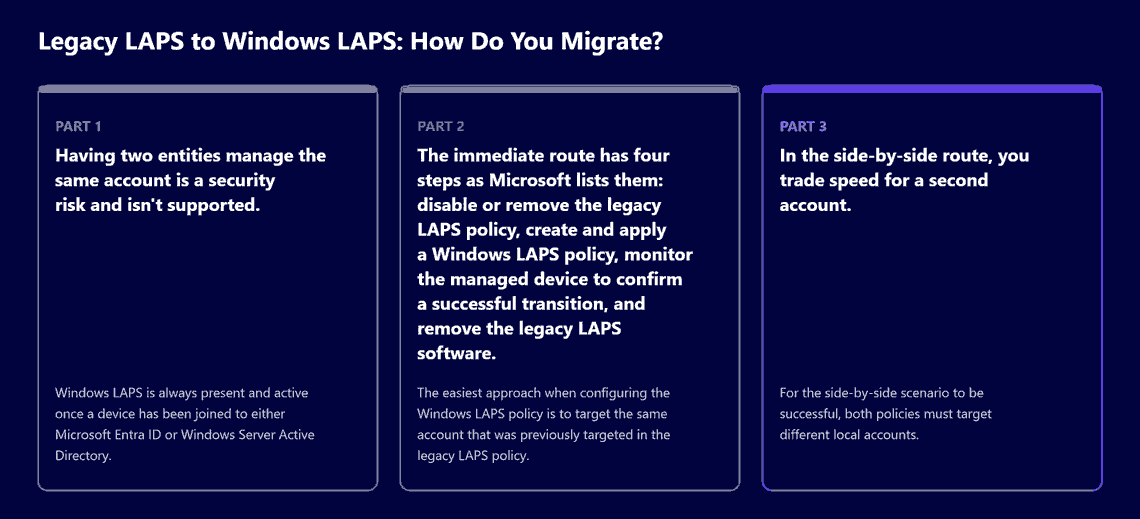
Microsoft’s Migrate to Windows LAPS from legacy LAPS, last updated on May 19, 2025, says “Microsoft recommends migrating from legacy LAPS to Windows LAPS.” and describes two routes.
The immediate route has four steps as Microsoft lists them: disable or remove the legacy LAPS policy, create and apply a Windows LAPS policy, monitor the managed device to confirm a successful transition, and remove the legacy LAPS software. Microsoft says “The first two steps should be performed simultaneously (or as nearly so as possible).” and “The easiest approach when configuring the Windows LAPS policy is to target the same account that was previously targeted in the legacy LAPS policy.” Expect the password to change at once: “When a Windows LAPS policy is first applied, the managed device performs an immediate rotation of the local account password.” Microsoft closes the route with “Once the transition is complete, the final step should be to remove the legacy LAPS software from the managed device.”
In the side-by-side route, you trade speed for a second account. Microsoft says “It’s possible to use both Windows LAPS and legacy LAPS in a side-by-side scenario.” and “For the side-by-side scenario to be successful, both policies must target different local accounts.” The reason is stated plainly: “With this approach, you need to create a second local account since having both a Windows LAPS policy and legacy LAPS policy targeting the same account isn’t supported.” Microsoft’s steps for this route end with removing the legacy LAPS software and then removing the extra account.
Emulation mode is the third thing you will hear about, and Microsoft describes it as a temporary step, not a destination. In What is Windows LAPS?, Microsoft says “Emulation mode has security limitations.” and “Like legacy Microsoft LAPS, it stores passwords in Windows Server Active Directory only in clear-text form, so it can’t use the password encryption or password history features of native Windows LAPS.” Its instruction is “Treat emulation mode as a temporary step, and plan to migrate to native Windows LAPS to take advantage of its security features.” The emulation page adds a limit: “For example, when you run Windows LAPS in legacy Microsoft LAPS emulation mode, you can’t configure Windows LAPS to do tasks like encrypt passwords or save passwords to Microsoft Entra ID.” And it only runs where the legacy extension is gone: “If the legacy CSE is present, Windows LAPS defers to it and disables emulation mode to avoid conflicts.” This guide makes no statement about emulation mode on any particular Windows version, because the Microsoft pages read for it make none.
The planning rules: pick the route per device population; prove before cutover that no account is targeted by both a legacy policy and a Windows LAPS policy; expect an immediate password rotation when the Windows LAPS policy first applies; and schedule removal of the legacy software as a tracked step with its own verification, followed in the side-by-side route by removal of the extra account.
If more than one policy source reaches a device, the outcome is decided by precedence, not by intent. For Microsoft Entra joined devices, Microsoft’s Get started with Windows LAPS and Microsoft Entra ID, last updated on May 12, 2025, says “The preferred option for Microsoft Entra joined devices is to use Microsoft Intune with the Windows LAPS configuration service provider (CSP).” In Deploy Windows LAPS policy with Microsoft Intune, Microsoft says “Intune supports configuration of Windows LAPS on devices through the Local admin password solution (Windows LAPS) profile for endpoint security account protection policy.”
The precedence rule is on the Intune page: “The CSP-based policy from Intune overrides all other sources of LAPS policy, such as from GPOs or a configuration from Legacy Microsoft LAPS.” Microsoft’s settings page says “Although we don’t recommend it, you can administer a device by using multiple policy management mechanisms.” Within Intune itself, Microsoft warns that “Devices that receive multiple Intune policies that include conflicting settings can fail to process policy.”
Two prerequisites sit outside the device policy. Microsoft says “By default Microsoft Entra ID doesn’t allow managed devices to post new Windows LAPS passwords to Microsoft Entra ID.” so the tenant setting has to be turned on before the first policy that backs up to Microsoft Entra ID. And Microsoft’s Intune page lists Microsoft Intune Plan 1, the basic Intune subscription, among the prerequisites for managing Windows LAPS through Intune.
The planning rules: one policy source per device population, written down; turn on the Microsoft Entra tenant setting before the first policy that backs up there; and check that no device receives two Intune LAPS policies with conflicting settings. If the LAPS move is part of taking the whole fleet off Group Policy, that larger move is covered in Intune migration checklist.
When an assessor asks who can see a local administrator password, the answer has to be a list of named groups, not a general reference to administrators. For passwords in Microsoft Entra ID, Get started with Windows LAPS and Microsoft Entra ID tells you to review the membership of the built-in Microsoft Entra roles that have access to those passwords by default, and says of them: “These roles are highly privileged.” In Windows Local Administrator Password Solution in Microsoft Entra ID, Microsoft adds that “Conditional Access policies can be scoped to the built-in roles to protect access to recover local administrator passwords.” This guide names no role; check the current list on Microsoft’s page against your own tenant’s role assignments.
Rotation from the Intune admin center is narrower by design. Microsoft’s Microsoft Intune support for Windows LAPS, last updated on April 15, 2026, says “The Remote tasks action of Rotate Local Admin Password isn’t included by any Intune built-in role or the Microsoft Entra built-in role of Intune Administrator.” and “Instead, use a custom Intune role to assign this permission to users who should have this capability.” The deployment page adds: “Password rotation isn’t supported as Bulk Action.”
For passwords in Active Directory, read and decrypt are separate permissions, as set out in the section on keeping passwords in Active Directory. Password age works the same way in both directories, with one difference: in Configure policy settings for Windows LAPS, Microsoft’s PasswordAgeDays setting has a minimum of one day, and seven days when the backup directory is Microsoft Entra ID. Microsoft also says “Changes to the PasswordAgeDays policy setting have no effect on the expiration time of the current password.” so a shorter age set during cutover does not shorten the password already in place.
The planning rules: name the groups that may read, decrypt and rotate, per directory, before the cutover; put the custom Intune role for rotation in the design rather than granting a broad built-in role; and keep the retrieval audit where the directory keeps it, so the record of who looked at a password comes from a log.
If your tenant is in GCC High, read Microsoft’s cloud statements one at a time, because they are not all on one page. Under the heading “GCC High support”, Microsoft’s Microsoft Intune support for Windows LAPS says “Intune policy for Windows LAPS is supported for GCC High environments.” That sentence covers Intune policy, and it names GCC High only.
For backup to Microsoft Entra ID, Microsoft’s Windows Local Administrator Password Solution in Microsoft Entra ID lists the Azure clouds where the feature is available: Azure Global, Azure Government, and Microsoft Azure operated by 21Vianet. It does not name GCC High. Elsewhere, Microsoft’s Overview: Cross-tenant access with Microsoft Entra External ID, last updated on March 28, 2025, describes Microsoft Azure Government as the cloud that includes the Office GCC-High and DoD clouds.
This guide’s reading, which is not Microsoft’s wording: a GCC High tenant sits in the Azure Government cloud that Microsoft lists for Windows LAPS with Microsoft Entra ID, so backup to Microsoft Entra ID is in scope to plan, and it should be verified in your own tenant before rollout. Backup to Windows Server Active Directory runs against your own domain controllers, so the tenant’s cloud does not change that route. This guide makes no statement about Intune policy for Windows LAPS in DoD tenants, because the Intune sentence on GCC High support names GCC High only.
If your question is a different one, answer it first.
Before you accept a migration plan, internal or external, hold it to these criteria.
If the move has to stand up in front of an assessor, someone has to inventory the estate, make the directory and cutover decisions and hand over a policy your team can run. i3solutions is a Microsoft Systems Integrator with experience implementing identity and access management solutions for enterprises in regulated industries. i3solutions has deep experience implementing identity governance for enterprises in aerospace and defense manufacturing, financial services, and healthcare, including environments with CMMC and ITAR obligations. i3solutions has been a Microsoft Partner with 30 years of enterprise technology delivery experience and has delivered 1,500+ Microsoft engagements across aerospace and defense, financial services, and health sciences.
For a move from legacy LAPS to Windows LAPS, that work is the inventory, the directory choice per device population, the Active Directory readiness work, the cutover plan, the policy source and access design, and the handover. It is delivered as a project by senior, US-based people, with embedded specialists inside your team where it needs them. An i3solutions project engagement does not by itself include ongoing support of what it delivers, which i3solutions scopes separately as Application Managed Services, and it is not a replacement for the internal team, open-ended scope expansion, or vendor lock-in. The wider identity practice is described in identity and access management solutions.
Only on older Windows versions. Microsoft says “Microsoft will continue to support the legacy Microsoft LAPS product on the older versions of Windows (earlier than Windows 11 23H2) that previously supported it.” and “That support ends at the normal end of support for those OS versions.” It also says “The legacy Microsoft LAPS product is deprecated as of Windows 11 23H2 and later.” Microsoft gives no separate end date for legacy LAPS.
No. Microsoft says “You can’t back up passwords to both Microsoft Entra ID and Windows Server Active Directory.” Hybrid-joined devices can back up to either one, and Microsoft’s Intune page says “LAPS on Windows devices can be configured to use one directory type or the other, but not both.”
Yes, against different accounts. Microsoft says “It’s possible to use both Windows LAPS and legacy LAPS in a side-by-side scenario.” and “For the side-by-side scenario to be successful, both policies must target different local accounts.” It also says “Having two entities manage the same account is a security risk and isn’t supported.”
For Intune policy, yes: Microsoft says “Intune policy for Windows LAPS is supported for GCC High environments.” For backup to Microsoft Entra ID, Microsoft lists Azure Government among the clouds where the feature is available and describes Azure Government as including the Office GCC-High and DoD clouds; reading those together as covering a GCC High tenant is this guide’s reading, to verify in the tenant before rollout.
Not for the feature itself. Microsoft says “The Windows LAPS feature is available at no cost on all supported Windows platforms.” and “You can back up passwords to Microsoft Entra ID with a Microsoft Entra ID Free or higher license.” It adds that “Other Microsoft Entra ID or Microsoft Intune features can have other licensing requirements.” Managing Windows LAPS through Intune lists Microsoft Intune Plan 1 as a prerequisite.

US-Based Microsoft System Integrator | Est. 1997
© i3solutions. All rights reserved.
US-Based Microsoft System Integrator | Est. 1997
© i3solutions. All rights reserved.


