
By Michael Branson, Founder and COO, i3solutions
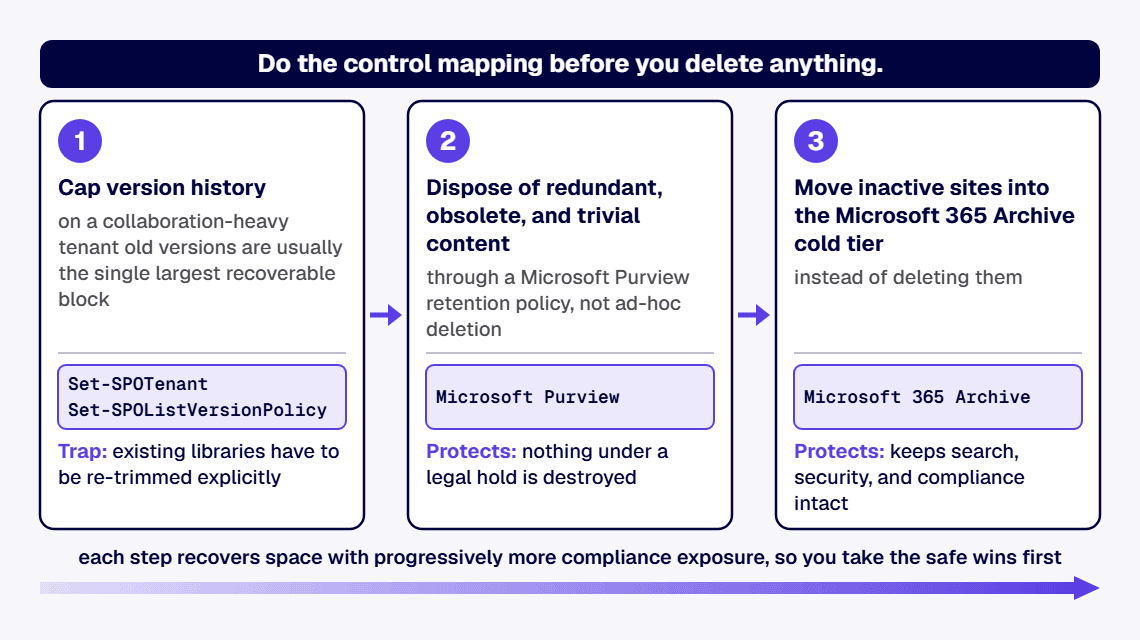
A SharePoint storage cleanup gives a regulated organization back tenant capacity in three governed steps, in this order, without destroying evidence an auditor may need. First, cap version history: SharePoint keeps up to 50,000 major versions per file, and on a collaboration-heavy tenant old versions are usually the single largest recoverable block. Set an automatic or count-plus-age trim with Set-SPOTenant at the organization level, or per library with Set-SPOListVersionPolicy, then account for the trap: new limits apply only to libraries created after you change the setting, so existing libraries have to be re-trimmed explicitly. Second, dispose of redundant, obsolete, and trivial content through a Microsoft Purview retention policy, not ad-hoc deletion, so nothing under a legal hold is destroyed. Third, move inactive sites into the Microsoft 365 Archive cold tier instead of deleting them, which keeps search, security, and compliance intact at a lower storage price. In a regulated tenant, do the control mapping before you delete anything: unjustified deletion is the failure mode auditors flag.
Your total SharePoint storage is a pool, not a per-site allowance. Microsoft allocates 1 TB plus 10 GB per licensed user, with additional 1 GB increments available for purchase, and any single site collection can hold up to 25 TB. When the pool is exhausted the tenant is put at risk of read-only mode, where users cannot add or modify content until usage drops or capacity is bought.
Two things fill the pool fastest. Version history is one: every save can create a major version, up to a ceiling of 50,000 major versions per file, and few organizations ever set a lower limit. The other is ROT, redundant, obsolete, and trivial content, sitting in inactive sites that no one has opened in years. Deleting the wrong item is not free either: deleted content occupies the recycle bin, which counts against the same pool for a 93-day retention window spanning the first-stage and second-stage bins combined.
Cap version history first because it recovers the most space with the least compliance risk. To let the service manage limits automatically, run Set-SPOTenant -EnableAutoExpirationVersionTrim $true; the algorithm keeps more recent versions and fewer older ones. To set explicit limits instead, run Set-SPOTenant -EnableAutoExpirationVersionTrim $false -MajorVersionLimit 500 -ExpireVersionsAfterDays 30, which caps both the count and the age of retained versions. For a single high-churn library, apply the policy at the library level with Set-SPOListVersionPolicy.
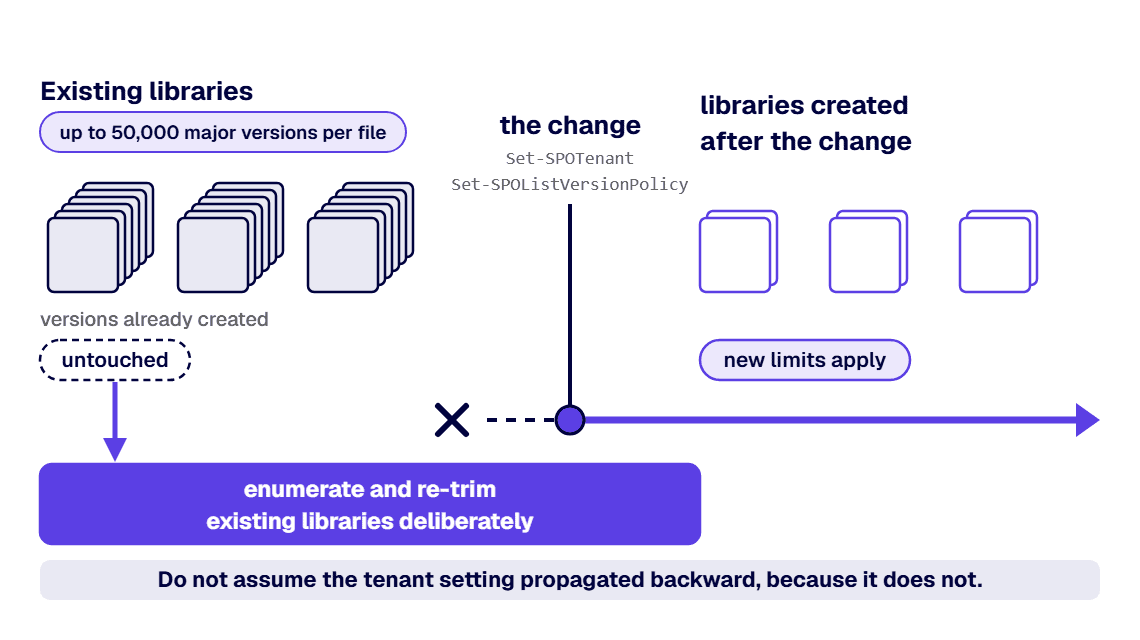
The prerequisite that breaks most cleanups: organization and site version settings apply only to libraries created after the change. Existing libraries and versions already created are untouched, so you must enumerate and re-trim existing libraries deliberately. Do not skip that step and assume the tenant setting propagated backward, because it does not.
Remove dead data through governance, not the delete key. Inventory inactive sites and stale libraries, classify what is genuinely redundant, obsolete, or trivial, and route disposal through a Microsoft Purview retention or retention-label policy so anything under a legal hold or a regulatory retention window is preserved automatically. That same classify-first discipline is the subject of Which SharePoint Content to Migrate, Archive, or Retire.
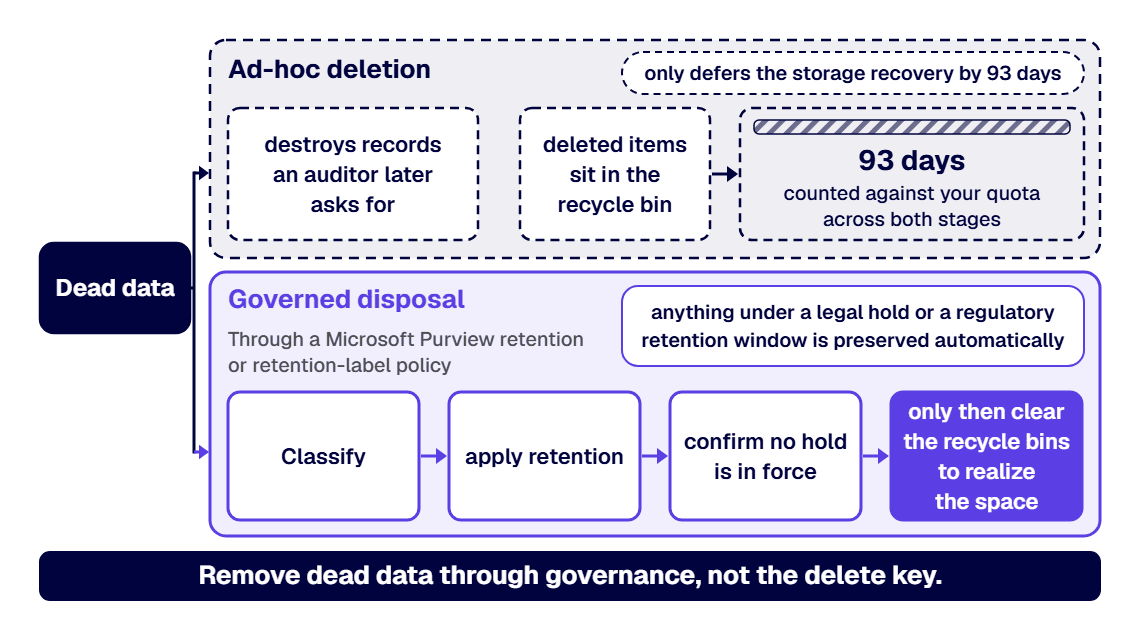
Ad-hoc deletion is the failure mode: it destroys records an auditor later asks for, and it only defers the storage recovery by 93 days anyway, because deleted items sit in the recycle bin, counted against your quota, for that full window across both stages before they purge. Sequence matters. Classify and apply retention before you empty anything, confirm no hold is in force, and only then clear the recycle bins to realize the space. Do not run a bulk purge in a regulated tenant until the retention decision behind each disposal is documented.
When a site is inactive but cannot be deleted for records reasons, archive it rather than carrying it in active storage. Microsoft 365 Archive moves inactive sites and files into a cold storage tier that retains full searchability, security, and Microsoft Purview compliance while consuming storage at a lower list price than active content, billed pay-as-you-go. It is managed in the SharePoint admin center by a SharePoint Administrator or Global Administrator, and it is now available to Government Community Cloud tenants.
Two operational constraints to plan around: a file that has been reactivated from archive cannot be archived again for 120 days, and archived content is not used to train Copilot, which for a regulated buyer is a feature, not a limitation. Archive is the right tool when the compliance obligation is retention, not access.
The order is version cap, then governed ROT disposal, then archive, and the reason is risk, not convenience: each step recovers space with progressively more compliance exposure, so you take the safe wins first. Do not start with a mass deletion if any content is under legal hold or an open records request, because retention policy, not a recycle-bin purge, is what protects you. Do not assume a new tenant version limit cleaned up existing libraries, because it did not.
And budget for the overhead a commercial cleanup guide will not print. Regulated-industry SharePoint modernization carries roughly 25 to 35 percent cost overhead versus commercial work for equivalent scope, driven by control mappings, audit-trail discipline, and zero-downtime cutover patterns. That overhead is the control-mapping and evidence work, and skipping it is what turns a storage cleanup into an audit finding. If budget is the open question, the numbers are laid out in our SharePoint migration cost guide.
Bring in a partner when the cleanup has to be defensible to an auditor, not just effective. i3solutions runs migrations against named control families across CMMC, HIPAA, SOC 2, and NIST 800-171, producing artifacts auditors can review. The same discipline applies to storage remediation: every disposal maps to a retention decision, and every step leaves an artifact you can hand to an assessor.
i3solutions has completed more than 1,500 Microsoft platform implementations. All i3solutions SharePoint developers, architects, and consultants are 100% U.S.-based. Michael Branson co-founded i3solutions 30 years ago and brings executive, operational, and technical perspective to organizations working in complex, secure, and mission-critical environments.
Enterprise SharePoint strategy assessment engagements typically run four to six weeks elapsed time with two to three i3solutions consultants. That is the shape of the first engagement: map the storage, version, and retention posture, then hand you the remediation sequence with the control mapping already done. If your estate is over quota and the remediation has to survive an audit, work with a SharePoint development and modernization partner that treats the audit trail as a deliverable.
Usually version history plus dead data. Every save can create a major version, up to 50,000 major versions per file, and most tenants never set a lower limit. Add inactive sites full of redundant, obsolete, and trivial content, and the shared pool of 1 TB plus 10 GB per licensed user runs out well before the content that matters does.
The tenant is put at risk of read-only mode: users cannot add or modify content until usage drops below the limit or additional capacity is purchased. That is why remediation belongs on a schedule, not in a crisis.
No. Organization and site version settings apply only to libraries created after the change. Existing libraries, and versions already created, keep their old behavior until you enumerate and re-trim them explicitly. This is the single most common reason a version-policy rollout recovers far less space than expected.
No. Deleted content sits in the recycle bin for a 93-day retention window across the first-stage and second-stage bins, and it counts against your tenant quota the whole time. Space is only realized when items purge or the bins are deliberately cleared, which in a regulated tenant should happen only after the retention decision is documented.
If the obligation is retention rather than access, archive them. Microsoft 365 Archive moves inactive sites to a cold tier at a lower list price, billed pay-as-you-go, while keeping search, security, and Purview compliance intact. Plan around one constraint: a reactivated file cannot be archived again for 120 days.
Yes, Microsoft 365 Archive is now available for Government Community Cloud tenants. It is managed in the SharePoint admin center by a SharePoint Administrator or Global Administrator, and archived content is not used to train Copilot.
Enterprise SharePoint strategy assessment engagements typically run four to six weeks elapsed time with two to three i3solutions consultants. The output is a remediation sequence with the retention and control mapping already done, in a form you can defend to an auditor.

US-Based Microsoft System Integrator | Est. 1997
© i3solutions. All rights reserved.
US-Based Microsoft System Integrator | Est. 1997
© i3solutions. All rights reserved.


