
By Michael Branson
A SharePoint Online migration statement of work is structured as five phases, discovery and assessment, migration execution, validation, cutover, and post-migration support, and each phase ends on a named artifact that a named person on the buyer’s side accepts. The acceptance criterion that decides the document is the one a count cannot see: the migration is complete when the content reconciles and the workflows, forms, and integrations that depend on that content have been exercised end to end in the target tenant against the dependent-workflow list compiled in discovery, with a pass recorded for each line. Governance sign-off is written as a gate that blocks cutover, a failed criterion triggers a stated remediation window and a re-test against the same list, and a single-site migration with no dependent workflows is scoped in one phase with one milestone instead of five.
Procurement has asked for a statement of work before three vendor proposals can be compared, and the VP of IT who signs it knows what the milestone and acceptance wording in that document turns into: the leverage the buyer will have once the contract is signed. A statement of work that reads “migrate SharePoint to the cloud, phase 1 discovery, phase 2 migration, phase 3 go-live” lets a vendor claim completion the day the content lands in the tenant, while the approval flows, forms, and integrations underneath that content break quietly and surface as tickets in the weeks after go-live. The gap is invisible at signing and expensive at cutover, which is the point at which the buyer has the least room to push back. This page sets out how the document is sequenced and enforced: five phases and what ends each one, the milestone sentence, the acceptance criterion a count cannot see, governance sign-off as a gate, what a phase costs in weeks, and what happens when a criterion fails at test.
What a migration statement of work must contain, clause by clause, is set out on Best SharePoint Development Companies for Regulated Enterprises: The Shortlist and the Criteria, and that list is not repeated here. This page starts where that list stops. A document can carry each clause on that list and still be unenforceable, because a contents list says what the document holds and says nothing about the order the work runs in, what ends a phase, who signs, or what the buyer does when a criterion that reads well on paper fails at test. Those are the questions below.
A statement of work for a SharePoint Server 2016 or 2019 source is written for a server that stopped receiving security updates on July 14, 2026, so the source environment carries risk for the whole length of the engagement. Microsoft’s 2026 end-of-support list gives July 14, 2026 as the end of support for SharePoint Server 2016 and SharePoint Server 2019, and states what the date removes: “Upon retirement or end of support, there will be no new security updates, non-security updates, free or paid assisted support options or online technical content updates.” The date changes the document in four places.
The date itself. The document records the end-of-support date and the fact that the source receives no security updates while the work runs, so the condition of the source is written where both sides sign it instead of being found during execution.
The source owner and the freeze. The document names who owns the unsupported source until cutover and who approves a change to it, and it sets a change freeze on the source from the accepted inventory until the cutover milestone sets the source read-only, so the inventory the validation phase is run against stays the inventory that was signed.
The legacy workflow and form lines. SharePoint Designer 2013 and InfoPath 2013 are on the same July 14, 2026 list. Each SharePoint Designer workflow and each InfoPath form found in discovery becomes a line on the dependent-workflow list with a disposition beside it, rebuild, replace, or retire, so the validation phase tests it like any other line and the acceptance criterion below covers it without a separate clause.
The target, named as a term. The migration approach is already a contract term, and for an unsupported source so is the target: SharePoint Online, or SharePoint Server Subscription Edition, which Microsoft’s lifecycle page lists as In Support with the statement “SharePoint Server Subscription Edition follows the Modern Lifecycle Policy.” Which target fits, and the migration path to it, are set out on Our SharePoint Server Is Reaching End of Life: How Do We Migrate Off On-Premises to Microsoft 365?; the statement of work records the choice and does not argue it.
The migration approach is a contract term before it is anything else. The statement of work names the approach that was chosen, phased by site collection, hybrid with a coexistence period, or a single full cutover, because a phased document and a full-cutover document attach different acceptance criteria to the same content and are not the same statement of work. With the approach named, the document runs in five phases, and each phase ends on an artifact.
The order carries the enforcement. A vendor cannot start validation against a list that discovery never produced, and cannot reach cutover past a governance owner who has not signed, so a phase that is skipped shows up as a missing artifact at the next milestone instead of as an argument at go-live.
When the trigger is a tenant nobody can inventory, the first failure is a fixed scope written against a site list that is already wrong. i3solutions assessment engagements routinely find 20 to 40 percent more SharePoint sites during Phase 1 than the client internal inventory lists. A statement of work priced from the buyer’s own list has priced a different estate from the one discovery will find, so the document says in advance what happens when the count grows: the added sites are inventoried and dispositioned like the rest, and the scope and the milestone dates are restated against the accepted inventory, not against the list in the request for proposal.
The cleanup itself is scoped inside discovery. The inventory gains a disposition column for each site and library, migrate, archive, or delete, and the named business owner on each line signs the disposition, so cleanup is accepted line by line inside phase 1 instead of argued at cutover. Content dispositioned for archive or delete does not move, and the reconciliation in migration execution is run against the lines marked migrate.
Moving the sprawl as it stands repeats it. Site sprawl increases 300 to 500% within 18 months of lift-and-shift migration due to lack of provisioning governance and template standards. The disposition column removes the sprawl that exists; the provisioning settings the governance owner signs at cutover are the part of the document that answers the cause the figure names. The governance-first model behind that figure is set out on Governance-First SharePoint Modernization for Regulated Enterprises, and it is not restated here.
The document then says which of two forms the cleanup takes: a scoped deliverable of discovery, closed when the dispositions are signed, or a separately priced line with its own milestone sentence, when the volume to archive or delete is too large to finish inside phase 1. Cleanup that has to keep running after cutover is not a phase with an end, and the pricing basis below is where that case is settled.
A milestone is a sentence with four parts: the phase, the word AND, the artifact, and the signer. “Migration execution complete” is a status, and a vendor can declare it. “Migration execution complete AND the migration report for each batch reviewed against the accepted inventory, exceptions listed, signed by the SharePoint service owner” is a milestone, because a named person can refuse to sign it. The table renders one milestone sentence per phase; the wording is the buyer’s to adapt, and the four-part shape is the part to keep.
When two criteria in the table disagree, the reconciliation report is clean and a workflow on the list fails, the workflow criterion decides: the milestone is not met, whatever the count says. That precedence sentence belongs in the document itself, because a vendor reading a clean reconciliation report will otherwise argue that execution was accepted and validation is a separate matter.
Countable reconciliation is the floor, and a count reconciles while the workflows sitting on top of the content are already broken. A document library can arrive in the target tenant with its content reconciled, and the approval flow that read from that library on the source side can still fail on its first run because the site structure, the content type, or the permission model it depended on was copied without being validated for the flow’s own use. Power Platform workflow dependencies break in 70 to 85% of lift-and-shift migrations because the underlying site structures, content types, and permission models that workflows depend on are copied without validation. The figure is offered as the reason validation is its own phase with its own milestone, and this page attaches no workflow count, remediation cost, or reduction claim to it.
Written into the document, the acceptance criterion has four components. The list: compiled in discovery, naming each workflow, form, and integration that depends on the content being moved, with the site it runs on and the business owner who uses it. The test: each line exercised end to end in the target tenant by that business owner, with the test steps written before execution starts so the vendor cannot narrow the test to fit what migrated. The record: a pass or a fail per line, kept with the milestone. The pass condition: the validation milestone is met when each line on the list has a recorded pass or an accepted exception, and the exception is signed by the governance owner who signs cutover, so an exception cannot be used to move a fail off the list quietly.
The permission model is one line item on that list, and the technical sequence that preserves access through the move is set out on How to Migrate SharePoint to Microsoft 365 Without Breaking Permissions and Governance; the statement of work references that sequence as a requirement and does not restate it. Why acceptance criteria are where migrations are won or lost, across the failure patterns seen in practice, is set out on SharePoint Migration Consulting: Six Failure Patterns and How to Avoid Them; this page takes that argument as read and spends its length on the criterion itself.
Governance documentation handed over at the end of the engagement is a deliverable. Governance sign-off written into the cutover milestone is a gate. The difference is scheduling and leverage: a deliverable can arrive late and the migration still goes live, while a gate that blocks cutover cannot be skipped without a change to the document that both sides sign. What the governance owner signs is the target tenant as configured, and the document names the three things that signature covers: the permission model as it exists in the target tenant, the site provisioning and retention settings as configured, and the exceptions list carried out of validation. A signature over a planned model is a signature over a plan; the gate is written over the configured state so the signer is looking at the tenant users will inherit.
The regulated framing behind that gate, and why a lift-and-shift into a tenant with no governance model carries audit exposure forward with the content, is covered on SharePoint Server to SharePoint Online Migration for Regulated Enterprises; the statement of work references it as background and does not restate it. Where the governance model itself has to be designed before anyone can sign it, that is advisory work bought under its own request for proposal for governance consulting, a different purchase from a migration statement of work, and the two documents are not merged.
Two published durations give a buyer a reference point for what a real phase costs, each stated for what it covers so the two are never conflated. i3solutions pre-migration SharePoint assessment engagements run four to six weeks. i3solutions mid-migration SharePoint rescue engagements run eight to fourteen weeks. The first is what a discovery and assessment phase for an enterprise estate costs when it produces the inventory and the dependent-workflow list the phases above depend on; a discovery phase a vendor has scoped in a fraction of that time, for an estate of comparable size, is a phase that will not produce the list validation needs. The second is what a stalled migration costs in a second engagement, and it is the cost the validation phase and the governance gate exist to avoid. Neither figure is a timeline for the reader’s own project; each is a reference the reader’s own inventory is measured against, and the SharePoint migration service itself, for a reader ready to hire instead of draft, is described on SharePoint Migration Services for Enterprise Microsoft Environments. If the statement of work must cover complex workflows, see who to hire for a SharePoint migration with complex workflows.
A fixed price is only as safe as the inventory it is priced against, which is why the pricing basis follows discovery and does not precede it. The basis does not change the phase spine or the milestone sentences; it changes what each milestone releases and what the buyer’s reports are written against. Three rules settle it.
A monthly resource is the wrong basis when the inventory is accepted and the buyer needs a fixed number for the budget cycle, because open-ended months then carry the risk the inventory had already removed. The i3solutions figure for the monthly basis is stated per team. Dedicated team engagements range $35,000 to $95,000 per month per team depending on team composition (senior architect, senior engineer, delivery lead mix) with three to nine month minimum commitments. That band is the cost basis of a dedicated team, not a price for any phase on this page, and it does not combine with the two durations above into a total. What a whole migration costs is answered on How Much Does a SharePoint Migration Cost?, and how consulting firms charge in general is compared on How Microsoft Consulting Firms Charge: Hourly, Retainer, and Fixed-Price Models Compared; this page sets out only how each basis is written into a migration statement of work.
A criterion the buyer has not yet written into the document is fixed by writing it in. A criterion that is present in the signed document and fails at test needs a path that was written before the test ran, because the negotiation that follows a failed validation is the one the buyer is least equipped to win. The document states three terms. The remediation window: a stated number of business days, set in the document, from the recorded fail to the re-test, and the milestone date moves with it. The re-test: against the same line of the same list, by the same business owner, with the same written steps, so the second test cannot be narrowed to fit the fix. What done means the second time: a partial pass is recorded as a fail, the same signer signs, and an exception accepted after a failed re-test is signed by the governance owner and carried into the cutover gate as an exception, where it is visible. Nothing in the failure path moves the acceptance criterion; it moves the date. Which side carries the cost of remediation is a commercial term the document sets alongside its pricing basis, and this page does not set it.
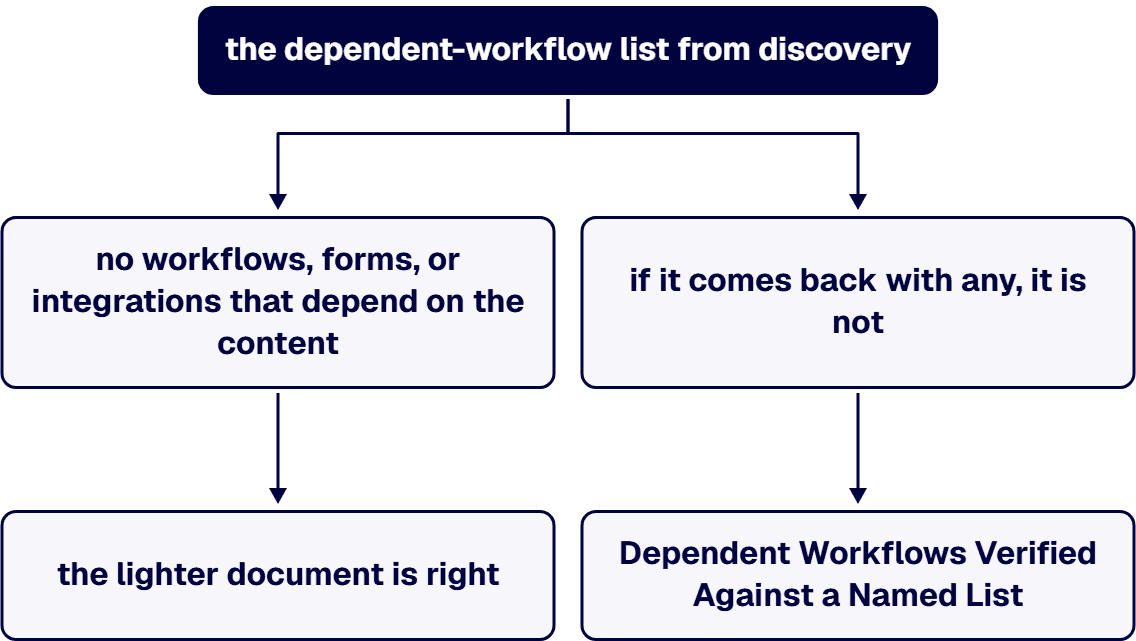
A single site collection, no custom workflows or forms, no integrations, no regulated retention obligation on the content, and a business owner who can verify the result by hand: for that migration, five phases and five milestone sentences would cost more procurement time than the move itself. Write one phase, one milestone (content reconciled AND the owner’s verification recorded, signed by that owner), and one signer. The test for which document a migration needs is the dependent-workflow list from discovery: if it comes back with no workflows, forms, or integrations that depend on the content, the lighter document is right; if it comes back with any, it is not, and the reason is in the acceptance section above. What a migration of that lighter shape involves, and how the approach choice is made for it, is covered on SharePoint Online Migration From On-Premises: What Every Business Needs to Know, and a reader with that estate is better served there than here.
i3solutions has been a Microsoft partner since 1997. On its SharePoint development pillar, Enterprise SharePoint Development & Integration Services Built for Scale and Governance, i3solutions describes itself as a U.S.-based Microsoft systems integrator that has built, integrated, and governed SharePoint for regulated enterprises, and lists legacy SharePoint to SharePoint Online migration and cloud migration planning and execution among the services it delivers. The same page describes its team as including senior Microsoft SharePoint developers, SharePoint governance and migration consultants, Power Platform architects, and full-stack Microsoft integration specialists. One published case study, Ensuring Continuity of Operations With Expert Cloud Migration Services, referenced here by sector only as an engagement for a federal agency, describes the work in its own words: “With over 20 years of SharePoint migration experience and the ability to draw on numerous lessons learned, i3solutions developed a detailed migration plan to ensure a seamless migration for the agency.” Applied to this question, the phase spine above is offered as buyer guidance for a document any vendor can be held to, and it is not presented as anyone’s contract language.

US-Based Microsoft System Integrator | Est. 1997
© i3solutions. All rights reserved.
US-Based Microsoft System Integrator | Est. 1997
© i3solutions. All rights reserved.


