
The request can reach the IT Director as a list. Compliance hands over the groups that must not communicate, citing the firm’s research policies: research analysts on one side, investment banking and sales and trading on the other. By then Teams is where analysts, bankers and traders already talk, share files and meet, and someone has said the fix is to turn on Information Barriers. Three worries sit behind that request: the directory data may not be clean enough to build segments from, a policy applied to live teams may break collaboration people depend on, and email and outside chat may not be covered at all. This guide answers all three. It is written for the IT leader who has to make compliance’s wall list real in Microsoft 365; which walls the firm needs, and whether its safeguards are adequate, stay with the firm’s compliance officers and counsel. A bank is in scope for this guide where its broker-dealer or research function sits under these FINRA rules, or where its own written policies call for the same kind of wall.
When compliance cites the research rules, the text it is citing asks the firm for written policies and safeguards, not for a particular product. FINRA’s rulebook page 2241. Research Analysts and Research Reports, read on September 24, 2026, says in paragraph (b)(1): “A member must establish, maintain and enforce written policies and procedures reasonably designed to identify and effectively manage conflicts of interest related to” three things, the third being “(C) the interaction between research analysts and those outside of the research department, including investment banking and sales and trading personnel, subject companies and customers.”
The barrier itself is paragraph (b)(2)(G), in FINRA’s words: “(G) establish information barriers or other institutional safeguards reasonably designed to ensure that research analysts are insulated from the review, pressure or oversight by persons engaged in investment banking services activities or other persons, including sales and trading personnel, who might be biased in their judgment or supervision;” Rule 2241’s exemption for members with limited investment banking activity does not remove that duty: paragraph (i) of 2241. Research Analysts and Research Reports says “such members must establish information barriers or other institutional safeguards reasonably designed to ensure that research analysts are insulated from pressure by persons engaged in investment banking services activities”. The size tests for that exemption are FINRA’s, and this guide does not restate them.
For debt research, FINRA’s page 2242. Debt Research Analysts and Debt Research Reports carries the parallel duty in paragraph (b)(2)(H): “(H) establish information barriers or other institutional safeguards reasonably designed to ensure that debt research analysts are insulated from the review, pressure or oversight by persons engaged in:” followed by “(i) investment banking services; (ii) principal trading or sales and trading activities; and (iii) other persons who might be biased in their judgment or supervision;” Its supplementary material adds a section headed “.03 Information Barriers between Research Analysts and Trading Desk Personnel”.
Microsoft names the same industry as the primary driver for the feature. According to Microsoft’s Information Barriers in Microsoft Teams page (last updated June 1, 2026), “The primary driver for Information Barriers is the financial services industry, where the Financial Industry Regulatory Authority (FINRA) reviews IBs and conflicts of interest within member firms (Debt Research Regulatory Notice 15-31).” That sentence describes why Microsoft built the feature. It does not say that FINRA requires, approves or names it, and neither rule page read for this guide mentions Microsoft.
Planning rule: start from the firm’s written policies and the wall list compliance owns, one wall per line, and treat Microsoft Purview Information Barriers as one technical control that enforces part of that list in Teams, SharePoint and OneDrive. FINRA’s words “information barriers” describe the firm’s safeguard; Microsoft’s product name describes a feature. Keep the two apart in every design document.
If the wall list includes email or outside chat, the first thing to settle is where Microsoft’s feature stops. According to Microsoft’s Learn about Information Barriers page, “Microsoft Purview Information Barriers (IB) is a compliance solution that restricts two-way communication and collaboration between groups and users in Microsoft Teams, SharePoint, and OneDrive.” The same page says “Information Barriers only supports two-way communication and collaboration restrictions.” A wall that lets research reach bankers while blocking the reverse is not something the feature builds.
In Teams, the same Microsoft page lists the activities the policies determine and prevent:
Microsoft’s Microsoft Purview service description adds: “Information barrier policies also prevent lookups and discovery.” Which plan carries the license for Information Barriers, and what it costs, is covered in Microsoft 365 E3 vs E5 cost.
Where it stops, in Microsoft’s words:
Sources for the table: the shared channels row comes from Microsoft’s Information Barriers and shared channels page; the federation, guest, tenant and team-site rows from Microsoft’s Information Barriers in Microsoft Teams page.
Planning rule: list every channel the wall must hold in, including Teams, SharePoint, OneDrive, email, outside chat and external federation, and mark which ones the feature covers. The rest need their own control, and each one is a line in the design document, not a footnote. Information Barriers are one Purview control among several; the order in which a regulated firm readies those controls is covered in Microsoft Purview deployment readiness.
If a research analyst’s department field is blank or out of date in Entra ID, no policy can place that analyst on the right side of the wall. Segments are built from directory attributes, and Microsoft’s Get started with Information Barriers page (last updated April 22, 2026) makes the prerequisite explicit: “To take this action, make sure that user account attributes (such as group membership, department name, and other attributes) are populated correctly in Microsoft Entra ID or Exchange Online.” Microsoft’s Information Barriers attributes page lists the attributes a segment filter can use and advises: “When you define segments, use the same attribute for all your segments.”
The limits depend on the organization’s Information Barriers mode, which is set per tenant as Legacy, SingleSegment or MultiSegment, so check it before designing anything. Microsoft’s Get started with Information Barriers page says “Your organization can have up to 5,000 segments, and users can be assigned to a maximum of 10 segments.” and, in the same section, “For organizations in Legacy mode, the maximum number of segments supported is 250, and users are restricted to being assigned to only one segment.” It also says “For organizations in Legacy or SingleSegment modes, a user can belong to only one segment.” and “You can have up to 5,000 segments in your organization, and each segment can have only one IB policy applied.” So the ten-segment figure applies only to a tenant in MultiSegment mode.
Moving to that mode is a decision to make before the first segment exists. According to Microsoft’s Use multi-segment support in Information Barriers page (last updated March 30, 2026), “If the value of the InformationBarrierMode property is Legacy, enabling multi-segment isn’t supported for your organization.” For a SingleSegment tenant, the same page says “To enable multiple segment support for organizations in SingleSegment mode, make sure that you don’t currently have any IB segments or policies defined for your organization.” and warns “If you enable multiple segments and configure IB in your organization, don’t revert to single segment support.”
One more prerequisite sits in Teams. Microsoft’s Get started with Information Barriers page says “Wait at least 24 hours after enabling scoped directory search before you set up or define IB policies.”
Planning rule: pick one attribute, such as department name, clean it for every research, banking, trading and control-function user before defining any segment, check the organization mode first, and decide whether anyone genuinely needs to sit in more than one segment. i3solutions has deep experience implementing identity governance for enterprises in aerospace and defense manufacturing, financial services, and healthcare, including environments with CMMC and ITAR obligations.
If the wall list says research and investment banking must not communicate, that is two policies, not one. Microsoft’s Get started page defines the two kinds: “Block policies prevent one segment from communicating with another segment.” and “Allow policies allow one segment to communicate with only certain other segments.” It then says “When you want to block segments from communicating with each other, define two policies: one for each direction.” and advises “For user experience consistency, use Block policies for most scenarios.”
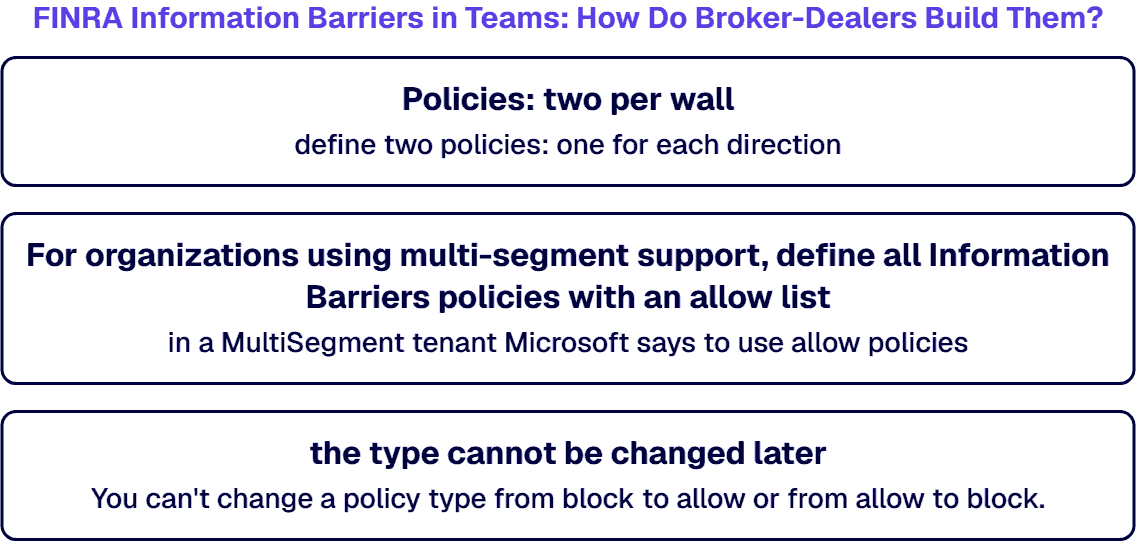
The multi-segment page adds a condition that changes that default: “For organizations using multi-segment support, define all Information Barriers policies with an allow list.” So in a Legacy or SingleSegment tenant the default is a pair of block policies per wall, and in a MultiSegment tenant Microsoft says to use allow policies.
Once made, the choice is hard to undo. Microsoft’s Manage Information Barriers policies page (last updated April 22, 2026) says “You can’t change a policy type from block to allow or from allow to block.” and “To change the policy type, you must set the existing policy to inactive status and create a new policy with the desired type and segments.”
Planning rule: write the wall list as pairs before building anything, for example research and investment banking, research and sales and trading, and debt research and the trading desk if the firm publishes debt research. Use block policies unless the tenant runs in MultiSegment mode, and treat every allow policy as a decision compliance signs, because an allow policy lets a segment communicate with only the segments it names.
When the first policy lands in a tenant where analysts and bankers already share teams, chats and sites, the existing collaboration is where things break. Microsoft’s Teams page says “If users have an existing chat or other communication, and you set a new policy or change an existing policy, the service evaluates existing communications to make sure that the communications are still allowed.” For a one-to-one chat that is no longer allowed, “Their existing chat conversations become read-only.”
Existing teams need a planned step. Microsoft’s Information Barriers in Microsoft Teams page says “Teams created before activating an IB policy in your tenant are automatically set to Open mode by default.” and “When you activate IB policies on your tenant, you must update mode of your existing teams to Implicit to ensure that existing teams are IB-compliant.” Two meeting behaviors belong in the user communication: “If you enable IB policies, users can’t join channel meetings if they’re not a member of the team.” and “If you enable IB policies, users can’t join meetings if the meeting chat roster reaches its current limit of 1,000 users.”
SharePoint and OneDrive are enabled together. According to Microsoft’s Use Information Barriers with OneDrive page (last updated March 30, 2026), “When you enable Information Barriers on SharePoint and OneDrive, you automatically protect the OneDrive of segmented users with IB policies.” and “You can’t enable Information Barriers for the services separately.” Microsoft’s Use Information Barriers with SharePoint page (last updated March 30, 2026) describes the site behavior:
One failure lands on individual users rather than on teams. Microsoft’s OneDrive page warns: “If the segments associated with a user’s OneDrive don’t match the segment you apply to the user, the user can’t access their OneDrive.”
Planning rule: before activation, inventory the teams and sites where walled groups are both members, and decide for each space whether it splits, becomes Owner Moderated with a named owner, or closes. Move existing teams to Implicit as a scheduled step, and check segment assignments against OneDrive before anyone’s segment changes.
Before the first policy is set to active, the order of the steps decides how much breaks and how much can be shown afterward. Microsoft’s Get started with Information Barriers page says “As you define IB policies, set those policies to inactive status until you’re ready to apply them.” Application then runs user by user: “The system applies policies user by user and processes about 5,000 user accounts per hour.” Evidence of that run depends on a setting Microsoft lists as a prerequisite: “To look up the status of an IB policy application, audit logging must be turned on.” The status command Microsoft documents on that page “displays information about whether policy application completed, failed, or is in progress.”
The rollout order this guide recommends, as i3solutions’ practice rather than a Microsoft instruction: clean the attribute, confirm the organization mode, enable scoped directory search and wait the 24 hours stated on Microsoft’s Get started with Information Barriers page, define segments, define every policy as inactive, apply the policies in a planned window, move existing teams to Implicit, enable Information Barriers for SharePoint and OneDrive after the wait stated on Microsoft’s Use Information Barriers with SharePoint page, then verify each wall with a test pair of users on each side and keep the application status for compliance. What an examiner asks to see beyond that status record is compliance’s question, not this guide’s.
If the wall on compliance’s list is really about a handful of spaces rather than about who may talk to whom, Information Barriers may be more than the problem needs. Five cases point elsewhere:
When the build goes to the firm’s own team, to an outside firm, or to both, hold it to these criteria:
If the firm wants outside support with the build, i3solutions takes on the wall design and rollout as a project: the wall list mapped to segments and policies, the attribute clean-up in Entra ID, the policy pairs, the mode plan for existing teams, sites and OneDrive accounts, the staged application and its verification, with embedded specialists where the firm’s team needs them. i3solutions maps governance to named control families, enforces it in the platform through Entra ID, Purview, and Azure Policy, and evidences it continuously rather than reconstructing it at audit. i3solutions has been a Microsoft Partner with 30 years of enterprise technology delivery experience and has delivered 1,500+ Microsoft engagements across aerospace and defense, financial services, and health sciences. The people who do the work are senior and based in the US. Ongoing operation after the handover is a separate Application Managed Services engagement with its own scope; the Purview information barriers deployment itself does not replace the internal team, run open-ended, or create vendor lock-in. This work sits within the firm’s broader governance program, described in enterprise governance and compliance solutions.
According to Microsoft, a one-to-one chat that is no longer allowed becomes read-only. Teams created before the first policy start in Open mode, and Microsoft says existing teams must be moved to Implicit mode. Per Microsoft’s guidance, once IB policies are enabled, users can’t join channel meetings if they’re not a member of the team. Microsoft’s documentation also warns that a user whose assigned segment no longer matches the segments on their OneDrive loses access to that OneDrive. The decision to make before activation is what happens to each shared space: inventory the teams and sites where walled groups are both members first, then decide for each space whether it splits, becomes Owner Moderated with a named owner, or closes.
Not on a site associated with their segments, because Microsoft says incompatible segments cannot be associated with the same site. Microsoft’s Owner Moderated mode grants incompatible segment users access to a site, and only the site owner can share it, so a sanctioned shared space needs a named owner and compliance’s approval. The decision is made wall by wall: check first whether the wall is about content in a few spaces or about who may talk, because where it is only about a few spaces, separate sites and groups with their own membership can carry it, which is i3solutions’ recommendation and not Microsoft’s.

US-Based Microsoft System Integrator | Est. 1997
© i3solutions. All rights reserved.
US-Based Microsoft System Integrator | Est. 1997
© i3solutions. All rights reserved.


