
By Michael Branson, Founder/COO, i3solutions
If your source is Documentum or OpenText, Microsoft’s Migrate to Microsoft 365 guide, as of September 2026, lists Box, file shares, Google Workspace, Dropbox and SharePoint Server as sources, not those two. Import the schedule as a file plan, migrate under its labels, verify records and holds, decommission last.
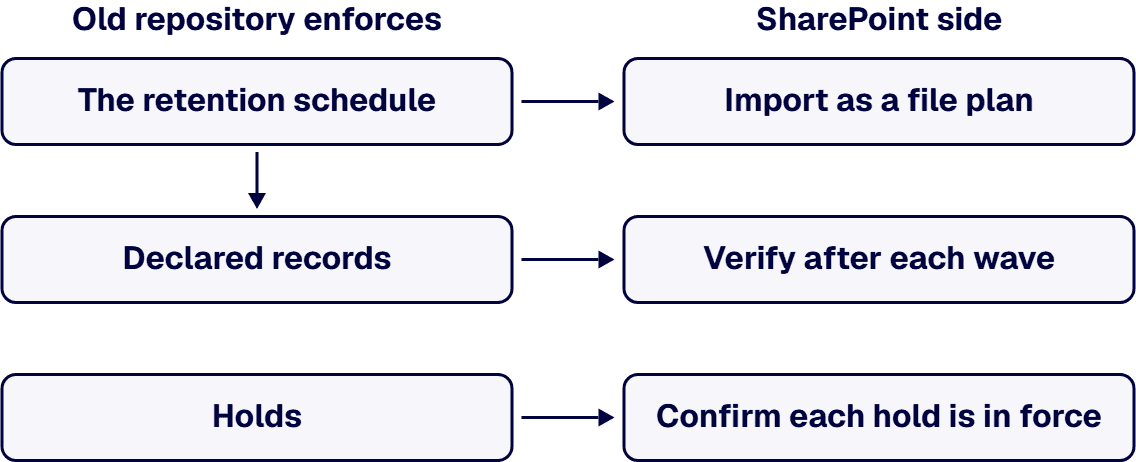
If the plan’s first line is to copy the content, read what Microsoft says a migration is. Its Migrate to Microsoft 365 guide states: “When you migrate your content to Microsoft 365, you are copying the files. Your source files are not deleted.” The copy is one step. The retention schedule, the declared records and the holds are the obligations, and each needs its own step on the SharePoint side before the old repository can be switched off.
Whether SharePoint Online with Microsoft Purview is the right home for this content at all is a decision of its own, and it is set out in SharePoint Online vs a Dedicated DMS: How to Decide.
If your project sponsor expects Microsoft’s own tooling to pull from the old repository, check the list first. As read on 26 September 2026, Microsoft’s Migrate to Microsoft 365 guide answers “Where are you migrating from?” with Box, file shares, Google Workspace, Dropbox and SharePoint Server, and states: “The ability to migrate from Google Drive, Box, Dropbox, and Egnyte is fully integrated into Migration Manager.” Neither Documentum nor OpenText appears on that page. Egnyte is on that list, but the Egnyte to SharePoint Online migration checklist notes that Microsoft lists its Egnyte scenario as unsupported in GCC, GCC High and DoD, and that Egnyte group permissions are not migrated.
Read that for what it is: the sources Microsoft’s own guide covers, not a verdict on any tool. For a Documentum or OpenText source, the migration plan names the export route and the tool that carries it, and records why that route was chosen. Re-read Microsoft’s list at planning time, because the list is Microsoft’s to change.
Before anything moves, write down what the old system does for you, in its vendor’s own terms. OpenText’s Documentum Content Management page describes the product as “cloud-ready document management software that helps organizations rethink content and deliver personalized experiences”, and under records management and governance lists “records lifecycle control, retention policies, and unit-level policy management”. OpenText’s OpenText Content Management (Extended ECM) page lists, under “Information governance and records management”, “legal holds, audit trails”.
Take the inventory from the repository itself, not from memory:
If the inventory is treated as complete once the files are counted, the first wave is where the plan learns that some items cannot land as they are. The table below covers the SharePoint Online and Purview side only, from Microsoft’s own pages; what the old repository holds comes from the inventory above.
| What the plan carries | What SharePoint Online or Purview does | Source |
|---|---|---|
| File metadata | SharePoint updates a file’s metadata when it is uploaded, so a matching file size or file hash does not prove the file is unchanged. The validation method Microsoft documents is set out below, under How Do We Prove a Migrated Record Was Not Altered? | Microsoft’s records management overview: “Typical file properties and methods often used for this type of validation, such as file size or file hash, might not be sufficient because SharePoint automatically updates the metadata for a file when it’s uploaded.” |
| Version history | Microsoft lists a versions limit of 50,000 major versions and 511 minor versions. | Microsoft’s SharePoint limits page, quoted in the next section. |
| Folder path and file name | The entire decoded path, file name included, is limited to 400 characters. | The SharePoint limits page, quoted in the next section. |
| File size | Each uploaded file is limited to 250 GB. | The SharePoint limits page, quoted in the next section. |
| Record declarations | A record in Purview is declared by a retention label, applied on the SharePoint side. Verification is covered below, under Declared Records and Holds: Verify Them on the SharePoint Side. | Microsoft’s declare records page: “To declare documents and emails as records, you use retention labels that mark the content as a record or a regulatory record.” |
| Legal holds | A hold is created in Purview and can take up to 24 hours to take effect. | Microsoft’s Create eDiscovery holds page: “After you create an eDiscovery hold, it may take up to 24 hours for the hold to take effect.” |
| Audit history | Purview logs the labeling actions it performs. No Microsoft page read for this guide describes importing another repository’s audit history. | Microsoft’s declare records page: “The actions of labeling to declare items as records are logged in the audit log.” |
If the first count of items over a limit happens during a wave, the decision about those items gets made against the wave’s deadline. Three limits on Microsoft’s SharePoint limits page decide what cannot land as it is.
File size. The page states: “250 GB – File upload limit. Applies to each individual file uploaded to Microsoft Teams Files tab, SharePoint document libraries, OneDrive folders, and Viva Engage conversations.”
Path length. The page states: “The entire decoded file path, including the file name, can’t contain more than 400 characters for OneDrive, OneDrive for work or school and SharePoint in Microsoft 365.”
Versions. For versions, the page lists “50,000 major versions and 511 minor versions.”
Count the items over each limit in the inventory before the first wave. Then decide, series by series, whether what does not fit is split, shortened or archived, and record that decision with the series before its wave is scheduled.
If content lands before the schedule does, it lands without the labels that carry its retention periods. Microsoft’s records management overview states: “By using a file plan, you can bring in an existing retention plan to Microsoft 365, or build a new one for enhanced management capabilities.” Its file plan page adds: “You can bulk-create retention labels by importing the relevant information from a spreadsheet.” The same page lists descriptors including “Business function/department” and “Provision/citation”, and a “Reference Id file plan descriptor, which you can use as a unique value to your organization”, which is where each old series identifier can be carried.
Check the license before the import. Microsoft’s Purview service description states: “To use the file plan to maintain retention labels, including import and export, the following licenses provide user rights”, and lists Microsoft 365 E5/A5/G5 among them. The structural crosswalk from a file plan built to a defense records standard onto Purview’s descriptors is the subject of a separate i3solutions guide.
When your records manager asks whether a declared record is still a record, answer from what Purview shows, not from what the old system showed. Microsoft’s declare records page states: “To declare documents and emails as records, you use retention labels that mark the content as a record or a regulatory record.” It adds: “If you need to use regulatory records, you must first run a PowerShell command”. Its records management overview says that when an item is declared a record by using a retention label, “Restrictions are placed on the item in terms of what actions are allowed or blocked.” The difference between a record and a regulatory record is set out in the decision guide linked in the opening section.
The Microsoft pages read for this guide do not describe how a declaration made in another repository carries into Purview, so this guide states no mechanism. Verify instead: after each migration wave, sample the declared items in every series against the inventory and record the result. For holds, confirm with counsel that each hold in the inventory is in force on the SharePoint side before its source content is touched.
When an auditor asks whether the record that moved is the record that left, a file size check cannot answer it, because SharePoint updates a file’s metadata as it lands. Microsoft’s records management overview names the case: “If you’re migrating files to SharePoint or OneDrive and your organization needs to manage these items as records, you might need to validate that the files haven’t been altered and retain their immutability status. For example, you’re using a migration solution and need to meet the chain of custody requirements.” It states: “Instead, to validate your migrated files, you can use the value of the vti_writevalidationtoken property, which is a base64-encoded XOR hash of the file before it is modified by SharePoint.”
Microsoft’s steps start with the original file:
Our recommendation is to make this part of every wave: hash each original before export, keep the hashes with the wave record, compare after upload, and record every mismatch before the source is set to read-only. Whether a mismatch holds back the wave is a decision for your records manager.
When counsel asks whether a hold was in force on the day its source content was touched, the answer has to come from a record kept at the time. Microsoft’s Create eDiscovery holds page states: “When you place content locations on hold, content is preserved until you remove the content location from the hold or until you delete the hold.” It also states: “After you create an eDiscovery hold, it may take up to 24 hours for the hold to take effect.”
For record labels, Microsoft’s declare records page states: “The actions of labeling to declare items as records are logged in the audit log.” For SharePoint items, the audit activity it names is “Changed retention label for a file”. Microsoft’s retention page adds that “Retention actions that are logged as auditing events are available only for retention labels and not for retention policies”.
The evidence sequence we recommend for each wave, agreed with counsel before the first one:
If a series has already passed the end of its retention period under the old schedule, it is a disposition decision, not a migration item. Take it to your records manager for sign-off before the move rather than carrying it into Microsoft 365. How to sort content into migrate, archive and retire, and who signs off, is covered in Which SharePoint Content to Migrate, Archive, or Retire.
If the target sites are built after content arrives, labels and permissions get applied after the fact, site by site. Microsoft’s records management overview states: “Using these capabilities, you can incorporate your organization’s retention schedules and requirements into a records management solution that manages retention, records declaration, and disposition, to support the full lifecycle of your content.” Design the information architecture, the permission model and the label policies first; how to configure SharePoint for regulated document management is covered in SharePoint Document Management Consulting for Regulated Enterprises.
If the decommission date is fixed before verification is done, verification gets cut to fit the date. Microsoft’s migration guide states that “Your source files are not deleted”, so the old repository stays in place until you retire it, and the order is yours to set:
If the repository is doing a job SharePoint Online is not set up to do, keeping it can be the right answer. OpenText’s OpenText Content Management (Extended ECM) page lists “Control content sprawl and automate Microsoft 365 workflows” among its integrations, so keeping the repository and integrating it with Microsoft 365 is a real path. Keep it when:
If the repository belongs to a federal agency, some of its series may be permanent records that will one day transfer to the National Archives. NARA’s Transfer Guidance page states: “This NARA Bulletin 2014-04 specifies which file formats are acceptable when transferring permanent electronic records to NARA.” It states: “This NARA Bulletin 2015-04 defines the minimum set of metadata elements that must accompany transfers of permanent electronic records to the National Archives.” It also states: “Per 36 CFR 1235.48, Federal agencies are required to transfer documentation adequate for NARA to identify, service, and interpret permanent electronic records for as long as they are needed.” This applies to permanent records that will transfer to NARA, not to every record in the repository. Whether a series is permanent is the agency records officer’s determination under its approved schedule, and this guide does not make that call.
For a file plan built to a defense records standard, how it maps onto Purview is covered in DoD 5015.2 File Plan: How Does It Map to Purview Records Management?.
When the question reaches i3solutions, the work starts from the inventory: what the old repository enforces, which series and holds are live, and which licenses the tenant holds. i3solutions implements the Microsoft technology a customer needs, SharePoint Online and Microsoft Purview included, so the file plan, the target sites and the migration waves are work i3solutions carries as one scoped migration project. Its SharePoint Migration Services for Enterprise Microsoft Environments page states: “i3solutions evaluates site architecture, permissions, content structure, workflows, integrations, governance requirements, and migration constraints before defining the right path forward.” These are the statements we can document, quoted at the size we can document them:
The Purview side of the work is covered in Microsoft Purview Technology Readiness Services, and where this work sits in the wider practice in Enterprise SharePoint Development & Integration Services Built for Scale and Governance.
If you plan from Microsoft’s own guide, it does not list Documentum: as read in September 2026, Microsoft’s Migrate to Microsoft 365 page lists Box, file shares, Google Workspace, Dropbox and SharePoint Server as sources, and neither Documentum nor OpenText appears on it. Name the export route and the tool in the migration plan, and re-read Microsoft’s list at planning time.
If the schedule exists in a spreadsheet or can be exported to one, yes: Microsoft’s records management overview states “By using a file plan, you can bring in an existing retention plan to Microsoft 365, or build a new one for enhanced management capabilities.”, and its file plan page states “You can bulk-create retention labels by importing the relevant information from a spreadsheet.” Import it before any content moves.
When the records move, verify each declared series on the SharePoint side. In Purview, Microsoft’s declare records page states: “To declare documents and emails as records, you use retention labels that mark the content as a record or a regulatory record.” Microsoft’s pages, as read in September 2026, do not describe how a declaration made in another repository carries into Purview, so sample declared items against the inventory after each wave.
If your tenant holds none of the listed licenses, it lacks the user rights Microsoft ties to file plan import and export. Microsoft’s Purview service description states: “To use the file plan to maintain retention labels, including import and export, the following licenses provide user rights”, and lists Microsoft 365 E5/A5/G5 among them. Check your tenant against Microsoft’s full list before the schedule goes in.
When declared records and holds are verified on the SharePoint side and your records manager and counsel have signed off. Microsoft’s Migrate to Microsoft 365 guide states: “When you migrate your content to Microsoft 365, you are copying the files. Your source files are not deleted.” The old repository stays in place until you retire it, so run a read-only parallel period first.

US-Based Microsoft System Integrator | Est. 1997
© i3solutions. All rights reserved.
US-Based Microsoft System Integrator | Est. 1997
© i3solutions. All rights reserved.


