
Legacy applications don’t fail all at once. An IT Director eventually has to decide what gets rebuilt, what gets retired, and what should never have been built as an application at all. These answers address those decisions, and what production-grade requires on Azure, SQL Server, and M365.
By Michael Branson
Every fact in this list is drawn from Microsoft’s guide to managing minimum TLS versions and its Azure update on this retirement, both re-read on drafting day.
The setting that was raised to allow TLS 1.0 three or four years ago, to keep one old caller working, is still sitting there. No one remembers which caller. On May 31, 2027 that setting stops mattering, because Microsoft rejects the handshake before the app’s own configuration is ever consulted, according to Microsoft’s guide to managing minimum TLS versions. This guide sets out what changes, how to find the apps and the clients that will fail, who owns each fix, and the order to do the work in before that date arrives.
The retirement is dated and specific. Microsoft’s Azure update on this retirement states: “App Service, Functions, and Logic Apps will no longer accept connections using TLS 1.0 or TLS 1.1 after May 31, 2027.” Its own guide to the change names the same date for a wider set of resources. According to Microsoft’s guide to managing minimum TLS versions, “TLS 1.0 and TLS 1.1 are retired for inbound connections to Azure App Service, Azure Functions, Azure Logic Apps (Standard), and App Service Environments on May 31, 2027.” App Service Environments follow the same clock: the same Microsoft guide states that “App Service Environments follow the same May 31, 2027 retirement date as multitenant App Service.” Two narrowings matter for scoping the problem. Logic Apps Consumption is not part of this: Microsoft’s guide states that “Logic Apps Consumption (multitenant) runs on a separate platform and is not covered in this article,” so this guide does not say Consumption workflows are affected, only that Microsoft’s own page does not address them. And the change is inbound only: Microsoft’s guide states that “This change applies to inbound connections to your app only,” so a call your app makes outward, to another service, is not part of this retirement.
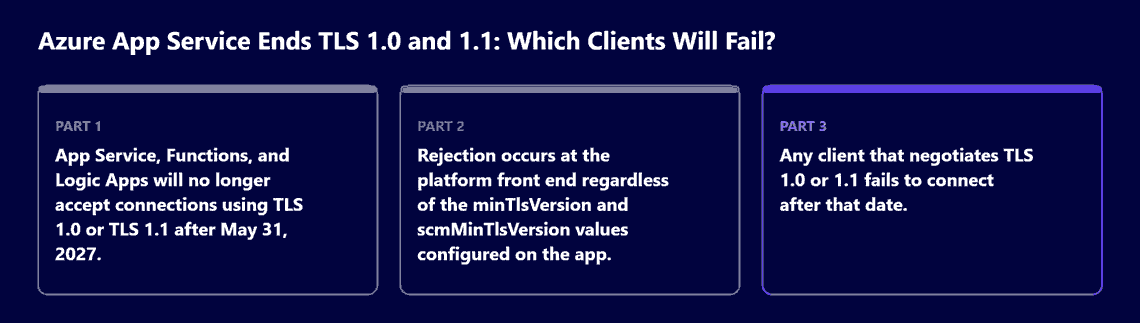
The reason the app’s own setting will not save the old caller on that date is the mechanism itself. According to Microsoft’s guide to managing minimum TLS versions, “Rejection occurs at the platform front end regardless of the minTlsVersion and scmMinTlsVersion values configured on the app.” In other words, the app is never asked. Microsoft’s guide adds: “Any client that negotiates TLS 1.0 or 1.1 fails to connect after that date.” The retirement also reaches the control plane itself: the same guide states that “After May 31, 2027, requests to create new apps or update existing apps with minTlsVersion or scmMinTlsVersion set to 1.0 or 1.1 may also fail.” New apps are already on the safe side of this: Microsoft’s guide states that “New apps default to a minimum TLS version of 1.2; this default meets the retirement requirement.” Microsoft frames the two older versions plainly elsewhere: its overview of TLS/SSL in Azure App Service states that “TLS 1.1 and TLS 1.0 are legacy protocols and are no longer considered secure.”
One gap is worth naming rather than guessing at. The Microsoft pages read for this guide do not state whether the May 31, 2027 date, or any date, applies the same way in Azure Government or another sovereign cloud; if your estate runs in one of those clouds, confirm the date with Microsoft for that cloud rather than assuming it matches the commercial date of May 31, 2027. Treat the date as the day every TLS 1.0 and 1.1 caller fails, according to Microsoft’s guide to managing minimum TLS versions, no matter what your app’s setting currently allows.
The first list to build is not of clients; it is of apps, slots, and their two settings. Every App Service, Functions or Logic Apps (Standard) app has two independent TLS controls, and a quick query will not surface them: according to Microsoft’s guide to managing minimum TLS versions, “Azure Resource Graph and list APIs (such as az webapp list and Get-AzWebApp) don’t return siteConfig properties,” so an inventory built from those commands alone will miss both settings. The Azure services retirement workbook is built for exactly this: it shows which apps currently allow TLS 1.0 or 1.1. But it answers a configuration question, not a traffic one. Microsoft’s guide is explicit about the limit: “This view is configuration-based: it shows which resources accept TLS 1.0 or 1.1, not which resources are actually receiving TLS 1.0 or 1.1 traffic.”
The SCM site, the Kudu endpoint behind every app’s deployment pipeline, is a separate check again. Microsoft’s guide states that “There is currently no built-in policy for the SCM site minimum TLS version ( scmMinTlsVersion),” which means Azure Policy’s built-in audits cover the app’s main setting but not the SCM setting, so the SCM value has to be checked per app rather than assumed. And every deployment slot carries its own pair of settings: according to Microsoft’s guide, “Deployment slots have their own independent TLS settings,” so a production slot at 1.2 says nothing about a staging slot still allowing 1.0.
Where an app sits behind Azure Front Door or Application Gateway, the client-facing TLS policy of that service is a separate check from anything on this page; the Microsoft pages read for this guide say nothing about how those two services behave under this retirement, so treat that as its own item rather than assuming this guide covers it.
Build one list: every app, every slot, both settings on each, drawn from the workbook, an Azure Policy audit of the main setting, and a per-app check of the SCM setting, because no single source gives you all three.
Knowing which apps allow the old versions tells you where to look, not who is connecting. That answer comes from a different tool with a real limit. According to Microsoft’s guide to managing minimum TLS versions, the Minimum TLS Version Checker sits under Diagnose and Solve Problems in the Azure portal and lists the clients that made TLS 1.0 and 1.1 requests to that app. The window it covers is short: Microsoft’s guide states that “This detector shows a snapshot from the last 24 hours,” and adds the same caution twice, in its own words: “Check during peak traffic times for a more complete picture,” and, on the same theme, “If you see TLS 1.0 or 1.1 traffic, identify those clients before updating your minimum TLS version.”
A single day is not long enough for a caller that only shows up occasionally. Microsoft’s own security guidance backs the same instinct from a different direction: its Solving the TLS 1.0 Problem guide recommends that organizations “conduct an inventory of operating systems used by your enterprise, customers and partners (the latter two via outreach/communication or at least HTTP User-Agent string collection),” which is a wider exercise than a 24-hour detector run.
This guide’s own recommendation, not Microsoft’s, follows from that gap: run the detector at peak traffic, then run it again after each monthly, quarterly and annual cycle the app serves, such as a month-end close, a quarterly partner file, or an annual submission, and keep each run’s client list with the date it was taken. A caller that connects once a quarter is invisible in any single 24-hour window, the same window Microsoft’s guide to managing minimum TLS versions describes, and it only shows up if you look again after that cycle runs. Where a caller turns out to be a traffic inspection tool running on the client’s own machine, or another monitoring product, treat it as a category to confirm with its owner rather than a product to identify by name in this guide.
No app’s minimum TLS setting should move until its caller list covers a full business cycle, not one snapshot.
Once you have a caller list, the next decision is who acts on each name, because the fix is different for each category. According to Microsoft’s guide to managing minimum TLS versions, common scenarios that turn up TLS 1.0 or 1.1 traffic are: .NET Framework clients calling the app on a version before 4.7 that can default to TLS 1.0; IoT or embedded devices whose firmware can support only TLS 1.0 or 1.1; third-party services sending webhooks whose own stack can use an older TLS version; CI/CD agents on outdated operating systems deploying to the SCM site; scripts on older scripting runtimes that can default to TLS 1.0; and older Java clients that can fail to negotiate TLS 1.2 by default.
For callers that are your own applications, a common fix is a retarget. According to Microsoft’s TLS best practices for .NET Framework guide, when you retarget an application to .NET Framework 4.7 or later, you follow Microsoft’s own best-practice recommendation, and the setting to leave alone, not set, is the security-protocol property, so the runtime picks the operating system’s current default rather than a version fixed in code. Where a hardcoded protocol version is the actual cause, Microsoft’s Solving the TLS 1.0 Problem guide states that “Hardcoding here means that the TLS version is fixed to a version that is outdated and less secure than newer versions,” and its recommended fix is direct: “The recommended solution in all cases above is to remove the hardcoded protocol version selection and defer to the operating system default.”
For callers you do not own outright, the fix belongs to someone else, and the work is opening the request early rather than closing it yourself. Build and deployment agents need their operating system and tooling updated by whoever runs them. Devices and instruments whose firmware may only speak TLS 1.0 or 1.1 are a device-owner and device-maker decision; this guide names the category, not a maker or a testing tool. Partners and third-party services sending webhooks need a dated outreach request, since their own stack sets what they can negotiate. Where a caller application cannot simply be retargeted, and the real question is rebuild, replatform or retain, that decision has its own framework: see the application modernization decision framework. A Functions app’s own runtime version has a separate end-of-support clock from this retirement; treat that as its own decision rather than folding it into this one.
Every caller on the list gets an owner, a fix, and a date before the app’s setting moves.
The order matters because fixing settings before callers are ready breaks the same clients early, on your own change record, and Microsoft says the sequence starts with confirmation, not remediation: according to Microsoft’s guide to managing minimum TLS versions, “Only assign remediation policies after you’ve confirmed that your clients support TLS 1.2 or later.” Built on that instruction, together with the workbook, the detector and the site and SCM settings, a defensible sequence looks like this: inventory every app, slot and both TLS settings; collect caller evidence across a full business cycle, not one snapshot; fix internal callers first, since they are in your control; open partner and device-owner requests early, since they are not; raise the site and SCM minimum TLS to 1.2 app by app and slot by slot, only as each app’s callers clear, with the change recorded and a rollback path; assign the Azure Policy audits across the subscription, then a remediation policy only after the clients are confirmed; and re-run the detector after each raise, to confirm nothing was missed.
This is this guide’s recommended order, not a sequence Microsoft publishes; it follows directly from what the workbook, the detector and the two settings each can and cannot tell you, as the sections on finding the apps and finding the callers describe. Set your own internal date by which every app sits at TLS 1.2, so the platform’s own date finds nothing left to break.
Not every estate needs this work in full, and it is worth checking before you start it. An estate where every app was created at Microsoft’s current default of TLS 1.2, the default Microsoft’s guide describes for new apps, and never lowered, where the workbook and the policy audit both come back clean and the detector shows no TLS 1.0 or 1.1 traffic across a full cycle, has nothing to fix; record that evidence and stop there. Workflows on Logic Apps Consumption are not this guide’s answer, because the Microsoft page this guide is built on does not cover them. A call your own app makes outward, to another service, is out of scope for this guide, since the retirement is inbound only. A caller that turns out to be a device with no TLS 1.2 firmware is a device-replacement or isolation decision that belongs to the device’s owner, not something this page decides and not something any Azure setting cures. And if the real question is which traffic-inspection tool, device, gateway or integration platform to buy, that is a product decision this guide does not make.
Whoever does this work with you, inside the organization or outside it, hold it to these criteria, stated as what they should be able to show you:
No provider, tool or device maker is named or compared in that work.
i3solutions plans and runs governed Azure and Microsoft 365 migrations with senior, U.S.-based engineers. For this retirement, that means a project that inventories the apps and slots, builds and runs the caller evidence across a full business cycle, fixes the callers i3solutions or the client’s own team own, prepares the partner and device-owner requests, and raises the site and SCM minimum TLS settings in order once each app’s callers are confirmed. i3solutions designs Azure integration architecture and builds and operates Azure Logic Apps workflows for enterprise clients, including running them on an ongoing basis rather than only building them. i3solutions builds client workflow automation on Power Automate cloud flows, Power Automate desktop flows for RPA, and Azure Logic Apps in both the Standard and Consumption tiers. i3solutions has been a Microsoft Partner with 30 years of enterprise technology delivery experience and has delivered 1,500+ Microsoft engagements across aerospace and defense, financial services, and health sciences.
An i3solutions engagement does not produce managed-service ownership, a replacement for the internal team, open-ended scope expansion, or vendor lock-in. i3solutions does not fix a third party’s software or a device maker’s firmware; those requests stay with the partner or the device owner, with a dated ask from your side.
For how this fits the wider Azure estate, see Azure Development Services.
No. According to Microsoft, rejection occurs at the platform front end regardless of the app’s own minTlsVersion or scmMinTlsVersion setting, and any client that negotiates TLS 1.0 or 1.1 fails to connect after that date.
Microsoft’s guide to managing minimum TLS versions states only that Logic Apps Consumption (multitenant) runs on a separate platform and is not covered in that article. It does not say Consumption is affected or unaffected, and this guide states nothing beyond what Microsoft’s page says.
No. According to Microsoft, the change applies to inbound connections to your app only; your app’s own outbound calls are not part of this retirement.
Because the workbook is configuration-based. According to Microsoft, it shows which resources accept TLS 1.0 or 1.1, not which resources are receiving that traffic; use the Minimum TLS Version Checker on each app to see actual client connections.
Yes. According to Microsoft, deployment slots have their own independent TLS settings, and there is currently no built-in Azure Policy for the SCM site’s minimum TLS version, so the SCM setting on each app has to be checked and set separately.
Yes. According to Microsoft, App Service Environments follow the same retirement date as multitenant App Service. The section above on what changes, and why your app’s setting will not save the old caller, quotes that date from Microsoft’s guide with its source.
By Michael Branson
When the gateway in front of a partner portal still answers requests, it is easy to read silence as safety. That is the gap this guide is about: a V1 gateway that still works is not a V1 gateway that is supported. It sets out what Microsoft says happens to V1 gateways now, how the migration to V2 runs and how long Microsoft says to plan for, what changes in the Web Application Firewall, what the migration scripts do not carry over, and what Microsoft states about DoD regions. It makes no statement about any regulation or framework; that determination stays with the organization’s security office.
If a V1 gateway is still in production, the risk is present tense. Microsoft’s Migrate from Application Gateway V1 to V2 page records both dates: “Microsoft announced the deprecation of Azure Application Gateway V1 on April 28, 2023.” and “Application Gateway V1 retired on April 28, 2026, and Microsoft no longer supports V1 resources.” It then states the consequence plainly: “There’s no service-level agreement (SLA) for V1 resources.” and “As Microsoft decommissions the hardware that supports V1, traffic passing through remaining V1 resources can’t be guaranteed.”
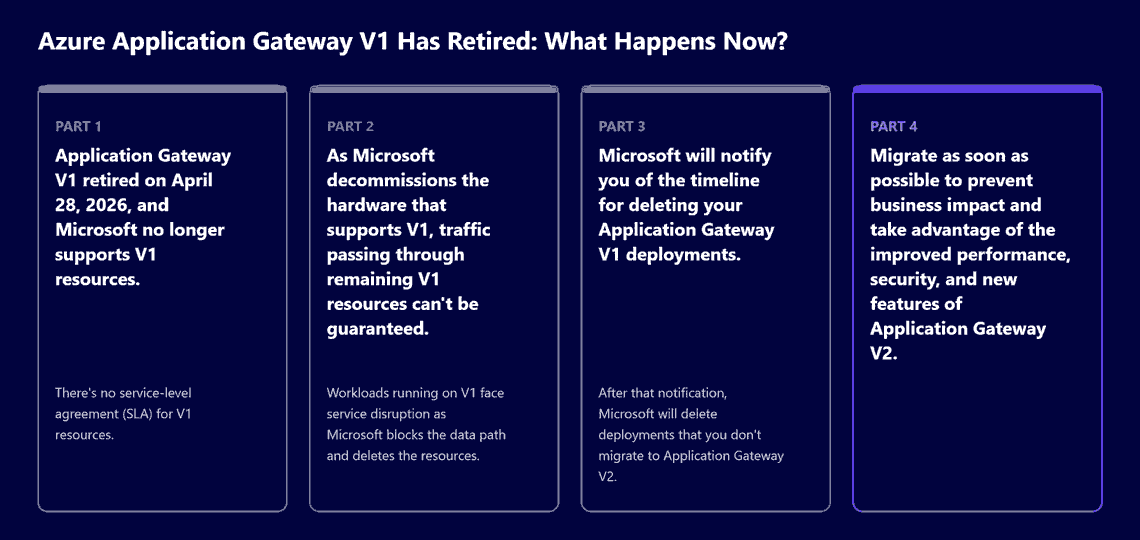
Microsoft’s Application Gateway V1 retirement FAQ says the same in terms an operations team can put in a risk register: “After April 28, 2026, Microsoft will no longer provide patches, support, or SLA coverage for active V1 resources.” and “Workloads running on V1 face service disruption as Microsoft blocks the data path and deletes the resources.”
Deletion comes with a notice first. The retirement page says “Microsoft will notify you of the timeline for deleting your Application Gateway V1 deployments.” and “After that notification, Microsoft will delete deployments that you don’t migrate to Application Gateway V2.” Its required action is one line: “Migrate as soon as possible to prevent business impact and take advantage of the improved performance, security, and new features of Application Gateway V2.”
Treat an unsupported gateway with no SLA in production as a live risk now, whether or not a deletion notice has arrived. Find out who in the organization receives Azure service notices for each subscription, so a deletion timeline is not read for the first time after the date it names.
If the plan is a weekend cutover, check it against Microsoft’s own planning figure first. Microsoft’s Migrate Azure Application Gateway and Web Application Firewall from V1 to V2 guide says “Migration has two stages: configuration migration and traffic migration.” and “You can use the enhanced cloning script (recommended) or the legacy cloning script to clone your V1 gateway configuration to a new V2 gateway, and then redirect client traffic with minimal downtime.” It also says “V1 gateways aren’t automatically upgraded to V2.”
The work is the customer’s to do. The retirement FAQ says “No, Microsoft can’t migrate your data for you.” and “You must migrate your data by using the self-serve options.” It gives the reason: “Application Gateway V1 is built on legacy components, and Azure deploys gateways in many ways. That’s why your involvement is required for migration.” The cloning scripts cover the configuration stage. The FAQ says “No, the Azure PowerShell script only migrates the configuration.” and “You’re responsible for, and in control of, actual traffic migration.” For the traffic stage, Microsoft’s guide describes a separate public IP retention script, covered in the public IP item of the section on what the migration scripts do not carry over.
On duration, Microsoft gives a planning figure, not a promise: “The time required for migration depends on the complexity of your deployment. Plan for the migration to take up to a couple of months.”
Budget the migration as a project with a named owner, a test window for the new V2 gateway and a separate change for the traffic move. The configuration stage and the traffic stage each need their own sign-off.
When a V1 gateway runs the Web Application Firewall tier, a migrated gateway is not the same as a migrated rule set. Microsoft’s migration guide says, for both cloning scripts, “Web Application Firewall V2 is configured to use Core Rule Set (CRS) 3.0 by default.” and “Because CRS 3.0 is on the path to deprecation, upgrade to the latest rule set after migration: Default Rule Set (DRS) 2.2.”
The configuration mode depends on the script. For the enhanced cloning script (recommended), the guide lists an optional parameter, WafPolicyName, described as the “Name of the Web Application Firewall policy that will be created from the Web Application Firewall V1 configuration and attached to the Web Application Firewall V2 gateway.” For the legacy cloning script, its caveats say “The Web Application Firewall V2 instance is created in the old Web Application Firewall configuration mode.” and “Migration to the Web Application Firewall policy is required.”
Verify three things on every migrated WAF gateway before traffic moves: that a WAF policy is attached, which rule set and version that policy runs, and whether the move from CRS 3.0 to DRS 2.2 that Microsoft’s guidance recommends has been tested against the application behind it. Test the rule-set change with the application owner, not only the network team.
If a runbook line says to clone the gateway, it hides a list of things that are rebuilt, not cloned. Microsoft’s FAQ and migration guide name them.
Microsoft’s migration guide also carries a caveats section for each script; read it against the estate before the configuration stage is scheduled. Treat every listed item as a line in the rebuild checklist, with an owner and a test, rather than as something the script handles.
If the migration has to be justified to a budget holder, Microsoft’s own list of V2 benefits is the place to start. The migration guide’s list includes:
For internal applications whose backends use NTLM or Kerberos authentication, the FAQ answers the question directly: “Application Gateway V2 supports proxying requests with NTLM or Kerberos authentication.” Plan the Key Vault certificate arrangement and the monitoring alerts as part of the migration, so the new gateway is not rebuilt a second time to add them.
If the V1 gateway sits in a government-cloud subscription, check the target region before anything else. Microsoft’s What is Azure Application Gateway v2? page says “Currently, the Standard_v2 and WAF_v2 SKUs aren’t available in the following regions:” and lists:
That is the only Application Gateway statement about a government region this guide found in Microsoft’s documentation. Microsoft’s Compare Azure Government and global Azure page does not mention Application Gateway, so this guide states no availability, positive or negative, for any other Azure Government region. Confirm the target region’s V2 availability with Microsoft before the migration plan is approved.
A V1 migration is a narrower job than moving a workload estate between clouds. For a team weighing that larger move, it is covered in Azure Government migration.
Some questions arrive naming a gateway or a WAF when the decision behind them is a different one.
Whether the work sits with an outside team or your own, the same questions separate a plan from a guess.
When a regulated IT team takes this on, it needs a project with an end date: the inventory, the migration plan for both stages, the WAF policy and rule-set review with its testing, the rebuild of logging, subnets and certificate validation, and the traffic move, with embedded specialists where the internal team needs more hands for a period. i3solutions plans and runs governed Azure and Microsoft 365 migrations with senior, U.S.-based engineers. i3solutions has been a Microsoft Partner with 30 years of enterprise technology delivery experience and has delivered 1,500+ Microsoft engagements across aerospace and defense, financial services, and health sciences. An i3solutions engagement does not produce managed-service ownership, a replacement for the internal team, open-ended scope expansion, or vendor lock-in. This work sits within i3solutions’ Azure Development Services.
It runs without support, and it can be disrupted and then deleted. According to Microsoft’s Application Gateway V1 retirement FAQ, “Workloads running on V1 face service disruption as Microsoft blocks the data path and deletes the resources.” Microsoft also says “Microsoft will notify you of the timeline for deleting your Application Gateway V1 deployments.”
Microsoft no longer supports it. According to Microsoft’s V1 retirement page, “There’s no service-level agreement (SLA) for V1 resources.” It adds that “traffic passing through remaining V1 resources can’t be guaranteed.”
The migration runs in two stages, and the customer does the work. According to Microsoft’s migration guide, “Migration has two stages: configuration migration and traffic migration.” and “V1 gateways aren’t automatically upgraded to V2.” Microsoft’s retirement FAQ adds “No, Microsoft can’t migrate your data for you.” The enhanced cloning script is Microsoft’s recommended option for the configuration stage.
According to Microsoft’s Application Gateway V1 retirement FAQ, “The time required for migration depends on the complexity of your deployment. Plan for the migration to take up to a couple of months.”
It carries over only in part. According to Microsoft’s migration guide, the enhanced cloning script can create a WAF policy “from the Web Application Firewall V1 configuration”, while with the legacy cloning script “The Web Application Firewall V2 instance is created in the old Web Application Firewall configuration mode.”
Microsoft states only an exclusion. According to Microsoft’s Application Gateway v2 overview, “Currently, the Standard_v2 and WAF_v2 SKUs aren’t available in the following regions:” and the list names US DOD East and US DOD Central, as well as China East and China North. Microsoft’s Azure Government comparison page does not mention Application Gateway, so this guide states nothing about other Azure Government regions.
By Michael Branson
As of September 2026, choose per server: SQL Server 2016 reached end of support on July 14, 2026 and Windows Server 2016 follows on January 12, 2027, according to Microsoft, and for each machine Microsoft offers Extended Security Updates for up to three years, a supported upgrade, or a move to Azure, with the bridge now working differently than it did for older versions. Microsoft states that “migrating your workload to SQL Server on Azure VMs no longer provides free access to ESUs for SQL Server 2016 (13.x) instances,” that off Azure a SQL Server 2016 instance gets them “after connecting your servers to Azure Arc,” and, for Windows Server 2016 ESUs enabled by Azure Arc, that “Software Assurance is required for on-premises workloads.” According to Microsoft Learn, an in-place upgrade from installation media is supported from Windows Server 2016 to Windows Server 2019, 2022 or 2025, and SQL Server 2022 and 2025 accept upgrades from SQL Server 2016 SP3 or later, except where Microsoft steers away from in-place upgrade, such as domain controllers, or limits it, such as clusters that advance one version at a time, so a server that cannot take either path in time is the one to move or to bridge first.
The servers most exposed are the ones where a SQL Server 2016 instance and the Windows Server 2016 host under it were planned as two separate problems, by two teams, against two dates. You may have been told that moving SQL Server to Azure virtual machines makes Extended Security Updates free, that Extended Security Updates renew like any other subscription, or that an in-place upgrade is a weekend job. For SQL Server 2016 the first is no longer true, the second hides an Azure Arc and licensing decision, and the third fails on exactly the servers you can least afford to break. This guide sets out what Microsoft’s own pages, read on September 24, 2026, say about Extended Security Updates, upgrades and Azure for these two products, server by server, and marks where the i3solutions recommendation sits beside them.
If your plan has one line for “SQL Server 2016” and another for “Windows Server 2016”, it will miss the machines where one sits on the other, and those are the machines that decide the timeline. Microsoft’s SQL Server 2016 end of support is here: Plan your next steps post, published July 14, 2026, opens: “As of today, July 14, 2026, SQL Server 2016 has reached end of support.” Microsoft’s Prepare to deliver Extended Security Updates for Windows Server page states: “Windows Server 2016 reaches end of support on January 12, 2027.”
The two decisions are joined on the same host. Microsoft’s SQL Server end of support options page lists this among the considerations for upgrading SQL Server on your own servers: “If you’re on an unsupported version of Windows Server, you also need to upgrade the OS.” It adds: “Newer versions of SQL Server might not support those Windows versions.” Which Windows Server version a given SQL Server release is supported on is a pairing to confirm with Microsoft for each target, and this guide does not state one.
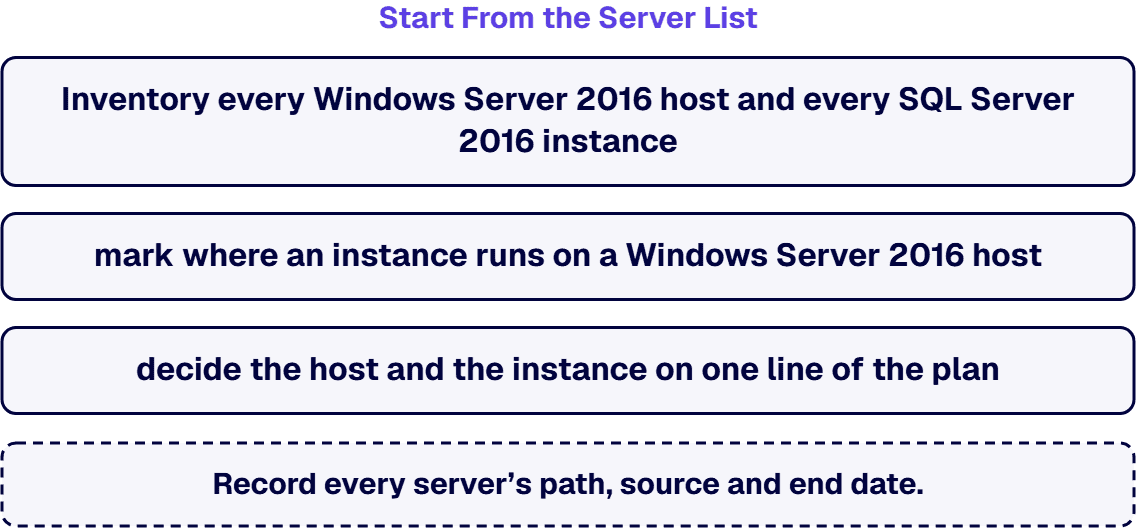
Inventory every Windows Server 2016 host and every SQL Server 2016 instance, mark where an instance runs on a Windows Server 2016 host, and decide the host and the instance on one line of the plan. Placing these servers inside a multi-year modernization plan, and deciding what goes first across the whole estate, is a separate decision this guide does not make. The same inventory can carry the boot-level change, since Secure Boot Certificate Expiration in 2026 notes that the Microsoft Windows Production PCA 2011 that signs the Windows boot loader expires on October 19, 2026.
The common failure here is carrying the rules from older versions into 2016. For SQL Server, Microsoft’s What are Extended Security Updates for SQL Server? page says: “The subscription protects your servers for up to three years after the support lifecycle ends.” The same page states the change that matters most: “Starting with SQL Server 2016 (13.x), migrating your workload to SQL Server on Azure VMs no longer provides free access to ESUs for SQL Server 2016 (13.x) instances.” Microsoft’s Extended security updates (ESUs) for SQL Server on Azure Virtual Machines page says the same from the Azure side: “Starting with SQL Server 2016 (13.x), ESUs are available through a paid subscription.” And Microsoft’s Extended Security Updates: Frequently asked questions page draws the contrast with the version before it: “ESUs are free for SQL Server 2014 (12.x) and purchasable for SQL Server 2016 (13.x).”
Off Azure, the route runs through Azure Arc. The SQL Server ESU page says: “For all other environments, including on-premises, non-Azure cloud infrastructure, or hosted environments, you can subscribe to receive ESUs after connecting your servers to Azure Arc.” It is plain about the condition: “If you can’t connect your SQL Server instance to Azure Arc, you don’t qualify for this offer.” Software Assurance under an Enterprise Agreement, Enterprise Agreement Subscription, Server and Cloud Enrollment or Enrollment for Education Solutions is one way to qualify on that page, and it names a second: “Alternatively, you can connect your instances to Azure Arc and enable a pay-as-you-go billing option to receive ESUs without Software Assurance.”
What arrives under the subscription is narrower than regular support. The SQL Server ESU page says: “Microsoft makes ESUs available if needed once a security vulnerability is discovered and rated as Critical by the Microsoft Security Response Center (MSRC).” It also says that there is no regular release cadence, that a server which applied only General Distribution Release updates during support should “install and validate the latest CU at the time you subscribe to receive ESUs,” and that the bridge ends itself when you leave: “The subscription is automatically canceled when you migrate your instance to Azure or upgrade to a supported version of SQL Server.” For federal workloads, the FAQ page adds: “Federal Government customers can get ESUs by migrating their workloads to SQL Server on Azure VMs in supported Azure Government regions.”
For Windows Server 2016, Microsoft’s Prepare to deliver Extended Security Updates for Windows Server page sets out the terms for Extended Security Updates enabled by Azure Arc. The page says: “Extended Security Updates for Windows Server 2016 provide Critical and Important security updates for up to three years, through 2030.” It also says: “You can configure Windows Server 2016 ESUs in the Azure portal starting August 3, 2026.” Configuration has therefore been open since August 3, 2026. The billing date is a different date from the end-of-support date: “Billing for Windows Server 2016 ESUs enabled by Azure Arc begins January 13, 2027.” On licensing, the page says: “Software Assurance is required for on-premises workloads.” and “The Services Provider License Agreement (SPLA) isn’t available for Windows Server 2016 ESUs.” On coverage, it says: “ESUs don’t include new features, customer-requested nonsecurity hotfixes, or design change requests.”
This guide states no price for either product. What your agreement allows, and what the subscription costs, is for your Microsoft licensing agreement and your Microsoft account team to confirm. The i3solutions recommendation: enroll only the servers that have a dated exit, and write that exit into the enrollment record. For the controls a server needs if it runs past support without Extended Security Updates, or after they end, see Microsoft Legacy System Security Consulting: Compliance-Aware Programs for Regulated Enterprises.
An in-place upgrade run under deadline on the wrong kind of server is the most expensive way to spend the time you have. Microsoft’s Plan your Windows Server upgrade page carries the supported in-place paths; in its installation-media table, the row for Windows Server 2016 reads “Windows Server 2016 No No Yes Yes Yes”, which means Windows Server 2019, 2022 and 2025 are supported targets. The same page states the version-gap rules exactly this way: “For Windows Server 2022 and earlier, nonclustered systems can upgrade up to two versions at a time.” and “Starting with Windows Server 2025, nonclustered systems can upgrade up to four versions at a time.” For clusters it says: “Cluster rolling upgrades can only advance one version at a time.”
Two more lines on that page belong in the plan. “Not all roles support in-place upgrade.” “Unlike Windows client, each Windows Server upgrade requires a separate license.” A third, the domain controller rule, is on Microsoft’s Perform an in-place upgrade of Windows Server page: “Don’t use in-place upgrade for servers that run Active Directory Domain Services (AD DS).” That page tells you to do a clean install instead, promoting new domain controllers and demoting the older ones.
For SQL Server, the prerequisite comes first. Microsoft’s Supported version and edition upgrades (SQL Server 2022) and Supported version and edition upgrades (SQL Server 2025) pages each list “SQL Server 2016 (13.x) SP3 or later” among the versions they upgrade from. The SQL Server 2025 page adds an edition note: “Web edition isn’t available in SQL Server 2025 (17.x) and later versions.”
Compatibility level is what keeps applications stable through the upgrade. The SQL Server end of support options page lists this among the benefits of upgrading: “When the database compatibility matches the legacy system, existing database applications stay protected from functional and performance changes.” That protection is also a delay: the application keeps its old behavior until someone changes the level. The i3solutions recommendation: test each application at its current compatibility level on the new version before the cutover date, then raise the level as a separate, scheduled change.
A move that changes the server’s address and nothing else is the failure to avoid in this path. The SQL Server end of support options page lists the choices, and they include these two: “Lift and shift to SQL Managed Instance for fully managed services that never reach end of support.” and “Keep server and application as-is for up to three years by subscribing to ESUs”. An as-is move of a SQL Server 2016 instance to an Azure virtual machine still carries a paid subscription for Extended Security Updates, because Microsoft’s Azure virtual machine page says: “Starting with SQL Server 2016 (13.x), ESUs are available through a paid subscription.” For a move to Azure SQL Managed Instance, note one rule from Microsoft’s ALTER DATABASE (Transact-SQL) compatibility level page, stated there for Azure SQL: “Microsoft doesn’t automatically update database compatibility level for existing databases.”
Read each row as the server you have, then the three paths. A cell that needs a fact Microsoft’s pages did not state says to confirm it with Microsoft; every other cell rests on the Microsoft pages cited in the sections above.
The i3solutions recommendation: treat an as-is move of SQL Server 2016 as a change of location, not an exit, and pair it with an upgrade or a managed-instance target. For how a governed move is planned and run, see Cloud Consulting and Migration. A first move to Azure needs a landing zone in place before workloads arrive; How Much Does an Azure Landing Zone Cost to Deploy? covers that question. If a SQL Server 2016 instance is really a data warehouse, moving it to Microsoft Fabric is a separate decision this guide does not cover. For Windows Server 2016 hosts moved to Azure, this guide makes no statement about Extended Security Updates there; confirm those terms with Microsoft.
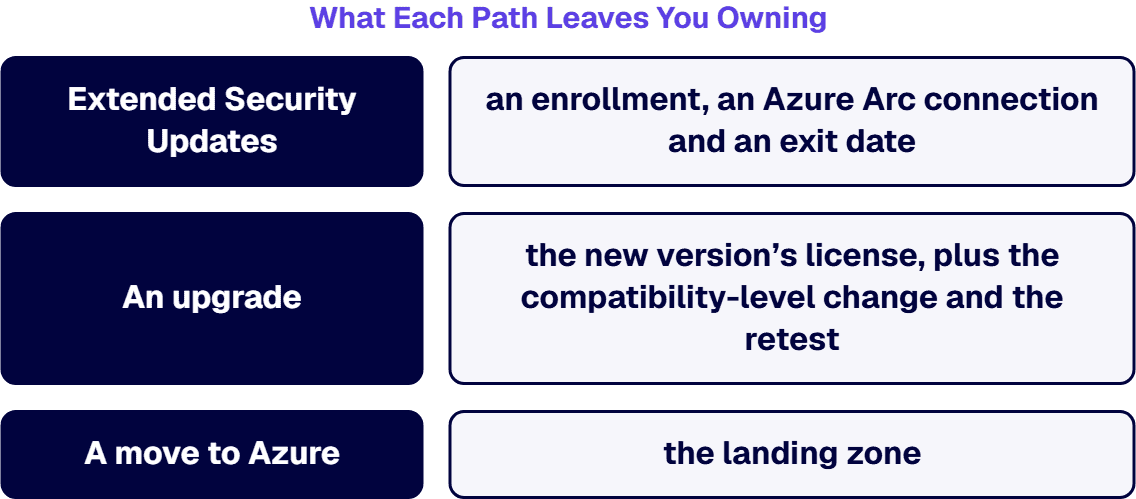
When an auditor asks about a server past support, the question is the same whichever path it took, and every path leaves something behind. Extended Security Updates leave you owning an enrollment, an Azure Arc connection and an exit date: according to Microsoft Learn, the SQL Server subscription is canceled automatically when you upgrade or migrate the instance to Azure, where an as-is SQL Server 2016 virtual machine needs its own paid subscription, and the Windows Server 2016 terms on Microsoft’s Azure Arc page run from configuration on August 3, 2026 to billing from January 13, 2027 and coverage through 2030. An upgrade leaves you owning the new version’s license, since Microsoft’s upgrade planning page says each Windows Server upgrade requires a separate license, plus the compatibility-level change and the retest. A move to Azure leaves you owning the landing zone and, if you choose Azure SQL Managed Instance, a platform that Microsoft’s SQL Server end of support options page describes as fully managed and never reaching end of support.
The i3solutions recommendation: whichever path each server takes, record the server, the path, the Microsoft source and the date the path ends. A server that is on none of the three paths is the one to name first, because it is the one with no answer when the auditor asks.
Choosing among the three paths is the wrong decision when the server is not the real problem. If the application on the server is unsupported code with no vendor and no owner, decide about the application first; that work is described in Modernize Legacy Systems without Disrupting the Enterprise. If the system may not deserve any of the three paths at all, apply the extend, wrap, rebuild or retire test in Are Our Current Systems Stable Enough to Extend, or Too Fragmented to Build On? before spending on a bridge.
If the estate is too large or too tangled to decide server by server before the Windows Server 2016 billing date, start with an assessment of the environment. i3solutions sells and delivers an enterprise IT technology assessment of a Microsoft environment as a named engagement, comprising discovery, gap analysis and a future-state roadmap. Bridge only what that assessment cannot reach in time.
A workload that has to move into a government cloud, or out of one, is a different move with its own plan, and this guide does not cover it.
If you want an outside architect on these servers, the first deliverable is the per-server plan in the table above, one row per server with its path, its Microsoft source and its end date. i3solutions plans and runs governed Azure and Microsoft 365 migrations with senior, U.S.-based engineers. i3solutions also plans and carries out Windows Server and SQL Server upgrades and moves of data, applications and entire operating systems to Azure as project work, with embedded specialists where your team needs them. As a Microsoft-focused application development and integration firm, i3solutions helps enterprises modernize operations and connect platforms, and the people on the work are senior and US-based. The wider practice is Enterprise Digital Transformation Solutions for Governed, Scalable Modernization.
No. Microsoft Learn says “Starting with SQL Server 2016 (13.x), ESUs are available through a paid subscription.” and “ESUs are free for SQL Server 2014 (12.x) and purchasable for SQL Server 2016 (13.x).”
For SQL Server 2016, Microsoft Learn says ESUs are available “after connecting your servers to Azure Arc” and “If you can’t connect your SQL Server instance to Azure Arc, you don’t qualify for this offer.” For Windows Server 2016 ESUs enabled by Azure Arc, Microsoft Learn says “You can configure Windows Server 2016 ESUs in the Azure portal starting August 3, 2026.” and “Software Assurance is required for on-premises workloads.”
Microsoft Learn says “Extended Security Updates for Windows Server 2016 provide Critical and Important security updates for up to three years, through 2030.” It also says “Billing for Windows Server 2016 ESUs enabled by Azure Arc begins January 13, 2027.”
Yes, from installation media, with exceptions. Microsoft Learn says “Starting with Windows Server 2025, nonclustered systems can upgrade up to four versions at a time.” It also says “Not all roles support in-place upgrade.” and “Don’t use in-place upgrade for servers that run Active Directory Domain Services (AD DS).” and “Unlike Windows client, each Windows Server upgrade requires a separate license.”
Service Pack 3 or later. Microsoft Learn lists “SQL Server 2016 (13.x) SP3 or later” as a supported starting point for both versions and notes “Web edition isn’t available in SQL Server 2025 (17.x) and later versions.” It also says “When the database compatibility matches the legacy system, existing database applications stay protected from functional and performance changes.”
By Michael Branson
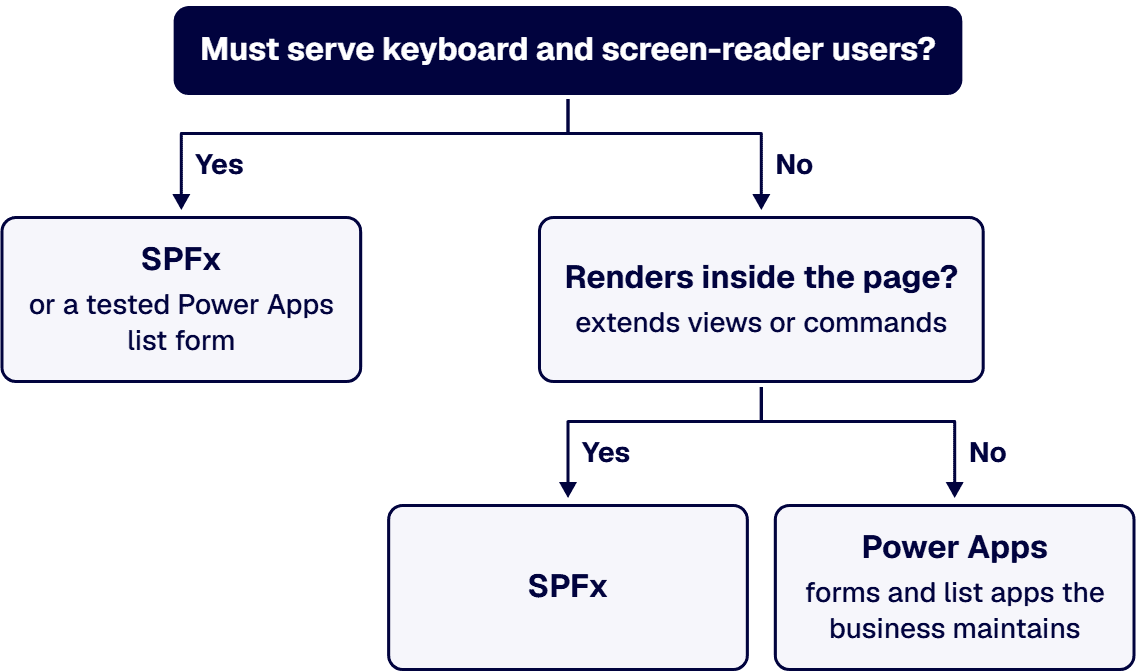
As of September 2026, use Power Apps for SharePoint forms and apps when the business maintains them, and SharePoint Framework (SPFx) for whatever must render in the page, extend views or commands, or serve keyboard and screen-reader users there. Add-ins stopped for all tenants on April 2, 2026.
Two sets of limits carry most of the decision. Power Apps web part viewers must be granted access to the app, Microsoft 365 use rights are intended for Microsoft 365 data and standard connectors, and a nondelegable query stops at 500 records by default. An SPFx package is approved by an administrator in the app catalog, and an Entra ID API permission it is granted applies to the entire tenant.
If your backlog still assumes add-ins, it needs a new plan. Microsoft’s SharePoint Add-In retirement announcement states: “SharePoint Add-Ins will stop working for new tenants as of November 1st, 2024; they will stop working for all tenants as of April 2nd, 2026.” It adds: “This applies to all environments including Government Clouds and the U.S. Department of Defense.” SharePoint Framework is not part of that retirement. Microsoft’s retirement FAQ answers: “No, SharePoint Framework (SPFx) is the recommended development model for SharePoint extensibility and is not impacted by these retirements.”
Server-side code is not a third option. Microsoft’s guide to planning SharePoint customizations states: “Because of the shared nature of the SharePoint infrastructure, Microsoft does not allow the deployment of custom code to its environment.” The same page splits the work between the two remaining tools. For forms it says: “Power Apps can be used to create custom forms for use in modern SharePoint sites.” It lists three ways to use a Power App with a SharePoint site: as a custom SharePoint list form, as a custom SharePoint list view, and as a stand-alone app that uses SharePoint as its data source. It adds: “You can embed a Power App form in a modern page using the Power Apps web part.” For code it says: “Use the SharePoint Framework (SPFx) to render custom web parts on a modern SharePoint page.” And: “Additionally, Extensions to the SPFx provide the ability to add scripts to pages, create modified views of data, and surface new commands in the SharePoint user interface.”
If an add-in broke on April 2, 2026, rebuilding it is a recovery project with its own inventory, and that recovery is not what this guide covers. This guide covers the interfaces you build next.
If the business will change the form every month, the maintenance model decides the tool before anything else does. Microsoft’s SharePoint forms integration article describes the starting point a maker gets: “When you customize a form for a list, you see the default generated form works for all operations, like creating, showing, or editing an item.” A trained business maker edits that form in Power Apps, with no developer release.
SPFx is a developer’s tool. Microsoft’s SharePoint Framework overview describes it as “a page and web part model that provides full support for client-side SharePoint development, easy integration with SharePoint data, and extending Microsoft Teams and Microsoft Viva.” Every change is code, built and shipped as a package. Microsoft’s SPFx enterprise guidance states: “To use a new version of the solution, you must deploy the new set of scripts to your CDN and update the solution package in the app catalog.”
The planning rule: if the business owns the fields and will change them often, build the form in Power Apps. If a developer team owns a component that many sites will use, build it in SPFx.
If a Power Apps form reaches beyond SharePoint, licensing moves with it. Microsoft’s Power Platform licensing overview states: “Some Microsoft 365 licenses include limited Power Apps and Power Automate use rights.” It limits them: “These use rights are intended for scenarios that use Microsoft 365 data and standard connectors.” The Power Platform licensing FAQ names the line: “A standalone Power Apps or Power Automate plan license is required to access all Premium , on-premises, and custom connectors.” Microsoft’s SharePoint connector reference lists that connector as Standard for Power Apps.
For SPFx, the licensing line in Microsoft’s overview is: “The SharePoint Framework components are licensed under this Microsoft EULA.”
The planning rule: list every data source a Power Apps form touches before you approve it. Under that FAQ, adding one premium, on-premises or custom connector puts the app’s users on standalone plan licenses. What that costs in a government cloud is covered in What Does Power Apps Licensing Cost in GCC Compared to the Commercial Cloud?
If a list will grow past a few hundred items, test the queries before you standardize on a Power Apps gallery. In Power Apps, Microsoft’s SharePoint integration overview says: “The list serves as a data source in Power Apps.” Microsoft’s delegation article sets the limit: “When a query is nondelegable, Power Apps gets the first 500 records from the data source and then runs the actions in the query.” It adds: “You can increase this limit to 2,000 records.” And it states the consequence: “If the table has more than 500 records, the formula doesn’t return record 501 or higher, even if it matches the criteria.” The failure is quiet: the gallery shows results, just not all of them.
An SPFx component reads SharePoint data in the browser as the signed-in user. The overview states: “It runs in the context of the current user and connection in the browser.”
The planning rule: before launch, test every Power Apps gallery, filter and search against more than 500 items, the default limit in Microsoft’s delegation guidance. If the data will outgrow a list, the store decision comes first; it is covered in SharePoint and Power Platform Integration in Regulated Enterprises, and the signs that an app has outgrown Power Apps in When Power Apps Is the Wrong Choice: Enterprise Signs.
If federal staff or the public must operate the interface by keyboard or screen reader inside a SharePoint page, this criterion can decide the whole choice. As of September 29, 2026, Microsoft’s support article Use the Power Apps web part states: “The Power Apps web part for SharePoint in Microsoft 365 does not yet support screen readers or keyboard navigation.” The same article says the web part supports canvas apps but “does not yet support model-driven apps”.
SPFx renders inside the page itself. The framework overview states: “In fact, the SPFx is the only extensibility and customization option for Viva Connections.” With SPFx, the markup and keyboard behavior are whatever your developers build and test. The overview also warns: “The SharePoint page HTML DOM is not an API.” A component that depends on the page’s own markup can break when Microsoft changes it.
The planning rule: while Microsoft’s statement stands, do not embed an interface that keyboard or screen-reader users must operate through the Power Apps web part. Build it in SPFx, or as a Power Apps list form that your own accessibility review has tested, and re-read Microsoft’s article before each release. Whether any build meets Section 508 is your accessibility team’s determination, not a property of the tool.
If a regulated change process governs what reaches production, the two tools release differently. For SPFx, the enterprise guidance states: “Deploying SharePoint Framework solutions is done by deploying a solution package to the app catalog and approving it for use in your tenant or site collection.” It adds: “While the developers building the solution decide if the solution supports tenant-wide deployment or not, it’s the administrators who make the final decision on how the solution is deployed.” Microsoft’s ALM APIs let that deployment be scripted.
SPFx permissions need their own review. Microsoft’s article on connecting SPFx to Entra ID-secured APIs states: “All permissions are granted to the whole tenant and not to a specific application that has requested them.” And: “Although permissions to Entra ID resources are being requested by a SharePoint Framework solution, once granted, they apply to the entire tenant”, which means any client-side request in that tenant can use them. And: “Removing the solution that initially requested the particular permission doesn’t revoke the granted permission.”
Power Apps releases differently. Microsoft’s Power Platform ALM overview states: “To use the Power Platform features and tools available to manage ALM, all environments that participate in ALM must include a Dataverse database.” For customized list forms, the forms integration article states: “While you can manually copy a form from one environment to another, there’s currently no automated method in Power Apps to copy a form from one environment to another.” Access is granted app by app. The web part article states: “Users who view the app on your page must have been granted access to the app.” And: “Embedding an app does not automatically give users permission to use the app.”
The planning rule: treat SPFx API permission requests as tenant-wide grants in review, because Microsoft says that is what they become, and revoke them by hand when a solution is retired, because removing the solution does not. For Power Apps list forms, write the manual copy between environments into your change process as a named step with an owner.
If your tenant runs in a US government cloud, confirm each tool in that cloud before you standardize. Microsoft’s Power Apps US Government page says eligible customers have been able to deploy Power Apps US Government to GCC High since September 2019 and to DoD since April 2021. It also states: “The Cloud Solution Provider program isn’t currently available for GCC High customers.” And: “Microsoft strives to maintain functional parity between our commercially available service and those enabled through our US Government clouds.”
For SPFx code that reads Microsoft Graph, the endpoint changes by cloud. Microsoft’s national cloud deployments page tells GCC High tenants to “use https://portal.azure.us and https://graph.microsoft.us” and DoD tenants to “use https://portal.azure.us and https://dod-graph.microsoft.us”.
The planning rule: SPFx code reads its Graph endpoint from configuration per cloud, never from a hard-coded commercial address. Confirm each Power Apps feature you plan to use, including list form customization and the web part, in your own cloud on the day you set the standard. Build constraints specific to GCC High are covered in Building on Microsoft 365 GCC High: What Changes.
If you need one standard to publish to your teams, use this table as the default and record the criterion behind each exception.
If the six criteria do not settle it, one of these cases usually does.
If a team or a firm proposes the build, ask for these before approval:
Ask what the team hands over at the end, and check it against your own inventory of interfaces. An i3solutions SharePoint consulting engagement produces named deliverables: a governance documentation package, architecture artifacts, and runbooks. An i3solutions engagement does not produce managed-service ownership, a replacement for the internal team, open-ended scope expansion, or vendor lock-in.
If you want a team that builds on both tools, that is the work we do. Our dedicated SharePoint developers build enterprise-ready solutions using SPFx, Power Platform, and Microsoft Graph. Our developers implement business logic with SPFx, Power Apps, and customized components that serve real roles and workflows. Because we build on both, the recommendation for each interface follows the six criteria, not a preference for one tool. i3solutions is a Microsoft-focused application development and integration firm that helps enterprises modernize operations, connect platforms, and build tailored solutions. i3solutions has been a Microsoft Partner with 30 years of enterprise technology delivery experience and has delivered 1,500+ Microsoft engagements across aerospace and defense, financial services, and health sciences. All i3solutions SharePoint developers, architects, and consultants are 100% U.S.-based. The wider service is described in Enterprise SharePoint Development & Integration Services Built for Scale and Governance.
If you need a model-driven app on a page, not through that web part. As of September 2026, Microsoft’s support article says the Power Apps web part for SharePoint supports canvas apps but does not yet support model-driven apps.
If your users depend on a keyboard or a screen reader, not yet, by Microsoft’s own statement. As of September 29, 2026, Microsoft’s support article states that the Power Apps web part for SharePoint in Microsoft 365 does not yet support screen readers or keyboard navigation. Build those interfaces in SPFx, or as a Power Apps list form your accessibility review has tested.
If the form uses only Microsoft 365 data and standard connectors, Microsoft says some Microsoft 365 licenses include limited Power Apps use rights intended for that scenario. A standalone Power Apps plan license is required for premium, on-premises and custom connectors. Users must also be granted access to an app embedded on a page.
If you approve an API permission for one SPFx solution, it applies to the whole tenant. Microsoft states that once granted, permissions to Entra ID resources apply to the entire tenant and can be used by any client-side request in it, and that removing the solution does not revoke the permission.
By Michael Branson
As of September 2026, Windows 10 Enterprise LTSB 2016 and Windows 10 IoT Enterprise LTSB 2016 end support on October 13, 2026 and Windows 10 Enterprise LTSC 2021 ends support on January 12, 2027, according to Microsoft, while Windows 10 IoT Enterprise LTSC 2021 moves to Extended Support that day and stays in support through January 13, 2032; Microsoft states that these releases are “NOT covered via the Windows 10 ESU program.” Microsoft Learn and Microsoft’s posts give each release its own options, among them a newer LTSC release if the device meets the hardware requirements, a release-specific Extended Security Updates offer where one exists, which Microsoft calls a temporary bridge, and, for Windows 10 Enterprise LTSC 2021 on fixed-function devices, an upgrade license to Windows 10 IoT Enterprise LTSC 2021. On a device its maker certifies, the maker decides first: Microsoft says to check with the device maker before an upgrade, and, according to Microsoft, the Extended Security Updates for Windows IoT Enterprise LTSB 2016 are sold only through the device’s manufacturer.
A vulnerability scan or an auditor flags Windows 10 machines that your Windows 10 Extended Security Updates plan did not cover, and those machines turn out to run a long-term servicing release: the lab analyzer, the imaging workstation, the test stand, the line PC, the kiosk. Two things you may have been told are each only partly true. That LTSC means ten years of support holds for the IoT edition: Microsoft’s Windows IoT Enterprise Release History says “Windows IoT Enterprise LTSC releases follow the Fixed Lifecycle Policy where each release is supported for 10 years and requires a separate license.” The Enterprise edition of LTSC 2021 ends on January 12, 2027, as the table below shows. That Extended Security Updates will cover these machines fails too, because the Windows 10 ESU program does not. This guide sets out what Microsoft’s and the FDA’s own pages, read on 2026-09-24, say for Windows 10 LTSB 2016 and LTSC 2021 on lab, clinical and shop-floor machines, edition by edition, and where the i3solutions recommendation sits beside them.
If the inventory says only “Windows 10”, it cannot tell you which date applies, because the dates differ by edition and release. Microsoft’s Windows Enterprise LTSC page on Microsoft Learn says “The long-term servicing channel was previously called the long-term servicing branch (LTSB).”, so LTSB 2016 and LTSC 2021 are two releases of the same channel. Its release table maps Windows 10 Enterprise LTSC 2021 to “Windows 10, Version 21H2” and Windows 10 Enterprise LTSC 2016 to “Windows 10, Version 1607”, and it advises: “Always check your individual LTSC release to verify its servicing lifecycle.”
The edition matters as much as the release. Microsoft’s Windows IoT Frequently asked questions page shows how to recognize an IoT Enterprise LTSC machine: in the Settings app, under System and About, the Edition field says “Windows 10 IoT Enterprise LTSC”, and the command dism /online /get-currentedition reports “IoTEnterpriseS”. Record the edition and release for every machine, never just “Windows 10”.
Some machines will turn out to be ordinary desktops that someone put on LTSC. Microsoft’s Windows Enterprise LTSC page says “The long-term servicing channel isn’t intended for deployment on most or all the PCs in an organization.” and “The LTSC edition of Windows provides a deployment option for special-purpose devices and environments.” Microsoft’s Windows IoT Enterprise LTSC in Volume License page adds that the IoT edition “is intended for use for fixed-function specialized devices only and cannot be used as a replacement of Windows desktop for general purpose computing.” A general-purpose PC on LTSC belongs in the organization’s Windows 10 fleet decision, not in this guide. Desktops already on Windows 11 version 23H2 Enterprise reach end of updates on November 10, 2026, and Windows 11 23H2 End of Updates and WSUS sets out the feature-update path and update channel for a regulated fleet.
If two machines both show Windows 10 LTSC, they can still face different dates. Microsoft’s plain-text lifecycle pages give these dates, one row per edition:
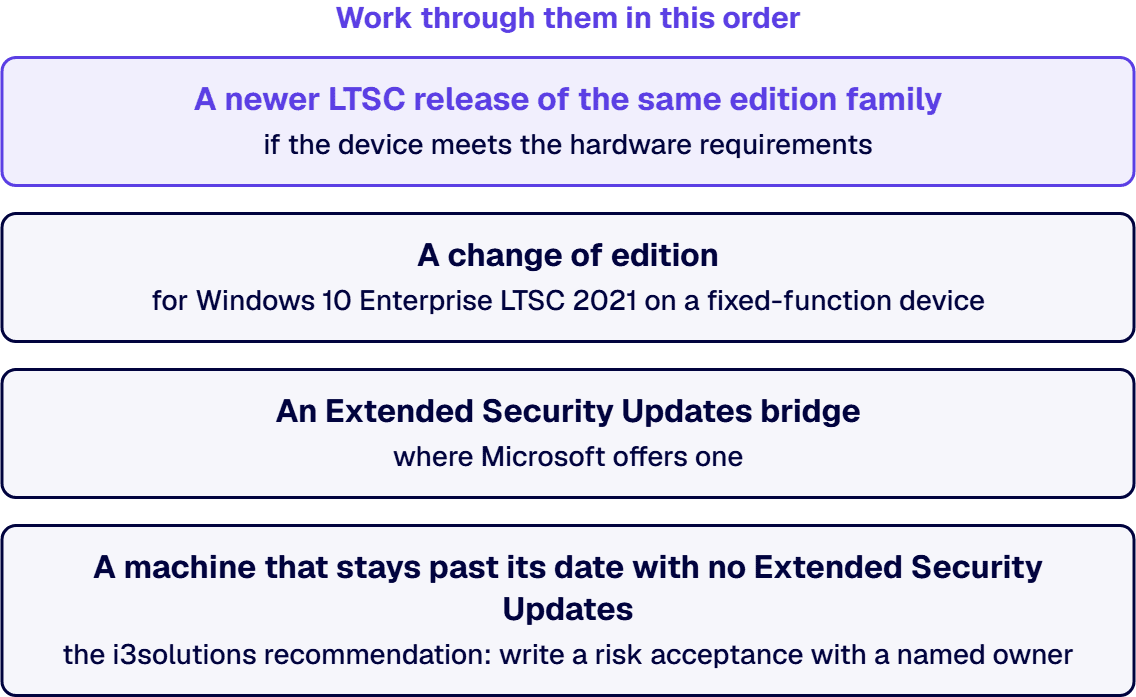
Microsoft’s Ending Support in 2026 page lists the first row’s edition as “Windows 10 2016 LTSB”. The row to read twice is the fourth. On January 12, 2027 the Enterprise edition of LTSC 2021 ends, and the IoT edition of the same release only changes support phase. Microsoft’s Ending Support in 2027 page lists the IoT edition under “Products moving to Extended Support” and says “Extended Support includes security updates at no cost, and paid non-security updates and support.”
End of support is not a soft date. Microsoft’s Ending Support in 2026 page says “Upon retirement or end of support, there will be no new security updates, non-security updates, free or paid assisted support options or online technical content updates.” For the LTSB 2016 releases, Microsoft’s post Plan for Windows Server 2016 and Windows 10 2016 LTSB end of support says “your devices will receive a final monthly security update” on the end date, and Microsoft’s Windows IoT Enterprise Release History says “Windows 10 IoT Enterprise 2016 LTSB reaches end of support with a final monthly update on October 13, 2026.” For LTSC 2021, Microsoft’s post Plan for Windows 10 Enterprise LTSC 2021 end of support says “This release reaches end of support (EOS) on January 12, 2027.”
If the budget assumed these machines would ride on the Windows 10 Extended Security Updates plan, that assumption fails on Microsoft’s own words. Its Enable Windows 10 Extended Security Updates (ESU) for physical machines page says “Windows 10 Long Term Servicing releases (LTSB/LTSC) have their own lifecycles and are NOT covered via the Windows 10 ESU program.” Each release has its own terms instead:
Read every one of those offers with its limits. Microsoft’s Plan for Windows Server 2016 and Windows 10 2016 LTSB end of support post says “The ESU program is not intended to be a long-term solution but rather a temporary bridge.” and “The ESU program offers critical and important security updates only (as defined by the Microsoft Security Response Center).” It also says the ESU program does not extend technical support for Windows 10 Enterprise LTSB 2016 or Windows IoT Enterprise LTSB 2016, and Microsoft’s LTSC 2021 post says “The ESU program doesn’t extend technical support for Windows 10 Enterprise LTSC 2021.” This guide states no price for any of these offers.
Once each machine’s edition and date are known, the decision is which of four paths it takes, and by when. Work through them in this order:
Microsoft sets two more conditions on the IoT Enterprise LTSC paths. Its What is Windows IoT Enterprise? page says “Upgrading from one version of Windows IoT Enterprise LTSC to the next version requires a new license.” and “When you utilize the LTSC, you must factor hardware into your decision, making sure you have a long-term supply of components for the expected life of your devices.” For the newer releases, Microsoft’s Ending Support in 2029 page lists October 9, 2029 as the end of support for Windows 11 Enterprise LTSC 2024 and as the date Windows 11 IoT Enterprise LTSC 2024 moves to Extended Support, and its Ending Support in 2034 page lists October 10, 2034 for Windows 11 IoT Enterprise LTSC 2024. Long-lived devices like these also need the Secure Boot certificate update, and Secure Boot Certificate Expiration in 2026 sets out how to update every Windows device and what goes on the exception list.
Whether the application on the device is worth extending at all is a separate question, covered in Are Our Current Systems Stable Enough to Extend, or Too Fragmented to Build On?.
If the machine is part of a certified instrument or medical device, changing its operating system without the maker can break the certification you depend on. Microsoft’s Windows IoT Frequently asked questions page says “First, check with your device maker to determine what upgrade options are offered for the device.” and, on whether an upgrade to the newer LTSC is supported on your device, “Due to the specialized nature of Windows IoT devices, check with your device maker first for guidance”. Its What is Windows IoT Enterprise? page says “Devices that require regulatory certification and devices that perform a critical business function can’t accept feature updates for years at a time.” Microsoft’s Lifecycle FAQ – Windows says LTSC “is designed to be used only for specialized devices” and gives as examples “those that control medical equipment or automated teller machines (ATMs)”.
For medical devices, the FDA’s words are addressed to the device’s manufacturer, not to the hospital or lab that owns it. According to the FDA’s Cybersecurity in Medical Devices Frequently Asked Questions (FAQs), section 524B(c) of the FD&C Act defines a cyber device as one that includes software validated, installed or authorized by the sponsor as a device or in a device, has the ability to connect to the internet, and contains any such technological characteristics validated, installed or authorized by the sponsor that could be vulnerable to cybersecurity threats. The same page lists requirements on the maker, including “Design, develop, and maintain processes and procedures to provide a reasonable assurance that the device and related systems are cybersecure, and make available postmarket updates and patches to the device and related systems” and “Provide a software bill of materials, including commercial, open-source, and off-the-shelf software components”. It also says “As provided by the Omnibus, the cybersecurity requirements do not apply to an application or submission submitted to the FDA before March 29, 2023. If a cyber device was previously authorized, and the manufacturer is making a change to the device that requires premarket review by the agency, the law applies to the new premarket submission.”
The FDA’s guidance Cybersecurity in Medical Devices: Quality Management System Considerations and Content of Premarket Submissions says “Document issued on February 3, 2026.” and every page is headed “Contains Nonbinding Recommendations”. Its labeling recommendations ask manufacturers for “Information, if known or anticipated, concerning device cybersecurity (including components) end of support and end of life.” They note “At the end of support, a manufacturer may no longer be able to reasonably provide security patches or software updates.” and “If the device remains in service following the end of support, the manufacturer should have a pre-established and pre-communicated process for transferring the risks highlighting that the cybersecurity risks for end-users can be expected to increase over time.” Its software bill of materials elements include each component’s “end-of-support date”. On changes, it says “In general, changes that may impact cybersecurity and may require premarket submission could include changes to authentication or encryption algorithms, new connectivity features, or changing software update process/mechanisms.” Whether an operating-system move on a given device needs a submission is the manufacturer’s call, and this guide does not make it.
For industrial, lab and energy equipment, this guide cites no regulator; Microsoft’s What is Windows IoT Enterprise? page lists “industrial automation systems” among the fixed-purpose devices Windows powers, and the same maker-first rule applies. Ask each maker in writing for:
Change nothing on a certified device until that answer is on file.
If an assessor asks what you are doing about these machines, the answer is a record with one row per machine, not a policy statement. Each row carries:
Microsoft’s own advice on the Windows Enterprise LTSC page applies to every row: “Always check your individual LTSC release to verify its servicing lifecycle.”
If the machine in front of you does not fit the situation above, start somewhere else:
If you bring in outside help for these machines, hold the work to these criteria:
Be plain about what stays with you. Patching and running these machines after the project remains your team’s work, or the device maker’s, as ongoing work; i3solutions does not take it on as an ongoing managed service. An i3solutions engagement does not produce managed-service ownership, a replacement for the internal team, open-ended scope expansion, or vendor lock-in.
If you want an outside architect on this decision, i3solutions takes on this planning as project work, with embedded specialists available where your team needs them. Delivery is senior and US-based. i3solutions plans and runs Intune migrations for enterprises moving domain-joined Windows devices off on-premises Group Policy. Designing Intune enrollment profiles for shared and kiosk devices is part of i3solutions’ Microsoft Intune Technology Readiness Services work. i3solutions has performed IV&V on software subject to FDA design-control expectations, including requirements traceability from controls through delivered functionality. That work is described in Third-Party Software Validation (IV&V) for FDA and ISO Regulated Software: What It Involves and What It Costs. The wider practice is governed, scalable enterprise modernization. For moving Windows devices off Group Policy more broadly, see the Intune migration checklist.
No. Microsoft Learn says “Windows 10 Long Term Servicing releases (LTSB/LTSC) have their own lifecycles and are NOT covered via the Windows 10 ESU program.”
Windows 10 IoT Enterprise LTSC 2021 moves to Extended Support on January 12, 2027 and, according to Microsoft Learn, is supported through January 13, 2032. Microsoft’s blog post on LTSC 2021 says “These devices remain in support through January 13, 2032.”
Yes, with conditions. Microsoft’s blog post on LTSB 2016 says “Windows 10 Enterprise 2016 LTSB ESUs are available as of April 1, 2026.” and that they can be bought “for up to three years if you can’t upgrade to a newer version by October 13, 2026,” while “Extended Security Updates for Windows IoT Enterprise LTSB 2016 are only available through IoT original equipment Manufacturers (OEMs).”
On fixed-function devices, yes. Microsoft Learn says “Windows IoT Enterprise LTSC is now available as an upgrade license for fixed-function, specialized devices through Volume Licensing programs” and it “is intended for use for fixed-function specialized devices only and cannot be used as a replacement of Windows desktop for general purpose computing.”
The FDA’s guidance is written for device manufacturers and headed “Contains Nonbinding Recommendations”. It recommends that labeling include “Information, if known or anticipated, concerning device cybersecurity (including components) end of support and end of life.” and notes “At the end of support, a manufacturer may no longer be able to reasonably provide security patches or software updates.”
By Michael Branson
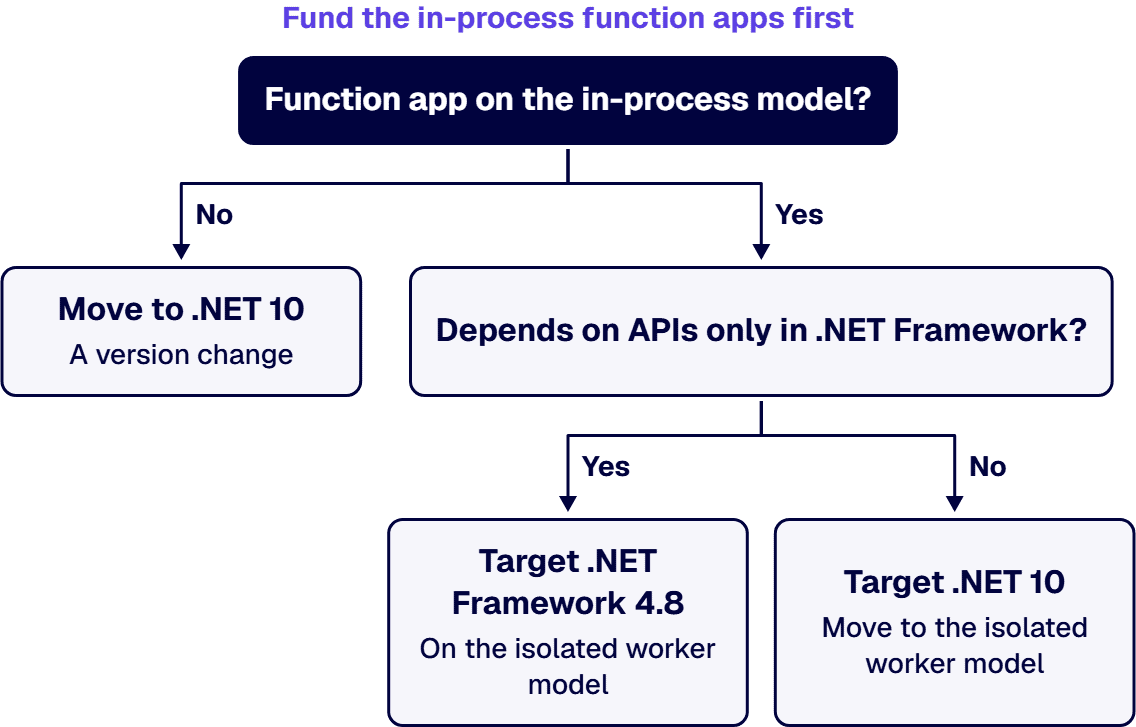
As of September 2026, Microsoft ends support for .NET 8, .NET 9 and the Azure Functions in-process model on November 10, 2026, so move in-process function apps to the isolated worker model first, because that model is the only way past .NET 8, and move every .NET 8 and .NET 9 application to .NET 10, the current long-term support release, supported to November 14, 2028. The applications will keep running after that date, but the Microsoft .NET Blog says no new security updates will be issued for either version and that “Staying on an unsupported version means you are exposed to security vulnerabilities that will not be patched.” For a function app, Microsoft’s migration guide makes the move a code migration plus two changes in Azure that each restart the app, and says “When feasible, use a staging slot during the migration.”
When a security scan or an Azure notice lists applications on .NET 8 or .NET 9 and function apps on the in-process model, all against the same November 10, 2026 date, the list does not say which items are a version change and which are a code migration. That difference sets the funding order. This guide sets out what Microsoft’s own pages, read on 2026-09-24, say about each retirement, what keeps running after the date, why the in-process function apps go first, and what to fund. Applications still on .NET Framework are a different decision, covered in the counter-case below.
If your team has planned the runtime and the function apps as separate projects with separate deadlines, the dates say otherwise. Microsoft’s .NET and .NET Core Support Policy page, last updated September 8, 2026, lists .NET 10 as an LTS release in Active support until November 14, 2028, .NET 9 as an STS release in Maintenance until November 10, 2026, and .NET 8 as an LTS release in Maintenance until November 10, 2026. The Microsoft .NET Blog post .NET 8 and .NET 9 will reach End of Support on November 10, 2026 says “.NET 8 and .NET 9 will reach end of support on November 10, 2026. After that date, Microsoft will no longer provide servicing updates, security fixes, or technical support for these versions.”
The same post explains why .NET 9, a Standard Term Support (STS) release, ends on the same day as .NET 8, a Long Term Support (LTS) release, and says “As we announced, STS releases now get 24 months of support instead of 18. That puts .NET 9 end of support on the same day: November 10, 2026.” Microsoft’s Supported languages in Azure Functions page records the change in its own words: “.NET 9 previously had an expected end-of-support date of May 12, 2026. During the .NET 9 service window, the .NET team extended support for STS versions to 24 months, starting with .NET 9.” Plan on November 10, 2026 for .NET 9, not the earlier date.
Azure Functions adds the third retirement, the execution model. Microsoft’s Ending Support in 2026 page lists “Azure Functions In-process model end of support” with a retirement date of November 10, 2026. Microsoft’s Differences between the isolated worker model and the in-process model for .NET on Azure Functions says “Support will end for the in-process model on November 10, 2026. We highly recommend that you migrate your apps to the isolated worker model for full support.” Microsoft’s Update language stack versions in Azure Functions page states the deadline plainly: “If your function app uses the in-process model, you must migrate from the in-process model to the isolated worker model before November 10, 2026.”
Of the releases in that support table, .NET 10 is the one supported target that outlives the date.
If someone on the team says the applications will still run, they are right, and that is the risk rather than the reassurance. The Microsoft .NET Blog says “Applications built on .NET 8 or .NET 9 will continue to run. No new security updates will be issued for either version.” and “Staying on an unsupported version means you are exposed to security vulnerabilities that will not be patched.” On the date itself, the post says “November 10th is a Patch Tuesday release day. .NET 8 and .NET 9 may each receive one final update on that day if there is a known critical issue.”
For function apps, Microsoft’s Azure Functions language stack support policy says “After the language end-of-life date, function apps that use retired language versions can still be created and deployed, and they continue to run on the platform. However, these apps aren’t eligible for new features, security patches, and performance optimizations until after you upgrade them to a supported language version.” The same policy adds “Further, if required, in certain cases we will limit the number of instances allocated to these apps including limit scaling to 1 instance.”
Microsoft’s Language runtime support policy for Azure App Service covers web apps on Azure App Service and says “After community support for a language reaches the end of support, applications that use the language continue to run unchanged. However, App Service can’t provide security patches or related customer support for that runtime version past its end-of-support date.”
Treat the fact that an application still runs as the reason to plan, not the reason to wait.
If a security review or a risk committee asks how the estate stands against the date, show them evidence, not intent. Microsoft’s support policy sets the condition for servicing in one sentence: “Within a release’s support lifecycle, systems must remain current on released patch updates.” Past the end of support, the Microsoft .NET Blog says no new security updates will be issued. The evidence that answers both statements is an inventory and a record:
If a function app runs on the in-process model, raising its .NET version is not an option. Microsoft’s Differences between the isolated worker model and the in-process model for .NET on Azure Functions describes the in-process model this way: “Your function code runs in the same process as the Functions host process. Supports only Long Term Support (LTS) versions of .NET.” Its comparison table gives the in-process model’s supported versions as “Long Term Support (LTS) versions, ending with .NET 8”. Microsoft’s Supported languages in Azure Functions page says “The in-process model currently only supports .NET 8. To be able to update your function app to use a later .NET version, you must migrate to the isolated worker model.”
So an in-process function app that misses November 10, 2026 sits on an unsupported .NET version and an unsupported execution model at once, and the way out is a code migration, not a version change. That is why these apps are funded first: each one needs a code migration before it can reach a supported .NET version at all.
The migration also brings a benefit Microsoft names. Microsoft’s Guide for running C# Azure Functions in the isolated worker model lists among its benefits “Fewer conflicts: Because your functions run in a separate process, assemblies used in your app don’t conflict with different versions of the same assemblies used by the host process.”
Check the host version before the code. Microsoft’s Migrate C# apps from the in-process model to the isolated worker model guide says “This guide assumes that your app is running on version 4.x of the Functions runtime.” Microsoft’s Compare Azure Functions runtime versions page says “Azure Functions currently supports only version 4.x of the runtime host.” and “Support ended for version 1.x of the Azure Functions runtime on September 14, 2026.” An app on an older host has that upgrade to make as well.
If the cutover is treated as a single deployment, the app can fail between its two steps. Microsoft’s migration guide names the target first: “If your app and its dependencies can run on .NET, target .NET 10. If your app depends on libraries or APIs available only in .NET Framework, target .NET Framework 4.8.”
The guide then describes two changes in Azure that it says to plan together: setting FUNCTIONS_WORKER_RUNTIME to dotnet-isolated, and publishing the migrated isolated worker project. Microsoft’s guide says “Each change restarts the app. After you complete the first change, the deployed code and configured runtime don’t match, which causes a runtime/payload mismatch error (AZFD0013) until you complete the second change.” Its answer is “When feasible, use a staging slot during the migration.” For the pipelines, Microsoft’s guide says “If you have any automated infrastructure provisioning such as a CI/CD pipeline, ensure that the automations are also updated to keep FUNCTIONS_WORKER_RUNTIME set to dotnet-isolated and to target the correct .NET version.”
Check the hosting plan before choosing .NET 10. Microsoft’s Differences between the isolated worker model and the in-process model for .NET on Azure Functions says “You can’t run .NET 10 apps on Linux in the Consumption plan. To run on Linux, you should instead use the Flex Consumption plan.” Microsoft’s Supported languages in Azure Functions page says “.NET 9 is the last .NET version supported for Linux Consumption plan apps. Newer .NET versions aren’t added to Linux Consumption.” and “The option to host function apps on Linux in a Consumption plan is retiring on 30 September 2028.” A function app on Linux in the Consumption plan that moves to .NET 10 therefore changes its hosting plan, and an in-process app changes its execution model as well. If that move reopens where the app should run at all, Azure Architecture for Microsoft-Centric Enterprises covers that choice.
If the function apps are handled and the web applications and services are not, the portfolio is still exposed on the same date. Microsoft’s .NET Blog says “We recommend upgrading to .NET 10, which is an LTS release supported through November 2028.” Microsoft’s .NET and .NET Core Support Policy page sets the lengths behind that choice and says “LTS releases get free support and patches for three years.” Microsoft’s documentation adds “STS releases get free support and patches for two years.”
This guide’s recommended order, which is a planning rule and not a Microsoft statement:
Staying current inside the release matters as much as the release. Microsoft’s support policy says “Within a release’s support lifecycle, systems must remain current on released patch updates.”
If an application does not fit the pattern above, forcing it into the plan creates rework:
If you bring in outside help, judge the plan against these items:
If the portfolio needs the work done as well as planned, i3solutions builds custom .NET applications that run on Azure App Service and Azure Functions, described in Custom .NET Application Development Services for Enterprises. i3solutions also provides senior .NET specialists for migration and modernization work, on a project or embedded in your team. Delivery is senior and US-based.
For the upgrade itself, the work is a project. An i3solutions engagement does not produce managed-service ownership, a replacement for the internal team, open-ended scope expansion, or vendor lock-in.
Where i3solutions built or modernized an application, keeping it on a supported runtime is part of the operation, support and enhancement it provides as application managed services, described in Application Managed Services for Custom Microsoft Applications.
The wider practice is Custom Application Development Services for Enterprise Performance.
Microsoft’s .NET Blog says “.NET 8 and .NET 9 will reach end of support on November 10, 2026. After that date, Microsoft will no longer provide servicing updates, security fixes, or technical support for these versions.”
Microsoft’s blog post says “As we announced, STS releases now get 24 months of support instead of 18.” The post adds “That puts .NET 9 end of support on the same day: November 10, 2026.” Microsoft Learn says “.NET 9 previously had an expected end-of-support date of May 12, 2026.” Microsoft Learn adds “During the .NET 9 service window, the .NET team extended support for STS versions to 24 months, starting with .NET 9.”
No, but they will get no new security updates. Microsoft’s .NET Blog says “Applications built on .NET 8 or .NET 9 will continue to run. No new security updates will be issued for either version.” For function apps, Microsoft Learn says retired versions “continue to run on the platform” but “aren’t eligible for new features, security patches, and performance optimizations until after you upgrade them to a supported language version.”
No. Microsoft Learn says “The in-process model currently only supports .NET 8. To be able to update your function app to use a later .NET version, you must migrate to the isolated worker model.”
Microsoft’s .NET Blog says “We recommend upgrading to .NET 10, which is an LTS release supported through November 2028.” For function apps, Microsoft Learn says “If your app and its dependencies can run on .NET, target .NET 10. If your app depends on libraries or APIs available only in .NET Framework, target .NET Framework 4.8.”
By Michael Branson, Founder/COO, i3solutions
As of September 2026, Microsoft supports Microsoft 365 Apps on Windows Server 2022 only while Windows Server 2022 is in Mainstream Support, which ends on October 13, 2026; Microsoft will keep sending security updates for Microsoft 365 desktop apps on those hosts until October 10, 2028, but feature updates stop at Version 2608, and for a version of Windows Server that doesn’t support Microsoft 365 Apps, Microsoft recommends moving to Windows 365 or Azure Virtual Desktop, while Windows Server 2025 session hosts remain supported for Microsoft 365 Apps during their own Mainstream Support. Microsoft Learn’s Microsoft 365 Apps migration from Windows Server page lists Windows Server 2022 itself as supported until October 2031, so the decision is about Microsoft 365 Apps on the hosts, not about the servers.
The support notice usually lands on a remote-desktop farm that was built on Windows Server 2022 because it was current, and whose servers still have years of support ahead of them. The published desktops and RemoteApp programs on those hosts carry the enclave users, the contractor access path and the line-of-business apps, so the question the notice raises is not whether the servers stay up but where each group of users goes next. The most common triggers we see are a Microsoft end-of-support deadline landing on production, repeated unexplained outages or slowdowns, a security incident or a failed penetration test, and a compliance requirement such as HIPAA, GDPR, NIST SP 800-171, or CMMC 2.0 that your current environment cannot evidence. This guide takes Microsoft’s own statements, read on 2026-09-24, and turns them into a host decision per user group.
When someone on the steering group says the servers are supported for years, so nothing changes, separate the three dates before the conversation goes further, because each governs something different.
What ends on October 13, 2026 is Microsoft 365 Apps support on those hosts. Microsoft’s Windows Server end of support and Microsoft 365 Apps page says “Microsoft 365 Apps is supported on Windows Server 2022 while it’s in Mainstream Support.” and “Mainstream Support for Windows Server 2022 ends in October 2026.” Microsoft’s Ending Support in 2026 page says “The following products will be moving from Mainstream to Extended Support in 2026.” and lists Windows Server 2022 with the date October 13, 2026. Microsoft’s Deploy Microsoft 365 Apps by using Remote Desktop Services page says the same thing for session hosts: “Microsoft 365 Apps (Version 2302 or later) is supported on Windows Server 2022 only until October 2026.”
The security-update bridge is what continues until October 10, 2028, and it is not support. Microsoft’s Windows Server end of support and Microsoft 365 Apps page says “In the interest of maintaining security while customers complete their migrations to a supported configuration, Microsoft will continue providing security updates for Microsoft 365 desktop apps running on Windows Server 2022 until October 10, 2028.” It also says “Devices running Microsoft 365 Apps on Windows Server 2022 will receive feature updates until Version 2608 is released.” and “Devices will remain on Version 2608, receiving only security updates until October 10, 2028.” Microsoft’s page does not give a release date for Version 2608, and neither does this guide.
Windows Server 2022’s own support does not change. Microsoft’s Microsoft 365 Apps migration from Windows Server page says “Support for Windows Server itself isn’t impacted.” and, in its list of end-of-support dates for Windows Server, gives “Windows Server 2022: October 2031”. Microsoft’s Ending Support in 2026 page says “Extended Support includes security updates at no cost, and paid non-security updates and support.”
Read the three together and one planning rule follows: a host still running Microsoft 365 Apps after October 13, 2026 will be receiving security updates and will be outside Microsoft’s support statement at the same time. Both halves belong in the risk register. Microsoft’s Windows Server end of support and Microsoft 365 Apps page gives the reason in its own words: “This policy requires customers to use Microsoft 365 Apps on a Windows operating system that is currently in support.” and “Using Microsoft 365 Apps on older, unsupported operating systems may cause performance and reliability issues over time.” If the farm still has Windows Server 2019 hosts in it, those are already past this point: the same page says “Support for Microsoft 365 Apps on Windows Server 2019 ended on October 14, 2025.”
When the first instinct is to pick one destination for the whole farm, stop and sort the users first, because a single answer almost never fits the enclave desktop, the contractor path and the published line-of-business apps at once. Microsoft’s Remote Desktop Services overview in Windows Server describes what the farm delivers: “Remote Desktop Services is a role-based infrastructure in Windows Server that lets authorized users connect over the network to:” a full desktop, session-based or virtual machine based, and RemoteApp programs.
The tags, not the product preferences, decide the sections that follow.
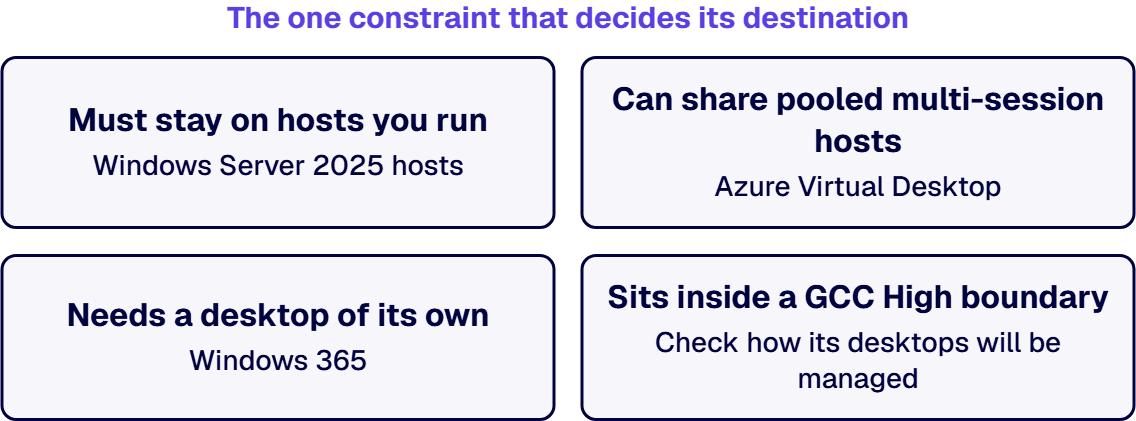
If a user group’s apps or its boundary require session hosts you run yourself, the move is to Windows Server 2025 hosts. Microsoft’s Windows Server end of support and Microsoft 365 Apps page says “Microsoft 365 Apps is supported on Windows Server 2025 while it’s in Mainstream Support.” and “Mainstream Support for Windows Server 2025 ends in October 2029.” Footnote 5 of Microsoft’s Office and Windows configuration support matrix says the same: “Microsoft 365 Apps on Windows Server 2025 is supported during the Windows Server mainstream support period.”
Check the licenses before the first new host goes live. Microsoft’s License Remote Desktop Services with Client Access Licenses (CALs) page says “The RDS CAL for your users or devices must be compatible with the version of Windows Server that the user or device connects to.” and gives the case that matters here: “For example, if you have RDS CALs for Windows Server 2022, you can connect to a session host running Windows Server 2022 or earlier, but you can’t use them to connect to a session host running Windows Server 2025.” Which licenses to hold is a question for your license agreement and your licensing counsel; this guide only describes Microsoft’s compatibility statement.
What this path does not change is the shape of the question. Microsoft’s page ties Microsoft 365 Apps on Windows Server 2025 to that version’s Mainstream Support, which ends in October 2029, so a farm rebuilt on Windows Server 2025 meets the same decision again. Plan the rebuild with that date written into it.
If a user group’s data or latency keeps its hosts on premises, Microsoft names a hybrid option. Microsoft’s Microsoft 365 Apps migration from Windows Server page says “If an on-premises session host deployment is required, Azure Virtual Desktop on Azure Local allows you to deploy session hosts to your on-premises Azure Local infrastructure.” and “Azure Virtual Desktop service components, including host pools, workspaces, and application groups, remain deployed in Azure.” Microsoft’s support statement for Microsoft 365 Apps is written per Windows Server version and names no hosting exception, so choose the session-host operating system on this path against the same statement as any other host.
When the tags say a user group no longer needs hosts you run, the destinations are the two Microsoft names. Microsoft’s Windows Server end of support and Microsoft 365 Apps page says “If your organization is using a version of Windows Server that doesn’t support Microsoft 365 Apps, we recommend that you move to Windows 365 or Azure Virtual Desktop.”
For pooled users, this guide’s destination is Azure Virtual Desktop. Microsoft’s What is Azure Virtual Desktop? page says “Azure Virtual Desktop is a desktop and app virtualization service that runs on Azure.” and lists, among its uses, “Replace existing Remote Desktop Services (RDS) deployments.” Microsoft’s Windows Enterprise multi-session FAQ says “Windows 10 Enterprise multi-session and Windows 11 Enterprise multi-session, allows multiple concurrent interactive sessions.” and “Previously, only Windows Server could do this.”
Users who need a desktop of their own go to Windows 365 in this guide’s plan. Microsoft’s What is Windows 365? page says “Windows 365 is a cloud-based software-as-a-service (SaaS) that automatically creates a new type of Windows virtual machine (Cloud PCs) for your end users.” For government users, Microsoft’s What is Windows 365 Government? page says “Windows 365 Government is a cloud-based service that automatically creates virtual machines (Cloud PCs) for US government users.”
Our planning rule is simple: send pooled task users toward multi-session hosts, and send users who need a desktop of their own toward a Cloud PC. The choice between the two services, their licensing and their government deployment paths is a separate decision, taken after the user groups are sorted.
If a user group sits inside a GCC High boundary, check how its desktops will be managed before choosing multi-session hosts for it. Microsoft’s Microsoft Intune for US Government GCC High and DoD service description, last updated June 24, 2026, says “The following features aren’t available and there’s currently no planning to support these features for GCC High and DoD environments:” and lists “Windows Enterprise multi-session remote desktops (AVD)” among them. The same Intune fact, with the rest of that list, is covered in Is Microsoft Intune CMMC Compliant? What It Covers, and What It Does Not.
For a GCC High user group, settle the management path against Microsoft’s current list before the design is drawn, and re-read the list on the day you decide. Which cloud the tenant belongs in is a separate decision, and so is the authorization of any service; this guide makes no statement about either.
If any of these situations describes your estate, the question changes shape:
When you brief whoever helps with the move, internal team or outside firm, hold them to these criteria:
i3solutions plans and runs governed Azure and Microsoft 365 migrations with senior, U.S.-based engineers. When a remote-desktop estate has to move before a Microsoft date, the work runs as a project: the host and user-group inventory, the user-group map to Microsoft’s host paths, the build of the chosen path, Microsoft 365 Apps packaging with shared computer activation, test users and cutover.
Embedded specialists can join your own team where it needs them for the design, build and testing. i3solutions has been a Microsoft partner since 1997 and has delivered 1,500+ Microsoft engagements across aerospace and defense, financial services, and health sciences. An i3solutions engagement does not produce managed-service ownership, a replacement for the internal team, open-ended scope expansion, or vendor lock-in.
The migration service is described on Cloud Consulting and Migration, and the wider Microsoft practice on Microsoft Consulting Services Built for Enterprise Complexity.
No, but it leaves Microsoft’s support statement. According to Microsoft, “Microsoft 365 Apps is supported on Windows Server 2022 while it’s in Mainstream Support.” and Windows Server 2022 will leave Mainstream Support on October 13, 2026. According to Microsoft, “Devices will remain on Version 2608, receiving only security updates until October 10, 2028.” According to Microsoft, “Using Microsoft 365 Apps on older, unsupported operating systems may cause performance and reliability issues over time.”
Yes. According to Microsoft, “Support for Windows Server itself isn’t impacted.” Microsoft lists “Windows Server 2022: October 2031” among its end-of-support dates for Windows Server, and says “Extended Support includes security updates at no cost, and paid non-security updates and support.”
Yes, for now. According to Microsoft, “Microsoft 365 Apps is supported on Windows Server 2025 while it’s in Mainstream Support.” and “Mainstream Support for Windows Server 2025 ends in October 2029.”
No. According to Microsoft, “For example, if you have RDS CALs for Windows Server 2022, you can connect to a session host running Windows Server 2022 or earlier, but you can’t use them to connect to a session host running Windows Server 2025.”
For a version of Windows Server that no longer supports Microsoft 365 Apps, Microsoft says “If your organization is using a version of Windows Server that doesn’t support Microsoft 365 Apps, we recommend that you move to Windows 365 or Azure Virtual Desktop.” According to Microsoft, “Azure Virtual Desktop is a desktop and app virtualization service that runs on Azure.” and “Windows 365 is a cloud-based software-as-a-service (SaaS) that automatically creates a new type of Windows virtual machine (Cloud PCs) for your end users.”
By Michael Branson, Founder/COO, i3solutions
As of September 2026, move every machine that can reach the internet at least once every 30 days to Microsoft 365 Apps, which Microsoft recommends, and put machines that cannot take feature updates or cannot connect to the internet on Office LTSC 2024, the path Microsoft Learn gives for commercial customers not yet ready for the cloud. Office LTSC 2024, according to Microsoft, gets five years of Mainstream Support and no Extended Support, receives no new features, and is supported for connecting to Microsoft 365 services until October 9, 2029. Office LTSC 2021 and Office 2021 reach end of support on October 13, 2026, after which, according to Microsoft, there will be no technical support, bug fixes, or security updates for them, and Office LTSC 2021 will no longer be supported for connecting to Microsoft 365 services.
When Microsoft Learn’s end-of-support notice for Office LTSC 2021 reaches your desk, the inventory behind it can turn up copies nobody tracked: a disconnected enclave, instrument PCs in a lab, a production line, shared clinical workstations, kiosks. Moving everyone to Microsoft 365 Apps puts an offline machine at risk of losing editing, and buying the fixed release again keeps connected users on software with no new features and a connectivity end date. This guide sets out what Microsoft’s own pages, read on 2026-09-24, say about each choice, so every class of machine gets an assignment you can defend. It covers Office on Windows machines; Mac editions are outside it. Where those machines run Windows 10 LTSB 2016 or LTSC 2021, see Windows 10 LTSB 2016 and LTSC 2021 on Lab, Clinical and Shop-Floor Machines: What Ends on October 13, 2026 and January 12, 2027, and the Path for Each Device.
If the notice on your desk names only Office LTSC 2021, check the retail copies as well, because both end the same day. Microsoft’s announcement Office LTSC 2021 reaching end of support on October 13, 2026 states: “Office LTSC 2021 will reach end of support on October 13, 2026.” It continues: “After this date, Microsoft will no longer provide technical support, bug fixes, or security updates for this product.” and “This may increase your organization’s exposure to security risks and could impact compliance requirements.”
Microsoft’s Ending Support in 2026 page lists Office 2021 among “The following products, governed by the Modern Policy, will retire in 2026.” and Office LTSC 2021 among “The following products and releases, governed by the Fixed Policy, will end support in 2026.” Both rows carry October 13, 2026. The same rows name the 2021 editions of Access, Excel, OneNote, Outlook, PowerPoint, Project, Publisher, Visio and Word, and the Fixed Policy row also names Skype for Business LTSC 2021. On what retirement means, that page says: “Upon retirement or end of support, there will be no new security updates, non-security updates, free or paid assisted support options or online technical content updates.”
If Office LTSC 2021 still connects to Exchange Online or SharePoint Online after that date, the connection is unsupported. Microsoft’s Office versions and connectivity to Microsoft 365 services table lists Office LTSC 2021 as supported for connecting until October 13, 2026, and the page adds: “Older Office versions might still be able to connect to Microsoft 365 services, but that connectivity isn’t supported.” Its lists for Project and Visio give “Project Professional 2021 and Project Standard 2021 (until October 2026)” and “Visio LTSC Professional 2021 and Visio LTSC Standard 2021 (until October 2026)”.
There is no Extended Support to plan around. Microsoft’s Overview of Office LTSC 2021 says no Extended Support will be available for these products after their five years of Mainstream Support end. Until the date, Microsoft’s Update history for Office LTSC 2021 and Office 2021 page says “Microsoft releases security and quality updates for Office LTSC 2021 (volume licensed) and Office 2021 (retail).”
If you pick the edition before you know the machines, the offline ones end up on the wrong product. Build the inventory first, and record every copy of the retiring Office editions against three questions, in this order:
The answers decide whether each machine gets Office LTSC 2024 or Microsoft 365 Apps. Connected, single-user desktops that can take feature updates go to Microsoft 365 Apps. Machines that cannot take feature updates or cannot connect go to Office LTSC 2024, which Microsoft’s Plan an upgrade from older versions of Office to Microsoft 365 Apps page describes this way: “Office LTSC 2024 is designed for specific scenarios. These include regulated devices that can’t accept feature updates, process control devices on manufacturing floors, and specialty systems that can’t connect to the internet.” Machines that are offline for a while but not for good need the offline test in the section below before they are assigned. Put the class, the owner of the machine and the assigned edition in the same register row, so the decision can be read back later. The Windows layer on the same desktops has its own date, and Windows 11 23H2 End of Updates and WSUS covers the feature-update path and update channel for devices whose updates end on November 10, 2026.
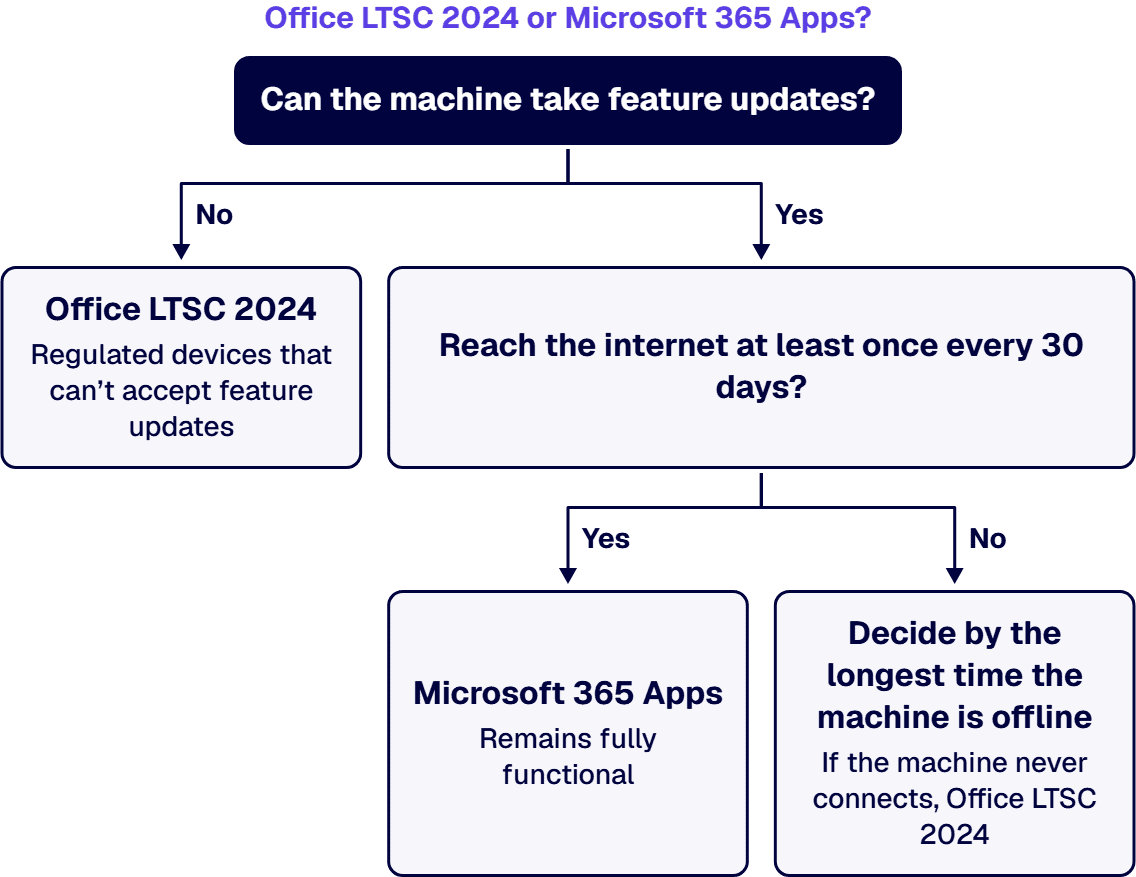
When a desktop is online every day and used by one person, Microsoft’s own answer is Microsoft 365 Apps. The Office LTSC 2021 reaching end of support on October 13, 2026 announcement says: “To remain in a supported environment, begin upgrading to Microsoft 365 Apps now.” Microsoft’s Office versions and connectivity to Microsoft 365 services page adds: “The most up-to-date subscription versions of the Office client are always supported connecting to Microsoft 365 services.”
The trade is a moving target. Microsoft’s Plan an upgrade from older versions of Office to Microsoft 365 Apps page says: “A key difference between Microsoft 365 Apps and Office LTSC is that Microsoft 365 Apps is continuously updated, with new features released as frequently as monthly.” The other side of that trade is in Overview of Office LTSC 2024: “Office LTSC 2024 doesn’t include the latest cloud-backed features and functionality available in Microsoft 365 Apps.”
For desktops that need testing before features change, choose the update channel deliberately. Microsoft’s Overview of update channels for Microsoft 365 Apps describes Semi-Annual Enterprise Channel as “For non-interactive devices and those running specialized or business-critical workloads that require extensive testing before new Microsoft 365 Apps features are implemented.” The same page, last updated May 2026, says: “Beginning July 2026, Semi-Annual Enterprise Channel will begin receiving monthly feature and security updates.” Plan the test cycle around that change rather than around the older twice-a-year pattern.
Two more cases sit in this class. For a desktop still on Windows 10, Microsoft’s Windows 10 end of support and Microsoft 365 Apps page says: “Microsoft will continue providing security updates for Microsoft 365 Apps on Windows 10 for three years after Windows 10 reaches end of support. These updates will be delivered through the standard update channels, ending on October 10, 2028.” The Windows decision for those devices is a separate one, and this guide does not make it. For a shared desktop or kiosk, Microsoft’s Device-based licensing for Microsoft 365 Apps for enterprise page says: “Commercial customers can use Microsoft 365 Apps for enterprise (device) to assign a Microsoft 365 Apps for enterprise license to a Windows client device instead of to a user.”
If a machine runs a validated instrument, a production line or a system that never sees the internet, Microsoft 365 Apps is the wrong fit, and Microsoft names the fixed release for it. Its announcement says: “For organizations that are not yet ready to move to the cloud, the recommended upgrade path is to the most recent supported on premises version for commercial customers, Office LTSC 2024.” Microsoft’s Overview of Office LTSC 2024 describes it as “the most recent edition of Microsoft’s core productivity apps designed for use in highly regulated or restricted environments that can’t take feature updates.” Its Plan an upgrade from older versions of Office to Microsoft 365 Apps page describes how it is sold: “Office Long Term Service Channel (LTSC) 2024, which is sold as a one-time purchase through a volume license agreement, and available for one device per license.”
Know what the fixed release does not give you. The Overview of Office LTSC 2024 states: “Office LTSC 2024, including Project and Visio, receive five years of Mainstream Support. After this period, there will be no Extended Support for these products.” and “Keep in mind that Office LTSC 2024 doesn’t receive any new features.” Microsoft lists Office LTSC 2024 as supported for connecting to Microsoft 365 services until October 9, 2029.
Installation, and activation through KMS, work without an internet connection. The same Overview of Office LTSC 2024 says installation needs no internet connection once the installation files are downloaded, and adds: “Internet connectivity is required for MAK activation, but not for KMS activation.” Its list of supported operating systems includes Windows 11, Windows 11 LTSC 2024, Windows 10 LTSC 2021 and Windows 10 LTSC 2019; which Windows edition a fixed-function machine runs is a separate decision, and this guide does not make it.
Before the rollout, write down what changes. From the Overview of Office LTSC 2024, with an owner beside each item:
On add-ins, the Overview of Office LTSC 2024 says: “Add-ins and other extensibility solutions compatible with Office LTSC 2021 or Office 2019 are likely to work with Office LTSC 2024, requiring minimal testing.” Likely is not certain, so test the add-ins each machine class depends on before the cutover. On sequence, it says: “Uninstall versions of Office before deploying Office LTSC 2024.” For the deployment tooling across a managed fleet, i3solutions stands up Intune endpoint management as project work, described in Microsoft Intune Technology Readiness Services.
If a machine drops off the network for a field deployment, a closed room or a maintenance window, the question is how long it stays off. Microsoft’s Overview of licensing and activation in Microsoft 365 Apps states: “As long as the computer can connect to the internet at least once every 30 days, Microsoft 365 Apps remains fully functional. If the computer goes offline for more than 30 days, Microsoft 365 Apps enters reduced functionality mode until the next time a connection can be made.” It describes that mode: “In reduced functionality mode, Microsoft 365 Apps remains installed on the device, but users can only view and print their documents.” And for machines that never connect: “Because of its online activation features, Microsoft 365 Apps won’t work on computers that are completely cut off from the internet.”
There is a longer window, with a condition. Microsoft’s Overview of extended offline access for Microsoft 365 Apps says: “Extended offline access enables devices running Microsoft 365 Apps for enterprise to stay activated for up to six months without the need to connect to the internet to validate the license and install updates.” The same page says: “Extended offline access is included with specific license packages. To find out about eligibility for your organization, contact your Microsoft account representative.”
Decide by the longest time the machine is offline. Within Microsoft’s connection limit, Microsoft 365 Apps fits. Beyond it, confirm extended offline access eligibility in writing before assigning the machine to Microsoft 365 Apps on the strength of it. If the machine never connects, it goes to Office LTSC 2024.
If the tenant is in a US government cloud, start from what Microsoft publishes for government plans. Microsoft’s Office 365 Government service description lists Microsoft 365 Apps for enterprise as available in Office 365 Government G3 and G5 and not in G1 or F3, and its note on the Office applications reads: “Applications are fully available in the government clouds, with the exception of the specific features not available at this time.” Microsoft’s Office application and feature availability in Government plans page says: “The following Office applications are available in the government clouds; however, some cloud-based capabilities may not be currently available, as indicated in the table.” Check that table for the features your users rely on, per application and per cloud, before assigning a class to Microsoft 365 Apps.
Read the fixed-release recommendation with its condition. Microsoft’s announcement Office LTSC 2021 reaching end of support on October 13, 2026 recommends Office LTSC 2024 “for commercial customers”, and the pages this guide relies on do not say how Office LTSC 2024, extended offline access or device-based licensing apply in GCC High or DoD. Confirm each with Microsoft before planning on it.
Moving a tenant into GCC High is a different project, covered in Microsoft 365 GCC High Migration Checklist: Best Practices for Defense Contractors. i3solutions plans and runs GCC High migrations for regulated defense organizations, working alongside the customer’s AOS-G supplier, which provisions the tenant.
If the estate is not ready for the Office choice, forcing it early creates rework:
If you bring in outside help, judge the plan against these items:
i3solutions plans and runs governed Azure and Microsoft 365 migrations with senior, U.S.-based engineers.
Delivery is senior and US-based. Deploying and configuring Microsoft 365 Apps and moving it onto a supported update channel is project work i3solutions does. Embedded specialists can also work inside your team. An i3solutions engagement does not produce managed-service ownership, a replacement for the internal team, open-ended scope expansion, or vendor lock-in. The wider practice is Microsoft Consulting Services Built for Enterprise Complexity.
Microsoft Learn states: “Office LTSC 2021 will reach end of support on October 13, 2026.” For Office LTSC 2021, Microsoft Learn adds that after that date Microsoft “will no longer provide technical support, bug fixes, or security updates for this product.” Microsoft’s 2026 end-of-support list on Microsoft Learn puts Office 2021 under the Modern Policy on the same date.
Not with support. On Microsoft Learn, Microsoft lists Office LTSC 2021 as supported for connecting to Microsoft 365 services until October 13, 2026, and says: “Older Office versions might still be able to connect to Microsoft 365 services, but that connectivity isn’t supported.”
Microsoft’s announcement says: “To remain in a supported environment, begin upgrading to Microsoft 365 Apps now.” and “For organizations that are not yet ready to move to the cloud, the recommended upgrade path is to the most recent supported on premises version for commercial customers, Office LTSC 2024.” Microsoft Learn adds that “Office LTSC 2024 is designed for specific scenarios. These include regulated devices that can’t accept feature updates, process control devices on manufacturing floors, and specialty systems that can’t connect to the internet.”
For a limited time. Microsoft Learn says that “As long as the computer can connect to the internet at least once every 30 days, Microsoft 365 Apps remains fully functional.” Microsoft Learn adds that if the computer goes offline for more than 30 days, Microsoft 365 Apps “enters reduced functionality mode until the next time a connection can be made.” On Microsoft Learn, extended offline access allows up to six months, and Microsoft says that “Extended offline access is included with specific license packages. To find out about eligibility for your organization, contact your Microsoft account representative.”
Microsoft Learn says that “Office LTSC 2024, including Project and Visio, receive five years of Mainstream Support. After this period, there will be no Extended Support for these products.” Microsoft Learn lists Office LTSC 2024 as supported for connecting to Microsoft 365 services until October 9, 2029.
By Michael Branson, Founder/COO, i3solutions
As of September 2026, two Secure Boot certificates Microsoft issued in 2011 have expired, the Microsoft Corporation KEK CA 2011 on June 24, 2026 and the Microsoft UEFI CA 2011 on June 27, 2026, and the Microsoft Windows Production PCA 2011 that signs the Windows boot loader expires on October 19, 2026, according to Microsoft’s Windows Secure Boot certificate expiration and CA updates page. Microsoft’s FAQ makes the customer ultimately responsible for the update, and its other pages call out the classes your team plans itself: Windows Server machines whose firmware does not already carry the 2023 certificates, Azure Trusted Launch and Confidential virtual machines created before March 2024, the golden images you build virtual machines from, and any device Microsoft’s automatic assist does not reach. A device left on the 2011 certificates still starts and still takes standard Windows updates, but in Microsoft’s words it “will no longer be able to receive new security protections for the early boot process”, and Microsoft says the cumulative updates that carry the new certificates “can still be applied even if the existing certificates have expired.” A machine whose firmware cannot take the update and that is no longer supported goes on a written exception list or is replaced, which is what Microsoft’s own guidance points to when it says “Document as exception” and “consider replacing the device”.
The June dates came and went, the laptops still booted, the servers still patched, and the item on the risk register was closed as done. That is the false comfort this certificate change creates: nothing visible breaks on the expiry date, so an estate can sit on the old certificates long after the date while it quietly stops receiving boot-level fixes. This guide sets out what Microsoft’s own support pages and its Windows Server playbook, read on 2026-09-24, say about each class of Windows machine, and where the i3solutions recommendation sits beside them.
If the June dates passed without a single failed boot, that is what Microsoft said would happen, and it is not the end of the matter. Microsoft’s Windows Secure Boot certificate expiration and CA updates page lists three 2011 certificates, each with its own date and its own replacement:
One certificate appears twice: according to Microsoft, renewing the Microsoft UEFI CA 2011 separates boot loader signing from option ROM signing.
The same page says devices without the 2023 certificates “will continue to start and operate normally, and standard Windows updates will continue to install.” It goes straight on: “However, these devices will no longer be able to receive new security protections for the early boot process, including updates to Windows Boot Manager, Secure Boot databases, revocation lists, or mitigations for newly discovered boot level vulnerabilities.” Microsoft’s When Secure Boot certificates expire on Windows devices page names what that means in practice: “Vulnerability fixes for the early boot environment”, among them “BitLocker bypass mitigations or Secure Boot revocations”, “will not be available.”
Two more facts shape the plan. Both halves of the chain move: Microsoft’s certificate expiration page says “Both UEFI Secure Boot DB and KEK need to be updated with the corresponding new 2023 certificate versions.” And a passed date is not a closed door. Can the 2023 certificates still be applied after the old ones expire? Microsoft’s Frequently asked questions about the Secure Boot update process page says “The cumulative updates that contain the new Secure Boot certificates can still be applied even if the existing certificates have expired.” What is not an option is switching the feature off: the expiry page says “Secure Boot should not be disabled to work around certificate expiration.”
If the working assumption is that Windows Update will handle this, Microsoft’s own FAQ says otherwise. Its Frequently asked questions about the Secure Boot update process page says “The customer is ultimately responsible for updating the Secure Boot certificates.” It describes Microsoft’s updates as “provided as an assist, not a guarantee”, and says “IT administrators remain responsible for ensuring their entire fleet is updated”, using Microsoft’s “automated CFR and other documented deployment methods”.
The automatic route has limits Microsoft states itself. Its Secure Boot Certificate updates: Guidance for IT professionals and organizations page says that while Controlled Feature Rollout (CFR) “may assist in deployment of the new certificates”, organizations will not be able to rely on it “to remediate their fleets”. For servers the answer is plainer still. Microsoft’s Windows Server Secure Boot playbook for certificates expiring in 2026 says “Windows Server 2025 certified server platforms already include the 2023 certificates in firmware. For servers that do not, IT administrators must manually update the certificates, because Windows Server does not receive them automatically.”
For managed Windows PCs, the Intune route has its own states. Microsoft’s Microsoft Intune method of Secure Boot for Windows devices with IT-managed updates page describes a settings catalog setting, Enable Secureboot Certificate Updates, with two states: Enabled, where “Windows automatically begins deploying updated Secure Boot certificates.”, and Disabled, which Microsoft’s description marks as the default, where “Windows does not deploy certificates automatically.” The planning rule that follows is the i3solutions recommendation, not a Microsoft statement: treat every class of machine as your team’s until its own status reads updated.
If the inventory lists every Windows machine as one group, it cannot tell you who moves what, because Microsoft’s pages treat each class differently. Sort the estate first; each class below carries the Microsoft fact that decides how it is handled:
If the first push goes to every machine at once, a firmware that mishandles the update is found across the estate instead of in a test group. Microsoft’s Secure Boot Certificate updates: Guidance for IT professionals and organizations page says “To minimize risk, deploy Secure Boot updates in stages rather than all at once.” and “Recommended guidance on the number of sample devices to test for each unique category is 4 or more.” It also sets the clock for each device: “Estimate 48 hours and one or more restarts for the certificates to apply.”
The certificates are not the last step. The same page says “Applying this boot manager is a critical last step in the deployment for each device.” That step carries the boot risk. Microsoft’s Frequently asked questions about the Secure Boot update process page explains that if Windows already uses the 2023-signed boot manager and the firmware is then reset to defaults that do not include the Windows UEFI CA 2023 certificate, “Secure Boot will block the boot process.” Have recovery media and a firmware-reset plan ready for each class before its boot manager moves.
Microsoft names the channels: its IT professional guidance lists registry keys, Group Policy, the Windows Configuration System (WinCS) APIs and Microsoft Intune. For servers, Microsoft’s Windows Server Secure Boot playbook for certificates expiring in 2026 describes the registry route by the AvailableUpdates value: “Set its value to 0x5944 to deploy all needed certificates and update to the Windows UEFI CA 2023 signed boot manager.” The same playbook says “Avoid mixing deployment methods on the same device.” Which management tool carries the push is a separate decision, covered in SCCM vs Intune: An Endpoint Management Decision for Regulated Enterprises. Three planning rules, as the i3solutions recommendation:
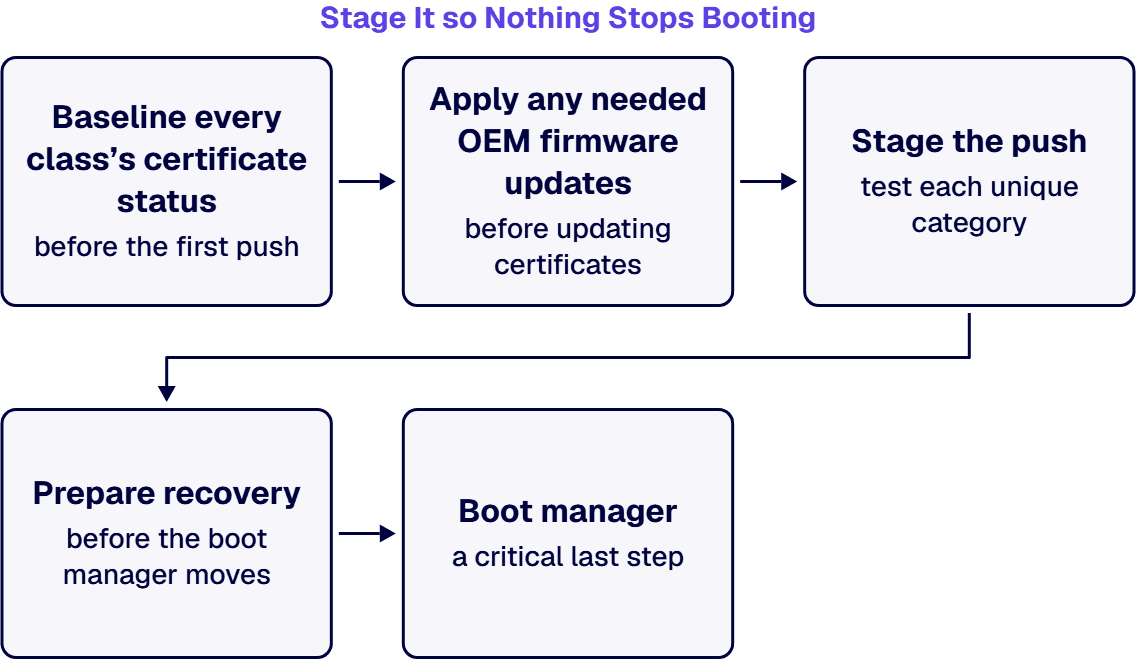
If a machine cannot take the update, the answer is a written record, not a quiet gap. Microsoft’s Secure Boot Certificate updates: Guidance for IT professionals and organizations page carries a confidence table whose Not Supported level, a “Known Limitation”, means “Platform or hardware limitations” and carries the action “Document as exception”. The same page says “In cases where the firmware does not work correctly and the device is no longer in support, consider replacing the device to ensure Secure Boot protection across your fleet.”
The reasons a machine lands on the list come from Microsoft’s own pages: firmware updates that, in the words of the expiry page, “may only be available for devices that are still within their support period”; Windows versions that are out of support, because Microsoft’s FAQ says “Only supported Windows OS versions will get the certificates.”; and devices with Secure Boot turned off, which do not receive the certificates at all. Each exception row carries:
Turning Secure Boot off is never the treatment for an exception; Microsoft’s expiry page says it “should not be disabled to work around certificate expiration.” Whether a given exception satisfies your security office or an assessor is their determination, and this guide does not make it.
If a cloud-hosted machine reports a stuck update, check Microsoft’s list before opening a ticket. Microsoft’s Known issues and resolutions for Secure Boot certificates updates page carries an open item, last clarified in its change log on July 14, 2026: “On some Azure Trusted Launch (Gen2) virtual machines”, the KEK update might not complete and Event ID 1795 is logged, an issue the page says also affects certain Windows 365 Cloud PCs and Azure Virtual Desktop. Its status reads: “At this time, there is no required customer action.” The same page records the Hyper-V item, whose fix includes the Azure Local update, as resolved, with the fix quoted in the device-class list above.
Further boot manager updates are not dated. Microsoft’s IT professional guidance says “Specific updates on Boot Manager will be in future releases.” and names no date for them. Re-read Microsoft’s certificate expiration page, its FAQ, its IT professional guidance and its known-issues page on October 19, 2026 and at each change-log entry, because parts of this guide move with them.
If your estate does not look like the one above, the work may be smaller or belong elsewhere:
If you bring in outside help, hold the work to these criteria:
Be plain about what stays with you. Running and patching the estate after the project remains your team’s ongoing work; i3solutions does not take it on as an ongoing managed service. An i3solutions engagement does not produce managed-service ownership, a replacement for the internal team, open-ended scope expansion, or vendor lock-in.
If you want an outside architect on this program, i3solutions takes on the certificate update as project work: the status baseline, the device-class map, the pilot and staged rollout through your existing channel, the server and virtual machine plan, and the exception list, with embedded specialists where your team needs them. i3solutions plans and runs Intune migrations for enterprises moving domain-joined Windows devices off on-premises Group Policy. i3solutions has been a Microsoft Partner with 30 years of enterprise technology delivery experience and has delivered 1,500+ Microsoft engagements across aerospace and defense, financial services, and health sciences. Its Intune work is described in Microsoft Intune Technology Readiness Services, and the wider practice in Enterprise Digital Transformation Solutions for Governed, Scalable Modernization. For moving Windows devices off Group Policy more broadly, see Intune Migration Checklist: 1,200 Windows Devices Off Group Policy.
It keeps working but loses early-boot protection. Microsoft says such devices “will continue to start and operate normally, and standard Windows updates will continue to install.” and adds “However, these devices will no longer be able to receive new security protections for the early boot process, including updates to Windows Boot Manager, Secure Boot databases, revocation lists, or mitigations for newly discovered boot level vulnerabilities.”
Yes. Microsoft’s FAQ says “The cumulative updates that contain the new Secure Boot certificates can still be applied even if the existing certificates have expired.”
No. Microsoft’s blog post, the Windows Server playbook, says “Windows Server 2025 certified server platforms already include the 2023 certificates in firmware. For servers that do not, IT administrators must manually update the certificates, because Windows Server does not receive them automatically.”
By class. Microsoft says “Generation 1 Hyper-V VMs do not support Secure Boot.” and, for its fix to a failed KEK update logged as Event ID 1795 on Hyper-V virtual machines, “To resolve this issue, you must deploy the fix on both the host and the guest.” For Azure Trusted Launch and Confidential VMs, according to Microsoft, “Long-running virtual machines created prior to March 2024 do not include the Secure Boot 2023 certificates in virtual firmware and require updates to both Secure Boot certificates and Windows Boot Manager.”, while “Standard security-type VMs do not have Secure Boot enabled.”
No. Microsoft says “Secure Boot should not be disabled to work around certificate expiration.” and “Devices with Secure Boot disabled will not receive the new Secure Boot certificates in firmware.” Microsoft’s guidance for a device with platform or hardware limitations is “Document as exception”.
By Michael Branson, Founder/COO, i3solutions
Quick answer. If your account team pitches a Microsoft industry cloud: as of September 2026, Microsoft’s pages describe its industry offerings as combining Azure, Microsoft 365, Dynamics 365, Fabric and Power Platform. Adopt a prebuilt piece when it is generally available and fits your data model; otherwise build directly.
If a Microsoft account team or a partner has put an industry cloud in front of you as a faster route than building, you need to know what it is before a plan depends on it: a product, a set of templates, or a label on platforms you already run. Microsoft’s own Well-Architected for Industry overview, last updated April 9, 2026, puts it plainly: “Industry cloud solutions encompass Azure, Power Platform, Microsoft 365, and Dynamics 365 building blocks”. The sections below give what each offering is today in Microsoft’s words, what has changed, and when to build directly on the platforms instead. Each Microsoft page cited here was read on September 27, 2026.
If you need the list first, Microsoft’s industry documentation hub states: “This documentation includes information about the Microsoft for Healthcare, Financial Services, Manufacturing, Nonprofits, and Sustainability.” It describes these solutions as built for your industry, “combining Microsoft Azure, Microsoft 365, Microsoft Dynamics 365, Microsoft Fabric, Microsoft Power Platform, and agentic AI.” Energy and government appear on the same hub only as architecture and solution pages for Azure and other products, not as offerings of their own. Sovereignty now sits in the Azure documentation under a new name. The table gives each offering in Microsoft’s words; where Microsoft’s page says nothing, the cell says so.
For healthcare, Microsoft’s overview, last updated July 20, 2026, says: “Microsoft for Healthcare harnesses the power of the Microsoft cloud by bringing together capabilities from Microsoft Azure, Dynamics 365, Microsoft Power Platform, and Microsoft 365.” What Microsoft has changed in that offering, and how to choose between taking it over and building direct, is covered in Microsoft for Healthcare After the Managed Solutions End: A Guide to Taking Over Microsoft’s Package or Building Direct on Azure, Dataverse and Fabric.
Retail no longer appears in Microsoft’s industry documentation hub; its old Learn overview address now redirects to a Microsoft marketing page.
If a plan depends on a packaged industry component, the risk is that Microsoft retires the component while you are still building on it. Microsoft’s What’s new in Microsoft for Manufacturing page, last updated August 19, 2026, records two such retirements: “The preview of Manufacturing data solutions, Factory Operations Agent in Azure AI, and Factory Operations Agent in Copilot Studio was deprecated as of May 30, 2025.” and “The preview of Factory Safety Agent in Copilot Studio was deprecated as of June 23, 2025.” The same page’s August 2026 entries are reference architectures for running engineering software on Azure.
If a proposal uses an offering name, check that name on Microsoft Learn. Microsoft’s What is Microsoft Sovereign Cloud? article, last updated July 15, 2026, opens: “Microsoft Sovereign Cloud, formerly Microsoft Cloud for Sovereignty, is an evolution and expansion of the original offering.” If a proposal or an older article uses a name you cannot find on Learn, confirm the current name and status there before a phase depends on it.
If you expected a prebuilt industry data model in Fabric, Microsoft’s Industry Solutions in Microsoft Fabric page, last updated April 5, 2026, lists healthcare data solutions, a DAX Copilot integration for healthcare organizations, and “Nonprofit data solutions in Microsoft Fabric (preview)”. As of that date the page lists no financial services or manufacturing data solution.
If you run IT at a financial services firm, Microsoft’s What is Microsoft for Financial Services? article, last updated January 23, 2026, says: “Microsoft for Financial Services offers a trusted financial services platform that helps harness the innovation and cybersecurity benefits of the cloud while meeting stringent internal and external compliance requirements.” It organizes the offering in four sections: Microsoft Cloud infrastructure, compliance and transparency, industry guidance and accelerators, and data and AI platforms.
Most of that is material your team applies in its own tenant. The article points to control mappings, where “Regulatory Compliance in Azure Policy provides built-in initiative definitions to view a list of the controls and compliance domains based on responsibility”, to Azure landing zone guidance, and to reference architectures with “tooling and templates to accelerate your next projects”. It also names the Compliance Program for Microsoft Cloud, which it calls “a fee-based premium program offering personalized support to address compliance challenges”.
If new cloud services take a long time to approve inside your bank, Microsoft’s cloud service enablement framework, last updated March 30, 2026, names the problem: “Regulated banking enterprises face persistent friction when enabling new cloud services.” It is also clear about its limits: “This framework isn’t a prescriptive operating model, compliance checklist, or audit artifact.” Your team still owns the control baseline and the evidence behind it.
If you run engineering and plant systems, including at an aerospace and defense manufacturer, Microsoft’s What is Microsoft for Manufacturing? article, last updated July 27, 2026, says: “Microsoft for Manufacturing brings together Microsoft and partner solutions to accelerate Digital Transformation”. Its get-started page, last updated July 28, 2026, is plainer: “Microsoft for Manufacturing is a collection of Microsoft and partner solutions that you can deploy, configure, and use based on the specific capabilities you need. You don’t need a separate Cloud for Industry license.”
So the manufacturing offering is not a product with its own license, and there is no single thing to implement. With the data solutions preview deprecated, what you take from the offering is a set of Microsoft and partner solutions and reference architectures, each running on services you license on their own terms. Microsoft’s availability page, last updated August 6, 2025, says the same about geography: “International availability of the Microsoft for Manufacturing solutions is based on the availability of each of the individual products and services”.
If data sovereignty is on your requirements list, the same Microsoft Sovereign Cloud article states: “Microsoft Sovereign Cloud is available across European datacenter regions for European customers and supports enterprise services such as Microsoft Azure, Microsoft 365, Microsoft Security, and Power Platform.” It adds: “Although the foundation targets European datacenter regions, technical capabilities to enforce data sovereignty are available worldwide.” It names three deployment models: Sovereign Public Cloud, Sovereign Private Cloud and National Partner Clouds. The private model is “delivered via Azure Local, Microsoft 365 Local, GitHub Enterprise Local, and Foundry Local on Azure Local”. Its core component is the Sovereign Landing Zone (SLZ), described as a “Preconfigured Azure environment with policy-as-code templates to enforce compliance and security baselines.”
If your requirement is US federal data or controlled unclassified information, sovereignty in the US is a government-cloud question. The Microsoft industry pages read for this guide state no GCC, GCC High, DoD or Azure Government availability for any industry offering, so check each underlying service on its own. What changes when you build in the government cloud is covered in Building on Microsoft 365 GCC High: What Changes.
If you are deciding piece by piece, put each prebuilt component through four tests. Adopt it only if it passes all four; if it fails any one, regardless of how many others it passes, build that piece directly on the platforms.
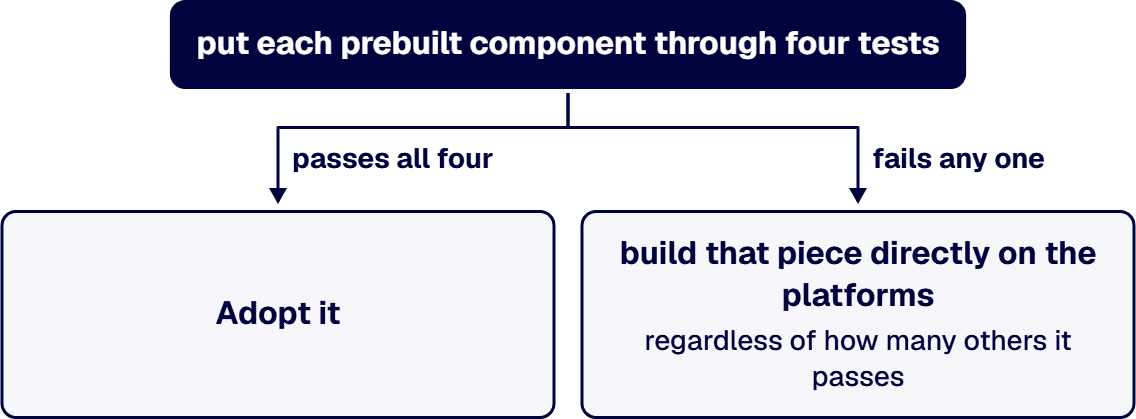
When you build direct, you build on the same platforms the industry offerings sit on. For app-layer templates and data models, the destination is Dataverse, set out in Enterprise Dataverse Development & Integration Services for a Governed Data Foundation. For CRM and ERP processes, it is Dynamics 365, set out in Enterprise Dynamics 365 Development Services That Align CRM and ERP to How You Operate. i3solutions has delivered Dynamics 365 integration engagements for regulated enterprises across healthcare, defense and aerospace manufacturing, and financial services. i3solutions builds Dynamics 365 integrations using named Microsoft mechanisms including Dataverse, dual write, virtual tables, Azure Logic Apps, Azure Service Bus, and Power Automate connectors.
For industry analytics and data products, the destination is Fabric, set out in Enterprise Microsoft Fabric Development & Integration Services for Unified, AI-Ready Analytics. i3solutions has delivered Microsoft Fabric work for clients.
Whichever way you go, own the data model. Document the entities, who owns each one and how each maps to your controls, so that a later change by Microsoft replaces a component rather than your foundation.
If the offering’s templates and data model already match yours, the component is generally available, and your team would otherwise rebuild the same Dataverse or Fabric schema, adopting it saves that work. Because Microsoft describes manufacturing as “a collection” of solutions, you can take one piece without the rest. And if your need is a single workload that a landing zone plus standard Azure, Microsoft 365 or Dynamics 365 services already covers, you need neither an industry offering nor a custom build: deploy the standard services under the controls you already run.
If you want a second view on which pieces to adopt and which to build, i3solutions implements whatever Microsoft technology a customer needs. i3solutions maps governance to named control families, enforces it in the platform through Entra ID, Purview, and Azure Policy, and evidences it continuously rather than reconstructing it at audit. i3solutions has been a Microsoft Partner for 30 years and has delivered 1,500+ implementations across aerospace and defense, financial services, and health sciences. Delivery is senior and US-based.
If you search for it under that name, Microsoft now calls it Microsoft Sovereign Cloud. Microsoft’s overview describes Microsoft Sovereign Cloud, formerly Microsoft Cloud for Sovereignty, as an evolution and expansion of the original offering, available across European datacenter regions for European customers, with Sovereign Public Cloud, Sovereign Private Cloud and National Partner Clouds as its deployment models. The overview gives no date for the name change.
If the offering is Microsoft for Manufacturing, Microsoft says no: “You don’t need a separate Cloud for Industry license.” Microsoft for Sustainability is different, because Microsoft says you can buy it as part of an Enterprise Agreement (EA). For the other industry offerings, Microsoft’s pages, as read on September 27, 2026, state no license term, so ask your Microsoft account team in writing.
If you planned around it, no. Microsoft’s What’s new page for manufacturing states that the preview of Manufacturing data solutions, Factory Operations Agent in Azure AI and Factory Operations Agent in Copilot Studio was deprecated as of May 30, 2025. Microsoft’s list of industry solutions in Fabric, last updated April 5, 2026, names healthcare and nonprofit solutions only, so a manufacturing data model in Fabric is one your team builds.
If you work in GCC High, do not assume they are. Microsoft’s industry documentation pages, as read on September 27, 2026, state no GCC, GCC High, DoD or Azure Government availability for any industry offering, and Microsoft Sovereign Cloud targets European datacenter regions. Check the government availability of each underlying Azure, Microsoft 365, Dynamics 365 and Power Platform service instead.

US-Based Microsoft System Integrator | Est. 1997
© i3solutions. All rights reserved.
US-Based Microsoft System Integrator | Est. 1997
© i3solutions. All rights reserved.


