
Governance questions are what make a Microsoft environment defensible under audit, from who owns a policy to what evidence proves a control held. These answers address the specific calls IT leaders face when GCC High, CMMC, FedRAMP, or ITAR narrows the acceptable range.
By Michael Branson
Deploying Microsoft Defender for Identity is a server project, not a license switch: Microsoft’s Microsoft Defender for Identity deployment overview says to install a sensor on every domain controller, including read-only domain controllers, and on the AD FS, AD CS and Microsoft Entra Connect servers that are not domain controllers, and each of those servers has to meet Microsoft’s operating system, auditing, account and connectivity prerequisites. Before the first alert arrives, your organization also has to decide who triages, investigates and responds to what the sensors report, because the product detects and reports and the response is a staffing decision. The scoping question to answer first is how many identity servers you run, on which Windows Server versions, and whether they are already onboarded to Microsoft Defender for Endpoint.
If you are the IT leader, the request can reach you as one line on a security roadmap: the licenses are already paid for, so turn it on. The product lives in the security team’s portal, but the work lands on servers you own: the domain controllers, the federation farm, the certificate authority and the Entra Connect servers, their change windows and their audit policy. The first decision is made per server: according to Microsoft Learn, servers running Windows Server 2016 or earlier use sensor v2.x, and AD FS, AD CS and Microsoft Entra Connect servers must be onboarded to Defender for Endpoint before activating sensor v3.x. Treating it as a checkbox fails in two predictable ways. Sensors go on some domain controllers and not others, and the gaps are found later. Or the sensors go live cleanly and the first alerts land in a queue no one has agreed to own. This guide sets out the server scope, the prerequisites in Microsoft’s words, the order of work, and the ownership decision to settle before go-live.
Microsoft’s Microsoft Defender for Identity overview page describes the product this way: “Microsoft Defender for Identity helps organizations detect, investigate, and respond to identity-based attacks across on-premises, cloud, and hybrid environments.” It describes where the work happens: “Sensors run on your identity infrastructure, capturing and parsing relevant network traffic and Windows events locally.” And where the results go: “Defender for Identity streams identity signals into the Microsoft Defender portal, where they are correlated with data from endpoints, email, SaaS applications, cloud workloads, and other security sources.”
Two consequences follow for the IT leader. The sensors are software on some of your most sensitive servers, so their rollout is change-controlled server work. And the output is a stream of alerts and recommendations in a portal your security function reads, so someone has to be named to read it.
When you scope the project, coverage is the first decision, and Microsoft states it plainly. Microsoft’s Microsoft Defender for Identity deployment overview page states: “Install Defender for Identity sensors on all domain controllers, including read-only domain controllers (RODCs).” It continues: “Also install sensors on Active Directory Federation Services (AD FS), Active Directory Certificate Services (AD CS), and Microsoft Entra Connect servers that aren’t domain controllers.” Microsoft’s Microsoft Defender for Identity frequently asked questions page repeats the point: “We recommend that you have a Defender for Identity sensor or standalone sensor for each one of your domain controllers.”
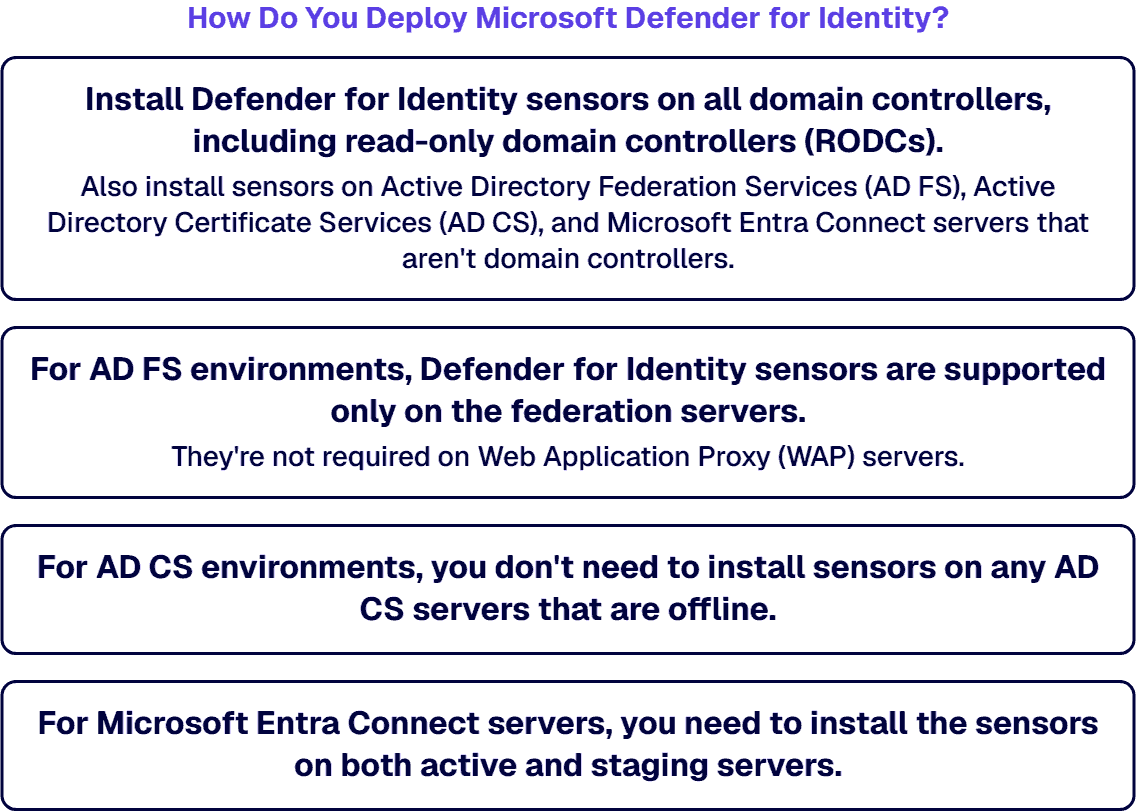
For the other identity roles, Microsoft’s Configure sensors for AD FS, AD CS, and Microsoft Entra Connect page narrows the scope server by server:
Two scoping points are easy to miss. The staging Entra Connect server is in scope, not only the active one. And an AD FS farm stays in the sensor scope Microsoft names for as long as it runs, even if its retirement is already planned. Build the inventory before anything is installed: every domain controller in every domain, including read-only ones, every federation server, every online certificate authority server, and both Entra Connect servers.
When your estate mixes Windows Server versions, the sensor choice is made server by server: it depends on each server’s version and on whether it is already onboarded to Microsoft Defender for Endpoint. Microsoft’s Microsoft Defender for Identity deployment overview page lists sensor v3.x for “Windows Server 2019 or later with the September 2026 or later cumulative update” and sensor v2.x for “Windows Server 2016 or earlier”. It states: “Defender for Identity supports sensor v3.x and sensor v2.x in the same workspace.” On the endpoint dependency it states: “For eligible domain controllers running Windows Server 2019 or later, sensor v3.x supports onboarding with or without Microsoft Defender for Endpoint deployment.” and “AD FS, AD CS, and Microsoft Entra Connect servers must be onboarded to Defender for Endpoint before activation.” It also names two features only the older sensor has: “If your organization requires VPN integration or syslog notifications, use the v2.x sensor on the applicable domain controllers. These features aren’t supported by the v3.x sensor.”
Preview status matters in a regulated change process, so state it as Microsoft does. Microsoft’s Activate the Microsoft Defender for Identity sensor v3.x page states: “Activating the Defender for Identity sensor v3.x on AD FS, AD CS, and Microsoft Entra Connect servers that aren’t domain controllers is in preview.” It also states: “Automatic activation applies only to eligible servers onboarded to Defender for Endpoint.” Microsoft’s Deploy the Microsoft Defender for Identity sensor v3.x page states: “Manual activation of Defender for Identity sensor v3.x on eligible AD FS, AD CS, and Microsoft Entra Connect servers is in preview.” It adds: “This preview applies only to servers that aren’t domain controllers and don’t have an existing Defender for Identity sensor.” And it sets an order: “If you deploy the Defender for Identity sensor v3.x only on AD FS, AD CS, or Microsoft Entra Connect servers, you must also install at least one v3.x sensor on a domain controller.”
In practice, the sensor choice is a server-by-server table your team fills in: Windows Server version, cumulative update level, Defender for Endpoint status, and whether VPN integration or syslog notifications are required. Decide whether a preview path is acceptable under your change policy before you plan around it.
If the licensing is not in place, there is no project, so confirm it first. Microsoft’s Microsoft Defender for Identity sensor v2.x prerequisites page lists the licenses that allow a deployment: Enterprise Mobility + Security E5 (EMS E5/A5), Microsoft 365 E5 (Microsoft E5/A5/G5), Microsoft 365 E5/A5/G5/F5 Security, Microsoft 365 F5 Security + Compliance, and a standalone Defender for Identity license. It adds: “Both F5 licenses require Microsoft 365 F1/F3 or Office 365 F3 and Enterprise Mobility + Security E3.” Microsoft’s Microsoft Defender service description states: “Microsoft Defender for Identity features are enabled at the tenant level for all users within the tenant.” This guide states no price for any of these licenses.
Access and accounts come next. Microsoft’s Deploy the Microsoft Defender for Identity sensor v3.x page states: “To create your Defender for Identity workspace, you need a Microsoft Entra ID tenant.” It also states: “You must either be a Security Administrator, or have the following Unified RBAC permissions”. For the older sensor, Microsoft’s Microsoft Defender for Identity sensor v2.x prerequisites page states: “We recommend using at least one Directory Service account, with read access to all objects in the monitored domains.” The older sensor on the other identity roles needs one too. Microsoft’s Configure sensors for AD FS, AD CS, and Microsoft Entra Connect page states: “A v2.x sensor installed on an AD FS, AD CS, or Microsoft Entra Connect server can’t use the local service account to connect to the domain.” On AD FS, that Directory Service account also needs read access to the AD FS database, which is a database permission your database owner grants and records.
Then the servers themselves. Microsoft’s Microsoft Defender for Identity sensor v2.x prerequisites page sets these conditions:
The newer sensor is lighter. Microsoft’s Deploy the Microsoft Defender for Identity sensor v3.x page states: “The Defender for Identity sensor v3.x limits CPU utilization to 30% and memory usage to 1.5 GB.” On connectivity it states: “The Defender for Identity sensor uses the same URIs as Microsoft Defender for Endpoint.” Microsoft’s Plan capacity for Microsoft Defender for Identity deployment page states: “The Microsoft Defender for Identity Sizing Tool currently only applies to the sensor version 2.x.”
One prerequisite is a data residency decision, and it cannot be undone. Microsoft’s Microsoft Defender for Identity frequently asked questions page states: “When your Defender for Identity workspace is created, it’s stored automatically in the Azure region that’s closest to your Microsoft Entra tenant’s geographical location.” It adds: “Once your Defender for Identity workspace is created, Defender for Identity data can’t be moved to a different region.” If your organization has a policy on where security data sits, confirm it before the workspace is created, not after.
A sensor on a server whose audit policy is wrong sees less than it should. Microsoft’s Configure Windows event auditing page states: “The sensor parses specific Windows event logs from domain controllers, Active Directory Federation Services (AD FS), Active Directory Certificate Services (AD CS), and Microsoft Entra Connect servers.” It continues: “For the correct events to be audited and included in the Windows event log, these servers need the correct advanced audit policy settings.” On automation, it states: “Automatic Windows event auditing is supported only for domain controllers and AD FS, AD CS, and Microsoft Entra Connect servers that use Defender for Identity sensor v3.x.” Servers on the older sensor need that auditing configured by your team, as the same page describes. And for federation servers: “Sensors running on AD FS servers must have the auditing level set to Verbose for relevant events.”
Treat the audit-policy change as its own change record, with an owner and a rollback note, because it touches every domain controller and the federation farm at once. Microsoft’s deployment steps for sensor v3.x also include configuring RPC auditing, so plan it into the same change.
When you plan the rollout, start from Microsoft’s own sequence. Microsoft’s Microsoft Defender for Identity deployment overview page lists the v3.x steps as verify prerequisites, activate the sensor, configure Windows event auditing, configure RPC auditing, and validate deployment. Around those steps, a regulated rollout runs in this order:
Microsoft’s View and manage security alerts page gives examples of what belongs on that list. It describes a benign true positive as “An action detected by Defender for Identity that is real, but not malicious, such as a penetration test or known activity generated by an approved application.” Your own penetration test calendar and the approved applications that touch Active Directory are where that list starts. Classifying the alerts they raise is the alert owner’s job, not part of the deployment.
If you run in a US government cloud, one more check applies. Microsoft’s Microsoft Defender for Identity for US Government offerings page states: “The Defender for Identity GCC, GCC High, and Department of Defense (DoD) offerings are built on the Microsoft Azure Government Cloud and are designed to inter-operate with Microsoft 365 GCC, GCC High, and DoD.” It also states: “Preview features may not be supported in the GCC, GCC High, and DoD environments.” Any preview path named in this guide is a question to confirm for your environment before you plan around it.
Once sensors report, the output is alerts, posture findings and attack-path analysis. Microsoft’s Security alerts in Microsoft Defender for Identity page groups alerts into reconnaissance and discovery, persistence and privilege escalation, credential access, and lateral movement. Microsoft’s Microsoft Defender for Identity overview page lists “Identity security posture assessments available through Microsoft Secure Score” and “Analysis of lateral movement paths that reveal how an attacker could traverse the environment” among its capabilities. Microsoft’s Microsoft Defender for Identity’s security posture assessments page adds a coverage condition: “certificate authority assessments are available only to customers who have installed a sensor on an AD CS server.”
Microsoft is also clear about what the product is not. Its Security alerts in Microsoft Defender for Identity page states: “Defender for Identity isn’t designed to serve as an auditing or logging solution that captures every single operation or activity on the servers where the sensor is installed.” It continues: “It only captures the data required for its detection and recommendation mechanisms.” For a regulated organization, that means the deployment adds detection; it does not replace the audit logging and retention your assessors ask to see.
When the sensors go live, the licensing has not decided who owns the alerts; your organization has to. Microsoft’s View and manage security alerts page states: “Defender for Identity security alerts can be classified as true positive, benign true positive, or false positive.” Someone has to make that call on every alert, and settle four questions in writing before the sensors go live:
The options fall into three groups. Your own security team can own the queue. A managed detection and response provider your organization selects can own it under contract. Or Microsoft offers its own service: Microsoft’s Microsoft Defender service description states: “Microsoft Defender Experts for XDR is a managed extended detection and response service that helps your security operations centers (SOCs) focus and accurately respond to incidents that matter.” The same page lists Microsoft Defender for Identity among the services it covers.
If the answer to the ownership questions is that no one has the capacity today, settle that before go-live; sensors that report into an unowned queue give the organization alerts with no one accountable for them.
If your situation is one of these, start somewhere else or confirm one fact first.
When an IT leader has to turn Defender for Identity on across a regulated Active Directory estate, the work is a project with an end date: scoping the identity servers and their versions, closing the prerequisites, rolling out the sensors, configuring event auditing under your change control, validating the deployment (confirming every sensor reports healthy in the portal, not classifying alerts), and working with your organization to settle the ownership decision before go-live. The alert queue, and every classification and response decision in it, stays with the owner your organization names. This work sits within i3solutions’ identity practice, described in identity and access management solutions.
Name the alert owner in writing before the first sensor goes live.
A sensor on every identity server, the prerequisites for each, and a named alert owner. According to Microsoft Learn, sensors are installed on all domain controllers, including read-only domain controllers, and on AD FS, AD CS and Microsoft Entra Connect servers that are not domain controllers, and each server must meet the operating system, account, auditing and connectivity requirements for its sensor version. Before go-live, the organization decides who classifies and responds to the alerts.
Every domain controller and the other identity servers. According to Microsoft Learn, that means all domain controllers including read-only domain controllers, AD FS federation servers but not Web Application Proxy servers, AD CS servers with the Certification Authority role service that are online, and both active and staging Microsoft Entra Connect servers.
Yes. According to Microsoft Learn, sensors on AD FS are supported only on the federation servers, Microsoft Entra Connect needs sensors on both active and staging servers, and a v2.x sensor on either role cannot use the local service account, so it needs a Directory Service account. According to Microsoft Learn, AD FS servers also need auditing set to Verbose for relevant events.
According to Microsoft Learn, AD FS, AD CS and Microsoft Entra Connect servers must be onboarded to Defender for Endpoint before activating sensor v3.x, while eligible domain controllers running Windows Server 2019 or later can be onboarded with or without it. According to Microsoft Learn, servers running Windows Server 2016 or earlier use sensor v2.x.
According to Microsoft Learn, the licenses that allow a deployment are Enterprise Mobility + Security E5 (EMS E5/A5), Microsoft 365 E5 (Microsoft E5/A5/G5), Microsoft 365 E5/A5/G5/F5 Security, Microsoft 365 F5 Security + Compliance, and a standalone Defender for Identity license, and the two F5 licenses have their own prerequisite licenses. According to Microsoft Learn, its features are enabled at the tenant level for all users within the tenant.
Whoever your organization names before go-live, in writing. According to Microsoft Learn, alerts are classified as true positive, benign true positive or false positive, so the owner must be able to classify alerts and act on a compromised identity at any hour. The options are an internal security team, a managed detection and response provider the organization selects, or Microsoft Defender Experts for XDR, Microsoft’s own managed service.
Michael Branson
If Workspace ONE runs your fleet today and your Microsoft 365 renewal already pays for Intune, the question on your desk is not which product wins. It is whether one console, two consoles or a bridge between them fits your identity design, your devices and your regulators. Microsoft’s Intune licensing page says: “Most organizations get Intune as part of a Microsoft 365 bundle (such as Microsoft 365 E3, E5, or E7) rather than buying these plans directly.” Omnissa’s Workspace ONE UEM page says: “Workspace ONE UEM uses a subscription licensing model and is offered in multiple use case-based editions.” Both statements hold for the same estate at once, so the decision comes back at every renewal. Our recommendation: where Microsoft Entra Conditional Access already gates your corporate resources, consolidate on Intune, keep Workspace ONE for the devices Microsoft’s supported platform list does not name, and plan the move as re-enrollment, not a switch. Running both does not remove the Intune license, because Microsoft’s compliance-partner page states: “Users who have devices managed by the partner must also be assigned a license for Intune.”
If you need one-line definitions for a steering committee, take them from each maker. Microsoft’s Intune overview says: “Microsoft Intune is a cloud-based endpoint management service that secures and manages your organization’s devices and apps.” It adds: “The service runs entirely in the cloud, with no on-premises infrastructure required”. The same page states: “Intune supports two management modes that you can use independently or together.” Those are device enrollment (MDM) and management of work apps alone (MAM).
Omnissa’s Workspace ONE UEM page describes a platform IT teams use to “manage desktops, mobile, rugged, servers, and specialty devices across Windows, macOS, iOS, Android, Linux, and ChromeOS from a single console.” Omnissa’s about page says: “Omnissa was the End User Computing business of VMware and became an independent company in 2024.” A contract or a console in your estate that still says VMware Workspace ONE therefore refers to the product line Omnissa now sells.
If you are building the comparison for a committee, use these five factors. Every cell comes from the Microsoft, Omnissa or FedRAMP page cited on this page, as read on the dates listed under Sources; where a page read for this comparison does not address a factor, the cell says so rather than guessing.
If your corporate resources already sit behind Microsoft Entra Conditional Access, this factor decides much of the rest. Microsoft’s Intune overview says: “Identity runs on Microsoft Entra ID. Device and app posture flow back to Microsoft Entra Conditional Access, which gates access to corporate resources based on real, up-to-date signals.” Omnissa’s page says: “Conditional access, compliance policies, and device posture checks help protect devices and data without sacrificing productivity.” Intune feeds Entra natively; Workspace ONE can feed it through Microsoft’s compliance-partner integration.
If your fleet is more than Windows laptops and phones, compare the two lists as each maker publishes them. Microsoft: “Supported platforms include Android, iOS/iPadOS, Linux, macOS, tvOS, visionOS, and Windows.” Omnissa names ChromeOS, rugged devices, servers and specialty devices, which Microsoft’s list does not name; Microsoft names tvOS and visionOS, which Omnissa’s sentence does not name. Count your devices by platform before you read anything else into the difference.
If any tenant of yours sits in GCC High or DoD, Microsoft’s Intune government service description states: “The Intune GCC High and DoD offerings are built on the Microsoft Azure Government Cloud.” It adds that “These government instances are also known as IL4 and IL5” and that “Intune doesn’t have a separate GCC instance.” The same page carries tables of the features available in GCC High and DoD; read them against your requirements rather than assuming commercial parity. For how Intune maps to CMMC controls in that cloud, see Intune CMMC coverage.
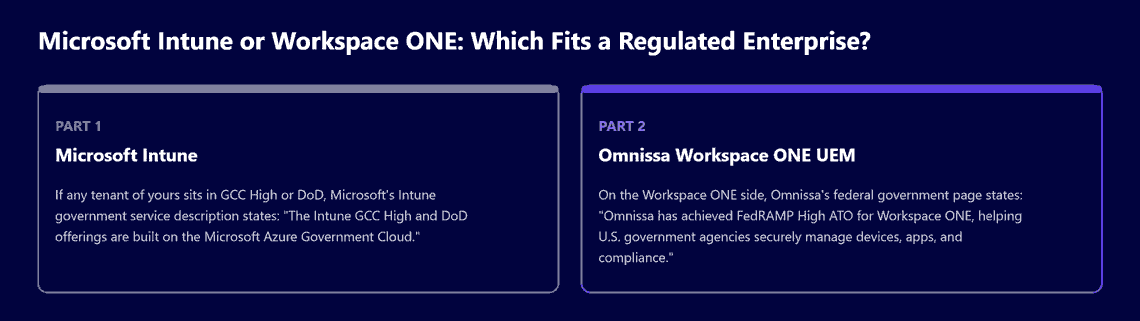
On the Workspace ONE side, Omnissa’s federal government page states: “Omnissa has achieved FedRAMP High ATO for Workspace ONE, helping U.S. government agencies securely manage devices, apps, and compliance.” The same page lists “DISA Impact Level (IL) 4” among its certifications. The government’s own listing can be read beside it. The FedRAMP Marketplace entry for Omnissa Government Services shows “FedRAMP Certified As of 5/4/2026” and the class “Class D (High)”. A Marketplace entry that does not cover the Workspace ONE service you run does not support your package, so have your authorizing official read the entry itself, and ask Omnissa to confirm that it covers that service, before either source goes into your security package.
If finance asks what consolidation saves, start from what is already paid for. Microsoft’s licensing page says: “Microsoft Intune is licensed through three plans and is included in several Microsoft 365 bundles.” It also marks a limit on device-only licenses for kiosks and shared devices: “When a device is enrolled by using a device license, the following Intune functions aren’t supported”, and the list includes app protection policies and Conditional Access. Omnissa’s page says of Workspace ONE: “Pricing varies by device or user count and feature set.” So the comparison that decides the budget is the Workspace ONE subscription against the Intune plans your bundle already includes, plus any Intune add-on plan you would need, not two list prices side by side.
If regions or business units administer their own devices, Omnissa’s page says: “The console supports multi-tenancy, role-based access, and granular controls for global deployment.” The Microsoft pages read for this comparison do not address delegated administration by business unit, so ask Microsoft to show it against your structure rather than assuming either way.
If you are mid-decision, you do not have to move every device at once. Microsoft’s device compliance partners page lists “Omnissa Workspace ONE UEM” among the partners supported as generally available. It says: “When you add a compliance partner to Microsoft Entra ID and Intune, that partner becomes the MDM authority for devices assigned to it through a Microsoft Entra user group.” In that arrangement, “the partner adds the compliance state data it collects to Microsoft Entra ID”, so Conditional Access can use it.
Three conditions on that Microsoft Learn page, Support third-party device compliance partners in Intune, shape the cost and the operating load:
If you need a recommendation you can defend, match the option to the estate rather than to the product, and start from the identity plane. Where Microsoft Entra Conditional Access already gates your corporate resources and a Microsoft 365 E3, E5 or E7 bundle already pays for Intune, consolidate on Intune and keep Workspace ONE for the devices Microsoft’s supported platform list does not name.
If you decide to consolidate, plan for re-enrollment, not a switch. Microsoft’s government service description says of moving between tenants that “the devices need to unenroll from the current tenant, and then re-enroll in the new tenant”, and adds: “This process is similar to unenrolling from another mobile device management (MDM) service and enrolling in Intune.” It also states: “There isn’t a built-in way to migrate from the commercial service to the government cloud, and vice versa.” For the Windows plan itself, see the Intune migration checklist.
If part of your estate runs Configuration Manager rather than Workspace ONE, that is a different decision. Microsoft’s co-management overview says: “Co-management enables you to concurrently manage Windows devices by using both Configuration Manager and Microsoft Intune.” That path is covered in the SCCM vs Intune comparison.
If you are weighing who plans the Microsoft side of the choice once it is made, this is the work i3solutions does. i3solutions plans and runs Intune migrations for enterprises moving domain-joined Windows devices off on-premises Group Policy.
For engagement options, see Microsoft Intune consulting.
If your contracts still say VMware, Omnissa’s about page says: “Omnissa was the End User Computing business of VMware and became an independent company in 2024.” Its product pages sell Workspace ONE UEM under the Omnissa name. Confirm with Omnissa how an older VMware agreement carries over to your current terms.
If you want Entra Conditional Access while Workspace ONE keeps its devices, yes, within the limits Microsoft states. Microsoft lists Omnissa Workspace ONE UEM among its supported device compliance partners: Workspace ONE becomes the management authority for devices in an assigned Entra user group and sends their compliance state to Entra ID. Changes need a manual sync from the Workspace ONE console, and those users still need an Intune license.
If your target is a GCC High or DoD tenant, plan for re-enrollment, not a switch. Microsoft states the Intune GCC High and DoD offerings are built on the Microsoft Azure Government Cloud, and its government service description compares moving devices into a new tenant to unenrolling from another mobile device management (MDM) service and enrolling in Intune. It also states there is no built-in way to migrate from the commercial service to the government cloud, so confirm which cloud your tenant is in before you plan the device move.
If you need this for an authorization package, read two sources. Omnissa states it has achieved a FedRAMP High ATO for Workspace ONE. The FedRAMP Marketplace entry for Omnissa Government Services shows “FedRAMP Certified As of 5/4/2026” and the class “Class D (High)”; confirm with Omnissa that the entry covers the Workspace ONE service you run.
Michael Branson
If the regulatory affairs or accounting team has just handed IT the Part 125 schedule and asked whether Microsoft Purview can enforce it across SharePoint, OneDrive, Teams and Exchange, you are holding two documents written for different purposes. The schedule is a table of record descriptions and retention periods, some counted in years, some tied to an order or a retired plant. Purview’s file plan is a list of retention labels, each with a start point, a period and a disposition. This guide puts the regulation’s own words beside Microsoft’s so the mapping can be argued row by row. Every regulatory quotation in this guide is read from the eCFR text of 18 CFR Part 125 in September 2026, and every Microsoft quotation from Microsoft Learn the same month.
Before you build a single label, confirm the schedule is yours. Section 125.1 prescribes the part as the regulations governing “the preservation of records by public utilities subject to the jurisdiction of the Commission and by licensees holding licenses issued by the Commission”. That is an electric public utility or a holder of a Commission license, such as a hydroelectric licensee. Part 125’s text does not name interstate natural gas pipelines; a pipeline operator’s record obligations are a separate question for its own counsel. Section 125.2(a)(1) sets the reach inside the company: the regulations “apply to all books of account and other records prepared by or on behalf of the public utility or licensee”. Whether a given company and a given record fall under the part is a question for your regulatory affairs office and counsel, and the file plan starts after that answer.
When the schedule arrives as a spreadsheet, it looks like one uniform list, and it is not. The schedule in section 125.3 runs from item 1, reports to stockholders, to item 42, advertising, grouped under headings such as Corporate and General, Information Technology Management, General Accounting Records, Operations and Maintenance, Plant and Depreciation, Revenue Accounting and Collection, Tax and Treasury. Section 125.2(a) adds three rules that sit outside any single row. Where another Commission regulation sets a different period, “the records should be retained for the longer of the retention periods”. “Records other than those listed in the schedule may be destroyed at the option of the public utility or licensee”, with the regulation’s own provisos for records used in place of listed ones. And the part is not to be read as excusing other Federal or State record keeping requirements. This guide works four entries in detail; the full schedule in section 125.3 governs every row it lists.
If every schedule row becomes the same kind of label, the file plan misfits the rows with the longest or event-tied periods. Microsoft’s file plan page describes the settings each label carries: “Based on identifies how or when the retention period begins.” and “Disposition type identifies what happens to the content at the end of the retention period.” Its values include “Review required”. The records management page separates three label types: “You use retention labels to mark items as a record, or a regulatory record.” and “A standard retention label has retention settings and actions but doesn’t mark items as a record or a regulatory record.” The four entries in the table show the four shapes a Part 125 retention period takes. The right-hand column is i3solutions’ reading of how each shape maps, not a mapping Microsoft or the Commission states.
When a row is event-based, the event has to exist in Purview as well as in the plant ledger. Microsoft’s event-based retention page states that “The event triggers the start of the retention period”, that “Asset ID is simply another document property that’s available in SharePoint and OneDrive.”, and that “If an asset ID isn’t entered, all content with labels of that event type get the same retention date applied to them.” For item 21 that means a plant or facility identifier on the documents before the first retirement event is created, or one retirement would start the clock on every facility’s drawings.
Before you mark the long rows as regulatory records, read Microsoft’s caution on the records management page. After a regulatory record label is applied, “not even a global administrator, can remove the label”, and “The retention period can’t be made shorter after the label is saved, only extended.” The same page adds: “These labels aren’t supported by auto-labeling policies, and must be applied by using retention label policies.” and “Because of the restrictions and irreversible actions, make sure you really do need to use regulatory records before you select this option for your retention labels.” Which Part 125 rows carry that setting is a decision for the records and regulatory team, made row by row and written into the file plan.
When the schedule has to become labels in bulk, the file plan is where the two documents meet. Microsoft’s file plan page states: “You can bulk-create retention labels by importing the relevant information from a spreadsheet.” and “File plan descriptors support additional and optional information for each label.” It names out-of-box values for four descriptors (Business function/department, Category, Authority type and Provision/citation) and a Reference ID descriptor “which you can use as a unique value to your organization”. For the citation it adds: “This property specifies the jurisdiction or agency that’s displayed in the Provision/citation file plan descriptor.”
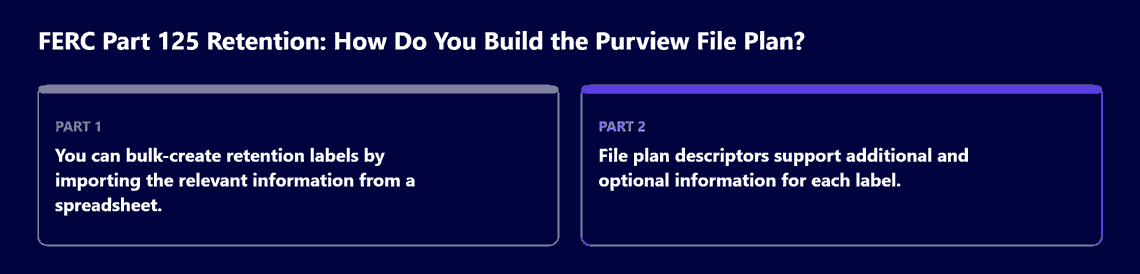
In i3solutions’ reading, each Part 125 row fills those columns in the same way. The Reference ID carries the schedule’s own item number, such as 125.3-16(a), so every label traces to one row. Category carries the schedule heading, such as Plant and Depreciation, and Business function/department names the team that owns the records. Authority type records that the source is a federal regulation. Provision/citation carries 18 CFR 125.3 and the item number, with FERC as the jurisdiction or agency. Where section 125.2(a) makes a longer period govern, the row records which rule set the period, so a reviewer can see why the label differs from the schedule. The general crosswalk from a record-category file plan to Purview’s descriptors is covered in a separate i3solutions guide, Mapping a DoD 5015.2-Style File Plan onto Microsoft Purview Records Management.
If the project plan treats the file plan as the whole Part 125 program, several obligations in section 125.2 have no label setting at all. The part requires each utility or licensee to “designate one or more persons with official responsibility to supervise the utility’s or licensee’s program for preservation and the authorized destruction of its records”. It asks for “reasonable protection for records subject to the regulations in this part from damage by fire, floods, and other hazards”. On storage media it states: “The storage media must have a life expectancy at least equal to the applicable record retention period provided in § 125.3 unless there is a quality transfer from one media to another with no loss of data.” and “Each transfer of data from one media to another must be verified for accuracy and documented.” When records are lost early, a certified statement “must be filed with the Commission within ninety (90) days from the date of discovery of the destruction”. And: “Public utilities and licensees must arrange, file, and index records so records may be readily identified and made available to Commission representatives.” A file plan’s Reference ID and citation columns can support that index. The supervisory designation, the loss statement and the paper and off-platform records remain the program’s own work.
If your tenant already runs in GCC High for other reasons, check the dated feature table before you plan around a records feature. Microsoft’s Plan for Microsoft Purview – GCC High deployments page, dated May 2025, lists File plan manager, Regulatory records, Disposition review and Proof of disposal as “Available”, Multi-stage disposition review as “Rolling out”, and Graph APIs for Records Management as “In development”. Part 125 is a FERC rule and names no cloud, so this table matters only to a utility that is already in GCC High, and it should be re-read at build time.
If the records still live in a Documentum or OpenText content server, the first decision is the migration, and that belongs to a separate i3solutions guide, Documentum or OpenText Content Server to SharePoint Online: A Migration Guide That Keeps Records Under Microsoft Purview. If a rate case or a proceeding is open, the schedule’s periods are floors, not end dates. Section 125.2(k) states that “the utility must retain the appropriate records to support the costs and adjustments proposed in the current or next rate case”, and section 125.2(l) states that “if a public utility or licensee is involved in pending litigation, complaint procedures, proceedings remanded by the court, or governmental proceedings, it must retain all relevant records”. A file plan built only from the schedule’s periods needs a hold process beside it for those cases. And if the records at issue sit under a different regulator’s schedule, such as a state commission’s, section 125.2(a) points to the longer period, and that schedule has to be read as well.
When a utility or licensee brings the Part 125 schedule to i3solutions, the work starts with the schedule rows set beside the content already in SharePoint, OneDrive, Teams and Exchange, so each row’s owner, start point and label type can be named before a label is created. i3solutions maps governance to named control families, enforces it in the platform through Entra ID, Purview, and Azure Policy, and evidences it continuously rather than reconstructing it at audit. The service is described on Hire Microsoft Purview Compliance Consultants, and the determination of what Part 125 asks of your company stays with your regulatory affairs and accounting staff.
If your company is an interstate natural gas pipeline, Part 125’s text does not name you. Section 125.1 covers “public utilities subject to the jurisdiction of the Commission” and “licensees holding licenses issued by the Commission”, and your regulatory affairs office confirms which records fall under it.
When a schedule has to become retention labels, the file plan is where they are created and described. Microsoft’s file plan page states: “File plan lets you include more information as part of your retention labels.” and “You can bulk-create retention labels by importing the relevant information from a spreadsheet.”
If the label marks items as a regulatory record, no. Microsoft’s records management page states that after such a label is applied, “not even a global administrator, can remove the label”, and that a standard retention label “doesn’t mark items as a record or a regulatory record.”
If your tenant is in GCC High, Microsoft’s GCC High planning page, dated May 2025, lists File plan manager, Regulatory records and Disposition review as “Available” and Multi-stage disposition review as “Rolling out”.
When the labels are in place, section 125.2 still asks for a designated supervisory official, protected storage, storage media rules, an index of records, and the certified statement and its deadline that section 125.2 sets when records are lost early.
Michael Branson
If a Conditional Access policy in your tenant still grants access through a custom control that hands users to Duo or another MFA provider, that grant can go unopened once the provider is wired in, and it now has an end date. Microsoft’s custom controls article opens its notice with “Custom controls are deprecated.” Duo’s own custom control documentation carries the matching notice: “Microsoft will prevent creation of new custom controls in September 2026 as part of the custom controls deprecation process.” The open question for the identity team is which path each policy takes: keep the provider through External MFA, or move those users to Entra’s built-in methods. This guide sets out what each path satisfies, what External MFA still leaves out, and how to move policy by policy with a rollback in place.
If you are planning around a date, work from Microsoft’s own words, because it has published a month and a season, not a day. The custom controls article reads: “Adding new custom controls and editing existing custom controls will not be allowed starting September 2026. Full retirement is scheduled for early 2027. Start planning your migration now.” Duo’s custom control page says its original Microsoft Azure Active Directory application can no longer be created or edited in Duo after September 30, 2026, and adds: “Existing users of the Duo CA custom control should migrate to Duo External MFA before the Microsoft custom controls retirement date.” Until full retirement, an existing custom control can no longer be edited, so any change to how those policies prompt users goes through the replacement. Microsoft’s separate retirement of its own SMS and voice methods is a different change with its own date, which i3solutions covers in a separate guide.
If the team cannot say whether any policy calls the provider, start with the inventory, because the answer can be zero. Microsoft’s migration guide is direct: “This guide is relevant only if your organization currently uses custom controls. If you don’t use custom controls, no action is needed.” The same guide lists what to record for each affected policy (its name and ID, the users and groups and cloud apps it targets, the custom control provider it references, and its conditions) and publishes a Microsoft Graph PowerShell query that returns the Conditional Access policies whose grant controls carry a custom control. Its advice on scale is worth taking literally: “Large tenants might have dozens or hundreds of Conditional Access policies. Export the results and track migration status per policy to avoid underestimating migration effort.” That export becomes the migration register: one row per policy, the path chosen for it, and the date it moved.
When an internal control or an auditor asks whether sign-ins under these policies count as multifactor authentication, the custom control has been the weak point. Microsoft’s Microsoft-managed policies FAQ states: “Custom controls don’t satisfy multifactor authentication claim requirements. If your organization uses custom controls you should migrate to external authentication methods, the replacement of custom controls.” External MFA changes that result. Duo’s External MFA documentation states: “Duo external MFA is fully recognized as a multifactor authentication method in Entra ID, satisfying MFA policy requirements.” The same page notes that Microsoft took the feature, previously called external authentication methods (EAM), out of preview in early 2026 under the name External MFA, which is why older articles use the other name. If the question behind the migration is which MFA controls your baseline requires, that is answered in MFA and NIST SP 800-53 baselines.
If any affected policy uses an authentication strength rather than the plain MFA grant, External MFA will not carry it. Microsoft’s external MFA reference states: “External MFA methods aren’t currently supported with authentication strengths.” It also states: “Grant controls based on authentication strengths, including the built-in MFA strength, aren’t satisfied by the external MFA method.” The migration guide gives the matching instruction for the new policy: “Use the standard Require multifactor authentication grant.”
Two more conditions sit on the provider’s side, in Duo’s External MFA documentation. Users who also use Entra self-service password reset (SSPR) “will need to have at least one of the Microsoft built-in methods that Entra SSPR supports enabled alongside Duo MFA.” Guest and cross-tenant sign-ins are supported only when the Duo method is configured with its Client ID (Guest/Cross-Tenant) value and the users’ OIDs exist as username aliases in Duo, and cross-tenant sign-in also depends on the other tenant trusting MFA claims from the user’s home tenant. Where a policy needs a phishing-resistant strength, the rollout order is its own decision, set out in the i3solutions page on phishing-resistant passwordless sign-in, not part of this migration.
If you have to choose policy by policy rather than once for the whole tenant, decide by user population and by what each policy requires. Use these criteria, in this order:
Where the provider question sits beside a larger one about which platform owns identity, that decision is set out in the Okta vs Entra ID comparison.
If your security team built device trust, VPN access and non-Microsoft sign-ins around the provider, replacing it to solve a Conditional Access problem can cost more than it saves. External MFA was built for this case, and Duo’s Entra ID documentation describes it in its own words: “Duo for Microsoft Entra ID External MFA provides an improved authentication experience, streamlined configuration, and fewer Microsoft feature limitations over the legacy custom control for Entra Conditional Access.” Keep the provider when these hold: it already fronts VPN, RADIUS or non-Microsoft applications; the device-trust work lives in it; users are enrolled and a change of prompt is the bigger rollout risk; and the affected policies use Require multifactor authentication, not an authentication strength. In that estate the migration is a registration and a policy change, and the provider users already know stays in place.
When the first policy moves, the risk is a user caught by both the old policy and the new one, or by neither. Microsoft’s migration guide sets the sequence, and it is worth following in order:
Before you remove anything, keep the way back open until the new policy has run cleanly. The migration guide is explicit: “Don’t delete custom control configurations until you confirm the new external MFA policy is stable. Keep the old policy disabled (not deleted) for at least two weeks as a rollback option.” Put together: list every policy whose grant calls a custom control, register the provider as an External MFA method for a test group, run a parallel policy that uses Require multifactor authentication in report-only mode, move the test group across, and keep the old policy switched off, not deleted, for at least two weeks. A policy that needs an authentication strength moves to Entra’s own methods instead.
If your tenant is in a US government cloud, the provider’s own statements govern what is possible, and Duo’s differ by cloud. For GCC, Duo’s Entra ID Conditional Access page states: “Microsoft’s Government Cloud added support for custom controls for Entra ID conditional access, but the Duo custom control remains unavailable in Entra ID GCC.” For GCC High, Duo’s External MFA page states: “You must subscribe to the Duo Federal Class D High security package. Duo commercial or Duo Federal Moderate plans cannot connect to Microsoft GCC High environments.” Confirm the plan with the provider, and the method’s availability in your cloud with Microsoft, before you schedule the move. If the real requirement in your program is PIV or CAC sign-in, that is a different method with its own i3solutions guide, on PIV and CAC smart cards with Entra certificate-based authentication.
If the key policies need an authentication strength, keeping the provider leaves those policies on Entra’s methods anyway, and the provider covers only what is left. Move to Entra’s built-in methods when the key policies need phishing-resistant or other authentication strengths, which External MFA does not satisfy; when the provider does nothing in your estate that Entra’s methods do not already do; when self-service password reset already requires a Microsoft method for a large share of users; or when the provider’s plan cannot reach your cloud, as Duo states for its commercial and Federal Moderate plans in GCC High. And if the inventory finds no policy that uses a custom control, do nothing: the migration guide says “no action is needed.” If sign-in still federates through AD FS, settle that decision first, in the i3solutions guide on moving off AD FS to Microsoft Entra ID.
When a custom control migration reaches i3solutions, the work starts from the export of affected policies, so each policy has an owner and a chosen path before anything is switched. The sequence is to inventory the policies, decide provider or Entra per user population, run the parallel policies in report-only mode, then roll out with the old policies kept disabled as the rollback. i3solutions is a Microsoft Systems Integrator with nearly 30 years of experience implementing identity and access management solutions for enterprises in regulated industries. i3solutions implements the Microsoft technology a customer needs, Microsoft Entra ID authentication and Conditional Access included. i3solutions regularly delivers Okta to Microsoft Entra ID migrations for enterprises, detailed in Okta to Entra ID migration services. Delivery is senior and US-based. Ongoing operation after the handover is a separate Application Managed Services engagement with its own scope; the external MFA deployment itself does not replace the internal team, run open-ended, or create vendor lock-in. The configuration work is described in Entra ID configuration and integration services, within identity and access management solutions.
If you are not sure, run the check in Microsoft’s migration guide: a Microsoft Graph PowerShell query that lists the Conditional Access policies whose grant controls carry a custom control. If it returns none, the guide says “no action is needed.”
If you are planning to a date, use the month and season quoted from Microsoft’s custom controls article near the top of this page. It gives no exact day.
When a policy uses Require multifactor authentication, yes: Duo states its external MFA is “satisfying MFA policy requirements.” When a policy uses an authentication strength, no: Microsoft states “External MFA methods aren’t currently supported with authentication strengths.”
Yes, if you register Duo as an External MFA method. Duo’s custom control page says: “Existing users of the Duo CA custom control should migrate to Duo External MFA before the Microsoft custom controls retirement date.” Policies that need an authentication strength move to Entra’s own methods.
If your tenant is in GCC High, it depends on the Duo plan. Duo’s External MFA page states: “You must subscribe to the Duo Federal Class D High security package.” It adds that its commercial and Federal Moderate plans “cannot connect to Microsoft GCC High environments.”
Michael Branson
A common place for the question to surface is the assessment scoping meeting, when someone points out that Microsoft holds a HITRUST certification and proposes treating everything in the cloud as inherited. That is half right. Microsoft’s certification can carry part of the assessment, through a request that Microsoft approves, for the services its certification letter names. It does not reach the tenant settings, the identities or the data, and it does not reach a Microsoft service outside its scope. This page is for the IT leader who has to decide what to request from Microsoft, what the team configures and evidences itself, and what the assessment type allows, before fieldwork starts. Every HITRUST and Microsoft page cited on this page was read on October 19, 2026.
When a scoping plan treats inheritance as an exemption from the assessment, it gets the mechanism backwards: an inherited result is carried into the assessment and scored there. HITRUST’s Shared Responsibility and Inheritance Program page says the program “allows organizations to reuse inheritable controls from internal and external third-party organizations.” and “Controls can be inherited from vendors, major cloud service providers (CSPs) and your organization’s existing HITRUST Validated or Certified Assessments.” HITRUST’s Cybersecurity Compliance Certifications and Assessments page says “Organizations working to attain certification can also inherit existing controls from their certified cloud service providers.”
HITRUST’s January 19, 2022 blog post on shared responsibility and inheritance in the cloud describes two MyCSF mechanisms. External inheritance “Enables organizations to inherit assessment results and scores from their hosting, cloud, and service providers’ assessment(s).” Internal inheritance “Enables organizations to inherit assessment results and scores from one of their assessments and apply them to another of their assessments.”
Responsibility is split requirement by requirement, and that is the unit of inheritance. HITRUST’s press release of January 7, 2021 said “the HITRUST Shared Responsibility Matrix documents which HITRUST CSF controls are full, partial, or shared responsibility between cloud service providers and their customers.” HITRUST’s Inheritance Calculator page says “MyCSF should always be viewed as the source of truth for scoring calculations.”
The planning rule i3solutions recommends: treat inheritance as a scored result carried into your assessment, not as an exemption from it, and read the scores in MyCSF rather than in any estimate made outside it.
When a scoping plan lists Microsoft 365 as inherited, a common over-claim is that Microsoft 365 as a whole is HITRUST certified. Microsoft does not say that. Microsoft’s Azure compliance page HITRUST, last updated April 5, 2023, says “The Azure HITRUST certification letter covers Azure, Dynamics 365, Power Platform, and select Microsoft 365 cloud services.” and lists its applicability as Azure and Azure Government.
Microsoft’s Health Information Trust Alliance (HITRUST) Common Security Framework (CSF) page, last updated December 4, 2025, lists its in-scope cloud platforms and services as Azure and Azure Government, Microsoft Intune, Microsoft Managed Desktop, Office 365, and Windows 365 (Commercial). Its Office 365 applicability table has one row, Commercial, and the in-scope services it lists there are Activity Feed Service, Bing Services, Delve, Exchange Online Protection, Exchange Online, Microsoft Teams, Office 365 Customer Portal, Office Online, Office Service Infrastructure, Office Usage Reports, OneDrive for Business, People Card, SharePoint Online, and Windows Ink. The same page says “The HITRUST CSF certification of Office 365 is valid for two years.”
A service that is not on the list is not inherited. Microsoft Learn’s regulatory page says “If a service isn’t included in the current scope of a specific compliance offering, your organization is responsible for assessing the risks based on your compliance obligations and determining how you process the data in that service.”
Only the current letter, not a summary page, fixes the scope. Microsoft’s Azure page says “You can access Azure HITRUST audit documents from the Service Trust Portal (STP) Healthcare and Life Sciences section.” Microsoft’s October 3, 2023 Azure blog post, Microsoft Azure achieves HITRUST CSF v11 certification, said “Azure customers can obtain the HITRUST CSF Letter of Certification, which contains the full scope of certified Azure offerings and regions, at the Service Trust Portal”. The dates, version and exact services on today’s letter are in that portal, and this page does not restate them.
The planning rule i3solutions recommends: list every Microsoft service in your assessment scope, check each one against the current letter in the Service Trust Portal, and request inheritance only for the services the letter names.
Inheritance happens only on request, and a plan that assumes otherwise will find the gap at validation. Microsoft’s Azure HITRUST page says “The program enables you to pre-populate your assessment with fully inherited or shared responsibility controls for Azure in the HITRUST MyCSF tool.” It describes the steps: “Sign in to the HITRUST MyCSF tool and pre-populate your assessment for your solution hosted on Microsoft Azure with either fully inherited or shared responsibility controls for Azure.” and “A Microsoft HITRUST administrator will then complete the Microsoft part of the assessment in the MyCSF tool.”
Microsoft’s January 14, 2021 Azure blog post, Azure and HITRUST publish shared responsibility matrix, said “When a customer is completing their HITRUST CSF Assessment, they can select “Request Inheritance” through the HITRUST MyCSF SaaS platform for any requirements you plan to inherit from Azure.” and “Microsoft will then approve all the relevant controls from the request and notify the customer.”
The matrix tells you what to request. Microsoft’s Azure HITRUST page says “Moreover, the Azure HITRUST shared responsibility matrix is available directly from HITRUST.” and “It lists HITRUST CSF controls, clarifies shared responsibility per control (customer, shared, or Azure), and provides Azure control implementation details where appropriate.”
Microsoft’s pages describe this request flow and this matrix for Azure. Before you plan a request for a Microsoft 365 or Dynamics 365 service, confirm the route against the current letter and with Microsoft rather than assuming the Azure flow carries over.
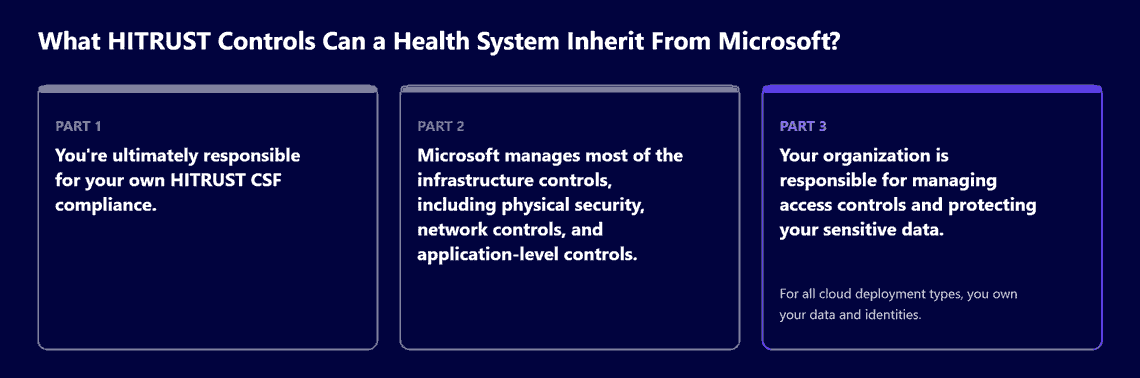
The failure that costs the most at validation is a shared requirement no one on the customer side owns. Microsoft’s Azure HITRUST page answers the question “Does Microsoft certification mean that if my organization uses Azure, it is HITRUST compliant?” with “No. You’re ultimately responsible for your own HITRUST CSF compliance.” It also says “If your business requires HITRUST certification for implementations deployed on Azure, you can build on Azure HITRUST certification when you conduct your compliance assessment. However, you’re responsible for evaluating the HITRUST requirements and controls within your own organization.”
How much you can rely on Microsoft depends on your own build. The same page says “This reliance is dependent on which Azure offerings you’re using and how you implemented them.” and “In addition, some requirements are entirely part of your implementation responsibility to meet HITRUST CSF compliance.”
Microsoft Learn’s regulatory page draws the line: “Microsoft manages most of the infrastructure controls, including physical security, network controls, and application-level controls.” and “Your organization is responsible for managing access controls and protecting your sensitive data.” It adds “Building on that framework, your organization needs to implement and maintain its own data protection controls to meet HITRUST CSF requirements.” Microsoft’s Shared responsibility in the cloud page, last updated August 24, 2026, says “For all cloud deployment types, you own your data and identities.”
The planning rules i3solutions recommends: map each requirement to full, shared or customer responsibility from the matrix before fieldwork starts; name an owner and an evidence source, such as a configuration export, report or log, for every shared and customer requirement; and treat identities, access control and data protection as yours on every Microsoft service, inherited or not.
Two organizations with the same Microsoft estate can face different inheritance rules because they chose different assessments. HITRUST’s Cybersecurity Compliance Certifications and Assessments page says “HITRUST offers a traversable portfolio of three core cybersecurity assessments and certifications based on an organization’s size, needs, and risk objectives.” According to HITRUST, the e1 and the i1 are 1-year validated assessments and the r2 is a 2-year validated assessment. According to HITRUST, “The e1 provides foundational assurance with 43 core controls for low-risk entities.” and “The i1 offers threat-adaptive protection with 182 controls focused on leading practices.” The same page says “The r2 assessment and certification is best suited for organizations that need to demonstrate regulatory compliance with authoritative sources like HIPAA, the NIST Cybersecurity Framework, and dozens of others or that require expanded tailoring of controls based on other identified risk factors.”
HITRUST’s December 28, 2021 advisory, HAA 2021-012: i1 Introduction and r2 Enhancements, set out the carve-out rule: “HITRUST CSF requirements performed by the assessed entity’s service providers (such as cloud service providers) on behalf of the organization can be carved out / excluded from consideration in i1 validated assessments, but such carve-outs are not permitted in r2 assessments.” According to HITRUST’s advisory, “r2 certifications are valid for 2 years, while i1 certifications are valid for 1 year.” and “Both require an Authorized HITRUST External Assessor Organization to inspect documented evidence to validate control implementation.”
A later advisory, HITRUST’s January 17, 2023 HAA 2023-004: e1 Assessment Introduction, described “The Inclusive method, whereby HITRUST CSF requirements performed by the service provider are included within the scope of the HITRUST Assessment and addressed through full or partial inheritance, reliance on third-party assurance reports, and/or direct testing.” It said “Cross-assessment-type inheritance is allowed, meaning that i1 or r2 Assessment results can be inherited into an e1 Assessment (and vice versa).” and “Controls nest into the i1 and r2 to be fully inheritable, so e1 work can be reused.” Those rules are quoted as HITRUST published them on those dates; confirm the current rule with HITRUST and your assessor before you scope an r2 around a carve-out.
HIPAA configuration inside Microsoft 365 is a separate body of work from HITRUST inheritance, with its own control mapping. i3solutions has delivered M365 compliance implementations across defense, healthcare, and financial services environments, as set out in Microsoft 365 compliance consulting.
When a green dashboard is read as an assessment result, the gap shows up at validation. Microsoft’s Azure HITRUST page says “Each HIPAA/HITRUST control is associated with one or more Azure Policy definitions.” and “These policies may help you assess compliance with the control; however, compliance in Azure Policy is only a partial view of your overall compliance status.”
For risk assessment, Microsoft Learn’s regulatory page says “Specifically, for HITRUST CSF, we recommend that you perform risk assessments using the NIST 800-53 and NIST CSF assessments in Compliance Manager.” Neither tool’s dashboard or report replaces the evidence an assessor inspects, and neither is the MyCSF score.
If any of these describes your assessment, plan for more customer-side work than the inheritance request suggests:
Whether the work is done by your own team or an outside firm, ask for these, in writing:
If the work needs an outside firm, it is a project: checking the Microsoft services in the assessment scope against the current letter, building the responsibility map from the matrix, and doing the Microsoft 365 and Azure configuration work that produces the exports, reports and audit logs used as customer-side evidence, handed to the owners you name.
i3solutions delivers its full service portfolio into the healthcare vertical exactly as it does into defense manufacturing and finance, including identity work with Okta and Entra ID, AI work, Power Platform, and Dynamics 365 integration. Separately, i3solutions runs migrations against named control families across CMMC, HIPAA, SOC 2, and NIST 800-171, producing artifacts auditors can review. i3solutions has evaluated a Microsoft estate for a healthcare network operating under HIPAA Security Rule and HITRUST CSF compliance requirements, as described in Microsoft technology stack evaluation. Delivery is senior and US-based.
On the operating side, i3solutions does not run your HITRUST program, your MyCSF assessment, your controls or their audit evidence as an ongoing managed service; specialists embedded inside your team are an engagement model i3solutions offers. An i3solutions project engagement does not by itself include ongoing support of what it delivers, which i3solutions scopes separately as Application Managed Services, and it is not a replacement for the internal team, open-ended scope expansion, or vendor lock-in.
The wider governance practice is described in enterprise governance and compliance solutions.
No. Asked whether Microsoft certification means an organization using Azure is HITRUST compliant, Microsoft Learn answers “No. You’re ultimately responsible for your own HITRUST CSF compliance.” Microsoft Learn also says “However, you’re responsible for evaluating the HITRUST requirements and controls within your own organization.”
Microsoft Learn says “The Azure HITRUST certification letter covers Azure, Dynamics 365, Power Platform, and select Microsoft 365 cloud services.” Its regulatory page lists the Office 365 services under one applicability row, Commercial, and says “If a service isn’t included in the current scope of a specific compliance offering, your organization is responsible for assessing the risks based on your compliance obligations and determining how you process the data in that service.”
For Azure, Microsoft Learn says “Sign in to the HITRUST MyCSF tool and pre-populate your assessment for your solution hosted on Microsoft Azure with either fully inherited or shared responsibility controls for Azure.” and “A Microsoft HITRUST administrator will then complete the Microsoft part of the assessment in the MyCSF tool.” Microsoft’s January 14, 2021 Azure blog post said “Microsoft will then approve all the relevant controls from the request and notify the customer.”
Not under HITRUST’s December 28, 2021 advisory, which said provider-performed requirements “can be carved out / excluded from consideration in i1 validated assessments, but such carve-outs are not permitted in r2 assessments.” HITRUST’s January 17, 2023 advisory described the inclusive method, with requirements “addressed through full or partial inheritance, reliance on third-party assurance reports, and/or direct testing.”
Microsoft Learn says “You can access Azure HITRUST audit documents from the Service Trust Portal (STP) Healthcare and Life Sciences section.” and “Moreover, the Azure HITRUST shared responsibility matrix is available directly from HITRUST.”
Michael Branson
Every fact in these takeaways is drawn from OMB M-26-18, Microsoft’s External ID FAQ and Microsoft Learn’s custom OpenID Connect setup page, all re-read at their source in October 2026, except where a line says it is this guide’s own rule:
If you are the IT leader whose agency must answer the Login.gov mandate, the order of the work is set by the memo’s dates. The first deadline an IT director answers for is the inventory of public-facing websites with authentication, reported to OMB within 60 days of August 31, 2026 (about October 30, 2026) under OMB M-26-18, and in an agency that had not budgeted for it, that clock started before the budget did. Somewhere on the team, someone has already said the natural thing: we run on Microsoft, so we will put Entra External ID in front of Login.gov and be done. That assumption decides a year of work, and it is the one to check first. OMB M-26-18, titled “Scaling Use of Login.gov to Deliver a Universal Sign-on for Public Services,” sets the dates. This guide sets out what the memo requires, which sites it reaches, where Microsoft Entra External ID does and does not fit, and the order to make the decisions in.
If your team reads the memo as a request to offer Login.gov on one flagship site, it will under-scope the work. Section I.A of OMB M-26-18 states that “As required by law, agencies must offer Login.gov, the single sign-on identity platform developed by the Administrator of General Services, as a sign-on option for all in-scope public-facing websites” and the requirement is the whole in-scope estate, not a pilot site. The same section states that an agency that cannot meet the requirement by the deadlines “must submit a notice to the Office of Management and Budget (OMB) by the applicable deadline identifying the operational requirements that prevent the agency from meeting the requirement,” and that the notice must carry a personal certification from the head of the agency.
The memo also narrows who is bound. According to OMB M-26-18, in a footnote to Section I.A: “The Login.gov statutory mandate and accompanying certification requirement do not apply to the Department of War (DoW), a national security system, or an element of the intelligence community” and it adds: “However, DoW is encouraged to offer Login.gov for public-facing websites that require user authentication to the extent practicable.” An agency that serves both civilian and defense-adjacent missions checks which of its sites fall on which side of that line before assuming the exclusion covers the whole estate; that is this guide’s planning note, not OMB’s.
The deployment date an agency faces depends on a tag that an agency’s sites may not carry yet, so the order of the dates matters as much as the dates. The appendix of OMB M-26-18 lists the agency actions in the numbered list that follows; each date in brackets is this guide’s own arithmetic from the memo’s August 31, 2026 date, labeled CALCULATED, and is not the memo’s wording:
The memo’s footnotes to the two deployment actions state: “This action is not required of DoW or elements of the intelligence community, or with respect to any national security system.” The term high impact service provider is defined in 5 U.S.C. Section 321, as a footnote in the memo states; whether a given service is one is OMB’s designation, and this guide does not decide it for any agency. The same appendix, per OMB M-26-18, also asks agencies to adopt GSA’s Login.gov implementation best practices within one year, to the extent practicable, for existing public-facing websites that already offer Login.gov.
This guide’s planning rule, not OMB’s: build one punch list keyed to these dates, with the inventory first, because every later date depends on knowing which sites are in scope and which of them serve a High Impact Service Provider.
The failure mode in scoping is tearing out identity that was never in scope, or missing a site that was. According to OMB M-26-18, in a footnote, “public-facing” means “intended to be accessed and used by members of the public, rather than by Federal Government employees or contractors acting on behalf of an agency.” If you own a public-facing service at an agency, the memo’s scope text decides whether that service is in or out. The memo applies to public-facing agency websites for services the public reaches through user authentication, and it states that it “does not apply to public-facing websites for services accessed solely by: 1) organizations, or individuals acting on behalf of an organization (e.g., businesses, state and local governments); or 2) individuals acting on behalf of another individual.”
That means a workforce sign-in for employees and contractors, running on Microsoft Entra ID, is not what the memo reaches, and it stays where it is. Decision rule, this guide’s: inventory every public-facing site with authentication first, record for each one whether the public or an organization uses it and whether it belongs to an OMB-designated High Impact Service Provider service, and make no Microsoft platform decision until that tag exists, because the tag decides whether the one-year date or the later one applies. The memo, per OMB M-26-18, makes agency Chief Information Officers responsible for coordinating the 60-day report.
If your public-facing applications run in a government tenant, the tempting plan puts a Microsoft-native front door inside it. Microsoft’s own answer rules that out. Microsoft’s External ID FAQ asks “Will External ID support Microsoft Entra US Government Cloud?” and answers: “External ID currently supports public clouds only.”
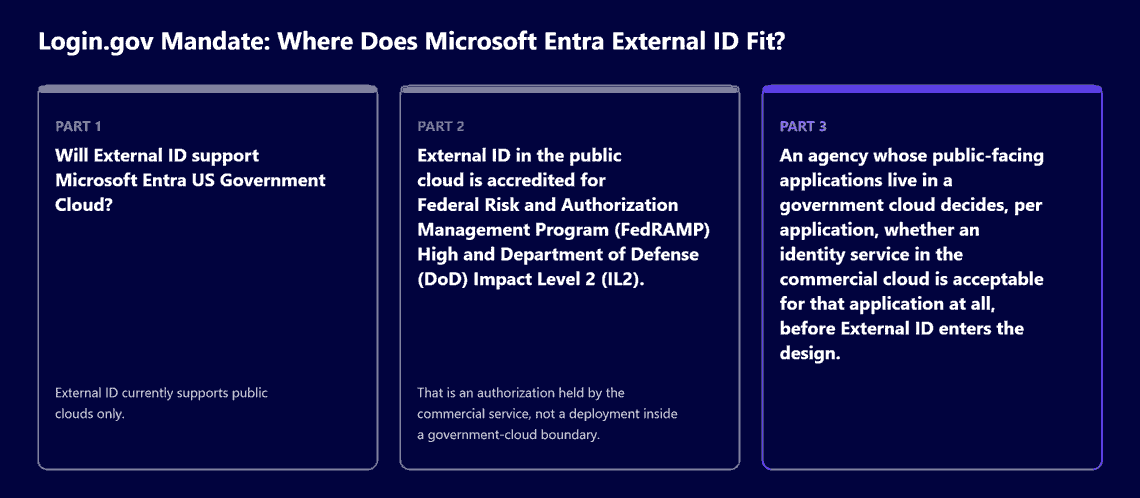
That is the first fact, and it is about where the service runs: External ID is not available as a tenant in GCC, GCC High or DoD. The second fact is separate and should not be read as the first. The same Microsoft FAQ states: “External ID in the public cloud is accredited for Federal Risk and Authorization Management Program (FedRAMP) High and Department of Defense (DoD) Impact Level 2 (IL2).” That is an authorization held by the commercial service, not a deployment inside a government-cloud boundary. An agency whose public-facing applications live in a government cloud decides, per application, whether an identity service in the commercial cloud is acceptable for that application at all, before External ID enters the design.
When a team plans to put External ID in front of Login.gov, the pieces line up on paper. According to Microsoft Learn’s External ID overview, sign-in options include a “custom OIDC identity provider” and apps in an external tenant can use “OpenID Connect (OIDC) or Security Assertion Markup Language (SAML) protocol for authentication and single sign-on” and Login.gov’s developer documentation describes Login.gov as an OpenID Connect identity provider.
The detail sits in Microsoft’s setup page. Microsoft Learn’s custom OpenID Connect setup page for External ID lists a fixed set of settings: well-known endpoint, issuer URI, client ID, client authentication method, client secret, scope, response type and a claims mapping. It lists no field for acr_values or for any other custom authorization parameter. The same Microsoft page states: “Currently, only the code response type is supported. id_token and token aren’t supported.” On client authentication, it states: “client_secret_post and client_secret_jwt authentication methods are supported. Although the admin center UI might display private_key_jwt as an option, this method isn’t currently supported and shouldn’t be selected.” It also states that “the client_secret_basic client authentication method isn’t supported.”
Login.gov documents its own side. Login.gov’s getting started page states: “Login.gov supports two ways of authenticating clients: private_key_jwt and PKCE.” Login.gov’s authorization documentation sets out how a relying party requests a service level and an authentication assurance level at sign-in.
This guide does not conclude from those pages whether the federation works; it concludes that it has to be proven. As of October 2026, pairing Login.gov with External ID’s built-in OpenID Connect setup is not a documented, supported path on Microsoft Learn. This guide’s planning rule, not Microsoft’s: before any design is committed, test in a non-production tenant against Login.gov’s sandbox whether the identity assurance level (IAL) and authentication assurance level (AAL) request your DIRM process selects, and the client authentication Login.gov accepts, can pass through the tenant’s configuration. If they cannot, the integration is scoped as custom engineering, or External ID stays out of that application’s sign-in path.
If your agency wants to keep an existing sign-in beside Login.gov, the memo allows it, narrowly, and the conditions are written down. Section I.C of OMB M-26-18 states: “When use of Login.gov is required under Section I.A or I.B, agencies may also offer other authentication or identity verification solutions in order to: 1) meet specific use cases that Login.gov is unable to fully meet” or “2) avoid imposing additional burden on a significant population of users” and those are the only two reasons it gives.
The same section attaches duties to any solution kept. According to OMB M-26-18, “Agencies must phase out identity solutions that do not meet this description and should routinely reevaluate the need for continued use of solutions other than Login.gov” and when offering other solutions, “agencies must promote Login.gov as the default option for new account creation for any user population that Login.gov is able to serve.” If your agency runs a Microsoft sign-in beside Login.gov for a service, the memo’s parity duty applies to it: “agencies must seek to maximize parity in assurance level selection for authentication and identity verification between Login.gov and the other solution(s).”
Decision rule, this guide’s: any Microsoft-based sign-in kept in place for the public is justified in writing against one of the two conditions, with the user population named, Login.gov set as the default for new accounts, and the assurance levels matched. A sign-in that cannot be justified that way is on the phase-out list, not the keep list.
The DIRM process is the agency’s own documented risk decision, not a Microsoft product, and treating it as a tool purchase is how it goes wrong. According to OMB M-26-18, Section II, agencies “must consider the impact of those decisions on users and avoid friction that is unjustified by the risk profile of the service or transaction” and “must adequately document their risk-based decisions” and the appendix ties the process to NIST SP 800-63-4, including selection of assurance levels.
Where a public-facing application runs on Microsoft, its sign-in records and access policies are evidence inputs to that documentation; they are not the process itself. The assurance levels the process selects are the same levels the federation test in this guide has to carry, which is why this guide runs the DIRM work before the integration design is fixed.
If your decision is one of the cases in this list, start somewhere else. Each case in this list rests on the scope and exclusion text of OMB M-26-18 or on this guide’s own carve:
When you bring in internal or external support, hold it to evidence rather than assurances. Each ask in this list maps to a requirement in OMB M-26-18 or to the Microsoft documentation cited in this guide:
If your agency has to offer Login.gov on its in-scope public-facing sites and decide where Microsoft identity sits around it, i3solutions governs identity and access for regulated Microsoft estates with senior, U.S.-based engineers and leaves an audit-defensible record. For this mandate, that means a project, with embedded specialists where your team needs them, that inventories the in-scope sites, supports the documentation of the DIRM process, and designs the Microsoft-side identity architecture (Microsoft Entra ID, Entra External ID where it fits, or a narrowly scoped Section I.C exception) around Login.gov as the default sign-on. i3solutions does not operate Login.gov, which GSA runs, and does not designate High Impact Service Providers, which OMB does. i3solutions is a Microsoft Systems Integrator that implements identity and access management solutions for enterprises in regulated industries. i3solutions has been a Microsoft Partner with 30 years of enterprise technology delivery experience and has delivered 1,500+ Microsoft engagements across aerospace and defense, financial services, and health sciences.
For how this fits the wider identity program, see identity and access management solutions. If you are a contractor weighing outside support for this work, see IAM implementation for government contractors.
According to OMB M-26-18, agencies must offer Login.gov as a sign-on option for all in-scope public-facing websites, report an inventory of existing public-facing websites that have authentication within 60 days, conduct a Digital Identity Risk Management process within 240 days, and deploy Login.gov on the existing in-scope websites of OMB-designated High Impact Service Provider services within one year or submit a notice to OMB.
According to OMB M-26-18, within one year of the memo’s August 31, 2026 date, which this guide calculates as about August 31, 2027. By then an agency deploys Login.gov on all existing in-scope websites of OMB-designated High Impact Service Provider services or submits a notice to OMB. Whether a service is a High Impact Service Provider is OMB’s designation.
Beside Login.gov, not instead of it, and only on stated conditions. According to OMB M-26-18, agencies may also offer other solutions to meet specific use cases that Login.gov is unable to fully meet or to avoid imposing additional burden on a significant population of users; they must phase out solutions that do not meet that description, promote Login.gov as the default for new account creation, and seek parity in assurance level selection.
Not from inside the government cloud. According to Microsoft’s External ID FAQ, “External ID currently supports public clouds only.” The same FAQ states that “External ID in the public cloud is accredited for Federal Risk and Authorization Management Program (FedRAMP) High and Department of Defense (DoD) Impact Level 2 (IL2).” According to OMB M-26-18, Login.gov remains the sign-on option agencies must offer, so External ID could only sit beside it under the memo’s Section I.C conditions.
As of October 2026 it is not a documented, supported path on Microsoft Learn. According to Microsoft Learn, the External ID custom OpenID Connect setup lists no field for acr_values or other custom authorization parameters, supports only the code response type, and supports client_secret_post and client_secret_jwt but not private_key_jwt; according to Login.gov’s developer documentation, Login.gov supports private_key_jwt and PKCE. This guide’s rule is to test the assurance-level request and client authentication in a sandbox before committing.
If your agency is building its 60-day list, start with every public-facing website that has authentication: according to OMB M-26-18, the report covers all existing public-facing websites that have authentication, where public-facing means intended for members of the public rather than Federal Government employees or contractors acting for an agency. This guide adds tagging each site with its user population and whether it serves an OMB-designated High Impact Service Provider service.
Michael Branson
Every fact in these takeaways is drawn from TSA’s Security Directive Pipeline-2021-02G and transmittal memo and Microsoft’s password policy recommendations and guide to setting the password expiration policy, all re-read at their sources in October 2026:
The request comes from the security team: switch password expiration off, because Microsoft says so. It lands on the desk of the person whose name is on the TSA plan. The request is right about Microsoft, and the plan is right about TSA. This guide sets out what the directive asks of Active Directory and Microsoft Entra ID, where Microsoft’s advice applies, and what the plan has to say before either setting moves.
A renewal with nothing new in it is how the identity lines in an approved plan roll forward another year without anyone reading them. According to TSA’s transmittal memo and directive, dated May 1, 2026, “SD Pipeline-2021-02G, which cancels and supersedes SD Pipeline-2021-02F, is effective May 3, 2026, through May 2, 2027.” The same memo states: “There are no substantive revisions to the SD Pipeline-2021-02 series through this renewal”. It also says the measures were first issued in July 2021, and that “TSA intends to permanently codify these requirements through notice-and-comment rulemaking.” It gives no date for that rulemaking, and this guide states none.
The directive does not reach every pipeline company. According to the directive, it applies to “Owners and Operators of a hazardous liquid and natural gas pipeline or a liquefied natural gas facility notified by TSA that their pipeline system or facility is critical”. For those operators, the memo is plain about what TSA measures them against: “This plan sets the security measures and requirements against which TSA inspects for compliance.” The plan is the operator’s TSA-approved Cybersecurity Implementation Plan. Where an operator has handed some measures to a Managed Security Service Provider, the directive says the operator “retains sole responsibility under this Security Directive for ensuring compliance” with that plan and the directive.
Whether Active Directory and the Entra tenant sit inside the directive’s scope turns on its definition. According to the directive, “Critical Cyber System means any Information or Operational Technology system or data that, if compromised or exploited, could result in operational disruption.” It adds: “Critical Cyber Systems include business services that, if compromised or exploited, could result in operational disruption.” Which directory accounts reach those systems is the operator’s own determination, recorded in its plan.
Start from the approved plan’s identity lines, not from the tenant’s current settings.
The conflict looks like TSA says rotate and Microsoft says never. Read at source, it is narrower. According to the directive, the operator’s identification and authentication policies must include “A schedule for memorized secret authenticator resets” and “Documented and defined mitigation measures for components of Critical Cyber Systems that will not have passwords reset in accordance with the schedule” required by that paragraph, “and a timeframe to complete these mitigations.” The directive names no interval. It defines a memorized secret authenticator as a character string memorized by, or memorable to, the subscriber.
That term comes from NIST’s vocabulary. According to NIST’s current SP 800-63B, “Passwords were referred to as memorized secrets in the initial release of SP 800-63B.” For its own scope, federal digital identity services, NIST’s guidance states: “Verifiers and CSPs SHALL NOT require subscribers to change passwords periodically.” It pairs that with: “However, verifiers SHALL force a change if there is evidence that the authenticator has been compromised.” NIST’s guideline governs federal identity services; this guide cites it for the vocabulary and the direction of current guidance, never as TSA’s rule for a pipeline operator.
Microsoft’s advice is written for a specific population. According to Microsoft’s password policy recommendations, “Microsoft’s latest guidance discourages password expiration policies for cloud-only accounts.” The same page states: “The recommended setting is for passwords to never expire.” Microsoft’s guide to setting the password expiration policy says “By default, passwords never expire for your organization” and that an administrator who sets one can “Choose a number of days from 14 to 730”. Then the sentence that decides where a pipeline operator’s schedule lives: “It doesn’t apply to hybrid identity users who use password hash sync, pass-through authentication, or on-premises federation like Active Directory Federation Services (ADFS).” Older tenants carry a different default; according to Microsoft’s self-service password reset policies, “If the tenant was created before 2021, it has a 90 day expiration value by default.”
On a hybrid estate, then, the schedule is enforced in Active Directory. According to Microsoft’s guide to fine-grained password policies, “Fine-grained password policies apply only to global security groups and user objects.” It continues: “For example, you can apply stricter settings to privileged accounts and less strict settings to the accounts of other users.” One of the mitigations named in Microsoft’s archived Windows 10 reference on maximum password age works at the same domain controllers. According to Microsoft’s page on Microsoft Entra Password Protection for Active Directory, “These checks are performed during password changes and password reset events against on-premises Active Directory Domain Services (AD DS) domain controllers.” It adds: “Domain controllers (DCs) never have to communicate directly with the internet.”
Microsoft’s archived Windows 10 reference on Maximum password age, kept on a previous-versions path, puts both halves in one place: “The security baseline recommended by Microsoft doesn’t contain the password-expiration policy, as it is less effective than modern mitigations.” And: “However, companies that didn’t implement Microsoft Entra Password Protection, multifactor authentication, or other modern mitigations of password-guessing attacks, should leave this policy in effect.”
A plan can describe one of three designs under the directive’s reset schedule. They are options this guide sets out, not TSA’s words or Microsoft’s, and this guide does not say which TSA would approve:
Two adjacent decisions stay separate: local administrator passwords on servers and workstations are their own decision, and accounts that sign in without a password fall outside a password schedule, with the passwordless rollout a decision of its own.
List every account population that reaches a Critical Cyber System, name the policy object that enforces its schedule, and list every account left off it with its mitigation and timeframe.
A common miss in a shared-account inventory is the account built, on purpose, to be used by more than one person. According to the directive, the operator needs “Enforcement of standards that limit availability and use of shared accounts to those that are critical for operations, and then only if absolutely necessary.” Where shared accounts are used, the directive requires policies under which “Individuals who no longer need access do not have knowledge of the password necessary to access the shared account.” Access rights sit under “Policies and procedures to manage access rights based on the principles of least privilege and separation of duties.” The definition is what matters: “Shared Account means an account that is used by multiple users with a common authenticator to access systems or data.” And: “Group accounts do not have common authenticators.”
Microsoft’s own design for emergency access accounts reads against that definition. According to Microsoft’s guidance to manage emergency access accounts in Microsoft Entra ID, “Create two or more emergency access accounts.” It says: “Don’t associate emergency access accounts with any individual user in the organization.” And: “Store credentials in a known secure location that’s available to multiple members of the administration team.” And: “Validate account functionality at least every 90 days.” Microsoft’s Conditional Access guidance to require multifactor authentication for all users lists emergency access or break-glass accounts among the accounts to exclude from that policy.
This guide’s reading, labelled as a reading and not as TSA’s classification: an emergency access account built to Microsoft’s design has one credential available to several administrators, which is a common authenticator, so the plan should name it as a shared account critical for operations and say how people who leave lose knowledge of its credential. How TSA classifies it is for the operator’s compliance function and TSA.
Inventory every account with a common authenticator, keep only those critical for operations, and write the leaver procedure for each.
Requiring multi-factor sign-in in Conditional Access answers part of the directive’s question, not all of it, because the directive asks about every access path to a Critical Cyber System. According to the directive, the operator needs “Multi-factor authentication, or other logical and physical security controls that supplement password authentication to provide risk mitigation commensurate to multi-factor authentication.” Where an operator does not apply multi-factor authentication “for access to industrial control workstations in control rooms regulated under 49 CFR parts 192 or 195”, the directive says the operator shall specify “what compensating controls are used to manage access.”
On the Active Directory side, Microsoft’s best practices for securing Active Directory state: “Require multifactor authentication when using privileged accounts or doing administrative tasks.” And: “Never administer a trusted system from a less-trusted host.”
Control-room workstations are operational technology, so that line of the plan is written by the operator’s OT team, and this guide does not describe it. For the reader deciding the multi-factor baseline itself, see MFA baseline under NIST SP 800-53.
Map each access path to a Critical Cyber System to multi-factor sign-in or a named commensurate control, and let the OT team write the control-room line.
A forest trust created for an acquisition can outlive the reason it was created. The directive states that the operator needs a “Schedule for review of existing domain trust relationships to ensure their necessity and policies to manage domain trusts.” As with passwords, it names no interval; the plan sets one. According to Microsoft’s page on how trust relationships work for forests in Active Directory, “Active Directory Domain Services (AD DS) provides security across multiple domains or forests through domain and forest trust relationships.” A trust that no one owns is still extending that security to the other side.
List every domain and forest trust with its direction, owner and business reason, set the review schedule, and write what removes a trust that no longer has one. At each review, decide each trust one of two ways: keep it, with its owner and reason recorded again, or remove it. Where the trust policy is a measure in the approved plan, a removal meant to last 45 or more calendar days is a permanent change under the directive, so it goes on the same change record as the plan amendment.
The quickest way to fall out of step with an approved plan is to improve the tenant without touching the plan. According to the directive, a permanent change is one intended to be in effect for “45 or more calendar days”, and “The Owner/Operator must file the request for an amendment to its Cybersecurity Implementation Plan with TSA no later than 50 calendar days after the permanent change takes effect, unless TSA allows a longer time period.” If the password or trust policy is a measure in the approved plan, turning expiration off for accounts the plan puts on a schedule is the kind of change that section describes; the operator’s compliance function decides whether it is.
Put the identity policy change and the plan amendment on the same change record.
An identity measure assessed in one year of three is easy to leave undocumented in the other two. According to the directive, “The Owner/Operator must submit its Cybersecurity Assessment Plan on an annual basis to TSA for approval.” Its schedule must provide that “at least one-third” of the plan’s policies, procedures, measures and capabilities are assessed each year, “with 100 percent assessed over any three-year period”. The assessment plan must also “Include a cybersecurity architecture design review at least once every two years”.
Place the password schedule, shared-account, trust and multi-factor measures in the rotation, and keep the evidence each produces (a policy export, the group memberships, a trust inventory, the sign-in log) ready for the year it is assessed. Write into the Cybersecurity Assessment Plan the year each of these measures is assessed, so every one falls inside the three-year cycle, and run the trust review before the architecture design review the directive requires at least once every two years, so the review reads a current trust inventory.
This guide reads one directive against one Microsoft estate, and several situations call for a different starting point. Each case in this list turns on the directive’s own applicability and scope:
Hold any internal or external support to an inventory and evidence you can put in front of your compliance function and, through the plan, in front of TSA’s inspection. Ask them to:
No provider, product or assessor is named or compared in this guide.
i3solutions governs identity and access for regulated Microsoft estates with senior, U.S.-based engineers and records what it configures. For this directive, that means a project, with embedded specialists where your team needs them, that maps the directive’s identity measures to Active Directory and Microsoft Entra ID, configures the password, shared-account, trust and multi-factor controls on the Microsoft side, and evidences them for your own plan and assessment. i3solutions maps governance to named control families, enforces it in the platform through Entra ID, Purview, and Azure Policy, and records the evidence for each control as it configures it. i3solutions has done hundreds of Okta to Entra ID conversions. i3solutions has been a Microsoft Partner with 30 years of enterprise technology delivery experience and has delivered 1,500+ Microsoft engagements across aerospace and defense, financial services, and health sciences.
An i3solutions project engagement does not by itself include ongoing support of what it delivers, which i3solutions scopes separately as Application Managed Services, and it is not a replacement for the internal team, open-ended scope expansion, or vendor lock-in. The work stays on the Microsoft side: operating security as a service, control-room and operational technology systems, and the judgment on whether a plan meets the directive sit with the operator, its OT team, its compliance function and TSA.
For how this fits the wider identity program, see identity and access management services.
No. According to TSA’s directive, the operator must keep a schedule for memorized secret authenticator resets, with documented mitigation measures and a timeframe for components not reset on it. The directive names no interval.
According to Microsoft, the recommended setting for cloud-only accounts is for passwords to never expire. According to TSA’s directive, components left off the reset schedule need documented mitigation measures and a timeframe, and the approved plan is what TSA inspects against, so the plan has to say which accounts follow Microsoft’s recommendation and how they are mitigated. This guide does not say what TSA would approve.
According to Microsoft, the Microsoft 365 expiration setting does not apply to hybrid identity users who use password hash sync, pass-through authentication, or on-premises federation. Their schedule is enforced in Active Directory, where fine-grained password policies apply to user objects and global security groups.
According to TSA’s directive, a shared account is one used by multiple users with a common authenticator. According to Microsoft, emergency access accounts are not associated with any individual user, and their credentials are kept available to multiple members of the administration team. This guide’s reading is that such an account belongs on the plan’s shared-account list; how TSA classifies it is for the operator’s compliance function and TSA.
According to TSA’s directive, the operator needs a schedule for reviewing existing domain trust relationships to confirm each is still necessary, and policies to manage domain trusts. The directive names no interval; the plan sets it.
According to TSA’s directive, a permanent change needs an amendment request filed with TSA by the deadline the directive sets, unless TSA allows a longer time period. If the password policy is a measure in the approved plan, changing it is that kind of change; the operator’s compliance function decides.
Michael Branson
If you have one meeting to settle this, carry these points from Microsoft’s release notes and Enterprise App Management page:
Your packaging team rebuilds every third-party Windows app release by hand: download it, repackage it, test it, write the detection rule, build the supersedence chain and assign it. The backlog of outdated browsers, runtimes and utilities is the line the monthly vulnerability report keeps flagging. Then, under the week of June 29, 2026, Microsoft’s What’s new in Microsoft Intune page states: “Government organizations can use the EAM enterprise catalog to discover, deploy, and keep prepackaged Microsoft and third-party apps up to date without manual repackaging.”
That can shrink the queue, but three questions come before anyone announces it: whether your government license includes the feature, what your change advisory board gives up when a new version lands everywhere at once, and how much of your app estate the catalog does not carry. This guide takes them in that order.
If you plan on the release note alone, you will assume more arrived than did. Microsoft’s What’s new in Microsoft Intune page, under the week of June 29, 2026 (Service release 2606), states: “Microsoft Intune now extends Enterprise App Management (EAM) to the GCC High (GCCH) and DoD cloud environments.” In the same service release, Microsoft’s release notes state: “Microsoft Intune now supports automatic updates for Enterprise App Management (EAM) applications.”
Microsoft’s government service description states: “The following Intune advanced capabilities support GCC High and/or DoD. Review the linked documentation for cloud-specific availability:” Enterprise Application Management (EAM) is on that list. The same page states: “In the government cloud, the Intune service instance is shared with GCC High and DoD tenants.” That is why the capability arrived for both clouds at once.
What arrived is narrow. Microsoft’s Enterprise App Management page states: “The apps currently provided in the Enterprise application catalog are Windows Win32 applications (exe and msi).” On how the government arrangement works, Microsoft’s release notes state: “A secure cross-cloud integration model maintains the compliance boundaries and authentication requirements expected for government tenants.” Microsoft’s pages read for this guide say nothing more about that model, and this guide does not either.
Plan on it this way: the catalog is a source of prepared Windows Win32 apps that now exists in your cloud, and nothing wider.
If you heard that Enterprise App Management is now part of Microsoft 365 E5, that announcement does not describe your tenant. Microsoft’s Enterprise App Management page states: “This feature requires a subscription in addition to Microsoft Intune Plan 1 or Plan 2.” The same page states: “Enterprise App Management can be purchased as a standalone SKU or as part of the Microsoft Intune Suite.” Microsoft’s advanced capabilities page states: “Advanced capabilities are available through Microsoft Intune Plan 2, the Microsoft Intune Suite, and select Microsoft 365 bundles.”
The E5 change carries its own scope. Microsoft’s release notes state: “This update applies to commercial Microsoft 365 E3 and E5.” For government plans, Microsoft’s release notes state: “For Government plans, Intune Suite packaging is planned to align with the equivalent enterprise plans, subject to compliance and regulatory requirements.” No date is given for that alignment.
Government licensing is where the gap shows. Microsoft’s Microsoft 365 Pricing and Packaging Updates page, dated February 16, 2026, carries a government table headed Feature additions expected to be available 2026. That table lists Intune Enterprise Application Management for Microsoft 365 G5 GCC and does not list it for G5 GCC High or G5 DoD. On the same page, Microsoft’s licensing news states: “Government customers will continue to receive updates aligned with their compliance frameworks and roadmap.”
Because the table predates the June 29, 2026 government availability, read it as Microsoft’s published table as of its date, not as a permanent exclusion. It does not say whether a standalone Enterprise App Management subscription or an Intune Suite subscription can be ordered for a GCC High or DoD tenant today, and this guide does not say either.
This guide’s recommendation: before anyone plans on the catalog, the person who owns licensing confirms in writing, with your Microsoft licensing contact, which subscription your tenant holds or can order that includes Enterprise App Management. Neither the commercial E5 change nor the February 2026 government packaging table puts it in G5 GCC High or G5 DoD.
When an app moves from your own Win32 package to the catalog, the work that disappears depends on how you assign it. Microsoft’s Enterprise App Management documentation states: “When auto-update is enabled for an Enterprise App Catalog app with a required assignment, Intune detects when a newer version is available in the catalog and automatically updates the app on targeted devices.” The same page states: “You don’t need to create a new app or configure a supersedence relationship for each update.”
Two conditions narrow that. On assignments, Microsoft’s auto-update requirements states: “Apps assigned as Available for enrolled devices continue to use the existing update workflow.” On apps that update themselves, the same page states: “Self-updating apps update on client devices based on the vendor’s process.”
For apps you want to review first, Microsoft’s guidance on reviewing updates states: “If you prefer to review updates before they’re applied, you can continue to use Guided update supersedence instead of enabling auto-update.” That route creates a new app with the latest package for each version, and Microsoft’s guided update supersedence page states: “Some settings, such as scope tags and assignments won’t be copied to the new app.”
When a new version reaches the catalog is an objective, not a promise. Microsoft’s service level objectives for the catalog states: “Target: 80-90% of app updates are processed and available in the Intune portal within 24 hours of ingestion.” The same page states: “Updates requiring manual testing and approval are completed within seven days.” It describes these service level objectives as “guidelines, not guarantees”.
The patch cycle table is this guide’s planning view, not a Microsoft table.
If your change advisory board expects a pilot group to see a new version before everyone else, auto-update cannot give it one. Microsoft’s auto-update limitations states: “Auto-update doesn’t support rollout rings or deployment plans for staged update deployment.”
A bad release is also yours to unwind. Microsoft’s auto-update documentation states: “Auto-update apps don’t provide rollback or automatic uninstall remediation.” The same page states that “If a version must be removed or remediated from devices, you must take manual action outside the auto-update flow”.
The record is thin as well. Microsoft’s reporting note states: “Auto-update app reporting stores only the latest reported state per device.” If your change records need a per-device version history, it has to be kept outside the feature.
When Microsoft detects a malicious version, it removes the app from the catalog and posts a notice in the Intune admin center, and Microsoft’s malicious version revocation note states: “You’re still responsible for identifying impacted devices and taking remediation action.” The same page states: “Enterprise App Catalog data is cached for up to one hour, so the catalog might show an outdated version during that window.”
Mixing routes for one app causes its own failure. Microsoft’s conflict guidance states: “To avoid conflicts, manage each app through a single deployment type.”
This guide’s recommendation: put auto-update only on apps where a bad version reaching every targeted device at the same time is survivable. Everything else stays on guided supersedence, assigned in the stages your team already uses.
If your packaging team is sized for the whole app estate today, the catalog shrinks that load only for the apps it carries. Microsoft’s Enterprise App Catalog documentation states: “The Enterprise App Catalog is available for Windows apps.” The same page states: “Enterprise application management doesn’t support the addition of applications that are behind a paywall or sign in screen.” On requests for new apps, the same page states: “Microsoft doesn’t offer or assume any Service Level Agreement (SLA) or timeline regarding adding an app to the Enterprise App Catalog.”
Apps can also leave the catalog. When an app vendor has an app removed, Microsoft’s catalog FAQ states: “Apps that are already deployed to your tenant and user devices continue to function normally.” New deployments of that app from the catalog stop, and it returns to your own packaging.
Co-managed estates have one more boundary. Microsoft’s Configuration Manager answer states: “Configuration Manager doesn’t directly support Enterprise App Management apps.” Co-managed devices get catalog apps only when they are targeted from Intune, and packaging with dependencies and complex install logic stays where your team runs it today. SCCM vs Intune for regulated enterprises sets out that workload split.
If your Windows devices are still moving off Group Policy into Intune, the catalog decision waits on that move, and the Intune migration checklist for moving Windows devices off Group Policy covers it.
The app vendor’s license stays yours to buy. Microsoft’s licensing FAQ states: “Intune doesn’t perform a license check on Enterprise App Catalog apps.”
This guide’s recommendation: inventory your third-party Windows apps, mark each one as in the catalog or not, and size packaging capacity to the second list.
If a security or compliance review asks whether a catalog app counts as approved software, the catalog does not answer that for you. Microsoft’s Enterprise App Management page states: “Microsoft doesn’t assert compliance, authorization, authenticity, or integrity for apps distributed via Intune.” On the customer’s side, Microsoft’s app security note states: “Customers are responsible for ensuring that apps meet their requirements.”
Read that as this guide does: a catalog app is still an app your organization approved and must evidence through its own process. Windows operating system updates are a separate set of Intune policies, and Microsoft lists their GCC High and DoD availability on its government service description. Whether any of this counts toward an assessment is a determination for your own compliance owner; the Intune CMMC coverage page covers what Intune itself covers.
If any of these four situations describes your tenant, the move is a poor trade, each for a reason drawn from Microsoft’s Enterprise App Management page:
If you bring in outside specialists for this decision, hold i3solutions to what it can show. i3solutions plans and runs Intune migrations for enterprises moving domain-joined Windows devices off on-premises Group Policy. Delivery is senior and US-based. No catalog deployment is claimed on this page.
The catalog decision in this guide is project work, with embedded specialists where your team needs them: confirming what the tenant is licensed for, inventorying third-party Windows apps against the catalog, deciding per app between auto-update, guided supersedence and your own packaging, and documenting those decisions for the change advisory board. i3solutions designs, configures and documents that work with your team, and your team keeps the packaging queue and the patch cycle. An i3solutions project engagement does not by itself include ongoing support of what it delivers, which i3solutions scopes separately as Application Managed Services, and it is not a replacement for the internal team, open-ended scope expansion, or vendor lock-in.
i3solutions’ wider governance practice is described on the governance, compliance and security solutions page.
Yes. According to Microsoft Learn, Microsoft extended Enterprise App Management to the GCC High and DoD cloud environments the week of June 29, 2026, and its government service description lists Enterprise Application Management (EAM) among the advanced capabilities that support GCC High and/or DoD.
Not in Microsoft’s published table. According to Microsoft’s pricing and packaging update dated February 16, 2026, the government table adds Intune Enterprise Application Management to Microsoft 365 G5 GCC and does not list it for G5 GCC High or G5 DoD. That table predates the June 2026 government availability that Microsoft Learn records, so confirm in writing which subscription your tenant holds or can order before planning on the catalog.
No. According to Microsoft Learn, auto-update does not support rollout rings or deployment plans for staged update deployment, and auto-update apps do not provide rollback or automatic uninstall remediation. Apps that need a staged or reviewed rollout can stay on guided supersedence.
Windows Win32 apps that are in the catalog. According to Microsoft Learn, the apps in the catalog are Windows Win32 applications (exe and msi), and applications behind a paywall or sign-in screen are not supported. Apps the catalog does not carry stay on your own Win32 packaging.
Microsoft publishes objectives, not guarantees. According to Microsoft Learn, “Target: 80-90% of app updates are processed and available in the Intune portal within 24 hours of ingestion.” Microsoft Learn adds that updates requiring manual testing and approval are completed within seven days, and that these objectives are guidelines, not guarantees.
No. According to Microsoft Learn, Microsoft does not assert compliance, authorization, authenticity, or integrity for apps distributed via Intune, and the customer is responsible for checking apps against its own requirements. Whether a catalog app counts as evidence for any assessment is a question for your compliance owner.
Michael Branson
When counsel or compliance calls to say content has to be held and searched, you will be asked whether the tenant can do it, who is licensed, and whether anyone has tested it. Older guides answer that by comparing two products, eDiscovery (Standard) and eDiscovery (Premium). Since August 31, 2025, according to Microsoft, there is one eDiscovery experience in the Microsoft Purview portal, and “premium” is a set of features your license includes and a setting turns on for new cases. Microsoft also says that when premium features are used, the person whose data is analyzed and the administrator doing the analysis both need the appropriate license or add-on.
What to preserve, and when, is for counsel to decide. This page covers what the platform can do, who has to be licensed for it, and how to tell which tier your matters need.
If the guide you are reading compares eDiscovery (Standard) and eDiscovery (Premium) as two separate tools, it describes tools Microsoft has retired. Microsoft’s Microsoft Purview eDiscovery legacy solutions page, read on 2026-10-20, says “Microsoft retired all classic eDiscovery experiences on August 31, 2025.” and that its guidance “only applies to organizations hosted in Microsoft 365 operated by 21Vianet (China).” The retirement covered the classic eDiscovery (Standard) and eDiscovery (Premium) tools.
The current experience is organized differently. Microsoft’s Learn about eDiscovery page says “In previous versions of eDiscovery, custodians (users) were the primary component of the eDiscovery workflow.” and now “In eDiscovery, cases are the primary component of the eDiscovery workflow. You still add people, groups, and data sources to cases, but the case is the central organizing unit.” It adds: “Depending on the licensing and subscriptions for your organization, you have access to specific eDiscovery or premium eDiscovery features in the Microsoft Purview portal.”
Microsoft’s licensing page still uses the older names. The Microsoft Purview service description lists “eDiscovery (standard)” and “eDiscovery (premium)” as licensed features, so when this page says Standard or Premium, it means the features each license includes in the one tool.
Before you buy anything, check what the tenant already has. The Learn about eDiscovery page puts it plainly: “Use eDiscovery cases to identify, hold, and export content found in mailboxes and sites.” Its capability table, with the columns “eDiscovery feature support” and “Premium eDiscovery feature support”, marks these rows as supported in both columns: Search for content; Keyword queries and search conditions; Search statistics and samples; Export search results; Role-based permissions; Case management; Place content locations on hold; Search and delete data; and Graph API delegated authentication.
The service description defines the same tier in licensing terms: “eDiscovery (standard) enables you to create eDiscovery cases and assign eDiscovery managers to specific cases. eDiscovery managers can only access the cases of which they’re members. eDiscovery (standard) also lets you associate searches and exports with a case and lets you place an eDiscovery hold on content locations relevant to the case.”
A hold at this level is on content locations. The Learn about eDiscovery page describes it as “Preserve content relevant to your investigation by placing a hold on the content locations in a case.” The search experience has also absorbed the old Content Search tool: “All Content Search features are now included within the search experience in eDiscovery”.
When your team has to read, cull and analyze content before it leaves Microsoft 365, the premium column is where the work happens. The rows the Learn about eDiscovery table marks only in the premium column include Review sets, Import external data to review sets, Support for cloud attachments and SharePoint versions, Optical character recognition, Conversation threading, Decryption, Review set filtering, Tagging and Analytics.
The review set is the center of it. Microsoft says “A review set is a secure, Microsoft-provided Azure Storage location in the Microsoft cloud. When you add data to a review set, the collected items are copied from their original content location to the review set.” Around it, Microsoft describes analytics this way: “Near duplicate detection groups textually similar documents together” and “Email threading identifies specific email messages that give a complete context of the conversation in an email thread.” For protected content, it says “Email messages and attachments encrypted with Microsoft Purview Message Encryption, and documents protected with sensitivity labels or Azure Rights Management, are automatically decrypted when added to search results or review sets.”
Holds get narrower tools too. Microsoft’s Create holds in eDiscovery page says “The eDiscovery (Premium) hold capabilities required for query-based, time-bound, and custodian-scoped holds are included only in higher tiers (for example, Microsoft 365 E5 / A5 / G5 or the Microsoft 365 E5 Compliance and E5 eDiscovery & Audit add-ons).” The service description defines a custodian: “In Microsoft Purview eDiscovery, a custodian refers to the individual whose content is subject to search, hold, or review as part of a legal, regulatory, or investigative process.”
On hold notices, Microsoft’s service description says of premium eDiscovery: “It also lets legal teams manage the entire legal hold notification workflow to communicate with custodians involved in a case.” We found no current Microsoft page describing how those notices are sent in the new portal, so confirm the workflow in your own tenant before you promise it to counsel.
If you own the license mix, this is the section to take to procurement. In the service description’s eDiscovery licensing table, the “eDiscovery (premium)” row reads “Yes” in the column for “E5/A5/F5/G5, Microsoft Purview Suite/EDU/GOV/FLW, Microsoft 365 E5/A5/F5/G5 eDiscovery and Audit, Office 365 E5/A5/G5” and “No” in the column for “Microsoft Office 365 E3/A3/G3/F3, Microsoft 365 E3”. The “eDiscovery (standard) for sites and files” and “eDiscovery (standard) for email” rows read “Yes” in both. The Learn about eDiscovery page says the same in prose: “If your organization has an Office 365 E5 or Microsoft 365 E5 subscription (or related E5 add-on subscriptions), you can further manage cases and analyze content by using premium eDiscovery features.”
Microsoft ties premium licensing to people, not only to the tenant. The service description says “When eDiscovery (premium) features are used, both the user whose data is being analyzed and the administrator performing the analysis must have the appropriate license or add-on.” Microsoft’s Get started with eDiscovery page says “Both admins and users working with eDiscovery cases require a Microsoft 365 Enterprise E3 or E5 license.”
Before your team places the next legal hold, confirm which license covers it, because holds have their own license line. The Create holds page says “eDiscovery holds require an eligible license on every user whose content you preserve” and “Frontline subscriptions such as Office 365 F1 and F3 don’t include the rights required to be the target of an eDiscovery hold.” It adds: “Placing a user on hold without proper licensing isn’t supported.” For shared mailboxes, the service description says “Placing a shared mailbox on hold using Microsoft Purview eDiscovery (standard or premium) is subject to the same licensing requirements as placing a hold directly in Exchange Online”, which it names as Exchange Online Plan 2, or Exchange Online Plan 1 with the Exchange Online Archiving add-on.
Some costs sit outside the license. Microsoft’s Billing in eDiscovery page says “eDiscovery uses a billing model based on the combination of your enterprise subscription and pay-as-you-go billing for certain features.” It lists “Pay-as-you-go billing for data storage for non-Microsoft 365 enterprise and cloud AI application data in eDiscovery cases.” and “Pay-as-you-go billing for using Microsoft Graph APIs for tenants with E3 eDiscovery licenses.” It also says “Usage of Export API is billed based on the volume of data exported.” For what the license step itself costs, see Microsoft 365 E3 vs E5 cost.
If you cannot say today which tier your next matter needs, answer these about your own organization. None of them is a legal question; each asks what the platform has to do.
If outside counsel reviews your exports, holds are location-wide, protected content is rare and matters are few, the eDiscovery features in E3 may be enough. Each other answer is a reason to license premium features for the people it touches. The frontline answer is a licensing gap on either tier, because Microsoft says F1 and F3 users cannot be the target of an eDiscovery hold.
If the first time anyone opens an eDiscovery case is the day a matter arrives, the setup work lands on the worst possible day. The Get started with eDiscovery page lists the setup in order. Step 1 assigns permissions, and “The easiest way to assign roles is to add the user to the appropriate role group on the Role groups page in the Microsoft Purview portal.” Step 2 verifies that the required Enterprise apps are enabled, because “If you don’t enable these apps, you can’t access all eDiscovery view, filter, and search features.” Step 3 reviews global settings, including “General: Turn on or off premium eDiscovery features for new cases.” Step 4 creates a case, and “The user who creates the case is automatically added as a member.”
Add two steps of your own. Assign the premium license to the people who could be custodians and reviewers before a matter names them, since Microsoft ties premium use to both. Then run a test case end to end on test mailboxes and sites: a search, a hold, a review set if you have premium features, and an export, so the first real case is not the first run.
Groups need care on holds. The Create holds page says “Group membership is captured as a point-in-time snapshot when the hold policy is created.” and “Members added to the group later are not automatically placed on hold”. Put a check for new group members into the hold procedure.
If no one on your team owns the eDiscovery setup and the license question keeps moving between IT, legal and procurement, a senior, US-based i3solutions architect can settle it before the next matter.
The work you can hire for this is project and advisory work: the tier and licensing decision, roles and permissions, the global settings, a hold and search procedure, and a full test run before the first real case. Your legal team and counsel run the matters. The readiness offer itself is described on Purview technology readiness services.
For the wider practice, see governance, compliance and security solutions. i3solutions maps governance to named control families, enforces it in the platform through Entra ID, Purview, and Azure Policy, and evidences it continuously rather than reconstructing it at audit. Delivery is senior and US-based.
Since August 31, 2025, according to Microsoft, they are one eDiscovery experience in the Purview portal. Standard features cover cases, search, holds on content locations and export; premium features, included in E5-level plans or add-ons, add review sets, analytics, OCR, conversation threading, decryption and query-based, time-bound and custodian-scoped holds.
Yes, according to Microsoft’s Purview service description: Microsoft 365 E3 includes the standard eDiscovery features for sites, files and email, which cover cases, search, holds on content locations and export. Its licensing table marks premium eDiscovery as not included in Microsoft 365 E3 or Office 365 E3.
The classic eDiscovery (Standard) and eDiscovery (Premium) tools were retired on August 31, 2025, according to Microsoft, whose legacy guidance now applies only to organizations hosted by 21Vianet. The standard features themselves continue in the current eDiscovery experience in the Purview portal.
According to Microsoft’s Purview service description, premium eDiscovery is included in plans such as E5, A5, F5 and G5, Office 365 E5, the Microsoft Purview Suite and the Microsoft 365 E5 eDiscovery and Audit add-on, and not in Microsoft 365 E3 or Office 365 E3. Microsoft’s hold page also names the Microsoft 365 E5 Compliance add-on for premium hold capabilities.
Yes, according to Microsoft: when premium eDiscovery features are used, the custodian whose data is analyzed and the administrator who runs the analysis each need the appropriate license or add-on.
Not on Office 365 F1 or F3, according to Microsoft, whose hold page says those frontline subscriptions do not include the rights required to be the target of an eDiscovery hold. That applies whichever eDiscovery tier the organization licenses.
According to Microsoft, a review set is a secure Azure Storage location that Microsoft provides in its cloud, and items added to it are copied there from their original location. Review sets are a premium eDiscovery feature, and they are where filtering, tagging and analytics happen.
Michael Branson
Quick answer. As of October 2026, a custom application built for a DoD program goes through the Risk Management Framework, which according to NIST is a preparatory step and six main steps, and in the split this guide recommends, the build implements and describes the controls the application does not inherit, hardens it and produces the evidence, while the government side categorizes the system, its authorizing official chooses the impact level, and the program has the controls assessed and the authorizing official decides whether the system may operate. The authorization to operate is the authorizing official’s decision to explicitly accept the risk, it carries an authorization termination date that official sets, and no contractor can grant it, so scope the evidence into the statement of work before the build starts and name who monitors the system and its controls on an ongoing basis after go-live.
When the evidence for an ATO was never scoped into the build, the go-live date waits on work no one priced. When a statement of work says the contractor will support the ATO and comply with the applicable STIGs, and says nothing more, the work that decides the go-live date has no owner and no line in the budget. This guide sets out what NIST SP 800-37 Revision 2 and Microsoft’s pages on Microsoft Learn, read in October 2026, say about that work, where the i3solutions recommendation sits beside them, and which calls belong to your program.
If a statement of work makes the contractor responsible for obtaining the ATO, it has assigned a decision the contractor cannot make. NIST’s Risk Management Framework for Information Systems and Organizations: A System Life Cycle Approach for Security and Privacy (NIST SP 800-37 Revision 2, published December 2018) quotes the OMB Circular A-130 definition in its glossary: an authorization to operate is “The official management decision given by a senior Federal official or officials to authorize operation of an information system and to explicitly accept the risk” to agency operations, agency assets, individuals, other organizations and the Nation. The same publication says “An authorization termination date is established by the authorizing official as a condition of the authorization.”
The impact level is the government’s call too. Microsoft’s Department of Defense (DoD) Impact Level 5 (IL5) page says: “The determination of whether CUI and/or mission data fits the IL5 category is up to the authorizing official responsible for categorizing the information and choosing the cloud impact level.”
Never accept a statement of work, from either side, that makes the contractor responsible for obtaining the ATO. Make it responsible for the evidence the assessment report draws on, the hardening and the fixes, and leave the decision where NIST puts it.
When the team hears that the cloud is already authorized, the next assumption is that the application is too. Microsoft’s Department of Defense (DoD) Impact Level 4 (IL4) page describes the DoD Cloud Computing Security Requirements Guide (SRG) as the baseline DoD uses to assess a cloud service offering for a DoD provisional authorization, and says the SRG “maps to the DoD Risk Management Framework (RMF)”. That authorization is the cloud service’s. Your application still goes through its own.
Inheritance is checked per service, not per cloud. Microsoft’s Azure, Dynamics 365, Microsoft 365, and Power Platform services compliance scope page says: “This article provides a detailed list of Azure, Dynamics 365, Microsoft 365, and Power Platform cloud services in scope for FedRAMP High, DoD IL2, DoD IL4, DoD IL5, and DoD IL6 authorizations across Azure, Azure Government, and Azure Government Secret cloud environments.” Its tables carry “Last updated: February 2026”.
Even the controls Microsoft maps are split. The same Department of Defense (DoD) Impact Level 4 (IL4) page says Azure Policy’s regulatory compliance initiative lists controls by responsibility, “customer, Microsoft, or shared”, and warns that “compliance in Azure Policy is only a partial view of your overall compliance status.” NIST makes the general point about inherited controls in Risk Management Framework for Information Systems and Organizations: A System Life Cycle Approach for Security and Privacy: “Authorizing officials also consider the risk of inheriting common controls as part of their system authorizations.” Whether FedRAMP applies to the application at all, and where Microsoft draws the inheritance line, is covered in FedRAMP High for government contractor applications.
Build a control responsibility list for every service the application uses before the design is final: what Microsoft carries, what is shared, and what your code and configuration carry.
If the security plan is written after the code is finished, the evidence is reconstructed from memory and the assessment finds the gaps. NIST’s Risk Management Framework for Information Systems and Organizations: A System Life Cycle Approach for Security and Privacy says “There are seven steps in the RMF”, a preparatory step and six main steps. It names them Prepare, Categorize, Select, Implement, Assess, Authorize and Monitor, and says “The RMF is applied iteratively, as applicable, during the system development life cycle for any type of system development approach (including Agile and DevOps approaches).”
The build’s core step, in NIST’s words, is to “Implement the controls and describe how the controls are employed within the system and its environment of operation.” The assessment that follows is to “Assess the controls to determine if the controls are implemented correctly, operating as intended, and producing the desired outcomes with respect to satisfying the security and privacy requirements.” And NIST says “the expected outputs required by the RMF (e.g., security and privacy plans, assessment reports, plans of action and milestones), can be routinely obtained from the SDLC processes in place within organizations and may not need to be developed solely for RMF implementation.”
For the statement of work, the i3solutions recommendation is the split in the RMF step table. NIST names the steps, not the contract lines, and your program decides the final split.
| RMF step (NIST) | Government side | What the build produces |
|---|---|---|
| Prepare | Sets the program’s context and priorities | Its questions about boundary, hosting and data, asked before the build is scoped |
| Categorize | Categorizes the system and its information; the authorizing official chooses the impact level | Nothing to decide; the build records the result |
| Select | Selects and tailors the controls | The control responsibility list per service |
| Implement | Reviews | The controls in code, configuration and hosting, and the description of how each is employed |
| Assess | Has the controls assessed | The evidence, test results and fixes the assessment asks for |
| Authorize | The authorizing official decides and sets the termination date | Nothing to decide; the build supplies the package inputs it was scoped for |
| Monitor | Monitors on an ongoing basis, or names who does | Change records and updated evidence for the application it built |
The pipeline can already hold that evidence. i3solutions delivery includes ALM practices with Power Platform pipelines or Azure DevOps integration, environment separation strategies, and change control processes. Treat the pipeline’s change history, test run logs and environment records as evidence from the first sprint, not as something exported at the end. The contract language for secure development practices is a separate decision and is not covered in this guide.
When hardening starts after functional testing, every finding on the application or its hosts lands in the schedule at the worst moment. DoD programs harden systems to DISA Security Technical Implementation Guides, and the program names which guides apply to your application and its hosts. Scope that hardening, test it and keep its evidence during the build, the same way as any other requirement.
Configuration-as-code tooling is a design choice to confirm against Microsoft’s current guidance. Microsoft’s Configure data based on Security Technical Information Guide (STIG) page carries this note: “Azure Automation State Configuration will be retired on September 30, 2027, please transition to Azure Machine Configuration by that date.”
The assessment itself sits with the government side in the recommended contractor-versus-government split. Whether to add independent verification of the build on top of it is a separate buyer decision, covered in IV&V versus traditional testing.
Ask the program to name the applicable STIGs and the assessment tooling in the statement of work, before the build is priced.
If the split lives in email threads, the first assessment finding starts an argument about who owns it. This contractor-versus-government table is the i3solutions recommendation, built on the NIST and Microsoft statements quoted in this guide; your program’s authorizing official and contracting officer decide the final version.
| Work | Government side | The build (your team or contractor) |
|---|---|---|
| Categorize the system and its information | Yes | Supplies what the system holds and how data flows |
| Choose the impact level | Yes, the authorizing official | Designs to the level chosen |
| Select and tailor controls | Yes | Proposes the control responsibility list per service |
| Implement controls in code, configuration and hosting | Reviews | Yes |
| STIG hardening and the findings | Names the applicable guides | Hardens, tests and fixes |
| Security and privacy plan inputs | Owns the plans | Writes the system-specific descriptions |
| The assessment | Yes | Supplies evidence and fixes findings |
| Plans of action and milestones | Owns and tracks | Supplies the fix plan for application findings |
| The authorization decision | Yes, the authorizing official | No |
| Continuous monitoring | Yes, or names who does | Supplies change records for what it built |
Put this table, filled in, into the statement of work. A row with no name on it is a row that will slip.
When the application goes live, the RMF work does not stop; it changes owner. NIST’s Risk Management Framework for Information Systems and Organizations: A System Life Cycle Approach for Security and Privacy describes the last step as “Monitor the system and the associated controls on an ongoing basis”, which it goes on to spell out as assessing control effectiveness, documenting changes, conducting risk assessments and impact analyses, and reporting the system’s security and privacy posture. The authorization itself carries the termination date the authorizing official set, unless the system runs under what NIST calls ongoing authorization: “For ongoing authorization, the authorization frequency is specified in lieu of an authorization termination date.”
Who performs that monitoring is a decision for the program and the system owner: the program’s own security staff, the system owner’s team, or an outside provider. Name it before go-live.
The application’s own operation, support and enhancement is a separate line. For applications i3solutions built or modernized, that work can be scoped as application managed services. i3solutions does not sell ongoing managed IT operations, such as a managed security operations service. Warranty and transition terms at handoff are a separate decision and are not covered in this guide.
If your situation matches one of these cases, a different first move applies:
If a proposal promises an ATO, it is promising a decision the firm cannot make. Require these from any team, internal or contracted:
How to vet a firm for FedRAMP High and IL4 work is covered in hiring a firm for FedRAMP High and DoD IL4 work.
When the build carries the RMF work, it is scoped, staffed and priced as part of the project. As a Microsoft-focused application development and integration firm, i3solutions builds the custom application with the control implementation, STIG hardening, evidence from the lifecycle and remediation of findings scoped into it, and can embed specialists fluent in NIST, DoD RMF, and IL4 and IL5 requirements inside the build team where the program needs them. i3solutions installs and helps configure applications inside IL4 and IL6 government cloud environments and other government networks. i3solutions does not hold a FedRAMP or DoD authorization of its own and does not authorize, accredit or issue an ATO for any system. i3solutions advises clients on federal compliance posture as its own assessment rather than as a restatement of Microsoft’s documentation, including whether SharePoint Online meets NIST 800-53, whether Azure Government is required under the DoD Cloud Computing SRG, and whether a CMMC gap assessment is needed to bid. i3solutions provides dedicated US-based Microsoft teams for aerospace and defense programs. i3solutions is an SBA certified small business providing technical and professional services to US Federal Agencies, the DoD and the private sector. Delivery is senior and US-based. The wider practice is custom application development services.
The authorizing official issues it. According to the glossary of NIST SP 800-37 Revision 2, which quotes OMB Circular A-130, an authorization to operate is “The official management decision given by a senior Federal official or officials to authorize operation of an information system and to explicitly accept the risk”, and Microsoft’s IL5 page says the determination of the IL5 category “is up to the authorizing official responsible for categorizing the information and choosing the cloud impact level.” No contractor issues it.
No. The application inherits controls, per service, and still goes through its own authorization. Microsoft’s IL4 page says Azure Policy lists controls by responsibility, “customer, Microsoft, or shared”, and that “compliance in Azure Policy is only a partial view of your overall compliance status.” NIST says “Authorizing officials also consider the risk of inheriting common controls as part of their system authorizations.”
Yes, unless the system is under ongoing authorization. NIST says “An authorization termination date is established by the authorizing official as a condition of the authorization.” and, for a system under ongoing authorization, “the authorization frequency is specified in lieu of an authorization termination date.”
It should start when the build starts. NIST says “The RMF is applied iteratively, as applicable, during the system development life cycle for any type of system development approach (including Agile and DevOps approaches)”, and that its expected outputs “can be routinely obtained from the SDLC processes in place within organizations”.
Whoever the program and the system owner name before go-live performs it. NIST describes the step as “Monitor the system and the associated controls on an ongoing basis”, so it has to be assigned, not assumed.

US-Based Microsoft System Integrator | Est. 1997
© i3solutions. All rights reserved.
US-Based Microsoft System Integrator | Est. 1997
© i3solutions. All rights reserved.


