
A SharePoint decision rarely waits for a full engagement. The question in front of an IT leader, whether it’s which license covers a workload, whether a permission model survives Copilot, or where a migration path leaves tenants exposed, needs an answer now. These answers settle those questions in the terms an ITAR, CMMC, HIPAA, or SOX auditor will check.
Michael Branson
Before you schedule an Egnyte to SharePoint migration, confirm Migration Manager supports your cloud, get Egnyte’s API limit raised, and plan to rebuild group access. Microsoft lists its Egnyte scenario as unsupported in GCC, GCC High and DoD, and its permissions page says Egnyte group permissions are not migrated.
If your organization is consolidating Egnyte into Microsoft 365, the migration date depends on three items that sit outside the copy itself: whether Microsoft’s route runs in your cloud, how fast Egnyte lets the migration app read, and how access will be rebuilt. Microsoft’s Overview: Migrate Egnyte using Migration Manager describes the goal this way: “Collaborate all in one place by migrating your Egnyte documents, data, and users to OneDrive, SharePoint, and Teams in Microsoft 365.” It lays out six steps: connect, scan and assess, copy to the migrations list, review destination paths, map identities, then migrate and monitor. The checklist follows that order. Microsoft statements are quoted from Microsoft Learn and Egnyte statements from Egnyte’s developer pages, as published on September 26, 2026, with links.
If your tenant runs in a US government cloud, check this before anything else. Microsoft’s Specialty Environments support table marks the Egnyte scenario as not supported in GCC, GCC High, DOD or sovereign clouds, while the file share scenario is supported in GCC, GCC High and DOD. Microsoft’s Government cloud settings for Migration Manager page states: “Migration Manager only supports File Share migration for the Government cloud.” For a government-cloud tenant, then, Migration Manager’s Egnyte scenario is not a route, and the choice of another route is a tool decision, covered in choosing a SharePoint migration tool. What a GCC High destination adds on the SharePoint side is covered in GCC High SharePoint Migration: A Defense Contractor’s Pre-Migration Guide to Customizations, Compliance, and Partner Selection. For a commercial tenant, continue to step 2.
If the migration date is already on a calendar, check this step first, because Microsoft expects a new Egnyte app to run into Egnyte’s limits. Microsoft’s Step 1: Connect page says you need an Egnyte developers account to create the Egnyte Connect API application that Migration Manager connects through, and suggests “Publicly Available Application” as its type. The same page then warns that the limits Egnyte imposes on new applications may stop a migration of content to Microsoft 365. Its instruction is: “Contact Egnyte support to request a rate limit increase for your application.” Microsoft’s overview adds that you sign in to your Egnyte developer account to see the rate limit you have now. Egnyte’s own pages describe the limit. Egnyte’s developer Best Practices page states: “Rate limits are enforced per access token, not per API key.” Its default table lists standard API calls at 2 calls per second per token, and its note says: “If your production application requires higher limits, contact Egnyte to discuss custom arrangements.” Egnyte’s developer FAQ adds: “Customers’ use of the Egnyte Platform is subject to certain usage caps, limitations, and restrictions, which differ from plan to plan.” Because the daily allowance depends on your plan, plan to the figure your developer account shows, not to a published number. Treat the rate increase as a lead-time item with a named owner and a date. Create the app, read the current limit in the developer account, file the increase request with Egnyte, and set the migration date only after the new limit is confirmed.
If the account running the migration holds more rights than the copy requires, your security review will ask why. On the source side, Microsoft’s overview asks you to “Have Egnyte account credentials that have Read access to any Egnyte user account you plan to migrate.” On the destination side it lists Global admin, OneDrive/SharePoint admin, or a user granted the Microsoft 365 Migration Administrator role, and it adds: “Microsoft recommends that you use roles with the fewest permissions.” Microsoft’s Migration Admin role page explains that role’s purpose: “With this new role, you limit usage to only what is required to migrate your content, reserving SharePoint Admin access to only users who need it.”
If your teams plan to reorganize folders as part of the move, do it before the first pass or after the last one. Microsoft’s Frequently Asked Questions: Migration Manager Egnyte page states: “Any major changes in directory structure should happen before or after your migration.” It gives an example of what a rename in the middle does: “Changing the path /Sales/Clients to /Global Sales/Clients results in two copies of your Sales folder after the Global Sales folder is also copied during an incremental pass.” Check path length at the same time: Microsoft’s Unsupported files in Migration Manager page lists “Destination path URL that exceeds 400 characters.” What to classify before the move is covered in Data Classification Before SharePoint Migration: The Classify-First Approach.
If identity mapping is left to the tool’s defaults, users can arrive at SharePoint without access to their own files. Microsoft’s Step 5: Map identities page states: “If identities aren’t properly set up before migration, it can result in users losing access to content. It can also result in file metadata being incorrect at the destination.” It also says: “In most cases, automapping is unlikely to map all the identities.” And for the mapping file you upload: “Make sure to verify your mappings before uploading the file. The file isn’t validated.” Microsoft’s pages give two different statements about Egnyte groups, and your plan has to account for both.
Plan as if group permissions do not migrate. List the Egnyte folders where access comes from a group rather than from named users, name the Microsoft 365 group or SharePoint permission that replaces each one, and apply those permissions in SharePoint after the copy. Then prove the result in a pilot: migrate a sample of folders with group-granted access and check, with the users who hold that access, what they can open at the destination. The same permission settings page sets the defaults for what does carry: “By default, Migration Manager migrates folders permissions. File permissions aren’t migrated, and destination files inherit parent folder permissions.” If you turn on file permissions, it notes: “Migrating file permissions may slow down your migration process.” It also warns about the destination choice: “When migrating to the document library in a SharePoint site, if you choose the library as the destination, the root folder permissions in the source will not be migrated. To avoid this, please create a folder in the library and assign it as the destination.” Its role table maps the Egnyte Owner role to Owner, Full or Editor to Can edit, and Viewer to Can view. Mapping carries access as it stands, including access that should have been removed. Lift-and-shift migrations can carry over existing permission inconsistencies, creating immediate audit exposure in Microsoft 365 environments rather than resolving the underlying governance debt. How to inventory and sequence permissions for a SharePoint move is covered in How to Migrate SharePoint to Microsoft 365 Without Breaking Permissions and Governance.
If the business expects SharePoint to look like Egnyte on the first morning, set that expectation with this list before the cutover. Each row is what Microsoft’s pages say about the Egnyte scenario, and the last column is the decision your team makes.
Retention and sensitivity labels for migrated content are set in SharePoint after the copy, as part of the destination design.
If destinations are still under discussion when the first task runs, the discussion ends there. Microsoft’s Step 4: Review destination paths page states: “Once you start migrating content to a destination, the destination can’t be modified.” For OneDrive destinations it says: “If you choose OneDrive as the destination, pre-provision OneDrive for users in your organization before migration.” Size the task list to Microsoft’s limits: the Step 2: Scan and assess page states “The total number of rows (tasks) in the scan list cannot exceed 50,000.”, and the Step 6: Migrate and monitor page states “At a maximum, only 50 task rows can run simultaneously.” and “Depending on how large your migration, this step can take hours or days.”
If users keep working in Egnyte while the copy runs, the later passes pick up their changes. The FAQ page states: “After you complete a migration task for the first time, triggering the Migrate button again will initiate a delta sync (incremental migration run).” Between passes, leave the migrated files alone. The Step 6 page states: “We strongly recommend you don’t rename or move migrated files before the final migration has been completed. Doing so results in files being overwritten.” The Egnyte source stays in place until your organization retires it; the FAQ page states: “We never delete your data from any source.” The cutover itself is covered in SharePoint Migration Cutover Checklist: 4 TB from SharePoint 2016 to SharePoint Online.
When your team brings an Egnyte consolidation to i3solutions, the work starts from the three lead-time items: the cloud route, the API limit and the group access to rebuild. i3solutions plans and runs governed Azure and Microsoft 365 migrations with senior, U.S.-based engineers. i3solutions pre-migration SharePoint assessment engagements run four to six weeks.
If your tenant is in GCC High, no: Microsoft’s Specialty Environments support table marks the Egnyte scenario as not supported in GCC, GCC High, DOD or sovereign clouds, and its government cloud settings page says Migration Manager supports only file share migration for the government cloud. Choosing another route is a tool decision for your team.
If you rely on older versions, plan for them separately. Microsoft’s Egnyte FAQ says only the most recent version of a file is transferred, and its File Versions page says version migration is supported only for a Google scenario. Decide with records management and counsel whether older versions stay in Egnyte, are exported, or are let go.
If users share files with people outside your organization, those links have to be set up again. Microsoft’s Egnyte FAQ says Migration Manager does not recreate external sharing links, that the links have to be set in the destination manually, and that it does not share content with external collaborators.
If you connect with a new Egnyte app at its default limits, Microsoft warns that it can fail to migrate content because of the limits Egnyte imposes on new applications. Egnyte’s developer Best Practices page lists a default of 2 calls per second per token for standard API calls and asks you to contact Egnyte for higher limits, so request the increase before you set a migration date.
If access in Egnyte comes from groups, plan to rebuild it. Microsoft’s Egnyte overview and FAQ describe mapping groups and resharing content, while its permission settings page says group mapping of Egnyte is not supported, so group permissions are not migrated. Plan to that statement, apply group access in SharePoint after the copy, and prove it in a pilot.
By Michael Branson
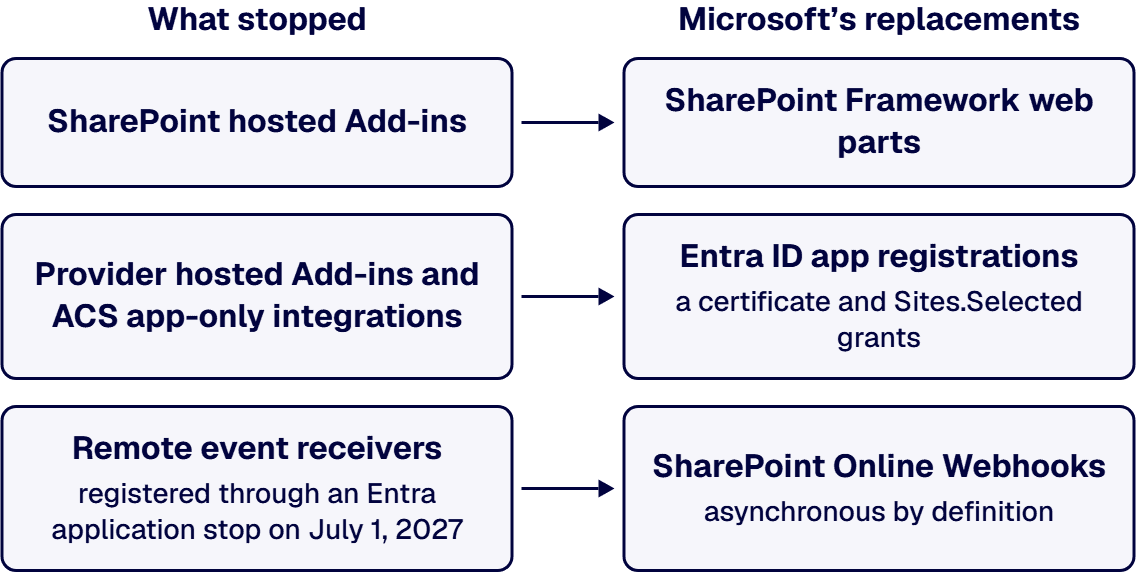
As of September 2026, SharePoint Add-ins and Azure ACS have been fully retired in SharePoint Online since April 2, 2026, for all tenants and all environments, Government Clouds and the U.S. Department of Defense included, and Microsoft’s Azure ACS retirement in Microsoft 365 announcement said there would be no option to extend. What stopped is SharePoint hosted Add-ins, provider hosted Add-ins, and every application that used an ACS app-only principal to reach SharePoint, and Microsoft’s replacements are SharePoint Framework for the in-page experience and Microsoft Entra ID app registrations, with a certificate and Sites.Selected site scoping, for everything that calls SharePoint from outside. Remote event receivers registered through ACS broke on the same date, the ones registered through an Entra application keep working only until July 1, 2027, and Microsoft recommends the Microsoft 365 Assessment tool to find every add-in and ACS principal in the tenant.
These points summarize the Microsoft pages cited above, chiefly the FAQ – SharePoint Add-In and Azure ACS retirement in Microsoft 365:
Start with the integration no one has checked since April: a nightly job that pushed records into a document library with an Azure ACS client secret, or a remote event receiver that stopped deletions in a regulated library. Microsoft’s FAQ – SharePoint Add-In and Azure ACS retirement in Microsoft 365 records that the add-in model was fully retired on April 2, 2026, so anything that authenticated that way has not worked since. The loud failures announced themselves: a web part that stopped rendering, an app that stopped saving. The quiet ones are what an auditor finds when they ask why a control stopped enforcing in April. This guide covers what stopped and what did not, how to find every affected piece, the replacement for each broken class, the government-cloud endpoints, and the one date still ahead.
If your first assumption was that a government tenant got more time, it did not. Microsoft’s SharePoint Add-In retirement in Microsoft 365 announcement set the dates for every tenant and added: “This applies to all environments including Government Clouds and the U.S. Department of Defense.” The same announcement states: “The retirement of SharePoint Add-Ins applies to Project Online as well”
Microsoft’s FAQ – SharePoint Add-In and Azure ACS retirement in Microsoft 365 now states the outcome in the past tense: “The SharePoint Add-In model in SharePoint Online has been deprecated on November 27, 2023 and fully retired on April 2, 2026.” The companion Azure ACS retirement in Microsoft 365 announcement applied to the same environments, Government Clouds and the Department of Defense included, and said: “There will not be an option to extend using Azure ACS with SharePoint Online beyond April 2nd, 2026.” New tenants had already lost both from November 1, 2024.
Three things did not stop, and Microsoft’s FAQ – SharePoint Add-In and Azure ACS retirement in Microsoft 365 answers each one:
This guide’s planning rule: assume nothing in SharePoint Online that authenticated through ACS still works, in any cloud, until someone has tested it and named its owner.
When the only evidence of a failure is a job log no one reads, an inventory is the only way to find it. Microsoft’s SharePoint Add-In retirement in Microsoft 365 announcement says “we recommend that customers run the Microsoft 365 Assessment tool to scan their tenants for SharePoint Add-In usage.” The Microsoft 365 Assessment tool page describes it this way: “The Microsoft 365 Assessment tool is an open source tool that provides customers with data to help them with various retirement and adoption scenarios.”
For Azure ACS, Microsoft’s Azure ACS retirement in Microsoft 365 page lists what the tool’s Azure ACS report lets tenant administrators do:
This guide’s planning rule: build one inventory with four columns, one for each class that broke: SharePoint hosted Add-ins, provider hosted Add-ins, ACS app-only integrations with no add-in at all, and remote event receivers. The third column matters because, as Microsoft’s Azure ACS retirement in Microsoft 365 page explains, ACS was also used to grant applications access to SharePoint Online directly, optionally with application permissions and granular scopes, with no add-in involved. Give every row a named business owner, because a row with no owner is a row no one will retest.
Add-ins you bought rather than built need a decision of their own. Microsoft’s instruction in its SharePoint Add-In retirement in Microsoft 365 announcement is to “contact the provider for an updated version that does not depend on the SharePoint Add-In extensibility model.” For each acquired add-in, record whether such a version exists, who in your organization confirmed it, and on what date.
If an add-in part stopped rendering on a page your users depend on, the rebuild target is already named. Microsoft’s SharePoint Add-In retirement in Microsoft 365 announcement says: “SharePoint hosted Add-Ins can be replaced by SharePoint Framework web parts, for the provider hosted Add-Ins any software as a service application platform (e.g. Microsoft Azure) in combination with Microsoft Entra ID for auth can be used as alternative development model.”
Microsoft’s Modernization guidance for existing SharePoint Add-In model implementations in Microsoft 365 maps each old piece to its replacement. The two pairs that apply to a SharePoint hosted Add-in:
One design constraint carries over from the add-in era and is easy to lose in a rebuild. Microsoft’s Overview of the SharePoint Framework states: “The SharePoint page HTML DOM is not an API.” A rebuilt web part that reads or rewrites page markup to get its data is a rebuild that breaks on the next page change.
Before anyone uninstalls an add-in, get its data out. Microsoft’s FAQ – SharePoint Add-In and Azure ACS retirement in Microsoft 365 is explicit: “It’s important you retrieve the data before you uninstall the SharePoint Add-In, because the app web is deleted when you uninstall the Add-In.” This guide’s planning rule: export the app-web data, have its business owner confirm the export, and only then uninstall.
When the code lived outside SharePoint and called back in, the fix is a new identity rather than a new page. Microsoft’s SharePoint Add-In retirement in Microsoft 365 announcement describes how provider hosted and SharePoint hosted Add-ins reached SharePoint: “They use Azure ACS (Access Control Services) as auth layer to enable calling back into the host web where the SharePoint Add-In was installed.”
The Modernization guidance for existing SharePoint Add-In model implementations in Microsoft 365 gives the same target for both of the other broken classes (Azure AD is the earlier name for Microsoft Entra ID):
For the code itself, Microsoft’s FAQ – SharePoint Add-In and Azure ACS retirement in Microsoft 365 states: “For server-side code the recommendation is to use Microsoft Graph as a first choice.” This guide’s planning rule: every integration that called SharePoint without a user gets its own Entra app registration, never one registration shared across integrations, so that each one can be scoped, rotated and retired on its own.
The fastest rebuild is also the one an auditor flags: a tenant-wide application permission and a client secret pasted into a script. Microsoft’s Granting access via Entra ID Application Permissions page closes the secret option for SharePoint: “In Entra ID when doing app-only you must use a certificate to request access to SharePoint CSOM/REST API’s: anyone having the certificate and its private key can use the app and the permissions granted to the app.” Asked whether anything other than a certificate works for app-only access, the same page answers: “No, all other options are blocked by SharePoint Online and will result in an Access Denied message.”
A certificate decides who can act as the app. Sites.Selected decides where it can act. Microsoft’s Understanding Resource Specific Consent for Microsoft Graph and SharePoint Online page explains: “With Resource Specific Consent (RSC) you can register applications in Microsoft Entra and grant them application-only permissions that can target specific site collections only, like you used to do with ACS.” It also warns that granting the permission is only the first step: “Once the Sites.Selected application permission is assigned and granted, the application still can’t access any target site collection.” Each target site is then granted explicitly, by a tenant global admin or by an application that holds Sites.FullControl.All.
Do not assume what the old principals could reach. Microsoft’s Upgrading SharePoint applications from Azure Access Control Service to Azure Active Directory page describes add-in model app-only permissions reaching the whole tenant, while its resource specific consent page describes ACS registrations targeted at specific site collections. Both describe real registrations. Read each principal’s permission scopes and reachable sites from the assessment report, and size its replacement to what the business process actually used.
This guide’s planning rule: request Sites.Selected, grant only the sites the inventory shows the integration used, keep the certificate’s private key in a managed store with a rotation date, and record a named owner for every registration. For what that ownership record should hold, see Microsoft 365 Integration Firms: The Capability Checklist.
If your tenant is GCC, GCC High or DoD, the retirement date was the same and the rebuilt code differs mainly in where it points. Microsoft’s Azure ACS retirement in Microsoft 365 announcement states: “This applies to all environments including Government Clouds and Department of Defense.”
Microsoft’s Microsoft Graph national cloud deployments page gives the endpoints for each Microsoft 365 government environment:
This guide’s planning rule: rebuilt code reads its cloud’s endpoints from configuration and never hard-codes them from a commercial sample. Confirm on the day that each replacement this guide names (Sites.Selected, SharePoint Online webhooks and the assessment tool) is available on the terms you need in your cloud; this guide does not claim that they behave the same in every cloud. The wider build constraints inside a GCC High tenant are covered in Building on Microsoft 365 GCC High: What Changes.
If a remote event receiver registered through ACS used to stop a deletion in a regulated library, that control stopped when ACS did. Microsoft’s FAQ – SharePoint Add-In and Azure ACS retirement in Microsoft 365 answers the question directly: “Yes, remote event receivers are part of this retirement.” It adds: “Remote event receivers have a dependency on Azure ACS, and will be in broken state when Azure ACS is turned off.”
Receivers registered through an Entra application are on a different path, and it also ends. Microsoft’s Registering and using Remote Event Receivers without having a dependency on Azure ACS page states: “Although these RERs do not depend on Azure ACS they still will retire, the main difference is that they’ll keep working until July 1, 2027 and that they’ll also work for new tenants onboarding after November 1, 2024.” The same page sets a limit on how they work: “Consequence is that your RER service cannot impersonate the user that triggered the RER to fire but it has to use application permissions to call back to SharePoint.”
Microsoft’s FAQ – SharePoint Add-In and Azure ACS retirement in Microsoft 365 names the lasting replacement: “The recommended path forward is to use SharePoint Online Webhooks.” It also names what webhooks cannot do: “As webhooks are asynchronous by definition, synchronous events that allow an app to block or cancel a SharePoint action are no longer possible.” Where a receiver blocked updates or deletions by unauthorized users, the same FAQ points to securing the protected files or folders so they cannot be changed, or moving that data to a hidden library. The mechanics of the move are in Transform SharePoint Add-in model Remote Event Receivers to SharePoint Online Webhooks.
This guide’s planning rule: treat an Entra-registered receiver as a bridge with an end date, not a destination, and redesign every receiver that blocked or cancelled an action before July 1, 2027, recording how each control is now enforced.
Before you plan a rebuild, check that the retirement is really your problem. Microsoft’s Azure ACS retirement in Microsoft 365 page is the test for the first case below:
Whether your own team or an outside one does the work, ask for evidence against the dates and requirements in Microsoft’s FAQ – SharePoint Add-In and Azure ACS retirement in Microsoft 365 before you accept a plan:
Our dedicated SharePoint developers build enterprise-ready solutions using SPFx, Power Platform, and Microsoft Graph. That is the practice described on Enterprise SharePoint Development & Integration Services Built for Scale and Governance, and it is the work this recovery needs: SharePoint Framework for the page experience, Microsoft Graph and Entra ID app registrations for the integrations. i3solutions is a Microsoft-focused application development and integration firm that helps enterprises modernize operations, connect platforms, and build tailored solutions. An i3solutions SharePoint consulting engagement produces named deliverables: a governance documentation package, architecture artifacts, and runbooks. i3solutions has been a Microsoft Partner with 30 years of enterprise technology delivery experience and has delivered 1,500+ Microsoft engagements across aerospace and defense, financial services, and health sciences.
The work runs as a project: the inventory first, then the rebuilds, with embedded specialists where your team needs them. An i3solutions engagement does not produce managed-service ownership, a replacement for the internal team, open-ended scope expansion, or vendor lock-in. The new registrations, certificates and runbooks belong to your tenant and your team, and the decision about what a broken control means under your own obligations stays with your compliance function and assessor.
Yes. According to Microsoft Learn, the SharePoint Add-in and Azure ACS retirements applied to all environments, including Government Clouds and the U.S. Department of Defense, and both stopped on April 2, 2026.
No. According to Microsoft Learn, there was no option to extend Azure ACS with SharePoint Online beyond April 2, 2026, and it has been fully retired since that date. The replacement for anything that called SharePoint through ACS is a Microsoft Entra ID app registration.
No. According to Microsoft Learn, SharePoint Framework (SPFx) is the recommended development model for SharePoint extensibility and is not impacted by these retirements, and it is Microsoft’s replacement for SharePoint hosted Add-ins.
Yes. According to Microsoft Learn, both CSOM and JSOM continue working after Add-ins and Azure ACS were fully retired. What changed is how an app authenticates: app-only access to SharePoint now goes through a Microsoft Entra ID registration with a certificate.
That depends on how each receiver was registered. According to Microsoft Learn, remote event receivers registered using Azure ACS stopped working on April 2, 2026, while those registered using an Entra application keep working until July 1, 2027 and then retire as well.
No. According to Microsoft Learn, SharePoint Online blocks every option for Entra ID app-only access other than a certificate, and those attempts result in an Access Denied message.
By Michael Branson, Founder/COO, i3solutions
If your source is Documentum or OpenText, Microsoft’s Migrate to Microsoft 365 guide, as of September 2026, lists Box, file shares, Google Workspace, Dropbox and SharePoint Server as sources, not those two. Import the schedule as a file plan, migrate under its labels, verify records and holds, decommission last.
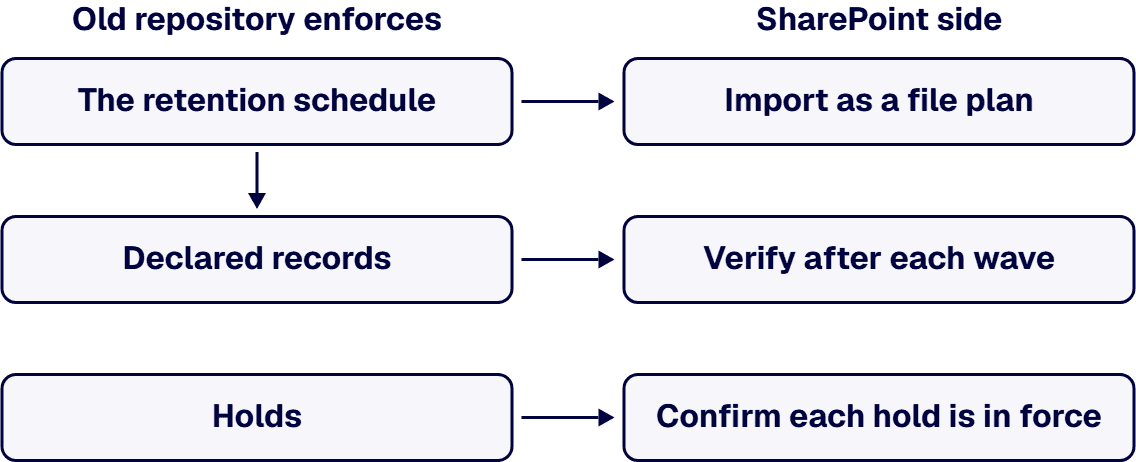
If the plan’s first line is to copy the content, read what Microsoft says a migration is. Its Migrate to Microsoft 365 guide states: “When you migrate your content to Microsoft 365, you are copying the files. Your source files are not deleted.” The copy is one step. The retention schedule, the declared records and the holds are the obligations, and each needs its own step on the SharePoint side before the old repository can be switched off.
Whether SharePoint Online with Microsoft Purview is the right home for this content at all is a decision of its own, and it is set out in SharePoint Online vs a Dedicated DMS: How to Decide.
If your project sponsor expects Microsoft’s own tooling to pull from the old repository, check the list first. As read on 26 September 2026, Microsoft’s Migrate to Microsoft 365 guide answers “Where are you migrating from?” with Box, file shares, Google Workspace, Dropbox and SharePoint Server, and states: “The ability to migrate from Google Drive, Box, Dropbox, and Egnyte is fully integrated into Migration Manager.” Neither Documentum nor OpenText appears on that page. Egnyte is on that list, but the Egnyte to SharePoint Online migration checklist notes that Microsoft lists its Egnyte scenario as unsupported in GCC, GCC High and DoD, and that Egnyte group permissions are not migrated.
Read that for what it is: the sources Microsoft’s own guide covers, not a verdict on any tool. For a Documentum or OpenText source, the migration plan names the export route and the tool that carries it, and records why that route was chosen. Re-read Microsoft’s list at planning time, because the list is Microsoft’s to change.
Before anything moves, write down what the old system does for you, in its vendor’s own terms. OpenText’s Documentum Content Management page describes the product as “cloud-ready document management software that helps organizations rethink content and deliver personalized experiences”, and under records management and governance lists “records lifecycle control, retention policies, and unit-level policy management”. OpenText’s OpenText Content Management (Extended ECM) page lists, under “Information governance and records management”, “legal holds, audit trails”.
Take the inventory from the repository itself, not from memory:
If the inventory is treated as complete once the files are counted, the first wave is where the plan learns that some items cannot land as they are. The table below covers the SharePoint Online and Purview side only, from Microsoft’s own pages; what the old repository holds comes from the inventory above.
| What the plan carries | What SharePoint Online or Purview does | Source |
|---|---|---|
| File metadata | SharePoint updates a file’s metadata when it is uploaded, so a matching file size or file hash does not prove the file is unchanged. The validation method Microsoft documents is set out below, under How Do We Prove a Migrated Record Was Not Altered? | Microsoft’s records management overview: “Typical file properties and methods often used for this type of validation, such as file size or file hash, might not be sufficient because SharePoint automatically updates the metadata for a file when it’s uploaded.” |
| Version history | Microsoft lists a versions limit of 50,000 major versions and 511 minor versions. | Microsoft’s SharePoint limits page, quoted in the next section. |
| Folder path and file name | The entire decoded path, file name included, is limited to 400 characters. | The SharePoint limits page, quoted in the next section. |
| File size | Each uploaded file is limited to 250 GB. | The SharePoint limits page, quoted in the next section. |
| Record declarations | A record in Purview is declared by a retention label, applied on the SharePoint side. Verification is covered below, under Declared Records and Holds: Verify Them on the SharePoint Side. | Microsoft’s declare records page: “To declare documents and emails as records, you use retention labels that mark the content as a record or a regulatory record.” |
| Legal holds | A hold is created in Purview and can take up to 24 hours to take effect. | Microsoft’s Create eDiscovery holds page: “After you create an eDiscovery hold, it may take up to 24 hours for the hold to take effect.” |
| Audit history | Purview logs the labeling actions it performs. No Microsoft page read for this guide describes importing another repository’s audit history. | Microsoft’s declare records page: “The actions of labeling to declare items as records are logged in the audit log.” |
If the first count of items over a limit happens during a wave, the decision about those items gets made against the wave’s deadline. Three limits on Microsoft’s SharePoint limits page decide what cannot land as it is.
File size. The page states: “250 GB – File upload limit. Applies to each individual file uploaded to Microsoft Teams Files tab, SharePoint document libraries, OneDrive folders, and Viva Engage conversations.”
Path length. The page states: “The entire decoded file path, including the file name, can’t contain more than 400 characters for OneDrive, OneDrive for work or school and SharePoint in Microsoft 365.”
Versions. For versions, the page lists “50,000 major versions and 511 minor versions.”
Count the items over each limit in the inventory before the first wave. Then decide, series by series, whether what does not fit is split, shortened or archived, and record that decision with the series before its wave is scheduled.
If content lands before the schedule does, it lands without the labels that carry its retention periods. Microsoft’s records management overview states: “By using a file plan, you can bring in an existing retention plan to Microsoft 365, or build a new one for enhanced management capabilities.” Its file plan page adds: “You can bulk-create retention labels by importing the relevant information from a spreadsheet.” The same page lists descriptors including “Business function/department” and “Provision/citation”, and a “Reference Id file plan descriptor, which you can use as a unique value to your organization”, which is where each old series identifier can be carried.
Check the license before the import. Microsoft’s Purview service description states: “To use the file plan to maintain retention labels, including import and export, the following licenses provide user rights”, and lists Microsoft 365 E5/A5/G5 among them. The structural crosswalk from a file plan built to a defense records standard onto Purview’s descriptors is the subject of a separate i3solutions guide.
When your records manager asks whether a declared record is still a record, answer from what Purview shows, not from what the old system showed. Microsoft’s declare records page states: “To declare documents and emails as records, you use retention labels that mark the content as a record or a regulatory record.” It adds: “If you need to use regulatory records, you must first run a PowerShell command”. Its records management overview says that when an item is declared a record by using a retention label, “Restrictions are placed on the item in terms of what actions are allowed or blocked.” The difference between a record and a regulatory record is set out in the decision guide linked in the opening section.
The Microsoft pages read for this guide do not describe how a declaration made in another repository carries into Purview, so this guide states no mechanism. Verify instead: after each migration wave, sample the declared items in every series against the inventory and record the result. For holds, confirm with counsel that each hold in the inventory is in force on the SharePoint side before its source content is touched.
When an auditor asks whether the record that moved is the record that left, a file size check cannot answer it, because SharePoint updates a file’s metadata as it lands. Microsoft’s records management overview names the case: “If you’re migrating files to SharePoint or OneDrive and your organization needs to manage these items as records, you might need to validate that the files haven’t been altered and retain their immutability status. For example, you’re using a migration solution and need to meet the chain of custody requirements.” It states: “Instead, to validate your migrated files, you can use the value of the vti_writevalidationtoken property, which is a base64-encoded XOR hash of the file before it is modified by SharePoint.”
Microsoft’s steps start with the original file:
Our recommendation is to make this part of every wave: hash each original before export, keep the hashes with the wave record, compare after upload, and record every mismatch before the source is set to read-only. Whether a mismatch holds back the wave is a decision for your records manager.
When counsel asks whether a hold was in force on the day its source content was touched, the answer has to come from a record kept at the time. Microsoft’s Create eDiscovery holds page states: “When you place content locations on hold, content is preserved until you remove the content location from the hold or until you delete the hold.” It also states: “After you create an eDiscovery hold, it may take up to 24 hours for the hold to take effect.”
For record labels, Microsoft’s declare records page states: “The actions of labeling to declare items as records are logged in the audit log.” For SharePoint items, the audit activity it names is “Changed retention label for a file”. Microsoft’s retention page adds that “Retention actions that are logged as auditing events are available only for retention labels and not for retention policies”.
The evidence sequence we recommend for each wave, agreed with counsel before the first one:
If a series has already passed the end of its retention period under the old schedule, it is a disposition decision, not a migration item. Take it to your records manager for sign-off before the move rather than carrying it into Microsoft 365. How to sort content into migrate, archive and retire, and who signs off, is covered in Which SharePoint Content to Migrate, Archive, or Retire.
If the target sites are built after content arrives, labels and permissions get applied after the fact, site by site. Microsoft’s records management overview states: “Using these capabilities, you can incorporate your organization’s retention schedules and requirements into a records management solution that manages retention, records declaration, and disposition, to support the full lifecycle of your content.” Design the information architecture, the permission model and the label policies first; how to configure SharePoint for regulated document management is covered in SharePoint Document Management Consulting for Regulated Enterprises.
If the decommission date is fixed before verification is done, verification gets cut to fit the date. Microsoft’s migration guide states that “Your source files are not deleted”, so the old repository stays in place until you retire it, and the order is yours to set:
If the repository is doing a job SharePoint Online is not set up to do, keeping it can be the right answer. OpenText’s OpenText Content Management (Extended ECM) page lists “Control content sprawl and automate Microsoft 365 workflows” among its integrations, so keeping the repository and integrating it with Microsoft 365 is a real path. Keep it when:
If the repository belongs to a federal agency, some of its series may be permanent records that will one day transfer to the National Archives. NARA’s Transfer Guidance page states: “This NARA Bulletin 2014-04 specifies which file formats are acceptable when transferring permanent electronic records to NARA.” It states: “This NARA Bulletin 2015-04 defines the minimum set of metadata elements that must accompany transfers of permanent electronic records to the National Archives.” It also states: “Per 36 CFR 1235.48, Federal agencies are required to transfer documentation adequate for NARA to identify, service, and interpret permanent electronic records for as long as they are needed.” This applies to permanent records that will transfer to NARA, not to every record in the repository. Whether a series is permanent is the agency records officer’s determination under its approved schedule, and this guide does not make that call.
For a file plan built to a defense records standard, how it maps onto Purview is covered in DoD 5015.2 File Plan: How Does It Map to Purview Records Management?.
When the question reaches i3solutions, the work starts from the inventory: what the old repository enforces, which series and holds are live, and which licenses the tenant holds. i3solutions implements the Microsoft technology a customer needs, SharePoint Online and Microsoft Purview included, so the file plan, the target sites and the migration waves are work i3solutions carries as one scoped migration project. Its SharePoint Migration Services for Enterprise Microsoft Environments page states: “i3solutions evaluates site architecture, permissions, content structure, workflows, integrations, governance requirements, and migration constraints before defining the right path forward.” These are the statements we can document, quoted at the size we can document them:
The Purview side of the work is covered in Microsoft Purview Technology Readiness Services, and where this work sits in the wider practice in Enterprise SharePoint Development & Integration Services Built for Scale and Governance.
If you plan from Microsoft’s own guide, it does not list Documentum: as read in September 2026, Microsoft’s Migrate to Microsoft 365 page lists Box, file shares, Google Workspace, Dropbox and SharePoint Server as sources, and neither Documentum nor OpenText appears on it. Name the export route and the tool in the migration plan, and re-read Microsoft’s list at planning time.
If the schedule exists in a spreadsheet or can be exported to one, yes: Microsoft’s records management overview states “By using a file plan, you can bring in an existing retention plan to Microsoft 365, or build a new one for enhanced management capabilities.”, and its file plan page states “You can bulk-create retention labels by importing the relevant information from a spreadsheet.” Import it before any content moves.
When the records move, verify each declared series on the SharePoint side. In Purview, Microsoft’s declare records page states: “To declare documents and emails as records, you use retention labels that mark the content as a record or a regulatory record.” Microsoft’s pages, as read in September 2026, do not describe how a declaration made in another repository carries into Purview, so sample declared items against the inventory after each wave.
If your tenant holds none of the listed licenses, it lacks the user rights Microsoft ties to file plan import and export. Microsoft’s Purview service description states: “To use the file plan to maintain retention labels, including import and export, the following licenses provide user rights”, and lists Microsoft 365 E5/A5/G5 among them. Check your tenant against Microsoft’s full list before the schedule goes in.
When declared records and holds are verified on the SharePoint side and your records manager and counsel have signed off. Microsoft’s Migrate to Microsoft 365 guide states: “When you migrate your content to Microsoft 365, you are copying the files. Your source files are not deleted.” The old repository stays in place until you retire it, so run a read-only parallel period first.
Quick answer. As of September 2026, Microsoft’s standalone SharePoint Online and OneDrive for Business Plan 1 and Plan 2 SKUs have already stopped selling to new customers (no new purchases after May 31, 2026), stop renewing entirely at the next renewal on or after January 2027, and fully retire in December 2029, per the partner advisory in Microsoft’s Partner Center announcements for January 2026 (no separate day-level customer notice was found at primary source). Microsoft’s own stated destinations are a Microsoft 365 suite, capacity packs, or pay-as-you-go storage, and Microsoft Learn’s storage add-on page names Microsoft 365 OneDrive Storage, OneDrive Extra Storage, Microsoft 365 SharePoint Storage and Office 365 Extra File Storage, with a billing-channel condition on the last. A tenant that added these plans to raise Frontline Worker OneDrive storage needs a different fix, because the answer in Microsoft’s licensing FAQ names the same plans that are retiring.
Every fact below is drawn from Microsoft’s Partner Center announcements for January 2026, licensing FAQ, SharePoint limits and storage add-on page, all re-read on drafting day, except where a line says it is this guide’s own rule:
If the team is planning around December 2029, it is planning around the wrong date. The partner advisory in Microsoft’s Partner Center announcements for January 2026 opens: “Microsoft is evolving its cloud storage and collaboration offerings and is retiring the standalone SharePoint Online (SPO) plan 1 and plan 2 and OneDrive for Business (ODB) plan 1 and plan 2 SKUs.” It then gives three dates, each with its own condition:
End of sale has already passed. As of September 2026, according to that advisory, no new tenant or customer can buy these plans, and an existing customer can only renew. The date that forces a decision is end of life, January 2027: a contract in force continues until it expires, but it cannot be renewed. So the working deadline for each affected account is the renewal date of the contract it sits on, the first one that falls on or after January 2027. December 2029 is the date the plans are fully retired, and it is the last of the three, not the first.
The dates are at month precision, and that is how Microsoft published them. The same Partner Center announcement states: “Retirement announcement: this change is communicated to customers in late January 2026.” No separate customer-facing Microsoft notice with day-level dates was found in the Microsoft Learn service descriptions, the licensing FAQ or any other Microsoft page read for this guide, so this guide does not supply a day, and neither should a renewal plan. The OneDrive service description, read on drafting day, still states: “OneDrive is included in Microsoft 365 and Office 365 plans, in SharePoint plans, and can also be purchased as a standalone plan.” Treat the advisory as the dated source, and check it again before each renewal.
When a sponsor asks whether the retirement might be reversed, the answer is in Microsoft’s own reasons. The Partner Center announcement states: “This change reflects low customer demand for standalone offerings, increased instances of unintended or nonstandard usage, and higher operational costs associated with maintaining these plans.” It adds: “As Microsoft continues to invest in secure, scalable, and integrated experiences, Microsoft 365 suites remain the primary way customers access SharePoint and OneDrive capabilities.” Those are Microsoft’s words, not this guide’s assessment. They point the same way as the destinations Microsoft names: a suite, a capacity pack, or pay-as-you-go storage.
If no one remembers buying a standalone plan, that is not evidence the tenant is unaffected, and assuming it is the most common mistake here. This guide’s planning rule, not Microsoft’s: before anyone decides the tenant has nothing to do, pull every license assignment for SharePoint Online Plan 1, SharePoint Online Plan 2, OneDrive for Business Plan 1 and OneDrive for Business Plan 2 from the Microsoft 365 admin center, with the contract and renewal date each one sits on. The OneDrive service description is a reminder of why they hide well: OneDrive comes with suites and with SharePoint plans, and it was also sold on its own, so a standalone seat looks like any other OneDrive user until the license is read.
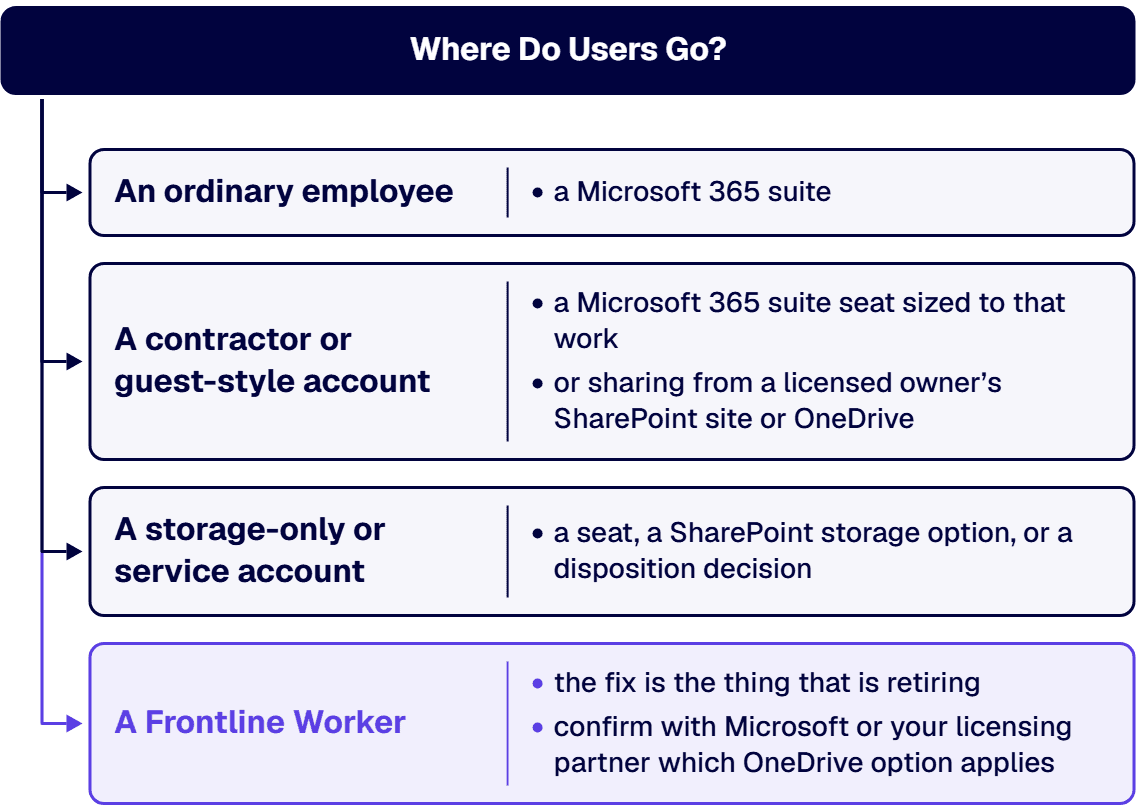
Sort every account that turns up into one of four classes. The classes are this guide’s own framing; Microsoft’s retirement advisory does not use them:
For each account, record the class, the owner, the renewal date of its contract, how much OneDrive or SharePoint content it holds, and who still uses that content. That record is what the rest of this guide routes from.
When a contractor was put on a standalone plan instead of a full suite seat, the question now is what that person actually does in the tenant. Microsoft’s retirement advisory does not mention contractors or guests, so this section is this guide’s own framing, not Microsoft’s guidance. Two routes cover most cases:
Either way, record the decision against the account in the inventory, with the owner who approved it. A contractor account that no one can name an owner for is usually a storage-only account in disguise, and belongs in the next section.
If your Frontline Workers ran short of OneDrive room and someone fixed it by adding a plan, the fix is the thing that is retiring. Microsoft’s licensing FAQ asks: “How can customers increase the OneDrive storage size for Frontline Workers?” Its answer, as read on drafting day: “Add SharePoint P1/P2 or OneDrive P1/P2.” Those are the same standalone plans the Partner Center announcement retires. The FAQ page carries no retirement note and no date, and no Microsoft page read for this guide gives a replacement answer for this case. This guide does not claim Microsoft has, or has not, changed its guidance anywhere else; it states only what these two pages say today.
Microsoft’s SharePoint limits table shows the storage side of the same problem. The rows below restate that table for the organization-level storage figure; the values are Microsoft’s:
The Frontline row is the only one with a flat figure; every other row, including the standalone SharePoint plans, adds storage per license. That flat figure is the organization’s SharePoint total, not a per-user OneDrive figure, and this guide does not apply it to any other row.
Microsoft Learn’s storage add-on page describes the OneDrive options that remain. It states: “Microsoft 365 OneDrive Storage enters public preview in July 2026 and will be available to all commercial customers.” It describes that product as “a pay-as-you-go service” for storage above an account’s licensed quota. It also states: “OneDrive Extra Storage is sold as capacity packs in 100-GB, 500-GB, and 1-TB through 6-TB sizes.” Two limits come with it: “A capacity pack can’t be split across multiple users.” and “A single user’s total storage can’t exceed 25-TB.” The same page says of a capacity pack: “It doesn’t replace the user’s existing OneDrive license.” That page does not mention Frontline plans, so it does not say whether either OneDrive option can be applied to an F1 or F3 user. This guide’s planning rule, not Microsoft’s: for a Frontline-heavy tenant, confirm with Microsoft or your licensing partner which OneDrive option applies to your F1 and F3 users before the first standalone renewal lapses, rather than relying on the FAQ’s current wording.
If an account exists only to hold content, a like-for-like swap is least likely to exist, because a capacity pack is not a license. Microsoft Learn’s storage add-on page says of OneDrive Extra Storage: “It doesn’t replace the user’s existing OneDrive license.” So an account that exists only to hold files in OneDrive still needs a licensed seat under it, and the pack only adds room on top. Where the content is better held in a SharePoint site, the same page names the tenant-level options: “Use the Office 365 Extra File Storage add-on to add more storage in 1-GB increments.” It also states: “As of June 2026, Microsoft 365 SharePoint storage is in public preview for all commercial tenants.” That product is described as “a pay-as-you-go service”. One condition applies to the first of those: “If you bought your subscription through Volume Licensing or a Cloud Solution Provider (CSP), you can’t buy Office 365 Extra File Storage directly from Microsoft.”
Check the tenant’s total before any standalone license lapses. Microsoft’s SharePoint limits table gives the SharePoint Plan 1 or 2 column the same “1 TB + 10GB per license purchased” formula as the suites, and the page warns that a tenant that keeps operating above its storage limits risks being put into read-only mode: “This means that users may be unable to add or modify content until storage usage is reduced or additional capacity is purchased.” This guide’s planning rule, not Microsoft’s: recompute the tenant’s storage total without the standalone licenses you plan to drop, and add capacity or reduce content before the renewal that removes them.
For some accounts the honest answer is that no seat is needed at all, because the content is what matters and no one uses it. That is a disposition decision, and it has its own guide: Which SharePoint Content to Migrate, Archive, or Retire. Make that decision, with its owner, before paying to keep an account alive that exists only to hold files.
If the tenant runs in a US government cloud, do not assume the commercial dates carry over, and do not assume they do not. No Microsoft page read for this guide states whether standalone SharePoint Online or OneDrive for Business Plan 1 or Plan 2 exist in GCC, GCC High, DoD or 21Vianet, or whether this retirement applies there on the same dates. The Office 365 GCC High and DoD service description does not mention standalone SharePoint or OneDrive plans at all, and that silence is not a statement either way. Confirm with Microsoft directly before the plan depends on it.
The storage options are clearer. Microsoft Learn’s storage add-on page states, for both Microsoft 365 OneDrive Storage and Microsoft 365 SharePoint Storage: “This product isn’t currently available to education, GCC, or Microsoft 365 operated by 21Vianet in China customers.” The same page states: “Office 365 Extra File Storage is also available for GCC, GCC High, and DOD plans.” Plan government-cloud destinations from those two statements, not from the commercial list.
If the question from the business is whether files disappear, the source does not answer it. The Partner Center announcement describes licensing status: at end of life, “no renewals; existing contracts continue until expiration”; at end of service, “all standalone plans fully retired”. It does not say whether content held under an unrenewed standalone license is deleted, kept read-only, or simply left without a license, at the moment a contract expires or in December 2029. This guide makes no claim either way. Confirm the data handling with Microsoft or your licensing partner before an account’s contract expires, and move or dispose of the content first rather than finding out afterward.
Before you start, check whether the tenant needs this work at all; some tenants need a different piece of work instead:
Whoever does this work with you, inside the organization or outside it, hold it to these criteria, stated as what they should be able to show you:
No firm or product is named or compared in that list.
According to Microsoft’s Partner Center announcement of January 2026, end of life is January 2027, with no renewals, and existing contracts continue until expiration. End of service, when all standalone plans are fully retired, is December 2029.
No. According to Microsoft’s Partner Center announcement of January 2026, end of sale was June 2026, with no new tenants or customers after May 31, 2026, and renewals for existing customers only.
The source does not say. According to Microsoft’s Partner Center announcement of January 2026, end of life means no renewals and end of service means all standalone plans are fully retired; it does not state whether content is deleted, kept read-only or left unlicensed. Confirm the data handling with Microsoft before a contract expires, and move or dispose of the content first.
According to Microsoft’s licensing FAQ, the answer is to add SharePoint P1/P2 or OneDrive P1/P2, which are the plans being retired, and no Microsoft page read for this guide gives a replacement answer. Microsoft Learn names Microsoft 365 OneDrive Storage and OneDrive Extra Storage capacity packs for adding OneDrive storage, without saying whether they apply to F1 or F3 users, so confirm that with Microsoft first.
No Microsoft page read for this guide says whether standalone SharePoint Online or OneDrive for Business plans exist in GCC or GCC High, or whether the retirement applies there on the same dates, so confirm with Microsoft directly. According to Microsoft Learn, Microsoft 365 OneDrive Storage and Microsoft 365 SharePoint Storage are not currently available to GCC customers, while Office 365 Extra File Storage is available for GCC, GCC High and DoD plans.
i3solutions plans and runs governed Azure and Microsoft 365 migrations with senior, U.S.-based engineers. For this retirement, that means a project, with embedded specialists where your team needs them, that inventories every standalone SharePoint and OneDrive assignment, classifies each account, plans the destination for each one against its renewal date, and moves the accounts and their content. i3solutions has been a Microsoft Partner with 30 years of enterprise technology delivery experience and has delivered 1,500+ Microsoft engagements across aerospace and defense, financial services, and health sciences. An i3solutions engagement does not produce managed-service ownership, a replacement for the internal team, open-ended scope expansion, or vendor lock-in.
For how this fits the wider SharePoint estate, see Enterprise SharePoint Development & Integration Services Built for Scale and Governance.
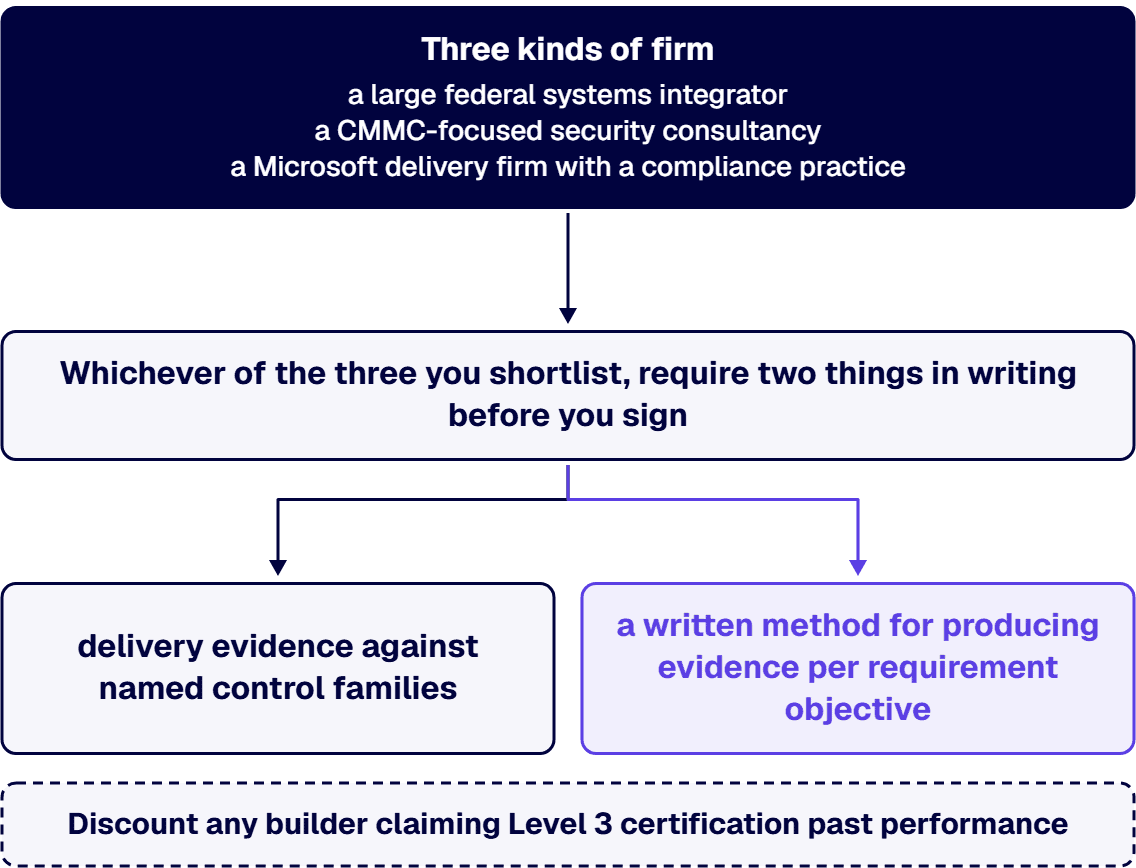
Three kinds of firm: a large federal systems integrator, a CMMC-focused security consultancy, or a Microsoft delivery firm with a compliance practice. Whichever of the three you shortlist, require two things in writing before you sign. First, delivery evidence against named control families in NIST SP 800-171 and a GCC High tenant boundary, because 32 CFR 170.14(c)(3) makes Level 2 identical to NIST SP 800-171 R2 and 170.18(a) makes a Final Level 2 (C3PAO) status a prerequisite to a Level 3 assessment. Second, a written method for producing evidence per requirement objective. Discount any builder claiming Level 3 certification past performance, and take the Level 2 and NIST SP 800-171 artifact set as the evidence standard instead. Under 32 CFR 170.18(c)(6)(ii) an external service provider’s services are assessed inside your assessment, so the builder’s documentation discipline becomes your findings.
The pattern shows up on the second call, not the first. A defense contractor architected its SharePoint estate for CMMC Level 2, cleanly: a CUI site collection, sensitivity labels, Conditional Access, a documented boundary. Then a prime flowed down a Level 3 requirement on a follow-on award, and the assessor conversation moved from “do you have the control” to “show me the evidence for each requirement objective, per asset, and hash the artifact so we can prove it was not altered.” The controls existed. The information architecture could not produce evidence at that grain, because it was designed to pass a Level 2 self-assessment rather than to survive a DIBCAC certification assessment. Nothing was broken. It was built one tier below the question it was about to be asked.
Level 3 is not a stricter reading of Level 2. It is a different requirement set, layered on top, assessed by a different party. The four facts that change the architecture, all from 32 CFR Part 170:
Two of the 24 requirements land on the SharePoint boundary directly (32 CFR 170.14(c)(4), Table 1, items (i) and (ii)). AC.L3-3.1.2e requires you to “Restrict access to systems and system components to only those information resources that are owned, provisioned, or issued by the organization.” AC.L3-3.1.3e requires you to “Employ secure information transfer solutions to control information flows between security domains on connected systems.” Several more reach the estate indirectly, and section 2 maps them.
The current program state matters and is easy to get wrong. The DoD CIO CMMC program page, read 2026-08-19, states that “On July 13, 2026, the Department of War announced the immediate suspension of the Cybersecurity Maturity Model Certification (CMMC) Phase II requirements, which was originally scheduled for November 10, 2026. All Phase I self-assessment requirements remain firmly in place.” The About CMMC page adds that “CMMC implementation is paused in Phase 1” and that during this period “the DoW will enforce cybersecurity compliance with NIST 800-171 Rev 2 through self-assessments and select government-led assessments”. It also states that the action “does not eliminate the requirement for companies to protect information in accordance with DFARS clause 252.204-7012”. So the Level 3 requirement text is codified and stable, the contractual trigger for Phase II is suspended pending review, and the 800-171 obligation is untouched. Design for the codified requirement, schedule the certification against the program state.
Most of the 24 Level 3 requirements are not SharePoint controls. They are enterprise controls that your SharePoint design either supports or quietly defeats. The ones that change a build:
The estate that fails here usually passes every control test first. It has the labels, the Conditional Access rules and the documented boundary, and it still cannot produce a result per requirement objective without a manual reconstruction. The requirement that reshapes information architecture is not a control at all. It is the submission format: a result for each security requirement objective, with hashed artifacts. That forces four design decisions upstream of any site build.
i3solutions runs migrations against named control families across CMMC, HIPAA, SOC 2, and NIST 800-171, producing artifacts auditors can review. That is the method this section describes, stated at the tier it has actually been delivered.
Sequence matters more than tooling, because two of the steps are irreversible in practice. Content moved into an enclave before it was classified stays there, and permissions replicated during a migration become the baseline nobody revisits.
On cost, i3solutions publishes attested bands for the work that sits underneath a Level 3 ambition. A CMMC Level 2 implementation for a defense contractor with a defined CUI boundary typically ranges from $45,000 to $75,000, covering the Compliance Manager baseline assessment, Conditional Access redesign, DLP policy build and testing, Purview Audit Premium configuration, and post-implementation documentation. Full migration project cost for defense contractors with SharePoint customizations and CMMC compliance scope typically lands in the $100,000 to $300,000 range. For the GCC High move considered on its own, the attested band reads: “Implementation costs for a GCC High migration typically range from $75,000-$150,000 for this organization size, including data migration and compliance configuration.” That band travels with the organization size it was scoped against, so read it as an order of magnitude for planning rather than as a quote. None of these three bands price a Level 3 certification assessment, which is a DIBCAC engagement rather than an implementation.
The vetting question that separates candidates fastest is not about certifications. It is about what happens to their work inside your assessment.
i3solutions does not hold a CMMC Level 3 certification and does not claim Level 3 past performance. Our attested delivery evidence is at the Level 2, NIST SP 800-171, and GCC High tier, which is the foundation a Level 3 scope is built on and the prerequisite the rule names.
i3solutions has delivered enterprise SharePoint consulting for defense contractors and a federal research agency. Our teams maintain dedicated compliance specialists who understand CMMC, HIPAA, SOC 2, and financial services regulations within Microsoft environments, providing audit trail documentation and access control frameworks that reduce audit preparation time by 60%. On the platform side, the GCC High and CUI enclave work described above is the same work priced in the bands in section 4.
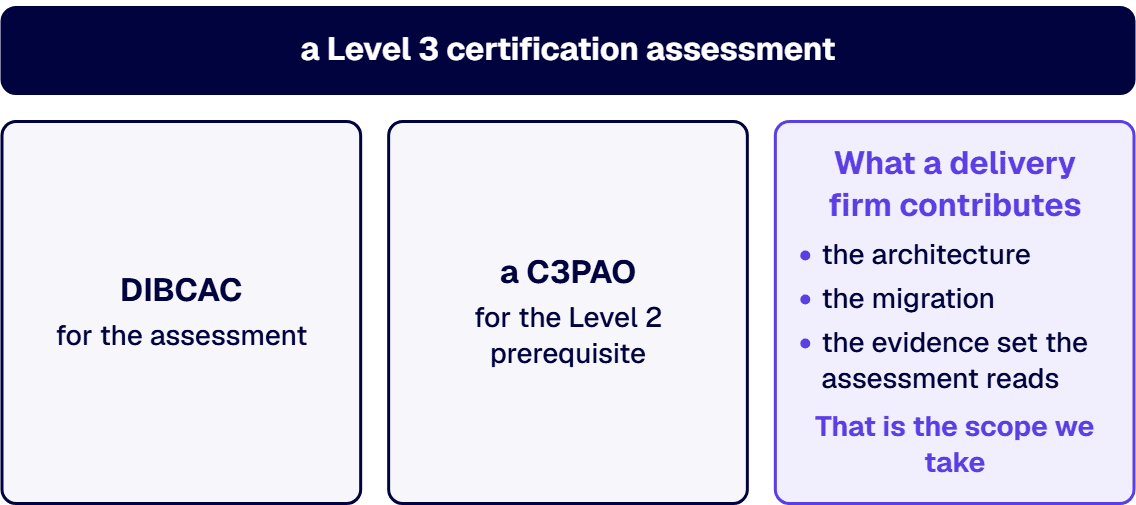
If your requirement is a Level 3 certification assessment, your counterparties are DIBCAC for the assessment and a C3PAO for the Level 2 prerequisite. What a delivery firm contributes is the architecture, the migration, and the evidence set the assessment reads. That is the scope we take.
Most people reading this are deciding two things at once: whether their current SharePoint estate can carry a Level 3 scope, and whether the firm they already use can build to that standard. Both are answerable in one session with the right inputs. Bring the asset inventory if you have one, the tenant topology, the CUI categories in play, and the contract language that raised the question. Thirty minutes is enough to tell you whether you are looking at a documentation gap, an information architecture rebuild, or a tenant boundary decision, and those three have very different costs.
You will get a straight read either way, including the read that your Level 2 posture is sound and the Level 3 question is premature given the program pause. That answer is free and it is often the correct one.
No, and no builder should tell you otherwise without naming a specific DIBCAC-assessed environment. i3solutions has delivered enterprise SharePoint consulting for defense contractors and a federal research agency. Separately, i3solutions runs migrations against named control families across CMMC, HIPAA, SOC 2, and NIST 800-171, producing artifacts auditors can review. We manage GCC High migrations end-to-end: from eligibility validation and licensing coordination with your AOS-G supplier through identity architecture, data migration, security baseline configuration, and post-migration governance. i3solutions plans and runs these migrations for regulated defense organizations, structuring each phase around the compliance evidence assessors expect. i3solutions has deployed Power BI inside a GCC High tenant and inside Azure Government for a federal customer. i3solutions maps your Microsoft environment against CMMC Level 2 (110 controls), HIPAA administrative safeguards, and SOC 2 access control frameworks, producing audit-ready documentation that satisfies assessors, not just internal IT teams. That is the tier the rule makes a prerequisite for Level 3, so it is the relevant experience, but it is Level 2 experience and we state it that way.
Not automatically. 32 CFR 170.18(c)(5) requires a cloud service offering meeting “the FedRAMP Moderate (or higher) baseline,” or security requirements equivalent to it in accordance with DoD policy. GCC High is the usual answer when ITAR or export-controlled technical data is in the boundary. Where it is not, a commercial tenant with a documented overlay can meet the baseline requirement, and the decision should be made on the data you hold rather than on the level number.
No. Section 170.18(a) makes a CMMC Status of Final Level 2 (C3PAO) on the systems in the Level 3 scope a prerequisite, and the Level 3 scope must be equal to or a subset of that Level 2 scope. Level 2 also has to be reassessed every three years to keep Level 3 status current.
No. The DoD CIO CMMC program page, read 2026-08-19, states that “All Phase I self-assessment requirements remain firmly in place”. The About CMMC page, read the same day, states that “the DoW will enforce cybersecurity compliance with NIST 800-171 Rev 2 through self-assessments and select government-led assessments”, and that the action “does not eliminate the requirement for companies to protect information in accordance with DFARS clause 252.204-7012”. The Level 2 work is unchanged. What has moved is the contractual trigger for the higher-tier certifications.
If they process, store, or transmit CUI, yes, and so will the environments that hold copies of them. CM.L3-3.4.1e and CM.L3-3.4.3e require an authoritative, automatically maintained inventory of system components, CA.L3-3.12.1e brings them into annual penetration testing, and SI.L3-3.14.3e pulls test equipment into scope unless it is segregated and proven separate. Inventory the custom surface early. It is usually larger than the architecture diagram suggests.
By Michael Branson
As of September 2026, Microsoft’s timeline for SharePoint Online has two dates: beginning March 1, 2027, no tenant can create new classic publishing sites or activate the classic publishing feature, and beginning October 1, 2028, classic user-created pages in existing tenants become read-only and the ability to add or update custom scripts is disabled by default. Tenants created on or after March 1, 2027 get the page and script restrictions from that date, and Microsoft Learn says “These changes don’t delete or modify existing classic page content.” and “Affected pages remain available for viewing but become read-only when the applicable phase takes effect.” Microsoft states that the classic user-created page changes apply across its environments including Microsoft 365 Government (GCC, GCC High, and DoD), and its first step is an inventory with Microsoft Purview Audit and the Microsoft 365 Assessment Tool.
When a message-center notice or a forwarded note says Microsoft is turning off classic SharePoint, the first two questions in the room are what in the tenant is classic and which date is ours. This guide reads Microsoft Learn as served on September 24, 2026, sorts the change by the tenant it binds, and turns Microsoft’s own assessment steps into an inventory and a first modernization wave you can fund against the right date. Microsoft’s main page on the change, Upcoming changes to classic publishing sites, classic pages, and custom scripting in SharePoint Online, was last updated August 28, 2026.
If your planning assumes one deadline for everything, split it first, because Microsoft binds different changes to different tenants. Microsoft’s page says “The change rollout begins on March 1, 2027, and continues on October 1, 2028.” Under its heading for changes to all tenants, it lists “Creation of new classic publishing sites will be disabled for both site collections and subsites.”, “Activation of classic publishing feature will be disabled for both site collections and subsites.” and “The AllowClassicPublishingSiteCreation tenant setting will be enforced as False and cannot be changed.” Under its heading “Additional changes for new tenants created on or after March 1, 2027”, Microsoft lists “Users can no longer create new classic pages.”, “The ability to add or update custom scripts will be disabled by default.” and “The DenyAddAndCustomizePages site setting will be enforced as True and cannot be changed.” For the second date, the page says “The Phase 1 page and scripting restrictions will extend to all remaining existing tenants:” and lists “Classic user-created pages become read-only. Users can no longer create or edit classic pages.”, the same custom script line and the same DenyAddAndCustomizePages line.
The planning rule for an existing tenant follows from that table: its publishing-site deadline is March 1, 2027, and its page and custom script deadline is October 1, 2028. A summary that says custom scripts are switched off for everyone on March 1, 2027 is not what Microsoft’s page says; that date carries the script change only for tenants created on or after it.
When the inventory starts, the first dispute is usually over which pages count, so settle it from Microsoft’s list rather than from the look of a page. Microsoft’s page says the read-only change applies to these classic user-created page types:
It then says “Other classic experiences, including list and library views and list form pages, aren’t in the current scope. However, custom scripts embedded in those experiences are subject to the changes to custom script creation and updates.” For publishing sites, its FAQ says that beginning March 1, 2027 you can’t create site collections or subsites from the publishing-related templates it lists: Publishing Portal Site, Publishing Site, Publishing Site Blank, Enterprise Wiki, Enterprise Search Center, Site Directory, News Home Site, Product Catalog, Report Center and Topic Area Template. The same answer says “Other classic templates aren’t affected by this change.”
Nothing is deleted on either date. Microsoft Learn says “These changes don’t delete or modify existing classic page content.” The governance and information-architecture decision that sits above page modernization, including whether to modernize in place or with a migration, is covered in Governance-First SharePoint Modernization for Regulated Enterprises; this guide stays with the dated change.
If script-enabled sites have been treated as a design convenience, read what Microsoft says a site owner can do with them. Microsoft’s Allow or prevent custom script page says “If you allow custom script, all users who have Add and Customize Pages permission to a site or page can add any script they want.” Its Security considerations of allowing custom script page says “When you allow users to run custom script, you can no longer enforce governance, scope the capabilities of inserted code, block specific parts of code, or block all custom code that has been deployed.” It adds that if you’ve allowed custom script and later change the setting, “you can’t block the execution of script that has already been inserted.”
Today, allowing script is already temporary. Microsoft’s Allow or prevent custom script page says “Changes to allow custom scripts are overridden to Not allowed within 24 hours.” It also describes what breaks when script is blocked: for SharePoint Framework web parts that have the requiresCustomScript value set to true, “Every instance of a web part that was added to a page when custom scripts were previously allowed no longer surfaces in those pages.”, and its table of affected features lists, for publishing sites, “Can’t create or edit master pages and page layouts”.
Microsoft’s direction is stated plainly on the security page: “Instead of allowing custom script, we recommend using the SharePoint Framework.” A tenant that wants the block before the dates can use the setting Microsoft’s Baseline security mode settings page describes: “This setting permanently removes the ability to add new custom scripts in OneDrive and SharePoint sites.”
If a rebuild is funded before anyone has counted, the estimate is a guess, and Microsoft’s own advice is to measure first: “Start assessing your environment and planning modernization now.” Microsoft’s deprecation page names two instruments. It says “Use the Microsoft Purview Audit SharePoint Classic Activities category and the ClassicPageCreated, ClassicPageEdited, and ClassicPageViewed events to understand current usage.” and “Run the Microsoft 365 Assessment Tool to identify classic pages, Web Parts, customization patterns, and modernization feasibility.”
Two conditions on the assessment matter before it is run. Microsoft’s Requirements for the classic pages assessment page says “The classic pages component assesses SharePoint Online. It doesn’t assess SharePoint Server or another on-premises source.” The same page tells you to configure the tool’s settings for tenants in GCC High and DoD, among other environments it lists.
For custom script, the SharePoint admin center already holds a list. Microsoft’s custom script page says “The Custom script allowed sites view is also available to provide easy access to all sites where custom script is enabled” and warns “These views show which sites are configured to allow custom scripts, even if they don’t actually use custom scripts.” A site on that list is a site to check, not a confirmed dependency.
Turn the results into a register before any estimate:
If the register comes back empty, Microsoft’s page says “If your assessment finds no classic publishing sites, classic user-created pages, or affected custom scripts, no action is required for these changes.”
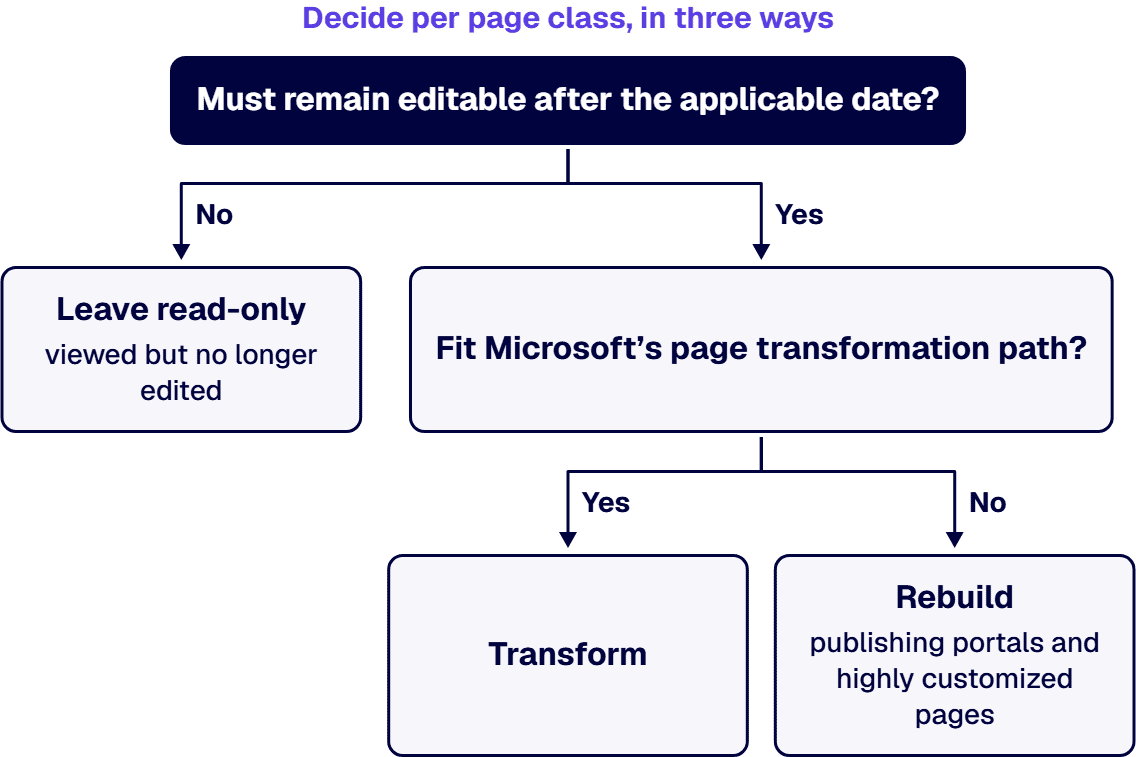
When the register is long, the failure mode is a program that converts everything at the same priority, and Microsoft’s advice points the other way. Its deprecation page says “Start with frequently edited, high-traffic, or business-critical pages.” and, in its FAQ, “Modernize pages that must remain editable after the applicable date.” Microsoft’s Modernize your classic SharePoint sites page says “we recommend that you transform only the pages that are frequently used.”
Decide per page class, in three ways:
The transformation tooling carries conditions a regulated change process has to weigh. Microsoft’s Transform classic SharePoint pages to modern pages page says “Publishing pages, Blog pages, pages outside SitePages, home pages, and SharePoint Server sources require separate advanced procedures and aren’t accepted by the page wave scripts.” and “The page transformation engine is part of the open-source PnP Framework and doesn’t have a Microsoft support SLA.” Microsoft’s deprecation page points to PnP PowerShell for deterministic page transformation and to the open-source SharePoint Page Migration Agent (preview) for complex pages, and says in the same passage “Preview and community tools might not fully automate complex scenarios and don’t have a Microsoft support SLA.”
Plan to replace script-based customizations rather than re-allow them: Microsoft recommends the SharePoint Framework, and a publishing site with script blocked cannot create or edit master pages and page layouts, according to Microsoft’s custom script page. Validate each wave before the next one starts, the way Microsoft’s transformation page validates each generated page before a larger wave.
If your tenant sits in a government cloud, check Microsoft’s cloud line before assuming a separate clock. Microsoft’s deprecation page says “The changes to classic user-created pages apply across all Microsoft 365 environments, including:” and its list includes “Microsoft 365 Government (GCC, GCC High, and DoD)”. That sentence names the classic user-created page change; for the publishing-site and custom script changes in a government cloud, confirm the timing with Microsoft rather than infer it. The assessment itself is configured for GCC High and DoD tenants, according to Microsoft’s requirements page.
For a regulated tenant, the pages to inventory first are the ones that must stay editable after the date: policy libraries, regulated notices, controlled procedures and records-facing pages. Which of them your security, records and compliance owners require to remain editable is their determination; the inventory gives them the list to decide on.
If classic content still lives on SharePoint Server, Microsoft’s deprecation page says “Beginning March 1, 2027, classic publishing sites can’t be migrated as-is to a newly created classic publishing site in SharePoint Online because creation of those sites is disabled.” and “Script-based page elements and other customizations might not be preserved.”, and its assessment requirements page says the classic pages component doesn’t assess SharePoint Server. Leaving SharePoint Server is its own decision, covered in Our SharePoint Server Is Reaching End of Life: How Do We Migrate Off On-Premises to Microsoft 365?.
If the assessment finds nothing in scope, the work is smaller than this guide suggests, and Microsoft says no action is required for these changes. Other cases where a full program is the wrong answer:
When you bring in help for the inventory or the waves, hold every proposal to the same criteria:
When the inventory has to be read and the waves planned before either date, i3solutions scopes it as a project: the Purview Audit and Assessment Tool read, a per-page date and decision map, communication-site rebuilds for publishing portals, page transformation waves, SharePoint Framework replacements for script-based customizations, validation, and handover. Embedded specialists can join your own team where it needs them during the waves.
All i3solutions SharePoint developers, architects, and consultants are 100% U.S.-based. An i3solutions SharePoint consulting engagement produces named deliverables: a governance documentation package, architecture artifacts, and runbooks.
Experience sits behind the method. i3solutions has been a Microsoft Partner with 30 years of enterprise technology delivery experience and has delivered 1,500+ Microsoft engagements across aerospace and defense, financial services, and health sciences. An i3solutions engagement does not produce managed-service ownership, a replacement for the internal team, open-ended scope expansion, or vendor lock-in. The wider service line is described on Enterprise SharePoint Development & Integration Services Built for Scale and Governance.
No. Microsoft Learn says “These changes don’t delete or modify existing classic page content.” and “Affected pages remain available for viewing but become read-only when the applicable phase takes effect.” It also says “For all remaining existing tenants, classic user-created pages that haven’t been modernized become read-only beginning October 1, 2028.”
Not for an existing tenant on that date, and what Microsoft lists is a change to adding or updating custom scripts. Microsoft Learn lists “The ability to add or update custom scripts will be disabled by default.” under its additional changes for new tenants created on or after March 1, 2027, and the same line again among the changes that extend to all remaining existing tenants beginning October 1, 2028.
Yes, for classic user-created pages. Microsoft Learn says “The changes to classic user-created pages apply across all Microsoft 365 environments, including:” and its list includes “Microsoft 365 Government (GCC, GCC High, and DoD)”. That sentence names the page change; confirm the timing of the publishing-site and custom script changes in a government cloud with Microsoft.
No. Microsoft Learn says “Creation of new classic publishing sites will be disabled for both site collections and subsites.” and “The AllowClassicPublishingSiteCreation tenant setting will be enforced as False and cannot be changed.” It also says “Other classic templates aren’t affected by this change.”
Start in the SharePoint admin center. Microsoft Learn says “The Custom script allowed sites view is also available to provide easy access to all sites where custom script is enabled” and “These views show which sites are configured to allow custom scripts, even if they don’t actually use custom scripts.” It also says “Run the Microsoft 365 Assessment Tool to identify classic pages, Web Parts, customization patterns, and modernization feasibility.”
By Michael Branson
As of September 2026, Office Online Server retires on December 31, 2026, according to Microsoft, after which it receives no security updates, bug fixes or technical support; on premises, SharePoint Server users lose viewing, editing and collaboration on Office documents in the browser, and the document previews it generates will no longer be actively supported, while Exchange Server users lose attachment previews and live editing in Outlook on the web. According to Microsoft, SharePoint Server Subscription Edition and Exchange Server Subscription Edition themselves remain supported, Microsoft 365 Apps for Enterprise and Office LTSC 2024 remain supported desktop clients for documents hosted on those servers, and its recommended path for browser-based editing and collaboration is to transition to Microsoft 365. Microsoft’s SharePoint Server team says “Microsoft will not actively block the use of OOS in SharePoint Server after its retirement.” and “However, no further updates will be provided, including security updates.”
The question usually arrives from two directions in the same week. Someone in records management asks what happens in January to opening documents in the browser and to the document previews in search, and the security office asks whether an unpatched server will still be on the network. Both questions are about one component, Office Online Server, and the answer differs for each server that calls it. This guide sorts the answer by server from Microsoft’s own statements, read on 2026-09-24, so the decision you record for each workload is one you can defend.
If a different date is circulating on the program, start from the one Microsoft prints. Microsoft Learn’s Configure your report server to host Excel workbooks using Office Online Server (being deprecated) page says “Microsoft has announced that Office Online Server (OOS) will be retired effective December 31, 2026.” Microsoft’s Announcing the retirement for Office Online Server post says “Microsoft is announcing the end of support and retirement for Office Online Server effective December 31, 2026.” and “After this date, Office Online Server will no longer receive security updates, bug fixes, or technical support from Microsoft.” Microsoft’s lifecycle page for Office Online Server says “Office Online Server follows the Modern Lifecycle Policy.”
The same announcement lists potential compliance risks among the consequences of end of support, and says “Unsupported software may put regulated organizations at risk of non-compliance.” That is Microsoft’s statement. Whether it applies to a given system is a determination for that system’s authorizing official.
Microsoft’s pages read for this guide state no extension and no custom support arrangement for Office Online Server. Plan to Microsoft’s published date. If you hear of a different arrangement, get it in writing from Microsoft for your own agreement before you plan on it; Microsoft’s announcement tells customers to engage their Microsoft account team for migration planning.
When the inventory is skipped, the first sign of the dependency tends to be a support ticket after the date. Office Online Server does its work inside other servers, so the inventory is by server, not by product. Microsoft’s SharePoint Server team writes, in Retirement Date for Office Online Server (OOS) Announced, that “Office Online Server (formerly known as Office Web Apps Server) is a product that can be optionally integrated with SharePoint Server on-premises.”
For Exchange, Microsoft Learn’s Install Office Online Server in an Exchange organization page says “Office Online Server enables users to view supported file attachments within Outlook on the web (formerly known as Outlook Web App) without downloading them first and without having a local installation of the program.” Its What’s new in Exchange Server SE page, describing how a user views and edits an attached file stored in OneDrive for Business or on-premises SharePoint alongside the message in Outlook on the web, says “To do this, you’ll need a separate computer in your on-premises organization that’s running Office Online Server.” For reporting, Microsoft’s announcement says “If your organization uses Office Online Server to host Excel workbooks in Power BI Report Server, that functionality will no longer be supported.”
Build the inventory before any path is chosen:
Record against each entry who owns it and what its users do with Office documents in the browser today. For the desktop side, Microsoft’s announcement says “For organizations using SharePoint Server Subscription Edition or Exchange Server Subscription Edition, Microsoft 365 Apps for Enterprise and Office LTSC 2024 remain supported desktop clients for viewing and editing documents hosted on those servers.” Which of those two clients each machine runs is a separate decision, and this guide does not make it.
We recommend reconciling the inventory from both ends before any path is chosen: every Office Online Server farm on the list should name at least one server that calls it, and every server that calls a farm should name that farm. A farm with no recorded caller is a finding for its owner to resolve, not a farm to remove on the strength of the list alone.
If users are told only that the server is still supported, they will read the first failed browser preview as a server fault. The losses are specific, and Microsoft states them server by server.
For SharePoint Server, Microsoft’s SharePoint Server team says “Users will lose the ability to view, edit, and collaborate on Office documents directly in the browser.” and “Office client applications can still be used to view and edit Office documents.” On previews, it says “SharePoint Server relies on OOS to generate previews for Word, Excel, PowerPoint, and PDF documents.” and “After OOS support ends, these thumbnails will no longer be actively supported in libraries and search results.” It also says “Office Online Server will not be supported in any configuration after retirement, including scenarios where it is paired with SharePoint Server Subscription Edition.”
On Exchange Server, the Exchange Team’s post Retirement Date for Office Online Server (OOS) has been Announced names two actions in Exchange Server that use Office Online Server: previewing Office file types in Outlook on the web, and live edit capabilities in Outlook on the web. It says “After Office Online Server retirement, on-premises users will need to first download the attachments to view / work with them.” Exchange Online is a different case, and the same post keeps the two audiences apart: “Exchange Online users will continue to be able to work with attachments using Outlook on the web since OOS is not being used in the cloud.”
Power BI Report Server has its own cut-off. Microsoft Learn’s Configure your report server to host Excel workbooks using Office Online Server (being deprecated) page says “As a result, PBIRS users will no longer be able to host Excel workbooks in PBIRS using OOS after November 2026, in accordance with the PBIRS Support Timelines Policy.” The same page says configuring Power BI Report Server to use Office Online Server for hosting Excel workbooks stopped being supported with the January 2026 Power BI Report Server release. Where Power BI runs after that is a separate decision.
Once the inventory is written down, each workload takes one of two paths Microsoft names, and the deciding constraint is usually where the workload is allowed to live.
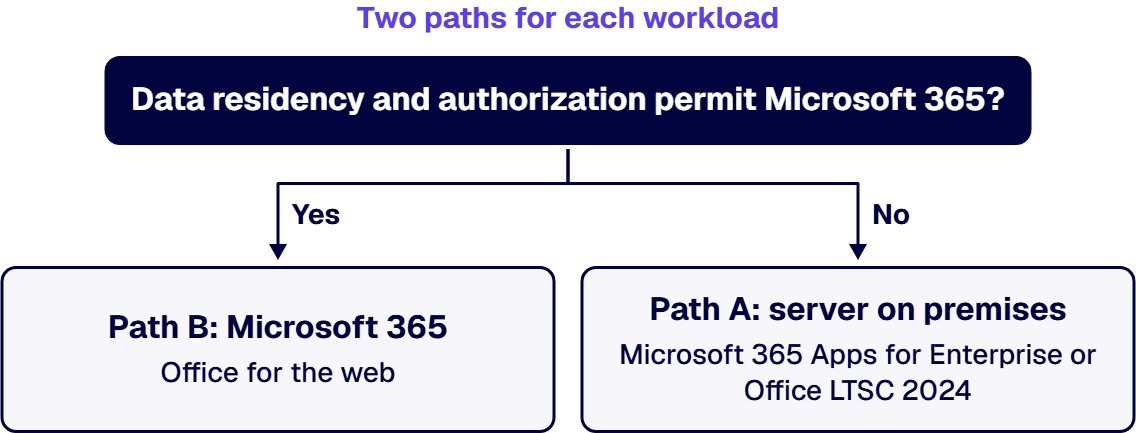
Path A keeps the server on premises and moves document work to desktop clients. The servers themselves are not retiring: Microsoft’s SharePoint Server team says “This announcement does not impact Microsoft’s support for SharePoint Server, and there are no plans to retire SharePoint Server Subscription Edition.” Microsoft Learn’s Additional support for select server products following Modern Lifecycle Policy page lists SharePoint Server Subscription Edition and Exchange Server Subscription Edition each with December 31, 2035 in its “Earliest Possible EoS Date” column, and says “The product will be supported at least through that date.” That support covers the servers, not Office Online Server. On this path, on Subscription Edition servers, users view and edit in Microsoft 365 Apps for Enterprise or Office LTSC 2024, and browser viewing, editing and previews do not continue under Microsoft support.
This path fits when the farm or organization has to stay in the building for a reason you can name, such as an enclave, export-controlled content or a contract clause, and its users can work with desktop-only editing and without supported browser previews.
Path B moves the workload to Microsoft 365. Microsoft’s announcement says “If your organization relies on Office Online Server for browser-based document editing and collaboration, our recommended path is to transition to Microsoft 365, which includes cloud-powered versions of Word, Excel, PowerPoint, and OneNote.” Microsoft Learn’s Office for the web service description says “Office for the web (formerly Office Web Apps) opens Word, Excel, OneNote, and PowerPoint documents in your web browser.” For mail, the Exchange Team’s post says Exchange Online users keep working with attachments in Outlook on the web, because Office Online Server is not used in the cloud. For custom line-of-business applications, the announcement also names SharePoint Embedded, a Microsoft 365 service for custom applications, and says “SharePoint Embedded enables real-time collaboration on Word, Excel, and PowerPoint documents directly within line-of-business or custom applications using Microsoft 365’s native co-authoring services.” It is not an on-premises option.
That path fits when the workload’s data residency and authorization permit Microsoft 365, and browser editing and collaboration matter to its users.
Where one Office Online Server farm serves more than one workload, the path can differ by workload while the farm stays a single item. We recommend dating the farm’s removal from the change to the last server that calls it, since the servers that call the farm change before the farm itself. Until that last change, the farm keeps its own entry: a removal date, or the named owner who accepted the risk of keeping it.
If a farm is still on an older SharePoint Server version, where it goes next is its own decision, covered in Our SharePoint Server Is Reaching End of Life: How Do We Migrate Off On-Premises to Microsoft 365?. How SharePoint Online and on-premises SharePoint compare as deployment models is covered in SharePoint Comparison: Online vs On-Premises.
When the system security plan lists Office Online Server as a supported component, the retirement turns that line into an item the plan has to answer. Microsoft’s position has two halves, and a reviewer should see them together. Microsoft’s SharePoint Server team says “Microsoft will not actively block the use of OOS in SharePoint Server after its retirement.” and, in the next sentence, “However, no further updates will be provided, including security updates.” Not blocked is not the same as supported: the same team says Office Online Server will not be supported in any configuration after retirement, including where it is paired with SharePoint Server Subscription Edition. For Exchange Server, the Exchange Team’s post says “Microsoft will not actively block usage of OOS in Exchange Server after its retirement.” and, in the next sentence, “However, it’s no longer maintained, and no further (security) updates will be provided.”
Record one decision for each Office Online Server farm: the date it is removed, or the named authorizing official who accepted the risk of keeping it past the retirement date, with Microsoft’s statements above attached. This guide does not say whether keeping it is acceptable under any authorization; that is the authorizing official’s determination.
For workloads that move to a government cloud, confirm with Microsoft which browser features your tenant’s cloud provides before the move is scheduled. When the destination is GCC High, the move is its own governed project. We manage GCC High migrations end-to-end: from eligibility validation and licensing coordination with your AOS-G supplier through identity architecture, data migration, security baseline configuration, and post-migration governance. i3solutions plans and runs these migrations for regulated defense organizations, structuring each phase around the compliance evidence assessors expect.
When the removal date is set, change the servers that call the farm before the farm itself. Microsoft’s announcement points customers to its documentation for disconnecting SharePoint Server 2016 from Office Online Server. Microsoft Learn’s Configure Office Online Server for SharePoint Server page says “If, for any reason, you want to disconnect SharePoint Server 2016 from Office Online Server, use the following command example.” and gives the command “Remove-SPWOPIBinding -All:$true”. That article is written for SharePoint Server 2016; confirm the step for your own version in Microsoft’s documentation and test it outside production first.
For Power BI Report Server, Microsoft Learn’s page on hosting Excel workbooks says “New deployments should not configure OOS integration.” Plan the removal as a dated change for each server that calls the farm, then for the farm itself, in the order your inventory shows.
We recommend placing any Power BI Report Server that hosts Excel workbooks through Office Online Server first in that order. Microsoft’s page on hosting Excel workbooks, quoted above, says that hosting ends after November 2026, ahead of the December 31, 2026 retirement date, and that configuring the integration stopped being supported with the January 2026 Power BI Report Server release.
If any of these situations describes your estate, start somewhere else first:
If you bring in outside help for this, hold it to criteria:
When the Office Online Server decision has to be written down before the retirement date, i3solutions does it as a project: the inventory of connections and endpoints, the per-server path map, the Microsoft 365 or GCC High move for the workloads that go, and the removal plan for the farm, with embedded specialists joining your team where it needs them.
i3solutions plans and runs governed Azure and Microsoft 365 migrations with senior, U.S.-based engineers. i3solutions has been a Microsoft Partner with 30 years of enterprise technology delivery experience and has delivered 1,500+ Microsoft engagements across aerospace and defense, financial services, and health sciences. An i3solutions engagement does not produce managed-service ownership, a replacement for the internal team, open-ended scope expansion, or vendor lock-in.
The SharePoint migration work is described on SharePoint Migration Services for Enterprise Microsoft Environments, and the wider SharePoint service line on Enterprise SharePoint Development & Integration Services Built for Scale and Governance.
According to Microsoft, support ends on December 31, 2026. Microsoft’s blog post announcing the retirement says “Microsoft is announcing the end of support and retirement for Office Online Server effective December 31, 2026.” and “After this date, Office Online Server will no longer receive security updates, bug fixes, or technical support from Microsoft.”
No. Microsoft’s SharePoint Server team says “This announcement does not impact Microsoft’s support for SharePoint Server, and there are no plans to retire SharePoint Server Subscription Edition.” According to Microsoft Learn, its earliest possible end of support date is December 31, 2035, and “The product will be supported at least through that date.”
For SharePoint Server, Microsoft separates blocking from support. Microsoft’s SharePoint Server team says “Microsoft will not actively block the use of OOS in SharePoint Server after its retirement.” and “However, no further updates will be provided, including security updates.” For Exchange Server, the Exchange Team says “Microsoft will not actively block usage of OOS in Exchange Server after its retirement.” and “However, it’s no longer maintained, and no further (security) updates will be provided.”
Previewing Office file types and live edit capabilities in Outlook on the web. Microsoft’s Exchange Team says “After Office Online Server retirement, on-premises users will need to first download the attachments to view / work with them.” and “Exchange Online users will continue to be able to work with attachments using Outlook on the web since OOS is not being used in the cloud.”
Yes, in desktop Office clients. Microsoft’s SharePoint Server team says “Office client applications can still be used to view and edit Office documents.” Microsoft’s announcement says “For organizations using SharePoint Server Subscription Edition or Exchange Server Subscription Edition, Microsoft 365 Apps for Enterprise and Office LTSC 2024 remain supported desktop clients for viewing and editing documents hosted on those servers.”
As of September 2026, a DoD 5015.2-style file plan maps onto Microsoft Purview Records Management one component at a time: each record category or series becomes a retention label carrying Purview’s Category and Sub category file plan descriptors, cutoff instructions and event triggers become event-based retention, a vital-records designation maps to the regulatory-record setting, decided category by category, and transfer to final disposition becomes a disposition review plus a custom end-of-retention action, because none of the Microsoft pages cited here describes a built-in transfer to an outside archive. Microsoft’s current documentation on Purview Records Management, including its Regulatory requirements for data lifecycle management and records management page, makes no DoD 5015.2 claim of any kind; the DoD 5015.2 certification Microsoft announced, on May 29, 2007, covered Office SharePoint Server 2007, a server product of that year, and Microsoft’s records team had written in November 2006 that it was “pursuing Chapter 2 certification only.” A federal or defense records program therefore builds its own crosswalk between the two file plans, and asks any vendor, Microsoft included, for a current certificate and its date rather than accepting the word certified on its own.
The request usually lands on the IT Director’s desk as a spreadsheet. A records officer or a contracting officer hands over the program’s existing file plan, written years ago in the DoD 5015.2 pattern with record series, cutoff instructions, vital-records flags and transfer instructions, and asks where each column goes in Microsoft 365. Somewhere in the same conversation someone asks whether Microsoft 365 is DoD 5015.2 certified, because that question has circulated since the on-premises SharePoint era. This guide answers both: where each piece of the old file plan lands in Purview’s file plan, and what Microsoft’s own current documentation says, and does not say, about DoD 5015.2. It does not decide whether any program meets a particular requirement; that determination belongs to the program, its records officer and its assessor.
If the crosswalk meeting keeps drifting back to whether a Purview record counts as a record, park that question; it has its own answer. Microsoft’s Learn about records management page says “You use retention labels to mark items as a record, or a regulatory record.”, and whether that declaration holds up, and what it costs to license, is covered in SharePoint Online vs a Dedicated DMS: How to Decide. The work this guide covers starts after that decision: putting the program’s existing file plan into Purview’s own file plan, in the Microsoft Purview portal under Records Management.
If the old file plan is treated as a list of folders, the mapping goes wrong from the first row. In Purview it becomes a list of retention labels, and the old plan’s columns become label settings and file plan descriptors. Microsoft’s Get started with records management page puts the file plan at the start of the work: “Create your file plan for retention and deletion settings and actions, and when items should be marked as records by importing an existing plan if you have one, or create new retention labels”.
Microsoft’s Use file plan to create and manage retention labels page (last updated February 27, 2026) describes what the file plan adds to a plain retention label: “File plan lets you include more information as part of your retention labels. These file plan descriptors provide more options to improve the manageability and organization of the content you need to label.” The same page lists four descriptors that come with out-of-box values, Business function/department, Category, Authority type and Provision/citation, alongside Reference ID and Sub category, and says “You can bulk-create retention labels by importing the relevant information from a spreadsheet.” That import is how an existing file plan usually arrives in Purview: one row per record category, one label per row.
The crosswalk, component by component:
Cutoffs and event triggers take the most design time. Microsoft’s records management overview lists “Start different retention periods when an event occurs with event-based retention.”, and the file plan page says of event types: “Although there are some built-in event types, such as Employee activity and Product lifetime, you can also create your own event types.” A cutoff tied to an event, such as a contract closing, maps directly to an event type. A cutoff tied to the calendar has no event behind it, so the crosswalk has to record how the records team will trigger it.
Vital records map to the regulatory-record setting only after a decision per category. The file plan page describes that setting as one that “marks the content as a regulatory record, which is more restrictive than a record.” What those restrictions are, and why they matter, is the declaration question covered on the page linked above; the crosswalk records which categories carry the setting and why.
Final disposition is where the old file plan and Purview differ most. The file plan page gives three disposition types, “No action”, “Auto-delete” and “Review required”, and Microsoft’s overview lists “Review and validate disposition with disposition reviews and proof of records deletion.” None of the four current Microsoft Purview pages cited here describes a built-in transfer of records to an outside archive. The Get started page lists “Do custom actions or integrate with other solutions at the end of the retention period” as a supported scenario, so a transfer instruction maps to a disposition review followed by a custom action. The overview’s “Export information about all disposed items with the export option.” gives the records officer a list of what was disposed; it is a record of disposition, not a transfer.
One limit matters for the import itself. The file plan page says: “Although you can configure the settings for a single disposition review stage when you import retention labels with a template, you can’t specify additional review stages.” A category that needs more than one reviewer stage is finished in the portal after the import.
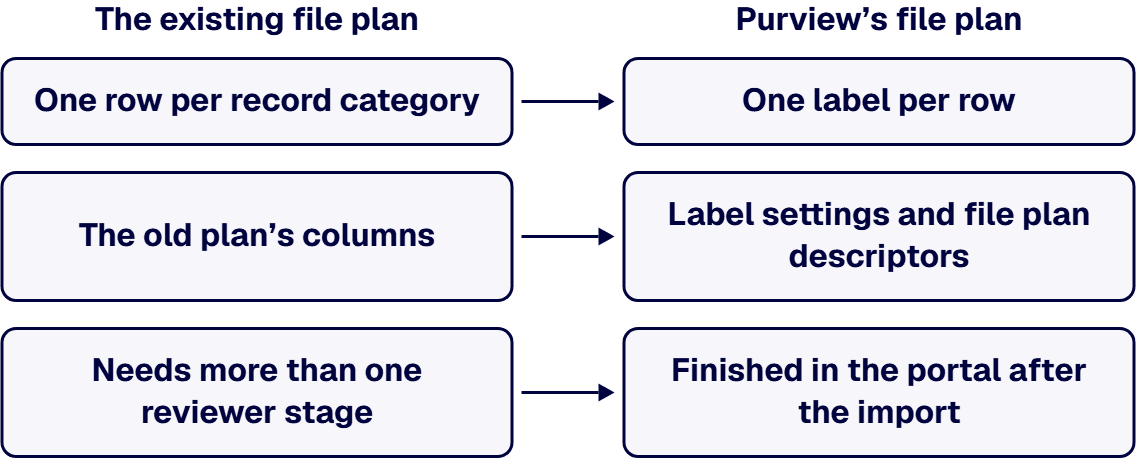
We recommend building the crosswalk as its own document before anything is imported, one row per record category, so that every decision this guide describes has a written place. The row carries the program’s own identifier and citation, the retention label name with its Category, Sub category and Reference ID descriptors, the retention period, the trigger (an event type, or for a calendar cutoff the person on the records team who triggers it), the regulatory-record decision with its reason, and the disposition type with its reviewers and, for a transfer, the receiving system and the custom action that moves the records. The import spreadsheet is then built from the crosswalk, not the other way round, so the records officer reviews decisions rather than a list of labels.
Before the full import, we recommend importing a small set of categories that between them include an event-triggered cutoff, a calendar cutoff, a regulatory-record category and a transfer, then checking each resulting label in the portal against its crosswalk row. Any category that needs more than one review stage is finished in the portal at that point. The records officer signs off each crosswalk row as the program’s determination; the IT Director’s team owns the labels, event types and disposition settings that carry it out in Microsoft 365. A row that cannot be filled, for example a transfer with no receiving system named, is a decision still open, and we recommend it stays out of the import until the records officer closes it.
When an assessor asks whether Purview is DoD 5015.2 certified, the defensible answer starts with what Microsoft has actually written. Four current Microsoft Learn pages cover Purview Records Management: Learn about records management, Get started with records management, Use file plan to create and manage retention labels and Regulatory requirements for data lifecycle management and records management. Read on September 24, 2026, none of the four mentions DoD 5015.2, the Department of Defense or the National Archives and Records Administration, and none uses the word certified.
The fourth page is the telling one, because it is where Microsoft names regulations one by one. It says: “Use the resources on this page to help you meet specific regulatory requirements for data lifecycle management and records management in Microsoft 365.” The regulations Microsoft Learn then names there are the New Zealand Public Records Act 2005, SEC 17a-4(f), FINRA 4511(c) and CFTC 1.31(c)-(d), and DoD 5015.2 is not among them.
That is silence, not a denial. Microsoft Learn does not say Purview fails DoD 5015.2, and it does not say Purview meets it. What follows for the IT Director is narrower and more useful: no current Microsoft Learn page supports telling an assessor that Purview Records Management holds a DoD 5015.2 certification, so the program’s answer rests on its own crosswalk and its own records officer’s determination.
When a search summary or an older vendor sheet blurs two products into one, the history needs its product, its date and its scope stated every time. Microsoft’s press release Microsoft Office SharePoint Server 2007 Receives U.S. Department of Defense 5015.2 Certification is dated May 29, 2007. It describes the standard this way: “Endorsed by the National Archives and Records Administration, the 5015.2 standard on which the DoD certification is based serves as the benchmark for government and corporate organizations that manage records and documents.” The same release says Microsoft met the criteria by integrating Exchange Server 2007 and extending SharePoint Server 2007 with a records management add-on pack.
An earlier post on Microsoft’s archived Records Management team blog, DoD 5015.2 Certification for Office SharePoint Server 2007 (last updated November 8, 2006), explains the program as it stood then: “DoD 5015.2 is a records management certification managed by the Joint Interoperability Test Command of the United States Department of Defense.” It separates the two parts of the standard: “there are two different types of DoD 5015.2 certifications: Chapter 2 and Chapter 4. Chapter 2 contains the mandatory criteria that are required by all records management applications used by United States government agencies. Chapter 4 is specific just to applications that process classified records.” And it states the scope Microsoft sought: “Chapter 2 is the more widely used part of the DoD 5015.2 standard and Microsoft is pursuing Chapter 2 certification only.” The May 2007 release does not name a chapter.
None of that describes Microsoft Purview Records Management in Microsoft 365. It describes Office SharePoint Server 2007, a server product with its own add-on pack, as Microsoft announced it in 2007, with the chapter Microsoft’s team said in 2006 it was pursuing. No current Microsoft source read for this guide carries that certification forward to the cloud service, and none says it was withdrawn; the current pages simply do not mention it.
If a proposal, a summary or a vendor sheet says a records platform is DoD 5015.2 certified, treat the sentence as a claim to be checked, not a fact to be repeated. A certification belongs to a named product and version, issued by a named authority, on a date, for a stated scope, and it is either current or it is not. Ask for all five, in writing, before the word goes into a plan or an assessor response:
The same test applies to Microsoft. Its current Purview documentation on Microsoft Learn makes no such claim, so there is no certificate to ask for, and the program’s evidence is its own file-plan crosswalk.
Some questions arrive with the words records management in them when the decision behind them is a different one.
When outside help builds the crosswalk, or your own team does, the same questions separate a plan an assessor can follow from a slide.
When a federal or defense records program takes this on, it needs a project with an end date: the file-plan crosswalk, the retention labels and descriptors, the event types and the disposition design, with embedded specialists where the internal team needs more hands for a period. i3solutions has been a Microsoft Partner with 30 years of enterprise technology delivery experience and has delivered 1,500+ Microsoft engagements across aerospace and defense, financial services, and health sciences. Delivery is senior and US-based. An i3solutions engagement does not produce managed-service ownership, a replacement for the internal team, open-ended scope expansion, or vendor lock-in. This work sits within i3solutions’ Embedding Governance into How the Enterprise Operates and Scales.
A retention label. Each record category or series becomes one retention label in Purview’s file plan, with the Category, Sub category and Reference ID file plan descriptors carrying the program’s own identifiers. Microsoft says “File plan lets you include more information as part of your retention labels.” and “You can bulk-create retention labels by importing the relevant information from a spreadsheet.”
To event-based retention. Microsoft lists “Start different retention periods when an event occurs with event-based retention.” and says “you can also create your own event types.” A cutoff tied to an event maps directly to an event type; a calendar cutoff needs a records-team trigger recorded in the crosswalk.
Microsoft does not say so. Read on September 24, 2026, none of the four current Microsoft Learn pages on Purview Records Management mentions DoD 5015.2, including the page where Microsoft names regulations one by one. That is silence, not a denial, and no current Microsoft Learn page supports telling an assessor that Purview holds a DoD 5015.2 certification.
According to Microsoft’s press release of May 29, 2007, Office SharePoint Server 2007 received DoD 5015.2 certification. In November 2006 Microsoft’s Records Management team wrote that “Microsoft is pursuing Chapter 2 certification only.” That certification describes Office SharePoint Server 2007, not Microsoft Purview Records Management in Microsoft 365.
Yes, enterprises still use SharePoint, and any organization on Microsoft Teams uses it whether or not anyone chose it, because Microsoft stores each team’s files in a SharePoint site. The useful question is which of your workloads SharePoint should carry.
Suppose someone in a budget review has called SharePoint dated, and you now owe a CFO or an audit committee an answer on whether to keep funding it or plan an exit. A defensible answer separates three things that travel under the one name: the file layer under Teams, which you cannot opt out of while Teams stays; the server versions whose support dates have passed; and the individual workloads, each of which either belongs on the platform or does not.
If your organization runs Microsoft Teams, part of the question was settled when the first team was created. Microsoft’s overview of Teams and SharePoint integration states that “SharePoint sites can be used independently and can also be used by Teams for file storage (called Teams-connected sites),” and that “A Teams-connected site is created automatically whenever you create a team.” The same overview states that “The files you see on the Files tab in a team are stored in a SharePoint site,” that “Each private channel has its own SharePoint site for file storage,” and that “Each shared channel has its own SharePoint site for file storage.”
For an organization that keeps Teams, leaving SharePoint altogether is therefore not one of the options on the table. The real choices sit at the level of workloads: which bodies of content you build on SharePoint on purpose and govern well, and which you move to a platform suited to what they have become.
If you are building the case to keep funding SharePoint, the workloads to put in front of a CFO are the ones that match what Microsoft says a site is for. Its overview describes a SharePoint site as “a web site in SharePoint where you can create web pages and store and collaborate on files.” Four workloads fit that description in a regulated estate.
Document and records management. Policies, controlled procedures, contract files and program records, where the requirement is one authoritative copy with a named owner and a permission model someone can explain to an auditor.
Intranet and knowledge. The pages and reference material an organization publishes to its own staff, from HR policy to engineering standards, where the value is that people find the current version in one place. When a geotechnical engineering products company’s intranet portal had fallen into low usage, i3solutions replaced it on SharePoint with an online product catalog and an employee directory, as Enhancing Employee Engagement and Efficiency describes.
Governed collaboration. Working files for projects and programs, where access has to follow membership and a reviewer later needs to see who could open what.
The content layer under Teams. The files on each team’s Files tab, stored in SharePoint sites by Microsoft’s own design, whether or not the line appears in your budget.
When the complaint you are hearing traces back to a SharePoint Server farm, part of it is simply true, and the reason is a date. Microsoft’s lifecycle listings, read on 2026-09-22, show SharePoint Server 2016 and SharePoint Server 2019 under the Fixed Lifecycle Policy with an Extended End Date of July 14, 2026, so a farm still running either version is past the end of Microsoft’s extended support. The same listings show SharePoint Server Subscription Edition under the Modern Lifecycle Policy, with a start date of 11/2/2021, marked In Support. Sources, Microsoft Learn (read date 2026-09-22): SharePoint Server 2016 (Microsoft Lifecycle); SharePoint Server 2019 (Microsoft Lifecycle); SharePoint Server Subscription Edition (Microsoft Lifecycle); Ending Support in 2026.
The other half of the reputation comes from customization. Code and heavily modified pages written for an older server version were written against that version, so when the version reaches its support date the customizations reach it too, and the upgrade off that version has to account for each of them one at a time.
Neither fact is a verdict on the platform. An out-of-support farm is a version problem, and whether its successor should be SharePoint Online or an on-premises farm is a separate decision, set out in SharePoint Comparison: Online vs On-Premises.
Once you have to defend the answer workload by workload, four tests do the sorting, and each can be answered from something you can open or export.
Support-date test. Which SharePoint Server version does the workload run on, as your server inventory records it? If the answer is SharePoint Server 2016 or SharePoint Server 2019, the first decision is the move off that version, and the question of whether the workload belongs on SharePoint comes after it. Sources, Microsoft Learn (read date 2026-09-22): SharePoint Server 2016 (Microsoft Lifecycle); SharePoint Server 2019 (Microsoft Lifecycle).
Teams test. Do the workload’s files sit on a team’s Files tab? If they do, they are stored in a SharePoint site by Microsoft’s design, and moving the workload changes how that team works as well as where a library lives.
Document test. Is the workload mostly files that people create, store and collaborate on, with a named owner in your site inventory? Microsoft describes a SharePoint site as serving that use, and a workload that passes is one to keep and govern well.
Application test. Does the workload behave like an application built on SharePoint, more than a body of documents stored in it? Read the site’s inventory of lists, custom code and flows for the answer. If it does, check it against When SharePoint Is Not the Right Platform: Enterprise Signs; a workload that shows those signs belongs on a purpose-built application, whatever its history.
When the tests point different ways, the support-date test is settled first, because an unsupported server is a risk whatever the workload’s fit. After that, the application test outranks the Teams test: a workload that behaves like an application is a candidate to move even when its files already sit in Teams, and the Teams test then tells you how much of the team’s way of working the move will touch. Where a workload passes the Teams and document tests, the answer for your CFO is to keep it on SharePoint and fund its governance. Where it fails the application test, the answer is a planned exit for that workload, not for the platform.
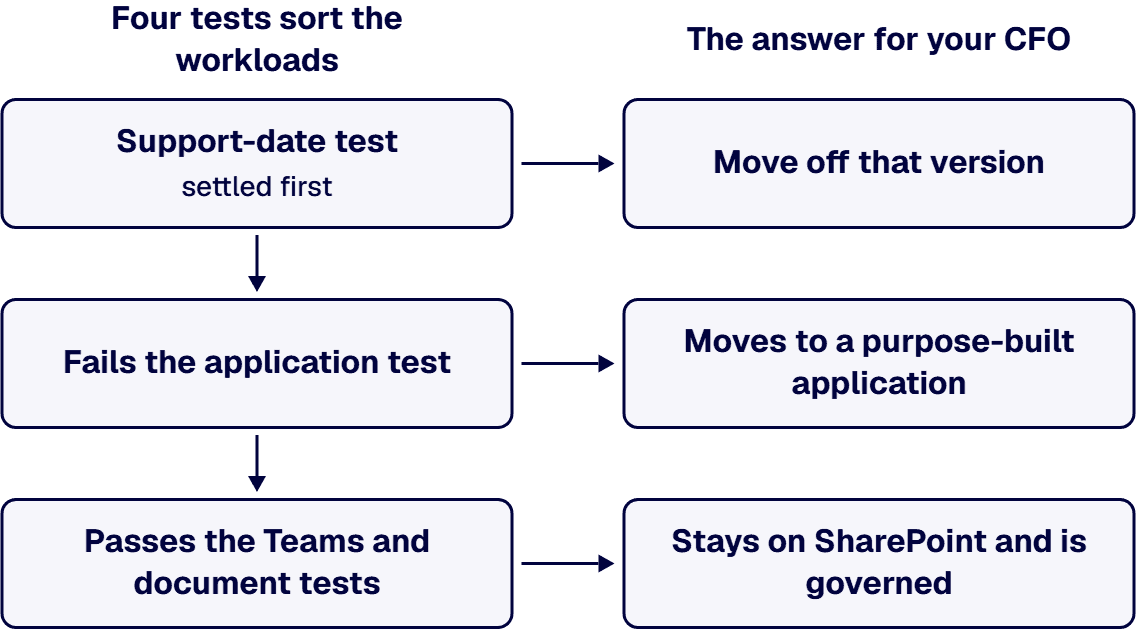
If the four tests leave more than a handful of workloads undecided, or the answer has to stand up in front of an audit committee, the sorting is worth doing as a structured assessment, because the committee will ask for the reasoning workload by workload. Enterprise SharePoint strategy assessment engagements typically run four to six weeks elapsed time with two to three i3solutions consultants. All i3solutions SharePoint developers, architects, and consultants are 100% U.S.-based. The wider SharePoint practice is set out on Enterprise SharePoint Development & Integration Services Built for Scale and Governance.
Yes: enterprises still use SharePoint, and if your organization runs Microsoft Teams it uses SharePoint whether or not anyone chose it, because Microsoft states that the files on a team’s Files tab are stored in a SharePoint site, and that a Teams-connected site is created automatically whenever a team is created. For an IT leader deciding whether to keep investing, the useful question is which workloads SharePoint should carry, sorted by four tests: the support-date test, the Teams test, the document test and the application test.
If you have heard that SharePoint is being retired, Microsoft’s lifecycle listings do not show SharePoint as a whole reaching an end date. Read on 2026-09-22, they list SharePoint Server Subscription Edition under the Modern Lifecycle Policy and mark it In Support. What has ended is extended support for two older server versions, SharePoint Server 2016 and SharePoint Server 2019, whose Extended End Date under the Fixed Lifecycle Policy was July 14, 2026; a farm on either one now runs without Microsoft’s extended support. Sources, Microsoft Learn (read date 2026-09-22): SharePoint Server 2016 (Microsoft Lifecycle); SharePoint Server 2019 (Microsoft Lifecycle); SharePoint Server Subscription Edition (Microsoft Lifecycle); Ending Support in 2026.
If you run Microsoft Teams, the choice is made per workload, because Microsoft stores each team’s files in SharePoint sites and leaving SharePoint altogether is not an option while Teams stays. Settle the support date first, since a farm on SharePoint Server 2016 or SharePoint Server 2019 is past Microsoft’s Extended End Date of July 14, 2026. Then keep and govern the workloads that are mostly documents with a named owner, and plan a move for the workloads that behave like applications built on SharePoint, which are the candidates for a purpose-built application. Sources, Microsoft Learn (read date 2026-09-22): SharePoint Server 2016 (Microsoft Lifecycle); SharePoint Server 2019 (Microsoft Lifecycle); Ending Support in 2026.
No. The retirement Microsoft documents is for the Microsoft Lists mobile apps for Android and iOS, which were retired in mid-November 2025, not for Microsoft Lists itself. Microsoft’s support page, Microsoft Lists mobile apps retirement, says the app was removed from the App Store and Google Play and that existing users get an error if they try to open it. The same page says your lists and data are not affected and continue to be available through Microsoft Lists on PC / desktop or through a mobile web browser. If you have heard that Lists is being retired, this app change may be what you heard about. Source, Microsoft Support (read date 2026-10-09): Microsoft Lists mobile apps retirement.
By Michael Branson
Quick answer. As of September 2026, SharePoint is a sound base for a regulated enterprise intranet when you treat the intranet as part of the SharePoint estate you already secure: Microsoft Learn says the SharePoint app in Teams, formerly Viva Connections, “is built on the SharePoint home site technology”, so the intranet runs on the SharePoint permissions, retention and auditing you already operate. Before the build is funded, decide the license, because Microsoft Learn says “Users with a Microsoft 365 subscription (E, F, or A license) are limited to creating and using one SharePoint app in Teams experience.” and “If you want to create or use two or more experiences (up to 50), then every user in your tenant must have a Microsoft Viva Suite or Viva Communications and Communities license.” Decide the access model, because Microsoft Support says that with audience targeting “specific content will be prioritized to specific audiences”, and Microsoft Learn says “Hub sites do not alter an associated site’s permissions”. Decide the records design, because Microsoft Learn says “List items aren’t supported by retention policies but are supported by retention labels with the exception of items in system lists.” In GCC High or DoD, confirm availability before the design is promised, because Microsoft Learn says “Viva Engage for enterprise isn’t available in the GCC High and DoD environments.” and “Users in GCC-High will be able to share only with other organizations in GCC-High.”
If communications has seen demos of a packaged intranet product, establish first what Microsoft’s own intranet experience runs on. Microsoft Learn’s Overview of the SharePoint app in Teams says “The SharePoint app in Teams, formerly Viva Connections, brings full SharePoint capabilities into Microsoft Teams.” and “It is built on the SharePoint home site technology.” It describes the app as “A user experience app in Microsoft Teams that allows organizations to create unique experiences for different audiences like information workers, frontline workers, educators, researchers, or students.” If a budget review has gone further and questioned SharePoint itself, Does Anyone Still Use SharePoint separates the file layer under Teams, the server versions whose support dates have passed, and the workloads that belong on the platform.
The home site’s reach matters for the security review. Microsoft Learn’s Plan, build, and launch a SharePoint home site for your organization says “The search scope for the SharePoint home site searches the entire intranet instead of just the site collection like a typical site.”
Evaluate the intranet on the permissions, retention and audit you already run, not on page templates. A front door whose search reaches the entire intranet makes every site’s access model part of the intranet design.
If office staff, frontline workers and regional teams are each expected to get their own intranet experience, settle the license before anyone promises it. The SharePoint app in Teams overview says “Users with a Microsoft 365 subscription (E, F, or A license) are limited to creating and using one SharePoint app in Teams experience.” Microsoft Learn also says “If you want to create or use two or more experiences (up to 50), then every user in your tenant must have a Microsoft Viva Suite or Viva Communications and Communities license.” The home site planning page also says “You must have an Enterprise (E), Frontline (F), or Academic (A) license type to create a Connections experience.”
Decide the number of experiences first, and treat a second experience as a licensing decision for every user in the tenant, not a design choice for one audience. Where one experience has to serve several workforces, plan how content reaches each audience inside it before a second experience is proposed.
When records management says intranet announcements, policies and forms are records, the retention design has to match where that content lives. Microsoft Learn’s Learn about retention for SharePoint and OneDrive says “All files stored in SharePoint (and SharePoint Embedded) or OneDrive sites can be retained by applying a retention policy or retention label.” It also says “List items aren’t supported by retention policies but are supported by retention labels with the exception of items in system lists.” and “To retain all versions of a file, versioning must be turned on for the site.”
Audit sits in the same estate. Microsoft’s SharePoint service description lists “Unified auditing (auditing SharePoint user and admin activity)” in its table of features available across plans.
Name which intranet content is a record before any content moves, and use retention labels wherever that content lives in lists. Microsoft Support’s How to find your SharePoint pages and news posts says “Pages and news posts that you create, save, or publish are stored in the Pages library for your site.” Microsoft’s retention page cited here does not mention news posts, so confirm with the records team how intranet news is retained before the first post goes out. How long any record is kept is for records management, legal and your regulator to set; this guide does not advise a retention period. Controlled documents and standard operating procedures are a separate decision from the intranet and are not covered here.
If the intranet must show HR policies to everyone but keep some pages to managers, decide which control does that job before any page is built. Microsoft’s support article Target navigation, news, files, links, and web parts to specific audiences says “By enabling audience targeting, specific content will be prioritized to specific audiences through SharePoint web parts, page libraries, and navigational links.” Microsoft Learn’s Planning your SharePoint hub sites says “Hub sites do not alter an associated site’s permissions”. The Microsoft Learn page Overview of the SharePoint app in Teams says “Owners and members setting up a SharePoint app in Teams experience should confirm who has access to certain sites within SharePoint to ensure only authorized users have access to certain data and features.”
Sensitivity labels add conditions at the site level. Microsoft Learn’s Use sensitivity labels to protect collaborative workspaces (groups and sites) says “The settings for unmanaged devices and authentication contexts work in conjunction with Microsoft Entra Conditional Access.”
Write the access model for every site in permissions and sensitivity labels, and use audience targeting for what each audience sees first. Microsoft’s documentation cited here describes targeting as prioritizing content, so test every page meant for a restricted group against the permissions of the site it sits on.
Structure sets how far a permission or a policy reaches. The Microsoft Learn page Planning your SharePoint hub sites says “One of the key principles of modern intranets based on Microsoft SharePoint is that each unit of work should get a separate site collection.” and “Subsites can also create challenges when it comes to governance because many features (including policy features like retention and classification) in SharePoint apply to all sites within the site collection”. The Microsoft Learn page Plan, build, and launch a SharePoint home site for your organization says “Consider making the SharePoint home site a hub site if you need to add an extra layer of navigation and make it easier to sync associated site permissions and branding.” Microsoft Learn’s Introduction to SharePoint information architecture says “Well-planned and executed information architecture is a prerequisite for an intelligent and high-performing intranet, hub, or site.” and “All navigation types (site, hub, global, and footer) are limited to 500 child links at each level.”
Give each unit of work its own site, so that its permissions, retention and label can be set for that unit alone. The wider information architecture method is covered in Governance-First SharePoint Information Architecture for Large Enterprises.
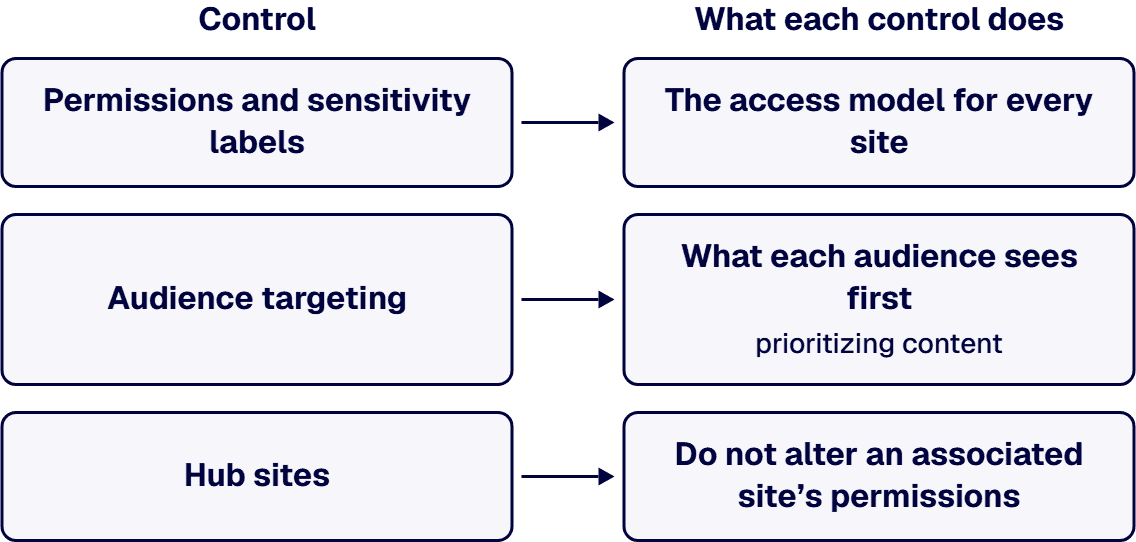
If the tenant is in GCC High or DoD, check each feature the design depends on before the design is promised. The Microsoft Learn page SharePoint service description says “Unless otherwise noted, the following table lists the major features available across all plans (Small Business, Enterprise, Education, GCC, GCC-High, and DOD Plans) that include SharePoint, and all SharePoint standalone plans.” That table lists “Home site and Hub sites”. Microsoft Learn’s Office 365 GCC High and DoD service description says “Viva Engage for enterprise isn’t available in the GCC High and DoD environments.” and “Users in GCC-High will be able to share only with other organizations in GCC-High.”
No Microsoft page read for this guide states whether the SharePoint app in Teams is available in GCC High or DoD, so confirm it against Microsoft’s current service descriptions before an experience in Teams is part of the design. Communities that would run on Viva Engage need a different design in those clouds. What a GCC High move means for existing SharePoint customizations is covered in GCC High SharePoint Migration: A Defense Contractor’s Pre-Migration Guide to Customizations, Compliance, and Partner Selection.
When IT hands the intranet over, the home site’s news carries the most weight, so name its approver first. The home site planning page says “By default, a SharePoint home site is set as the organizational news source.” and “News posts that are created from the SharePoint home site automatically become official organizational news and take priority on the SharePoint start page.”
Name an owner for each of these decisions before launch:
The site-level ownership model is covered in SharePoint Site Ownership and Lifecycle Governance.
If any of these four situations describes your program, the decision changes shape:
When bids come in, require each of these in writing before one is scored:
How to choose the consulting firm itself is covered in SharePoint Consulting Firm for Regulated Enterprises: How to Choose.
When the intranet decision has to be defensible before the build is funded, i3solutions designs and builds SharePoint intranets as project work: the home site, hubs, the SharePoint app in Teams experience, custom components, and the access, retention and label configuration, with embedded specialists joining your own team where the program needs them. An i3solutions SharePoint consulting engagement produces named deliverables: a governance documentation package, architecture artifacts, and runbooks.
For regulated tenants, the compliance view is stated as advice, not as certification. i3solutions advises clients on federal compliance posture as its own assessment rather than as a restatement of Microsoft’s documentation, including whether SharePoint Online meets NIST 800-53, whether Azure Government is required under the DoD Cloud Computing SRG, and whether a CMMC gap assessment is needed to bid.
The delivery record is stated plainly. i3solutions has delivered enterprise SharePoint and Power Platform programs for aerospace and defense manufacturers, major defense organizations, a financial-services firm, a national healthcare system, and military organizations. In one engagement, i3solutions built a corporate SharePoint portal for a professional services firm that had just acquired another company, integrating the new organization into a shared platform while day-to-day operations kept running throughout. An anonymized intranet and document-management upgrade is described in Centralized Document Management Drives Team Collaboration.
Delivery is senior and US-based. All i3solutions SharePoint developers, architects, and consultants are 100% U.S.-based. The wider service line is described on Enterprise SharePoint Development & Integration Services Built for Scale and Governance.
No. Microsoft Learn says “The SharePoint app in Teams, formerly Viva Connections, brings full SharePoint capabilities into Microsoft Teams.”
One. Microsoft Learn says “Users with a Microsoft 365 subscription (E, F, or A license) are limited to creating and using one SharePoint app in Teams experience.” and “If you want to create or use two or more experiences (up to 50), then every user in your tenant must have a Microsoft Viva Suite or Viva Communications and Communities license.”
Microsoft’s documentation describes targeting as prioritizing content and describes access in terms of site permissions. Microsoft Support says “By enabling audience targeting, specific content will be prioritized to specific audiences through SharePoint web parts, page libraries, and navigational links.” Microsoft Learn says “Hub sites do not alter an associated site’s permissions” and “Owners and members setting up a SharePoint app in Teams experience should confirm who has access to certain sites within SharePoint to ensure only authorized users have access to certain data and features.”
Yes, with retention labels. Microsoft Learn says “List items aren’t supported by retention policies but are supported by retention labels with the exception of items in system lists.”
No. Microsoft Learn’s GCC High and DoD service description says “Viva Engage for enterprise isn’t available in the GCC High and DoD environments.”

US-Based Microsoft System Integrator | Est. 1997
© i3solutions. All rights reserved.
US-Based Microsoft System Integrator | Est. 1997
© i3solutions. All rights reserved.


